How to Configure Custom POS features in the Odoo POS
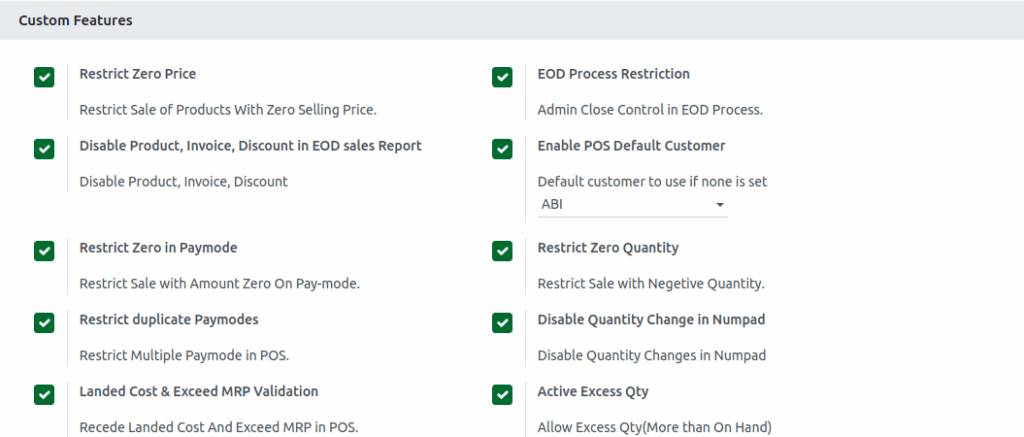
In Odoo, this feature is added to customize the POS terminal configuration. To set it up, open the Point of Sale module, click on the Configuration menu, and select Settings. Choose the specific terminal you want to configure in the Point of Sale field, and then navigate to the POS Extended Receipt section.

Configuration the Exact Search Setting
When we enable Restrict Zero Pricein the settings, the system blocks payment processing if the total amount due is zero to ensure proper transaction handling. This helps avoid errors by restricting payment actions when the sale amount is zero or invalid.
Configuration Disable Product, Invoice, Discount in EOD sales Report
When we enable Disable Product, Invoice, Discount in EOD Sales Report in the settings, the system removes product, invoice, and discount details from the End of Day sales report.
Configuration Restrict Zero in Pay mode
When we enable Restrict Zero in Paymode in the settings, the system does not allow selecting a payment method if the amount to be paid is zero. It ensures that payment is allowed only when there is a valid amount due.
Configuration Restrict duplicate Pay modes
When we enable Restrict Duplicate Paymodes in the settings, POS payments do not allow paying more than the bill amount through UPI or other digital methods. Only cash payments are allowed to exceed the bill amount.
Configuration Landed Cost & Exceed MRP Validation
When we enable Landed Cost & Exceed MRP Validation in the settings, the system ensures that the product’s landed cost is correctly added to calculate the true cost. It also prevents selling products at prices higher than the allowed Maximum Retail Price (MRP), helping to avoid mistakes by verifying costs and MRP before completing a sale.
Configuration EOD Process Restriction
When we enable EOD Process Restriction in the settings, it allows admins to close sessions if cashiers forget to do so. This ensures that POS sessions are always properly closed for accurate sales records.
Configuration Enable POS Default Customer
When we Enable POS Default Customer is enabled in the settings, it allows you to set a specific customer as the default for all POS orders. The customer selected in the Default Customer dropdown will be automatically assigned to each sale.
Configuration Restrict Zero Quantity
When we enable Restrict Zero Quantity in the settings, it prevents users from setting a product quantity to zero in the POS. This ensures that only valid quantities (1 or more) are allowed in orders and helps maintain accurate sales records by blocking zero-quantity lines.
Configuration Disable Quantity Change in Numpad
When we enable Disable Quantity Change in Numpad in the settings, the quantity field will no longer be displayed on the POS screen.
Configuration Active Excess Qty
When we enable Active Excess Qty in the settings, it allows selling products in the POS even if the quantity exceeds the available stock.