How to make a Payment in Odoo Point of Sale
Processing a payment in the Odoo Point of Sale (POS) system is designed to be simple and fast, ensuring a smooth checkout experience for customers. Payments are recorded in real time, providing accurate billing and up-to-date inventory information. With Odoo POS, businesses can ensure faster service, fewer errors, and a seamless checkout process for every transaction.
Processing an Order in POS
To begin, open the POS and add products to the POS Cart. There are three convenient ways to do this: by entering the product code manually, scanning a lot or serial barcode, or scanning any associated multi-barcode. Once the products are added, you can update the quantities as needed
before moving forward.
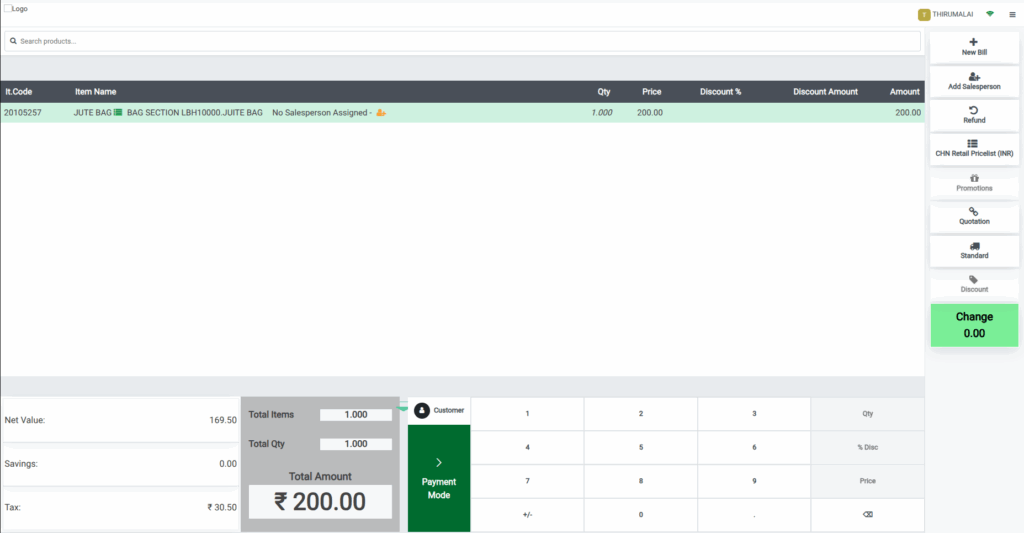
Proceeding to Payment
When your POS cart is ready, click the Payment Mode button to proceed. This opens the POS payment screen, which displays every payment method configured for that specific terminal under the Payment Section.
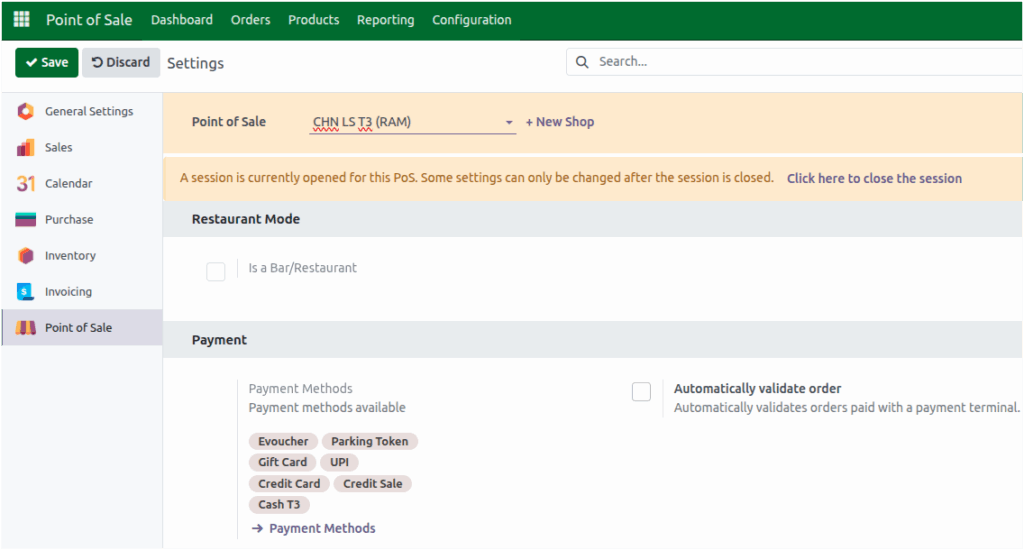
These available pay modes appear neatly on the left side under the Payment Method section. Odoo POS supports multiple payment methods such as Cash, UPI, and Credit Card, allowing cashiers to quickly choose the preferred option for each customer. In addition to these standard pay modes, Odoo also provides E-Voucher and Gift Card options for more flexible payments.
When using an e-voucher or gift card, the cashier just needs to enter a valid code. The system then checks the available balance and applies the amount to the bill if enough funds are available. Each code can be used only once for a single bill, keeping the process secure and easy to manage.
The Parking Token payment mode is useful for customers who use store-managed parking.
The parking fee amount can be directly deducted from the customer’s total bill using this token.
This streamlines the checkout process and eliminates the need for a separate parking payment.
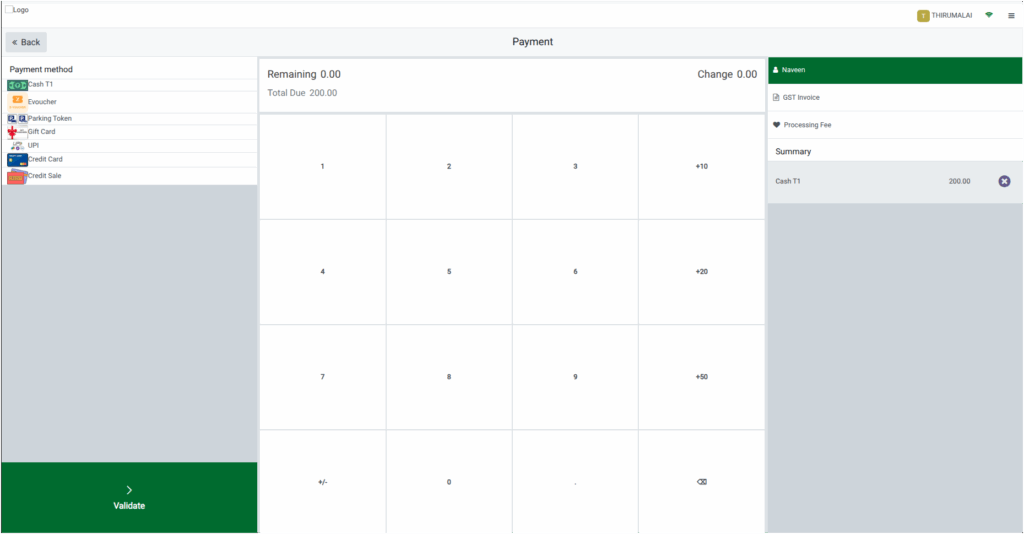
You can also select a customer for the order in the Payment Screen. As you choose payment methods, each selected pay mode and its corresponding amount will appear in the Summary section on the right side, giving you a clear view of the payment details before completing the transaction. Once all required information is entered, the Validate button will be enabled, allowing you to finalize the sale.
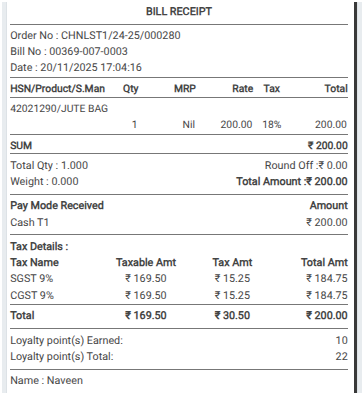
With these simple steps, Odoo POS makes completing payments seamless and efficient, ensuring fast service and accurate billing at the point of sale. The bill receipt clearly displays the payment method used and the amount paid, providing transparency for both the cashier and the customer.
