How to configure Branch Selling Quantity Limit for Products in Odoo Inventory
Setting a selling quantity limit in Odoo Inventory helps control how many units of a product each branch can sell. This feature prevents over-selling, maintains accurate stock levels and ensures that cashiers only sell within the approved limits. When someone tries to sell more than the allowed quantity, Odoo immediately shows an alert and stops the sale. Here’s how you can set up these limits for your products.
Accessing the Product Variant Master in Odoo Inventory
Start by going to the Inventory module from the main dashboard. Then click on Products and select the Product Variant Master. This page displays all product variants available in the system. From here, choose the product you want to configure.
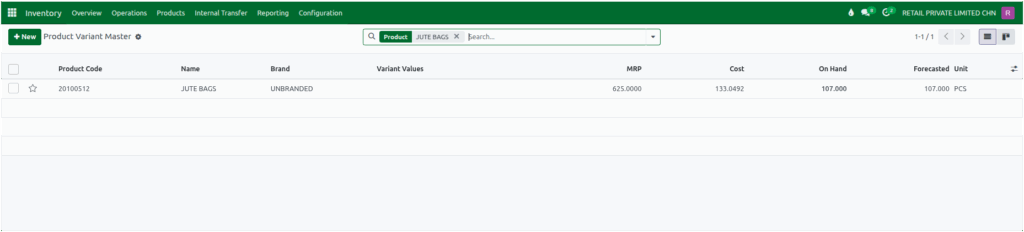
You can easily find it by searching the product name or product code. Once selected, the product details page will open, showing all the information related to that item.
Setting the Branch Selling Quantity Limit for Product
Inside the product screen, switch to the Branch Selling Qty Limit tab. To add a new limit, click Add a Line. The product will automatically appear in the Product Variant field. Now choose the company or branch for which you want to set the limit. Enter the allowed quantity in the Quantity field and click
Save. This sets the maximum units that the selected branch can sell.
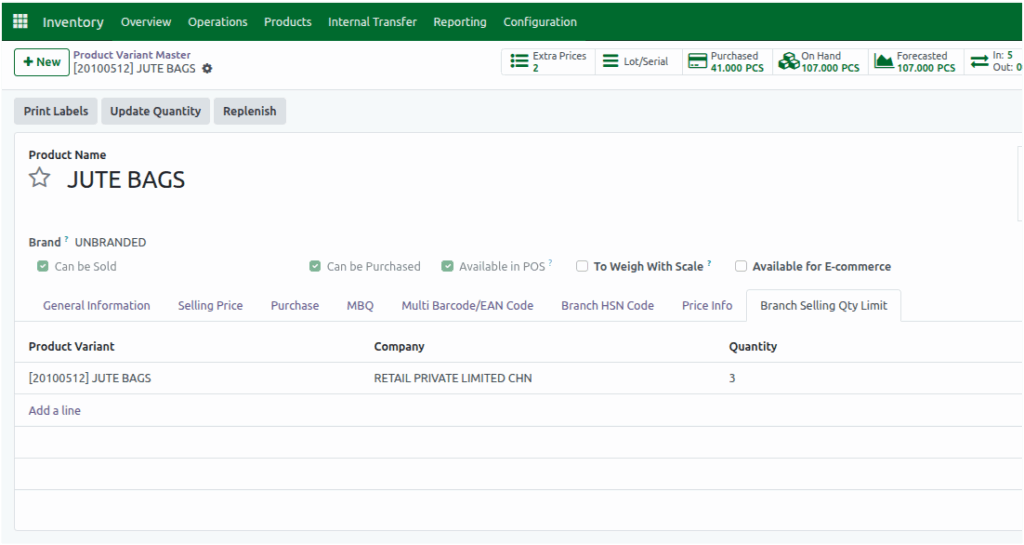
Adding Branch Selling Quantity Limits for Multiple Branches
If the product is sold across different branches, you can set limits for each one separately. Click Add a Line again, and the product will auto-fill as before. Then just select another company and enter the required quantity limit.
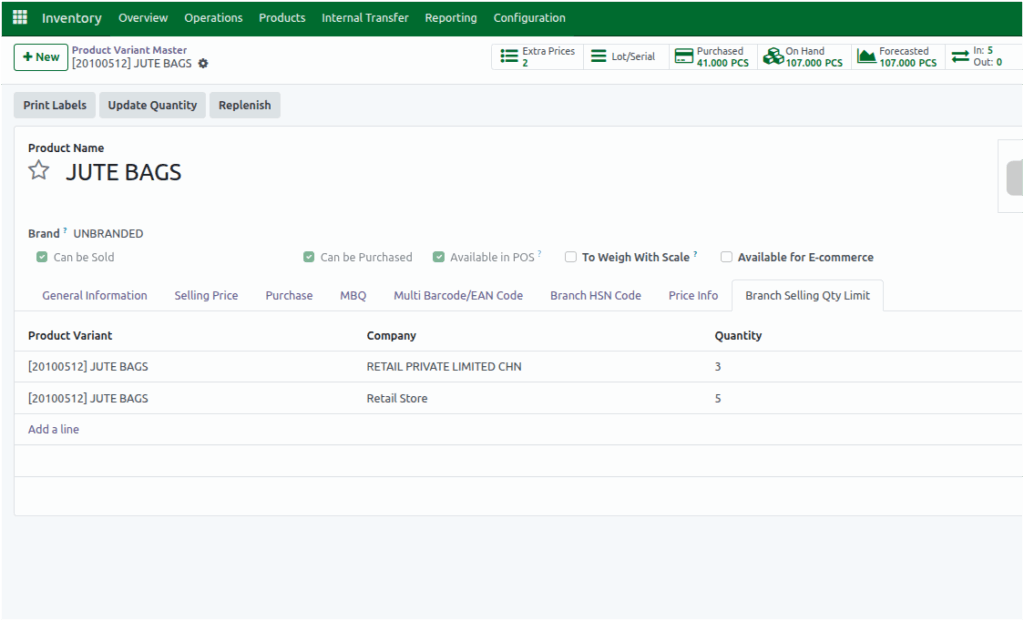
The System will not allow duplicate entries. If you try to set a limit for the same branch more than once, the system will show an alert saying the selling quantity limit already exists for that branch.
Once the selling limit is configured, it automatically applies in the POS. Even if the product has more stock available, the cashier will not be allowed to sell more than the quantity set for that branch. The system will stop the sale and show an alert if the limit is exceeded.
