How to Select Products for a Purchase Order based on the Last GRN Quantities in Odoo
Odoo offers a convenient way to manage your procurement process by creating purchase orders based on the quantities received in the last Goods Receipt Note (GRN). This method ensures that businesses can maintain their inventory levels by replenishing stock according to the actual quantities received in the most recent delivery.
Creation Of Purchase Order in Odoo
To begin, open the Purchase module and click +New to create a new order, then choose the appropriate Vendor from the drop down list. Once the vendor is selected, you can start adding products to the order.
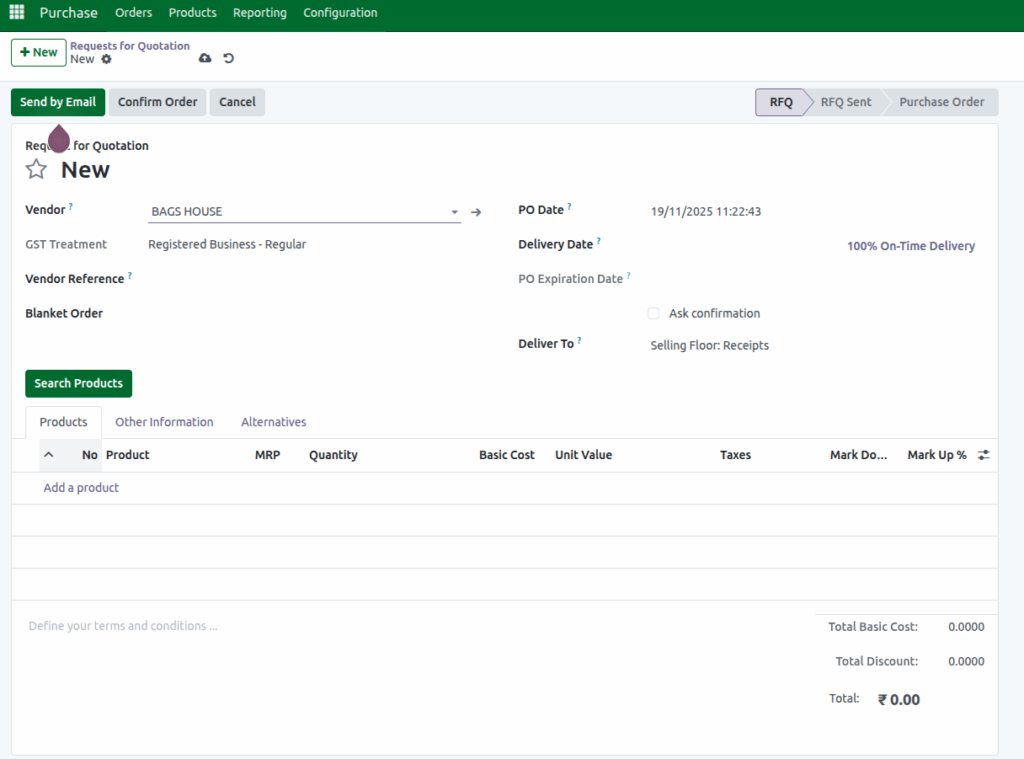
Select Ordering Method as Last GRN Qty Wise
After selecting the vendor, you can now select products using the Search Products option. Clicking this button opens a pop-up window where the chosen vendor is shown as read-only.
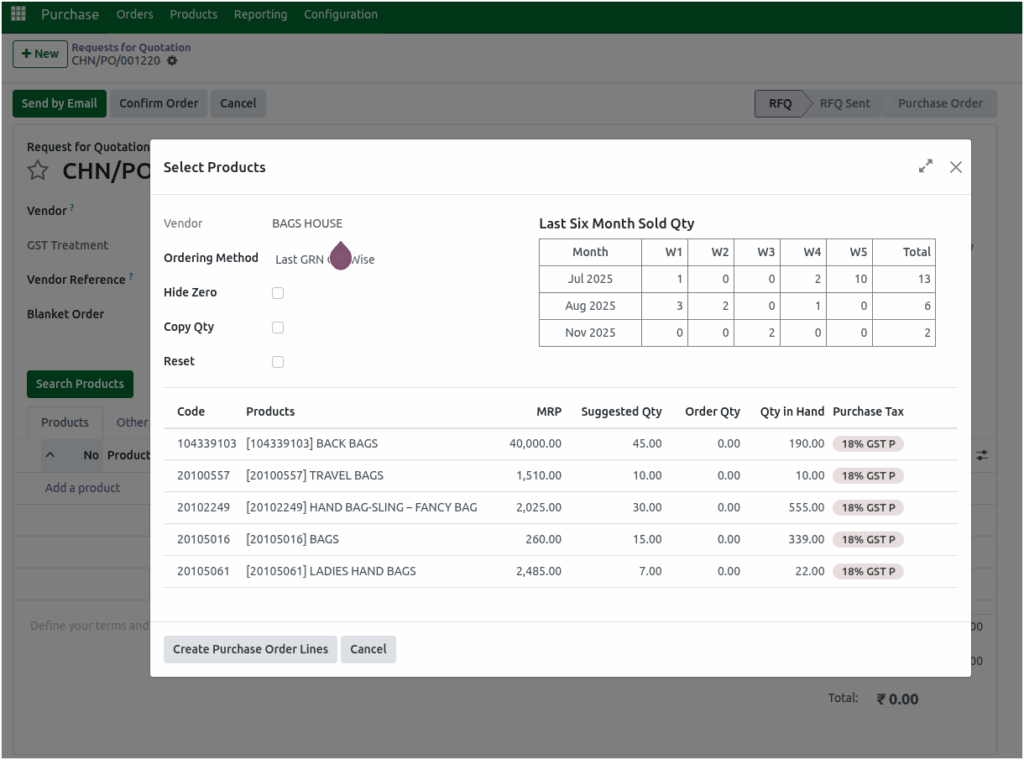
From here, you can choose the Ordering Method as Last GRN Qty Wise in the drop down menu, which helps you reorder items based on the quantities received in the most recent Goods Receipt Note (GRN).
Additionally, if you click on any product line within the list, the system displays a detailed sales table for that product, covering the last six months. This table breaks down sales week-by-week for each month, allowing you to analyze recent demand patterns and make more informed purchasing decisions.
Product Details in Table Format
All the products mapped to this vendor will be displayed in a table format. The table will include the following details:
- Product: The product name assigned to the product.
- Product Code: The unique code assigned to the product.
- MRP: The latest Maximum Retail Price (MRP) for the product.
- Suggested Qty: The quantity suggested for reorder, based on the last received quantity (GRN) for this product.
- Order Qty: The Order Qty represents the exact quantity of each product that will be ordered
- Qty in Hand: The current available stock of the product.
- Purchase Tax: The applicable purchase tax for the product.
Enable Relevant Options
To make your ordering process more efficient, you can enable the following options:
- Hide Zero: Enable this option to hide products with zero suggested quantities, allowing you to focus only on products that need to be reordered.
- Copy Qty: Enable this option to automatically copy the suggested quantity into the order quantity field, saving time on data entry.
- Reset: If needed, click Reset to clear any previously applied filters, such as hiding zero quantities or copying suggested quantities.

Creating Purchase Order Lines
Once you have reviewed all the products and their quantities, click Create Purchase Order Lines. This action will automatically add the selected products along with their corresponding quantities to your purchase order.

Now, the Purchase order will be ready for further processing such as approval and final confirmation.
Handling Order Qty Validation Error
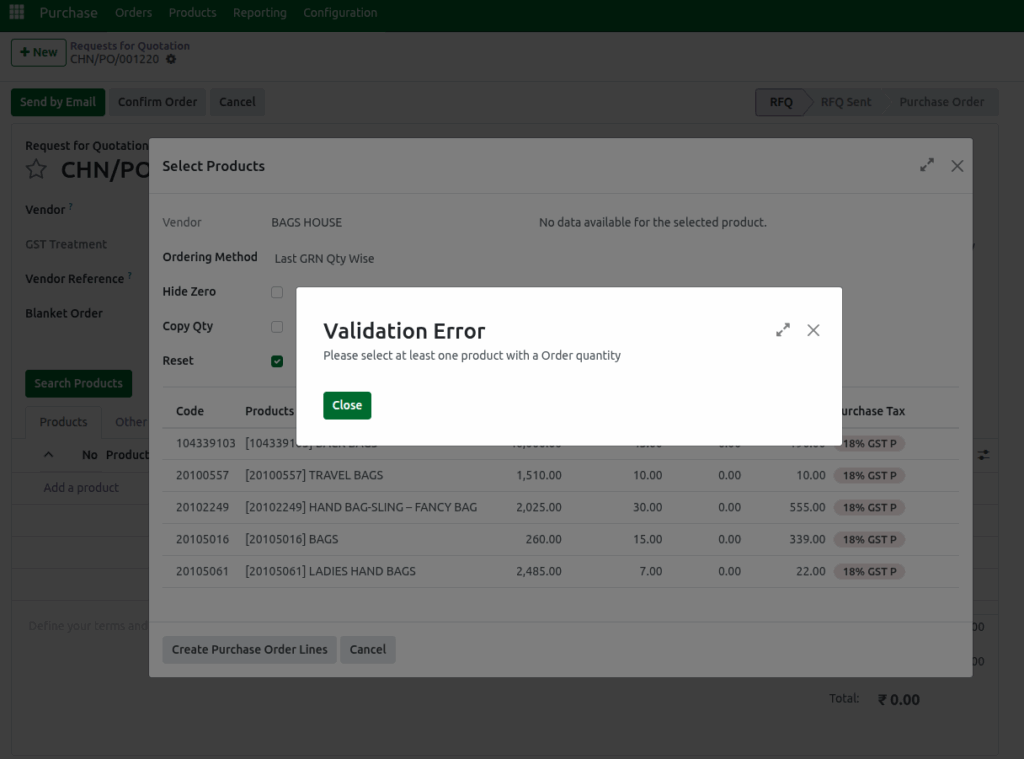
If no Order Qty has been entered for a product, you may encounter the following Validation Error when you click Create Purchase Order Lines: “Please select at least one product with an Order Quantity.”
To resolve this, make sure each product in the order has a valid Order Qty before proceeding.