How to Handle Line Level Discount in Odoo POS
A Line Level Discount in Odoo POS is used when you want to apply a discount to a specific product line instead of giving a discount on the entire order. This is helpful in situations where only certain items are eligible for discounts such as promotional products, clearance items, or customer-specific offers while the rest of the order remains at full price.
It gives cashiers more control, ensures accurate billing, helps businesses run targeted discounts without affecting the overall sales total, and provides better insights into which products are driving sales through discounts.
Start by Adding Items to the POS Cart
To begin, products must be added to the POS cart. This can be done by entering the product code with a leading slash, scanning or typing the barcode, using any of the multiple barcodes assigned to the product, or scanning the lot barcode for tracked items.
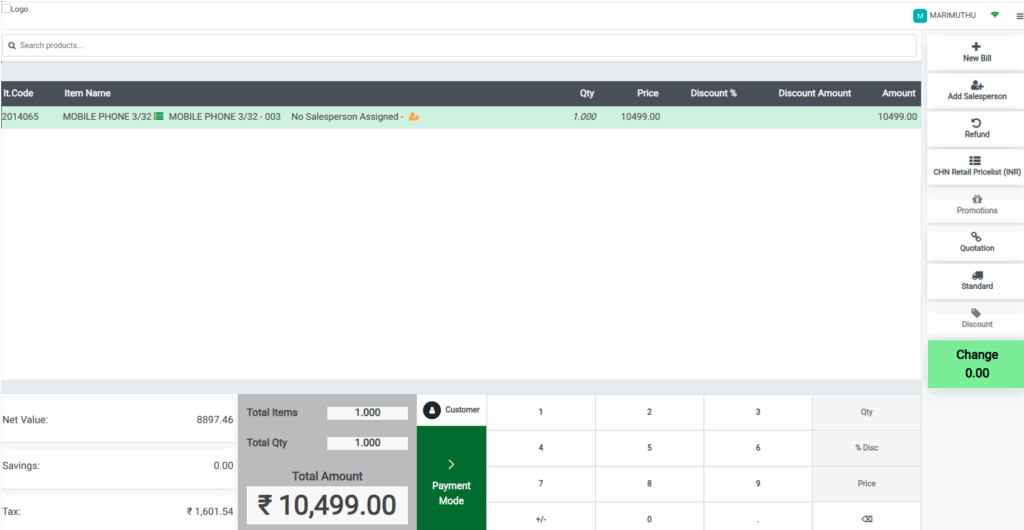
Once added, quantities can be adjusted manually as needed. Cashiers, however, cannot apply line-level discounts; the permission is restricted to the Head Cashier. To apply discounts, the user must switch to the Head Cashier role.
Applying Line-Level Discounts in POS Cart
After switching to the Head Cashier role, click the %Dis button in POS Cart. The Head Cashier can enter the discount percentage either through the keyboard or the on-screen keypad.
Once entered, Odoo instantly validates the discount against the product’s landed cost. If the discount causes the selling price to fall below the landed cost, the system displays a warning: “Selling price should not be allowed to fall below the landed cost.” This helps businesses avoid selling products at a loss.

After applying the discount, the discount percentage appears in the Line Discount field, and the discount amount is calculated based on the formula:
Discount Amount = Price × Discount %The selling price updates automatically, and the final amount is recalculated by multiplying the updated price with the quantity.
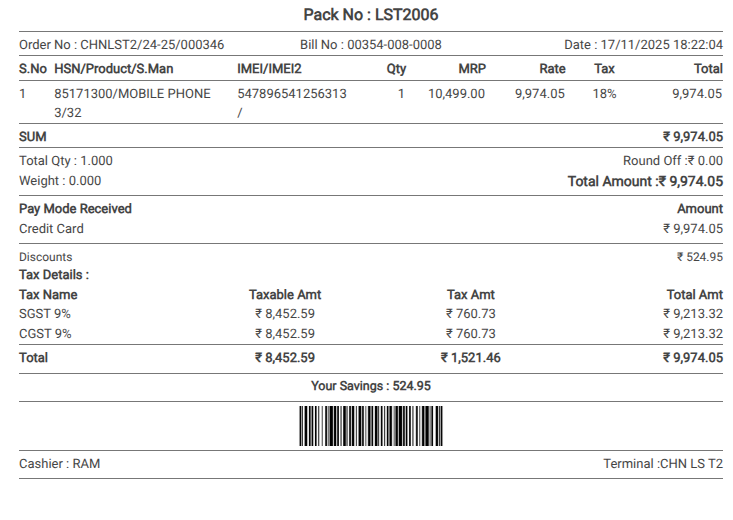
For example, if a product has an original price of Rs. 10,499 and is given a 5% discount, the discount amount will be Rs. 524.95, the updated price becomes Rs. 9974.05, and the amount reflects the same for a single unit.

The POS system then adds all line item amounts to display the Total Amount. The Tax field shows the combined tax for all products, even when different tax rates apply. The Net Value is calculated by subtracting the tax amount from the total, giving a clear breakdown of charges.
Once all details are reviewed, the user must switch back to the Cashier role, as the Head Cashier cannot complete the payment process.
Completing the Payment and Generating the Receipt
To proceed with payment, the cashier can click on the payment mode or use the F4 shortcut. After choosing the preferred payment method, the transaction can be finalized by clicking Validate or pressing Alt + V.
The POS then generates a bill receipt that includes all transaction details, including a separate Discounts section. This section lists the total line-level discount applied across all products, calculated as the sum of all discount amounts.
This streamlined process ensures transparency, accurate pricing, proper validations, and a smooth checkout experience for both the cashier and the customer.
