How to Update the Basic Cost and Validate GKM% in an Odoo GR Bill
In Odoo, GKM (Gate Keeping Margin) is used to ensure that every product maintains a minimum profit margin. It acts as a safeguard against purchasing items at prices that could reduce profitability.
When you create a GR Bill, GKM checks that the basic cost entered does not bring the margin below the predefined GKM percentage. If the margin goes below this limit, Odoo automatically displays a warning message and resets the cost to match the original value from the GR Bill.
Enabling GKM Validation and Configuring Product GKM%
Before using GKM in the GR Bill, you need to make sure that GKM validation is enabled in your system settings. To do this, go to Settings → General Settings → Constrain Validation, and enable the option GKMargin Validation. This activates the GKM validation across your Odoo instance.
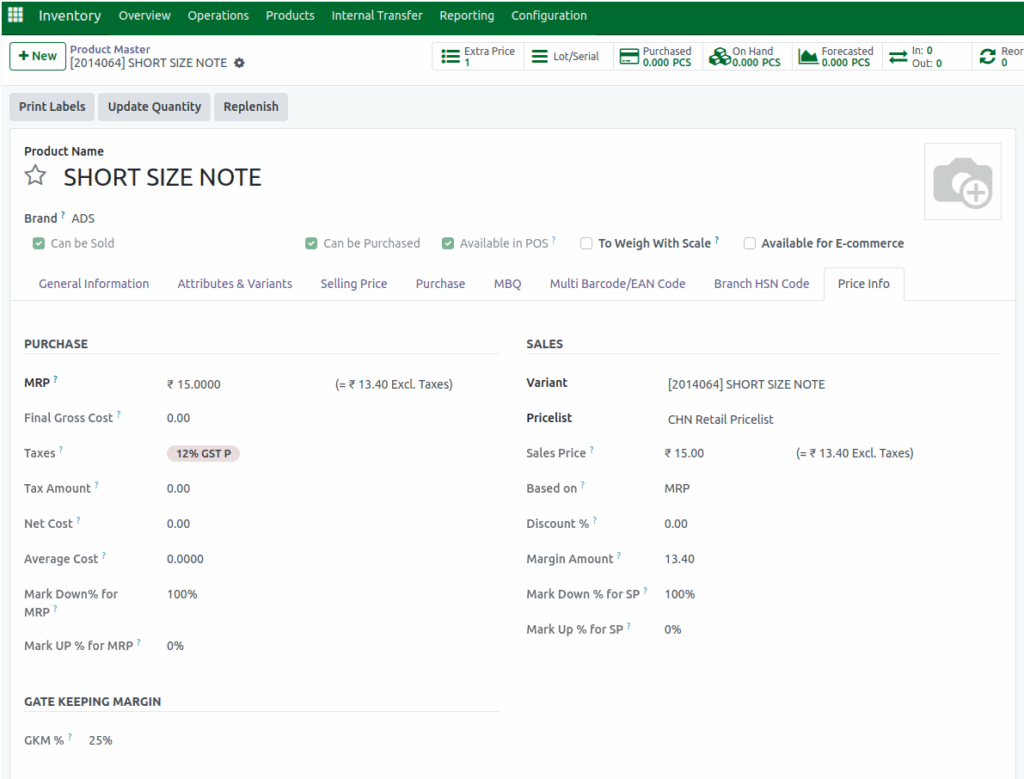
Next, open the Product Master and go to the Price Info tab. Here, you can set the GKM% for each product. This percentage defines the minimum profit margin that Odoo will check during GR Bill creation.
Receiving Products After Purchase Order Approval
Once a Purchase Order (PO) is confirmed and approved, the Receive Products button becomes active. This allows you to record the actual quantity of products received from the vendor. After receiving the products, the system generates a Goods Receipt (GR), which acts as confirmation that the products have arrived.
Creating the GR Bill
After completing the Goods Receipt, the Create GR Bill button becomes available. Clicking this button begins the process of creating a vendor bill. During this step, you can enter details such as the vendor invoice number in the Bill Number field. This bill will reflect the products received, their costs, and other financial details that link back to the PO and GR.
The Basic Cost that appears in the GR Bill is automatically fetched from the Purchase Order. You can review this cost and, if necessary, make adjustments within the GR Bill screen. Any changes made to the Basic Cost directly influence the Markup and Markdown values, which represent how the cost compares to the product’s selling price and margin thresholds.
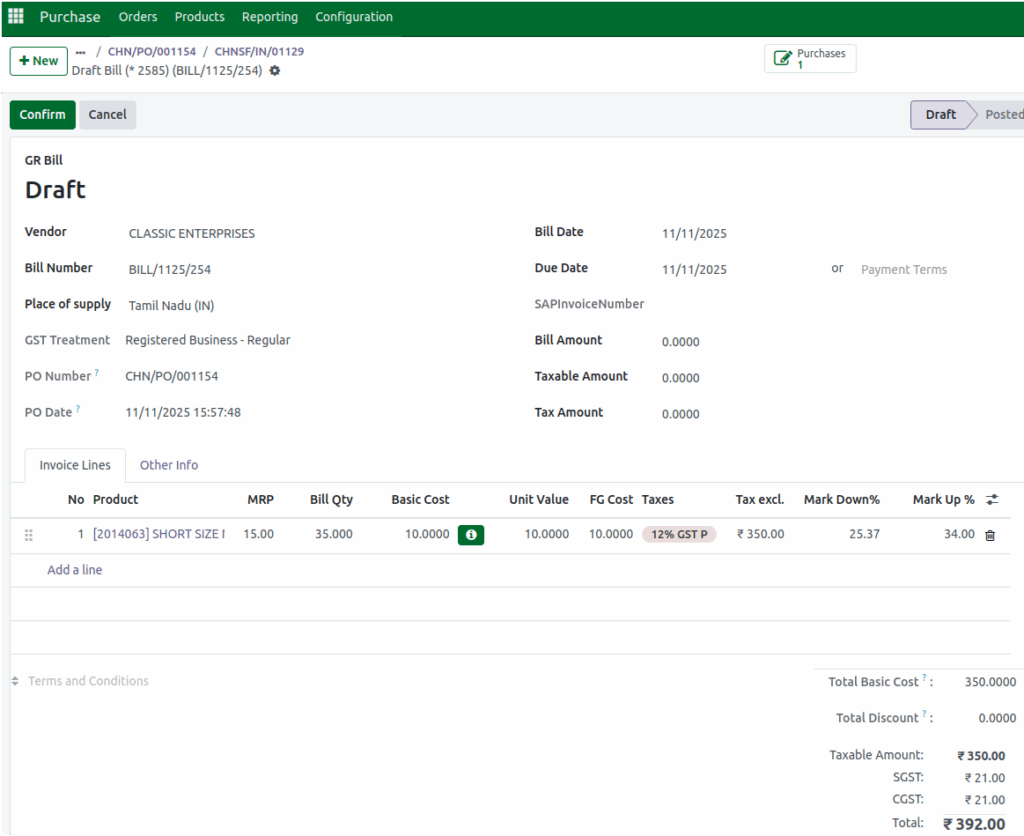
When you modify the Basic Cost, Odoo automatically checks the GKM% to ensure that your product’s margin remains within the acceptable range. If the Markdown% falls below the GKM%, the system triggers a validation error, displaying a message such as: “Product margin is less than GKM% in ‘Product Name’”.
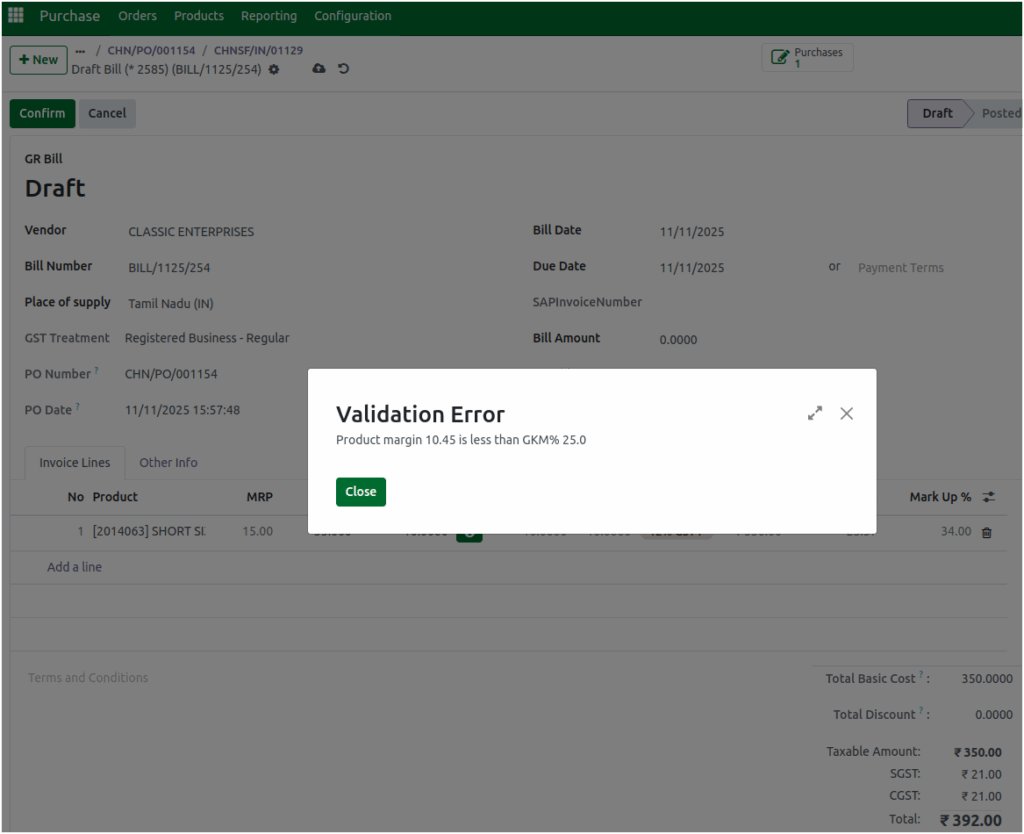
After showing this warning, Odoo resets the Basic Cost back to the original value from the Purchase Order, maintaining compliance with the minimum margin rule. In some cases, you may still need to lower the Basic Cost even if it goes below the GKM percentage. To do this, you can manually update the Basic Cost again after the warning appears.
However, the system will only allow you to save the GR Bill if the new Markdown% remains greater than or equal to the GKM%. This ensures that even manual changes respect the minimum profit margin policy.
Finalizing the GR Bill
Once the GKM validation is passed and all cost values are confirmed, you can finalize the GR Bill. At this stage, make sure all mandatory fields such as Total Value, Taxable Amount, and Tax Amount are filled in correctly.
Finally, click Confirm to complete the process. The GR Bill is now validated and ready for further financial processing within Odoo.

