How to Handle No-Tracking Products & UOM Quantities in Odoo POS
Efficient Odoo POS operations are essential for smooth billing, especially when handling products that do not require tracking or are sold in various units of measure (UOM).
Understanding how to add these products, manage their quantities, calculate totals, finalize orders, and interpret the bill receipt ensures accuracy throughout the billing process.
Adding No-Tracking Products in the POS
Adding no-tracking products in the POS system is simple. When you open the POS and enter the product code with a forward slash in the cart search bar—for example, typing /1000001—the system automatically adds the product to the cart.
These products appear in blue to indicate that they are not tracked through inventory. If you search for the same code again, the system adds it as a completely separate line instead of merging it with the existing one, allowing multiple entries of the same item when needed.

UOM-Based Quantity Handling
The POS system manages quantities differently depending on the product’s unit of measure. Products sold by weight, such as onions that use the UOM–KG classification, allow decimal quantities so users can enter values like 0.5 or 1.25 kilograms.
In contrast, products sold per piece, like Veg onion under UOM–PC, do not permit decimals, ensuring that only whole numbers are entered. This distinction ensures accuracy and consistency when billing different types of items.

Line-Level Total Amount Calculation
For every product added to the POS cart, the system automatically calculates the total amount based on the selling price and the entered quantity. For instance, if a product is priced at ₹72.73 per kilogram and the customer purchases 2.500 kilograms, the POS multiplies the price and quantity to generate a line-level total of ₹181.825.
This amount appears directly on the corresponding product line, helping the cashier quickly verify the correctness of each item before proceeding.
Finalizing the Order in POS
When all items are added to the cart, the POS displays the total quantity, which may include decimals for weight-based products. The cashier can then review the entire cart to ensure all product details are accurate. Once confirmed, they can proceed to the payment section, choose the customer’s preferred payment mode, and finalize the order by clicking the Validate button. This completes the transaction smoothly and efficiently.
Bill Receipt Highlights
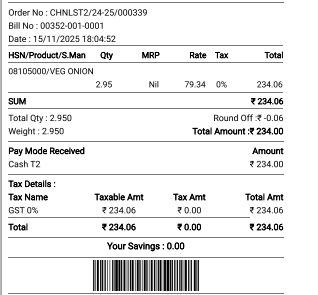
The printed bill provides clear details related to no-tracking and weight-based products. For no-tracking items, the MRP appears as NIL since these products are not associated with inventory-based pricing.
Additionally, when the “To Weigh with Scale” option is enabled for weight-based items, the POS displays the product’s quantity in the Weight field on the bill. This helps ensure that the customer clearly sees the exact weight used for calculating their total, promoting transparency and accuracy.