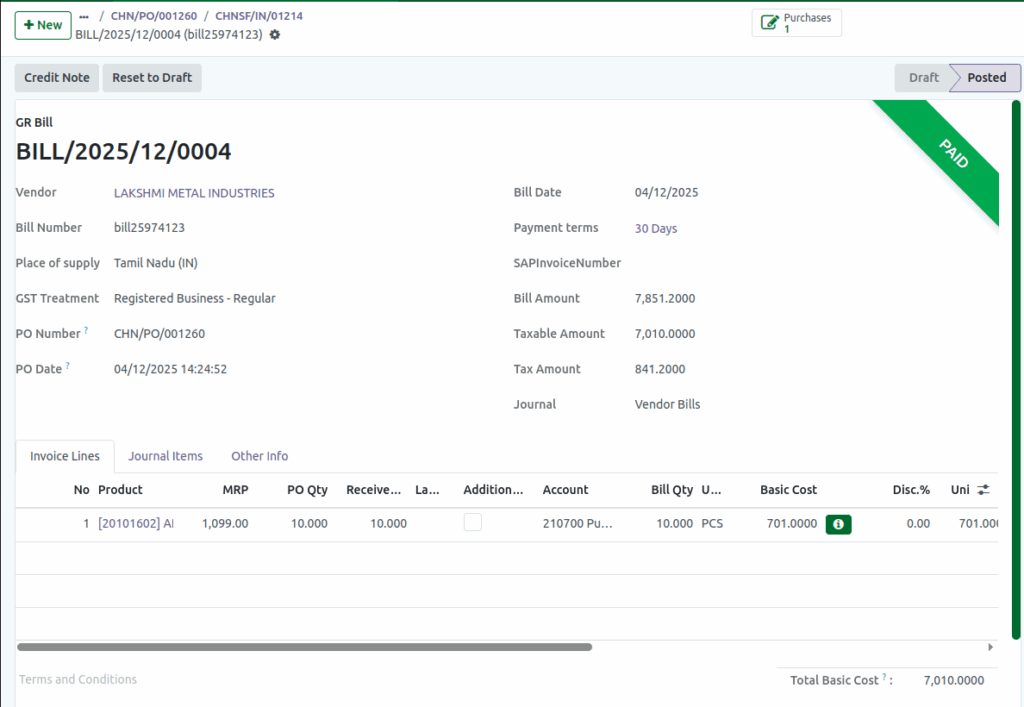
How to Make Payment in Odoo GR Bill
Purchase Orders and Goods Receipt
In Odoo, the purchasing process begins with creating a Purchase Order (PO). This document lists payment in Odoo GR Bill where the products you want to buy from a supplier. Once the supplier ships the products, you receive them in your warehouse and create a Goods Receipt Note (GRN). The GRN confirms that the items have arrived and matches the products against the original Purchase Order. This helps you keep accurate records of what you ordered and what you actually received.
Generating and Viewing the GR Bill
After the goods are received, Odoo generates a GR Bill based on the information from the Purchase Order and the Goods Receipt. This bill shows the amount to the supplier for the received products. You can open the GR Bill screen to review the details like quantities, prices, and total amount due. This document acts as the invoice that you will pay.
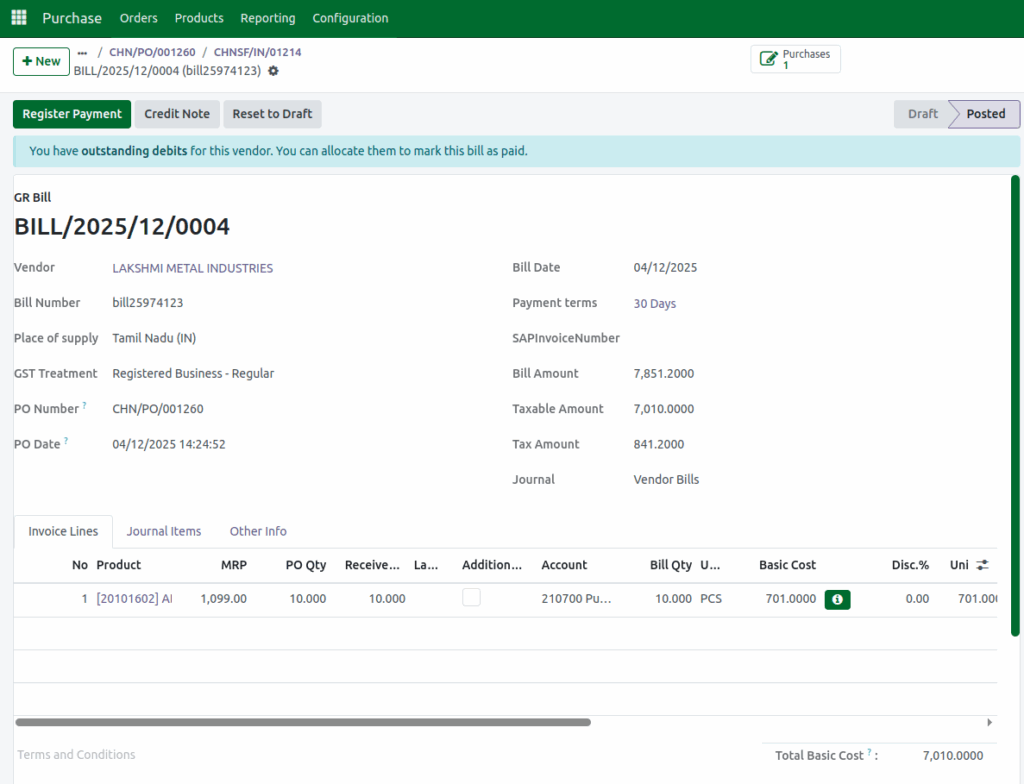
Registering a Payment on the GR Bill
On the GR Bill screen, you will see a Register Payment button. Clicking this button allows you to make a payment against the bill. When you click Register Payment, a new window opens where you select the payment journal. The journal represents the payment method you will use, such as cash, bank, or other payment accounts. This selection ensures that your payment is properly recorded in the correct account.
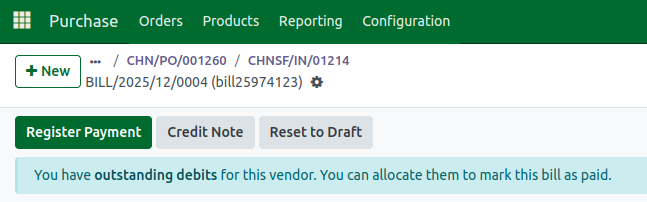
Filling in Payment Details
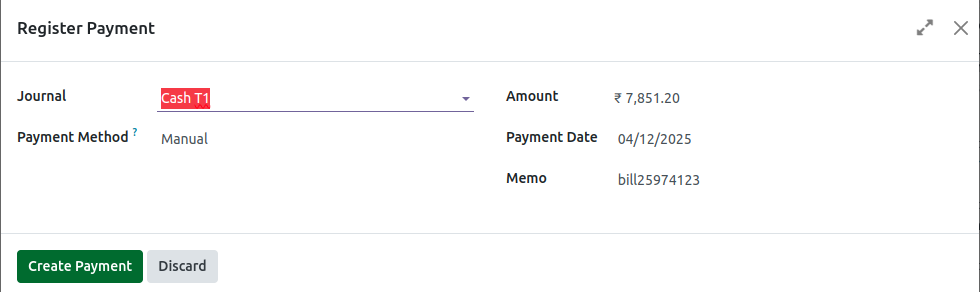
In the payment window, you enter important information like the payment amount, which is automatically filled with the total amount of the GR Bill. You also choose the payment date and can add a memo number or note to help with future tracking. The payment method is usually set to manual, meaning you enter the payment details yourself. After verifying all details, clicking the confirm button processes the payment, updates your accounting records, and marks the GR Bill as paid.
Benefits of Using Odoo for GR Bill Payments
Using Odoo to make payments on GR Bills keeps your purchasing and accounting organized and accurate. The system links purchase orders, goods receipts, and payments together, providing a clear audit trail. The Register Payment function makes it simple to select the payment method and terminal, while showing you all necessary payment details in one place. This reduces errors and saves time during payment processing and after register payment it shows “Paid” in the GR Bill