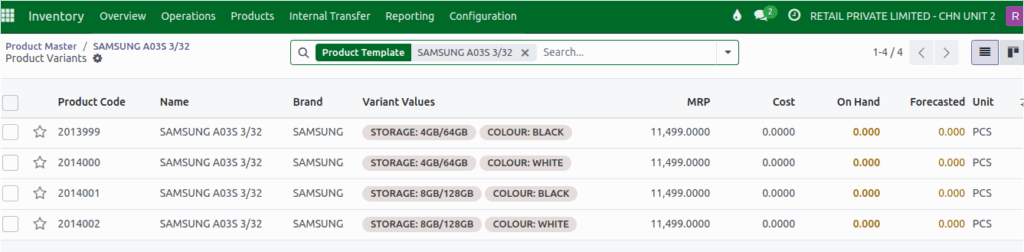
How to Map Attributes and Variants in Odoo Product Master
Setting up attributes and variants in Odoo helps you managing products that come in different forms such as various colors, sizes, or storage capacities can get confusing if everything is kept under one single product. Odoo makes this easier by allowing you to set up attributes and variants, which help you organize your products clearly and track each version separately.
Accessing the Attributes & Variants Section
To begin, go to the Inventory module from the main dashboard and open the Products menu. This takes you to the Product Master, where all your products are listed. You can quickly find a product by searching for its name or product code.
When you click on a product, its full details will appear. Inside the product form, look for the Attributes & Variants tab this is the section where you can define all the attribute options for that product.
Adding Attributes to a Product
A product can have one or more attributes, depending on the different choices it offers. For example, a smartphone may have attributes like Storage and Color. You can add these by clicking Add a Line in the Attributes & Variants tab. A drop down list will appear showing all the attributes already created in Odoo. Select the attribute you want to assign to the product.
If the required attribute does not exist, users are allowed to create new Attributes (e.g., Color, Size, Storage) directly in the section. If you forget to choose at least one value for the attribute and try to save, Odoo will show an alert informing you that the attribute must have at least one value.
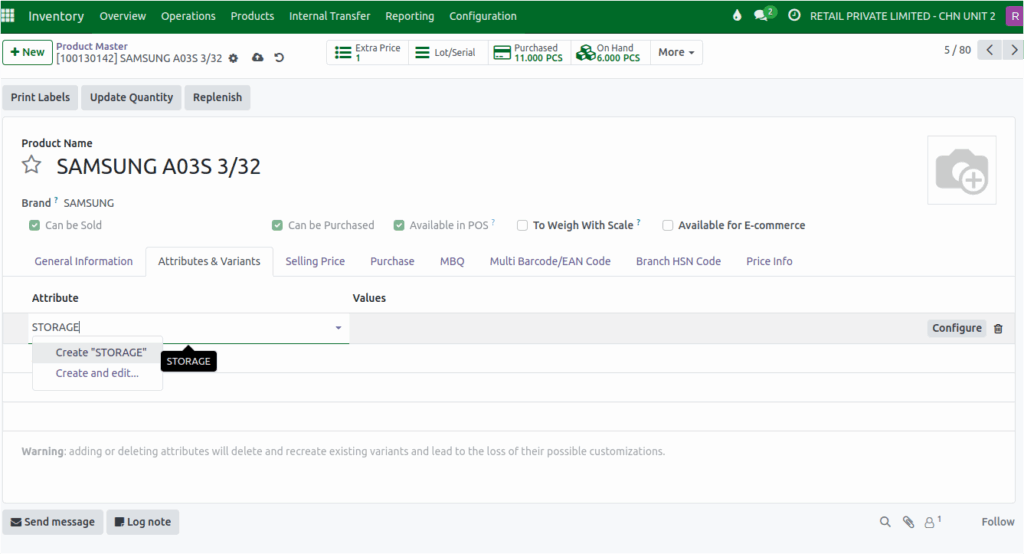
Selecting Multiple Values for Each Attribute
Each attribute can have multiple values. For example, Storage might include 64GB and 128GB, while Color might include Black and Red. To assign these values, click inside the Values field next to the attribute.
You will see a drop down with all available values, and you can select one or more based on what the product offers. This helps Odoo understand all the possible versions your product can have.
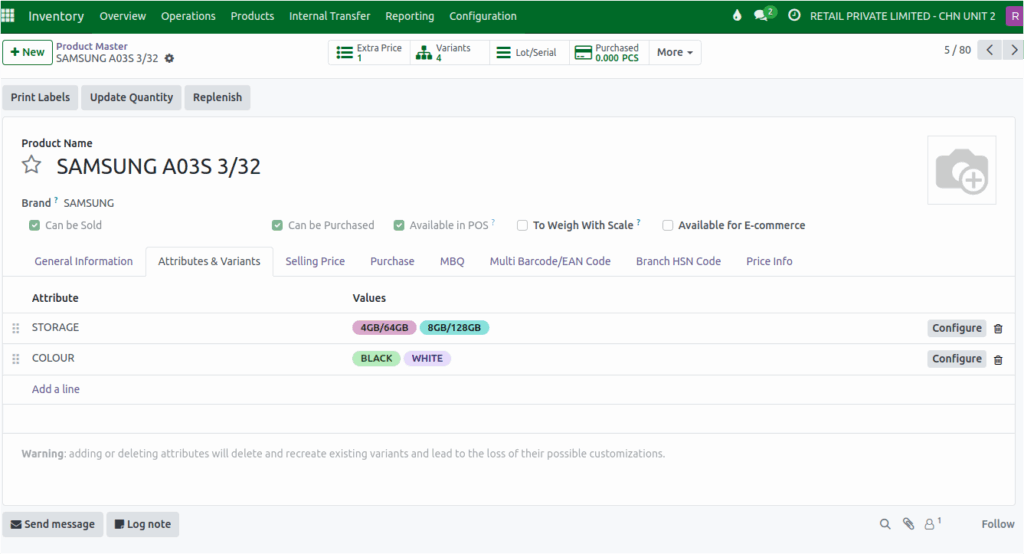
Variants Generation in Product
Once you have assigned all attributes and their values, click Save. After saving, a new Variants tab will appear automatically. Odoo then generates product variants based on every possible combination of the values you selected. Each variant is given a unique product code, making it easier to track in your inventory.
When you open the Variants tab, you can view all the created variants along with their product code, name, and assigned attribute values. These variants are also added to the Product Variant Master, where you can search for them using the main product name.