How to Configure Payment Settings in Odoo POS
Setting up payment options in Odoo POS ensures smooth transactions and better management of sales. The system allows multiple payment methods, cash rounding, tips, automatic order validation and control of cash differences. Configuring these settings correctly can make daily operations faster and more accurate.
Accessing Payment Settings in Odoo POS
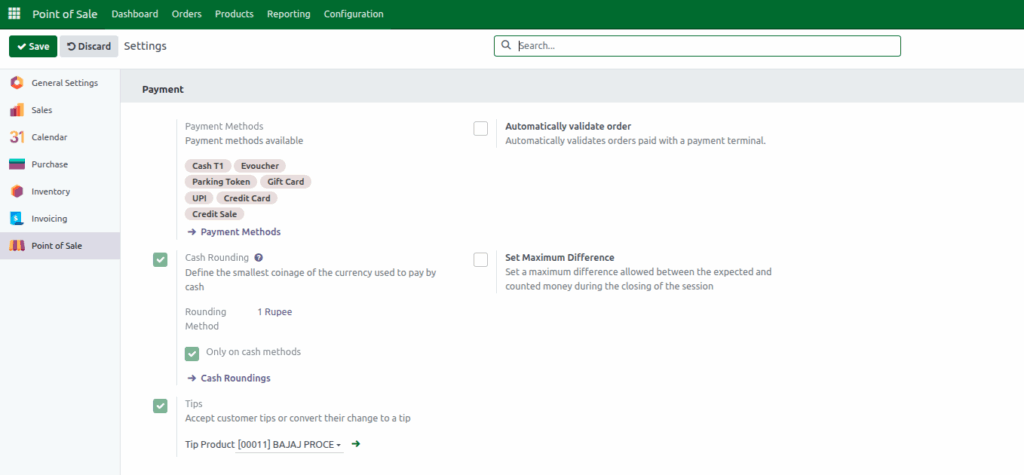
To configure Payment options, open the Point of Sale module and click the Configurations menu. Then select Settings and choose the POS terminal you want to configure from the Point of Sale field. Scroll down to the Payment section to view all available Payment configurations.
Setting Up Payment Methods
In the Payment section, assign which payment methods will be accepted at that terminal. Once set, these options will appear during transactions, making it easy for customers to pay through their preferred method.
Cash Rounding and Tips
Cash rounding simplifies transactions by rounding small amounts to avoid dealing with coins. Enable the Cash Rounding option and select an existing rounding method or create a new one.
You can define a name, rounding precision, strategy (such as up, down, or half-up) and accounts for rounding differences. Make sure to enable Only on Cash Methods so rounding applies only to cash payments.
Odoo POS also allows customers to give tips during a transaction. By enabling the Tips option, you can track these amounts separately. Create a new tip product or select an existing one so tips are recorded in sales reports and easily monitored.
Automatic Order Validation and Cash Control
Orders paid through payment terminals like cards or UPI can be automatically validated by enabling the Automatically Validate Order option. This speeds up transactions and removes the need for manual confirmation.
To manage cash discrepancies, enable Set Maximum Difference and define the authorized variance. This setting helps control the acceptable difference between expected and counted cash during session closure, reducing errors and improving accountability.
Final Review and Saving the Configuration
After configuring all payment settings, review each option to ensure everything is correct. Once verified, click Save to store the changes. With these settings properly configured, your POS terminal will handle payments efficiently, reduce errors, and provide a smoother experience for both staff and customers.
