How to Complete the POS Payment using the Bajaj Processing fee in Odoo
The Bajaj Processing Fee is a fixed or percentage-based charge applied when a customer uses Bajaj Finserv EMI services for a purchase. This fee covers the cost of processing EMI transactions through Bajaj Finserv, which is typically borne by the seller or passed on to the customer.
Go to POS Configuration: Navigate to Point of Sale → Configuration → Setting, Choose the Target POS Terminal Select the specific POS terminal where Bajaj EMI payments are accepted.
Enable Tips Feature (to use for Processing Fee): Inside the POS terminal settings, go to Payments. Enable the option: “Tips”. This will allow you to manually enter the Bajaj Processing Fee and update POS terminal

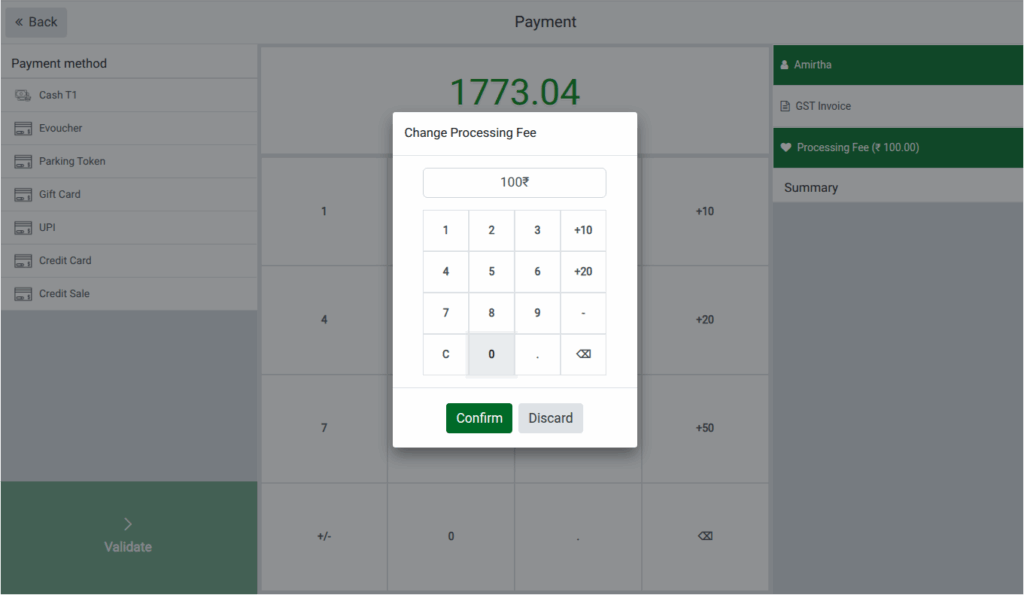
Add Processing Fee to the Payment Screen
- Click Processing Fee. A number pad will appear.
- Enter the required amount and click Confirm to apply the processing fee.
Verify Service Product in the Cart
After adding the processing fee, click the Back button and verify that the service product is correctly added to the cart. It is important to ensure that the cart is properly updated before proceeding to payment.
Note: Modifications cannot be made once the payment process begins, and any attempt to modify will trigger an alert message from the system.

Payment Details and Print Receipt
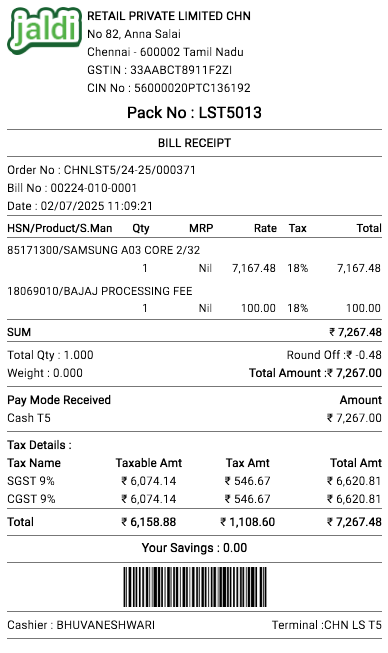
Once payment is completed, ensure that the system displays the correct Sales Amount along with the Processing Fee in the header section of the POS receipt. Verify that the Tax Details are displayed correctly on the receipt.