How to Select a Vendor for a Purchase Order in Odoo
Selecting the right vendor is a crucial step when creating a Purchase Order in Odoo. Ensuring that only the appropriate vendors are available for a product helps streamline the purchase process and reduces errors.
Enabling Vendor Filter in Odoo Purchase
To make vendor selection easier, go to the Purchase module, navigate to Configuration and under the Custom Features section, enable the Vendor Filter checkbox.
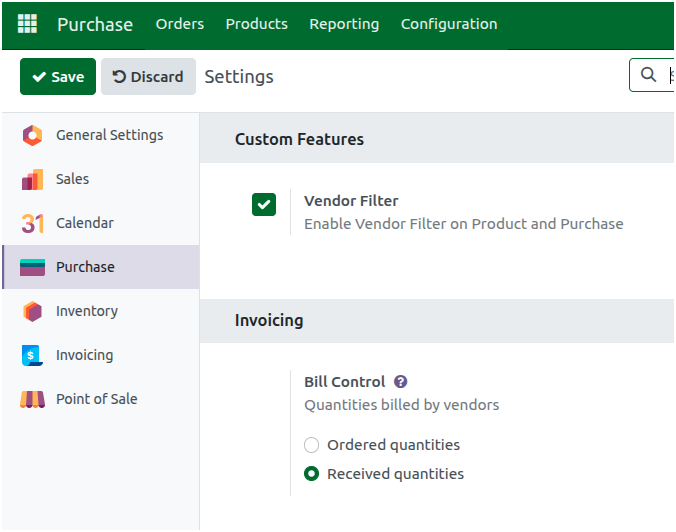
This setting ensures that during purchase order creation, only the vendors mapped to a specific product are displayed, making it simpler to select the correct vendor.
Creation of New Purchase Order in Odoo
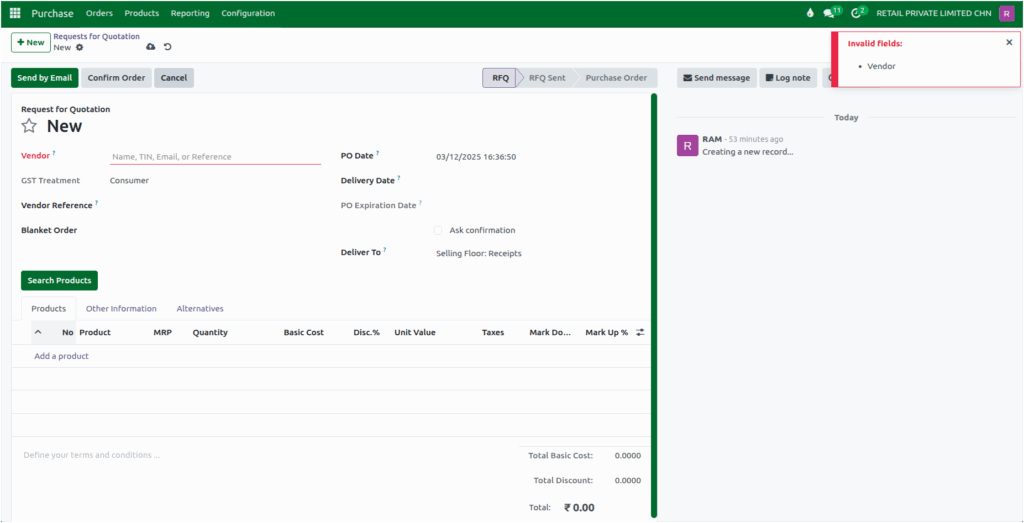
To create a new Purchase Order, go to the Purchase module and click +New. This will open the RFQ screen. The Vendor field is mandatory and all vendors created in the Vendor Master will be displayed in the drop down. Selecting a vendor is required before proceeding to product selection.
Selecting Products for the Purchase Order
Before adding a product to the Purchase Order, make sure that the vendor is already mapped to that product. This ensures that only the correct vendor-product combinations are used and prevents errors during the Purchase Order creation process.
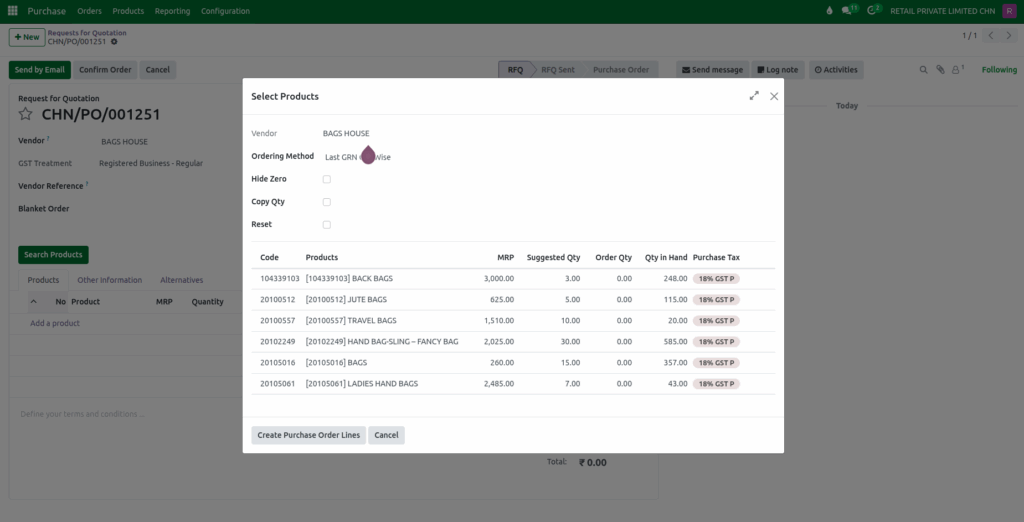
After selecting a vendor, you can choose products either by clicking Search Products, which will display only the products mapped to the selected vendor in a table format or under the Products tab, click Add a Product, where only the products linked to the chosen vendor will be available in the drop down list. After selecting the product, you can set the required quantity.
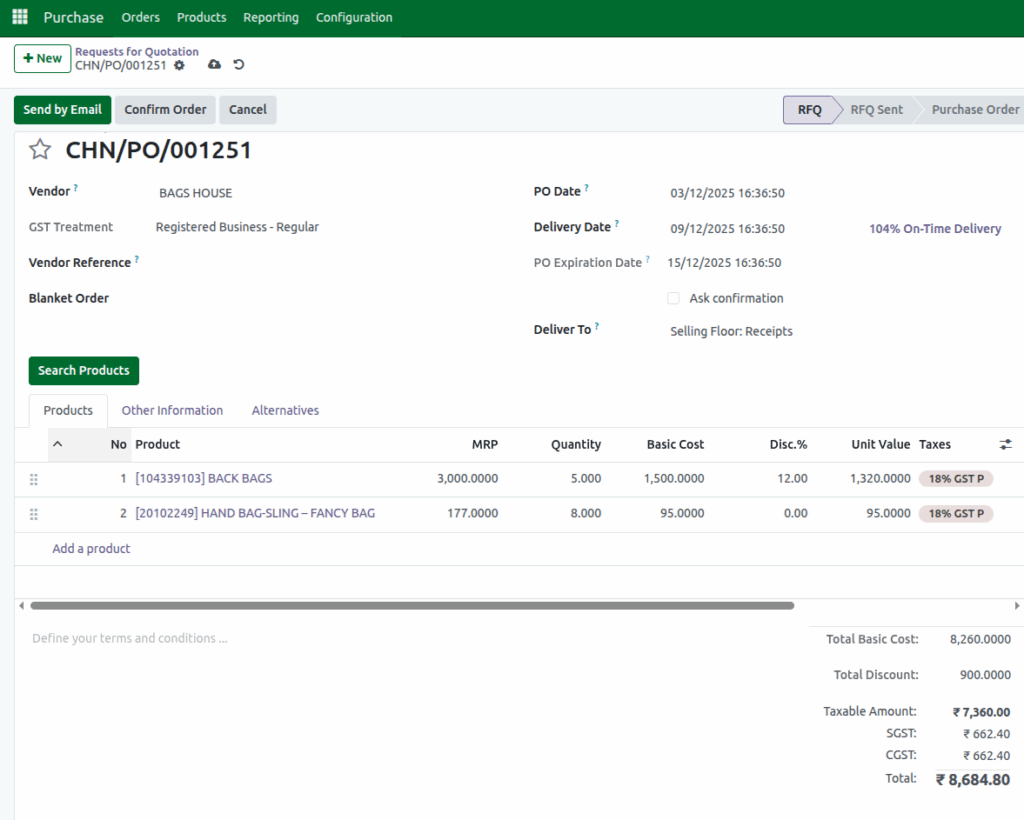
The product’s vendor information including quantity and basic cost set under the product’s Purchase tab, will automatically be applied to the Purchase Order, saving time and reducing manual errors.
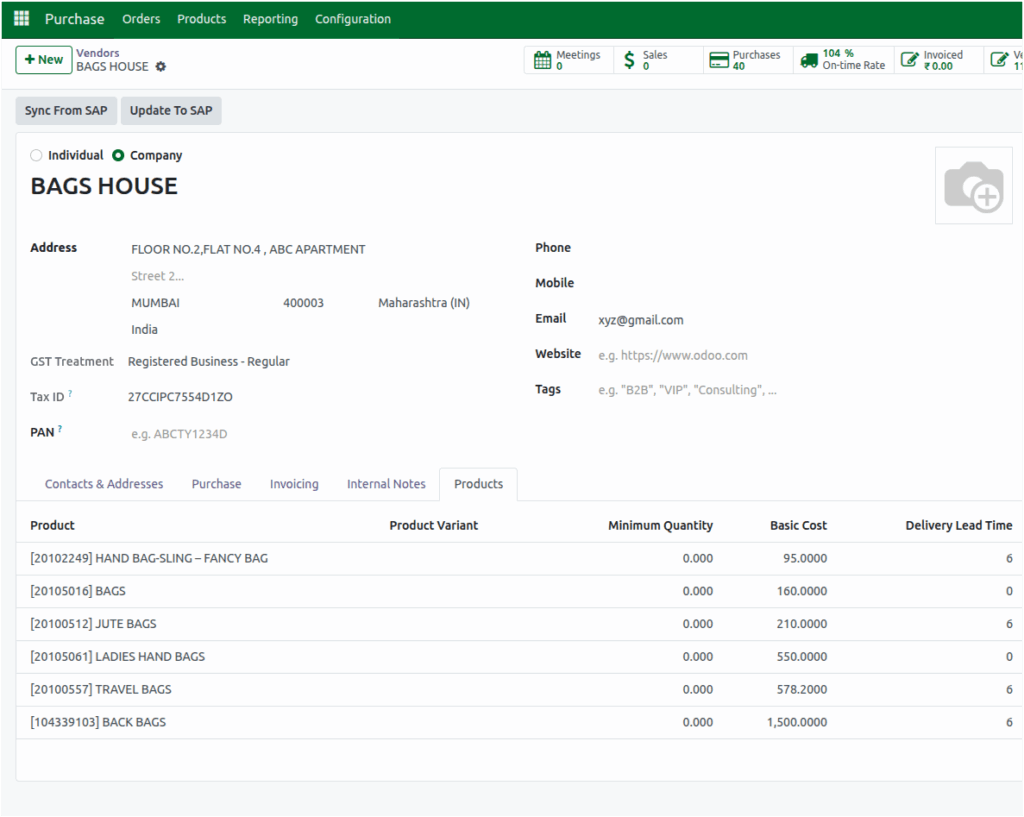
Similarly, in the Vendor Master, under the Products tab, you can view all the products linked to that vendor along with their respective basic costs and quantities, ensuring consistency between vendor and product configuration.
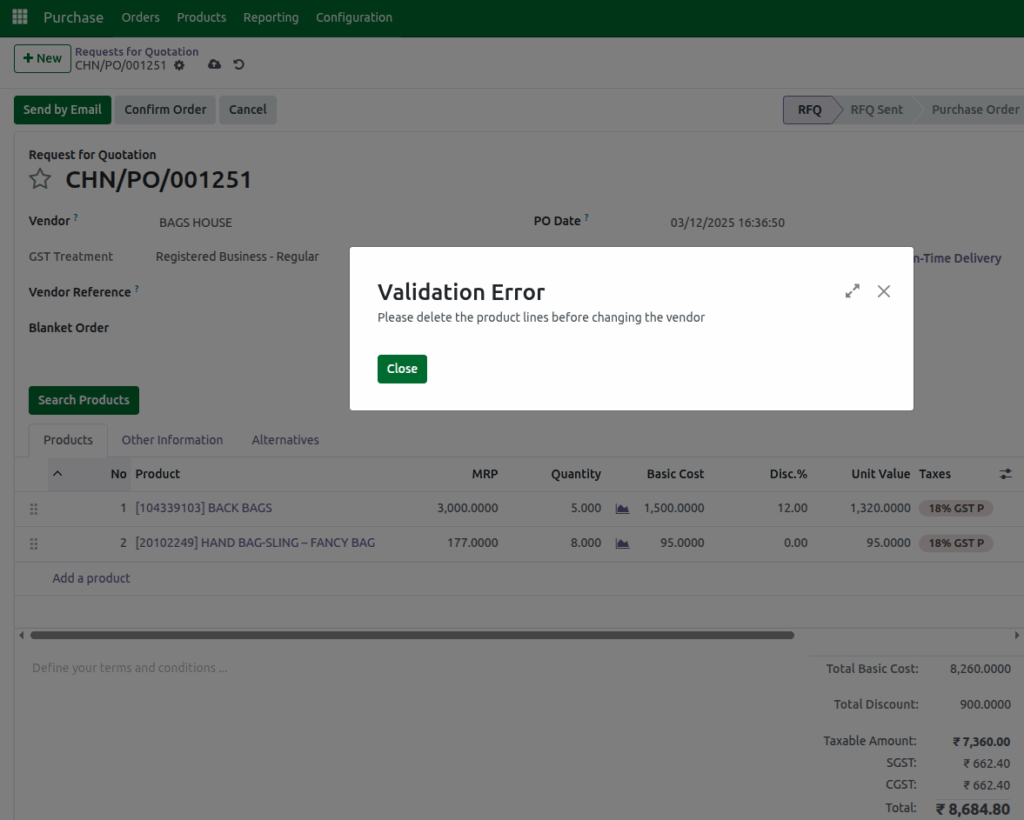
Once products are added, the vendor cannot be changed. If you attempt to change the vendor after adding product lines, a validation error will appear stating: “Please delete the product lines before changing the vendor.”
Finalizing the Purchase Order
Once all the required products have been added to the RFQ, you can Confirm and approve the Purchase Order and move it to the next stage of the procurement process. This ensures that the selected vendor, products, quantities and costs are all finalized, allowing the purchase process to proceed smoothly and efficiently without any further changes.
