How Inventory In Movements are Managed in Odoo Inventory
Inventory In movement in Odoo is the process of bringing stock back into the system after it has been sent out for temporary purposes. Odoo manages this return flow through a simple and controlled process that starts from the Delivery Order and ends with validating the Inventory In document.
Starting the Return Process
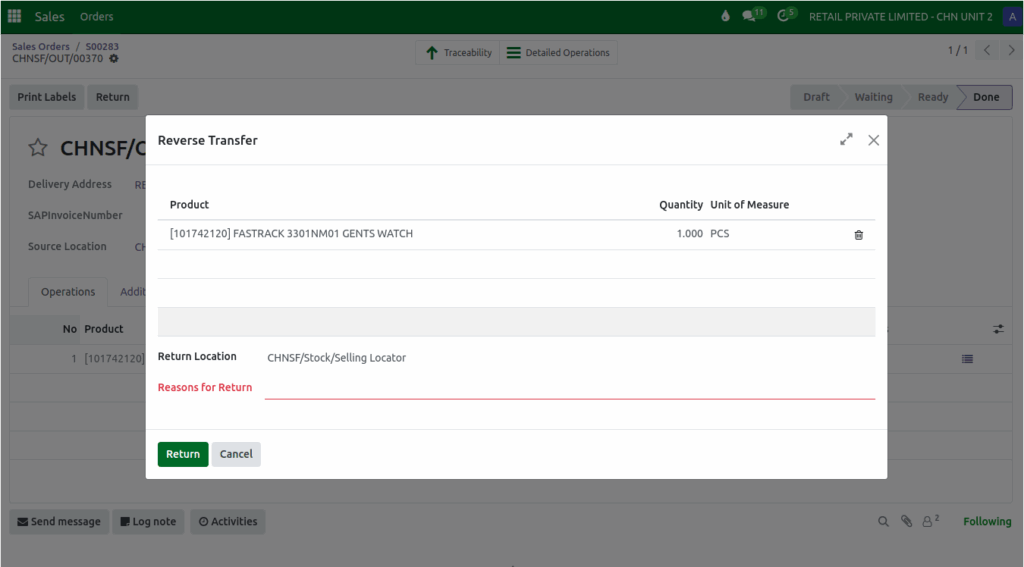
When stock needs to be brought back into inventory after being used for temporary purposes, you begin by opening the Delivery Order and clicking the Return button. Once clicked, Odoo displays a Reverse Transfer window where you must enter the return details.
Providing a reason for the return is mandatory. If the Reason for Return is left empty, Odoo immediately shows an error message saying “Invalid field: Reasons for Return,” ensuring that the return movement is properly tracked. This helps in categorizing the return correctly for future reporting.
You can then enter the quantity of units being returned. After all required fields are filled in, clicking Return creates the Inventory In document and moves the process forward.
Details Captured in the Return Document
Once you confirm the return, Odoo automatically generates a unique return document number, such as CHNSF/OUT/00XXX, which becomes the reference for that transaction. The system automatically fills the Receive From field with the customer who was originally selected in the Sales Order, showing that the returned stock is coming from the same customer.
You must choose the Destination Location, which is the warehouse location where the returned items will be stored. Odoo also records the GR Date, or Goods Receipt Date, which is automatically set to the date when the return document is confirmed.
The Reason for Return selected earlier appears again in the return document, but this time the field is read-only, keeping the information consistent with what was entered in the Reverse Transfer window.
Odoo also fills in the PO Number by linking it to the original Delivery Order using the format “Return of [Delivery Order Number].”
To complete the stock-in process, you must enter the Inward Register Number (IR Number). This field is mandatory, and if it is not provided, the system displays an error message saying “Invalid Fields: Tracking Reference.”

Product and Lot Details During Inventory In
All product information is carried forward automatically into the Inventory In document. The same product selected in the Sales Order, Delivery Order, and the Reverse Transfer window will appear here to ensure accuracy.
The MRP and Selling Price fields show zero because pricing is not required during a return. The PO Quantity and Quantity fields reflect the amount specified in the Reverse Transfer window. Odoo also automatically displays the same Available Lot that was used when the product was originally sent out, keeping the return consistent with the correct lot number.
Completing the Inventory In Movement
After reviewing all the details, you can complete the Inventory In movement by clicking Validate. Once validated, Odoo updates the stock levels and records the returned items back into the warehouse.
This process ensures that the products used for temporary purposes are accurately added back to inventory. As soon as the transaction is validated, the system marks the items as received, and your on-hand quantity is updated accordingly, making sure your inventory remains accurate.

