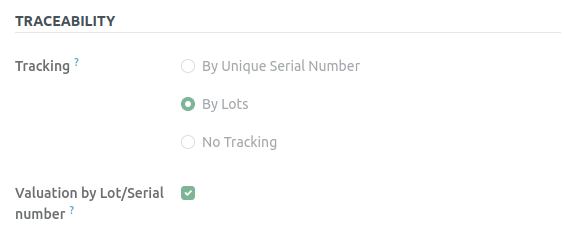
How Lot is updated after Completing a Delivery Order in odoo Sales
Once the Delivery Order is completed, the details are updated in the lot or batch for a lot-based product. The on-hand quantity, transfer quantity, cost, and sales count are all updated in the Lot Master.
Creating a Sales Order in Odoo
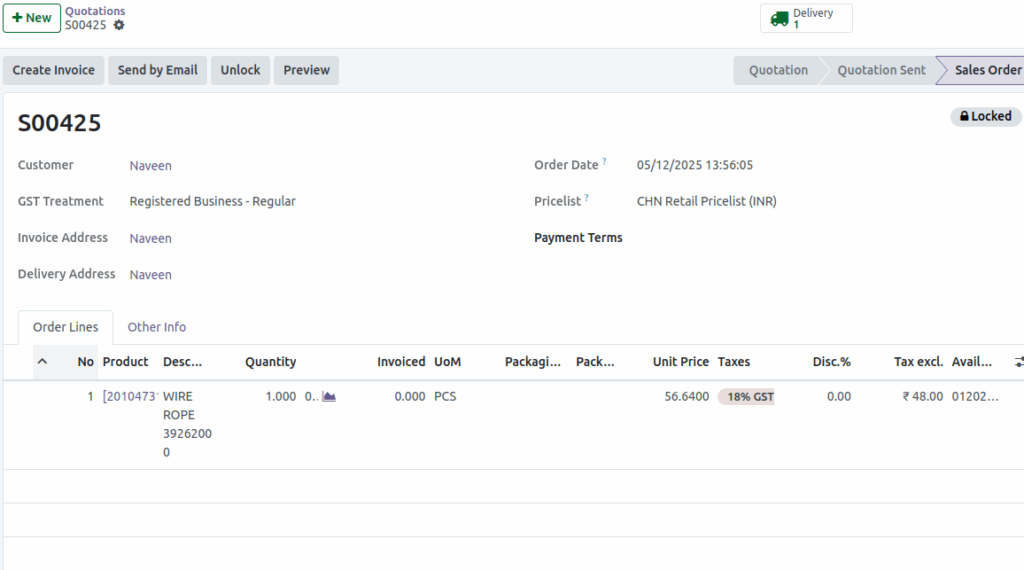
To create a Sales Order, first choose the customer. Once the customer is selected, the Invoice Address and Delivery Address are automatically filled in. These three fields are mandatory. The Payment Terms field is optional.
In the Order Lines section, click Add a Product. You can add the product using the product code or the lot/serial barcode. For a lot product, you must select the Lot; otherwise, an invalid operation error will occur.

Check the product’s on-hand quantity, total value, cost, and average cost. Also, verify the unit price and ensure that the quantity is accurate.
To view and Complete the Delivery Order
Once the Sales Order is confirmed, it becomes locked. Click Delivery to view the Delivery Order.
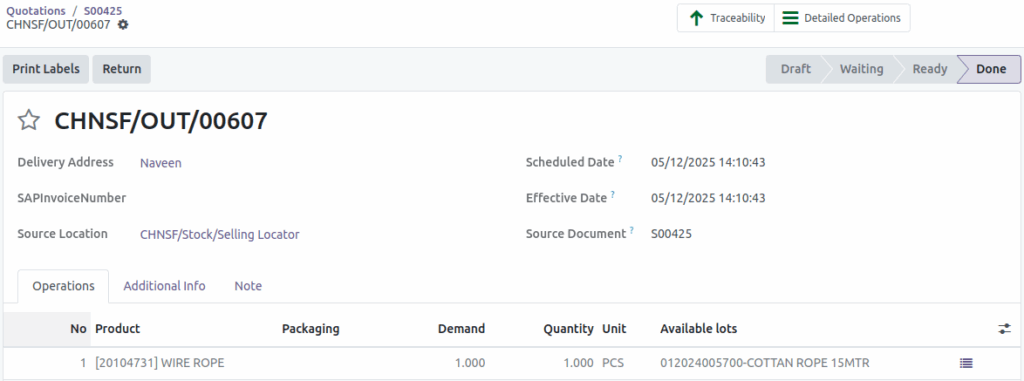
Check the product availability. If the product is not available, you cannot proceed with completing the Delivery Order, and a validation error will occur.
Once you change the correct source location, the product availability will show as Available. The Source Document will also display correctly based on the Sales Order number (e.g., S00405). You can change the Scheduled Date, but it is not necessary. The Delivery Order ID will be generated automatically. In the Operations tab, you will see the product, quantity, and unit price pulled from the confirmed Sales Order. Once you Validate the Delivery Order, the product will be dispatched and delivered to the customer’s address.
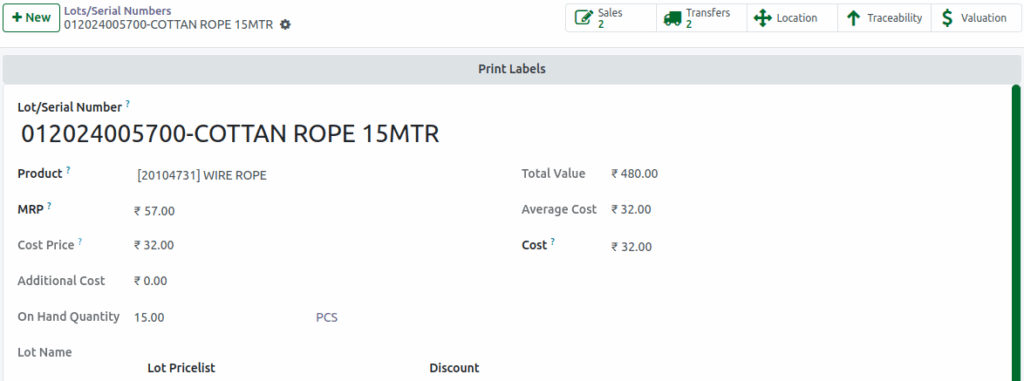
Once the delivery order is complete, verify the product lot. Before the delivery order, the on-hand quantity was 16. After completing the delivery order, the on-hand quantity is now 15. Based on this change, the total value is updated and calculated as on-hand quantity * cost (15 * 32 = 480). The average cost and the cost are also updated and recalculated based on the total value divided by the on-hand quantity (480 / 15 = 32).
Additionally, the sales and transfers at the top of the page are also updated accordingly
Note: The total value, average cost, and cost are updated based on the ‘Valuation by Lot/Serial Number’ setting enabled in the Product Master. If this setting is disabled, the total value, average cost, and cost will be shown as zero.