How to Print and View the GR Bill print in Odoo
A GR Bill is generated successfully by referencing the Goods Receipt. Users must ensure that a GR Bill can only be created after the corresponding Goods Receipt has been completed.
To create a new RFQ, open the Purchase module from the Dashboard and click the “New” button.
Purchase Order Process
Select the vendor from the Vendor field and choose the product from the Product field. After saving the order, the PO reference ID is generated automatically. Finally, click Confirm Order to place the purchase order.

Validate the GR to Proceed
Click Receive Product and you will be automatically redirected to the GR page. Enter the required Inward Register Number and save it. After saving, click the Validate button.
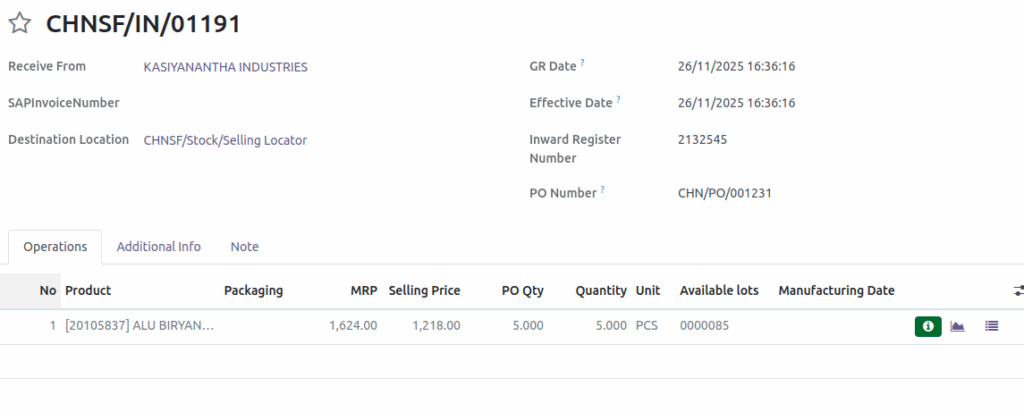
Entering Vendor Bill Number and Amounts into the GR Bill
Click GR Bill to be automatically redirected to the GR Bill screen. Enter the Vendor Bill Number in the Bill Number field, then enter the bill amount, taxable amount, and tax amount in their respective fields.
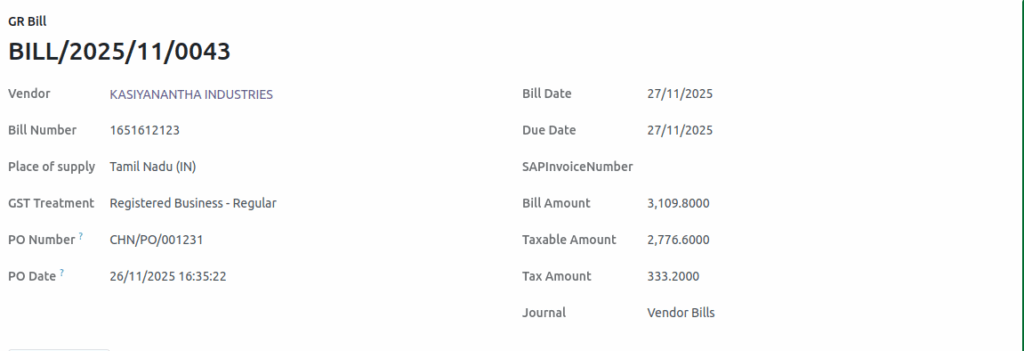
After completing the Purchase Order, the Purchase Manager can print the Good Receipt Bill.
How to Print the GR Bill
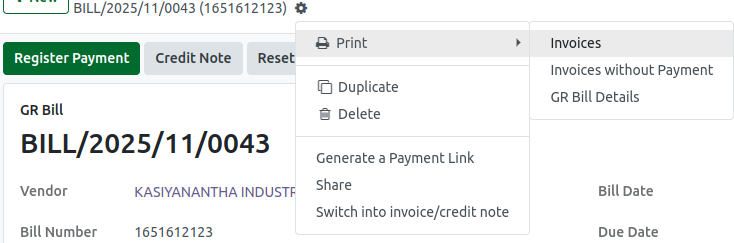
- Navigate to the Invoices section.
- Click on the Print option.
- Click the Invoices
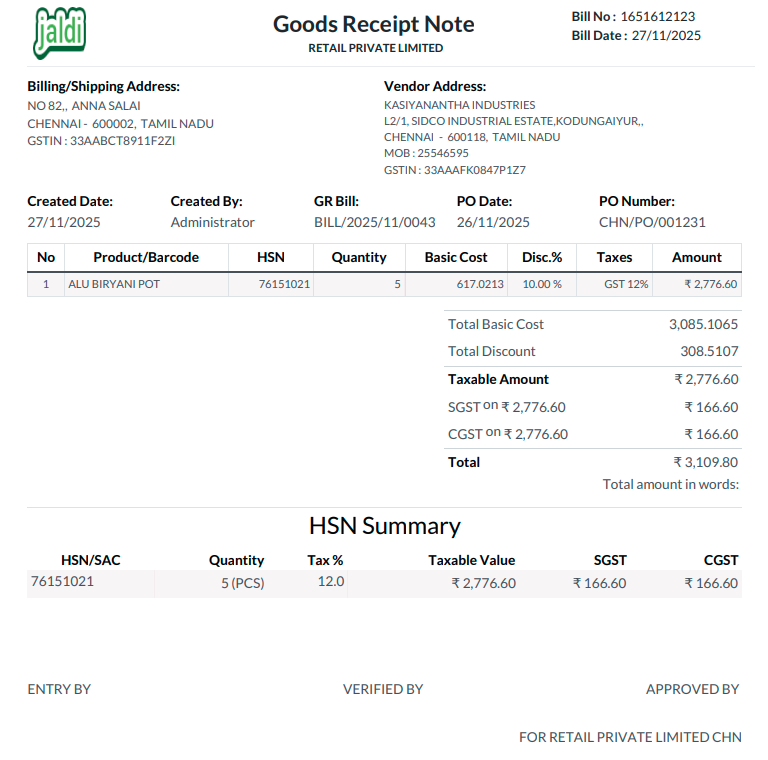
- The Good Receipt Bill will be generated.
Bill Details Include in GR Bill
In the Bill details, the Vendor Address, Shipping Address, Bill Number, and Bill Date (displayed on the top right corner) are shown. It also includes the name of the person who created the PO, creation date, Purchase Order Number, and Purchase Order Date. Additionally, the product details such as product name, HSN Code, quantity, basic cost, discount percentage, tax details, and product amount are printed.