How to Create a Location in Odoo Inventory
In Odoo, a location represents a specific physical or logical place within inventory or a warehouse where products are stored. It helps businesses keep track of product movement and availability in a detailed and organised way. For example, you can have a location named WH/Stock/Shelf 1 to represent a particular shelf in your main warehouse.
Enabling Storage Locations
Before creating a location, you need to enable the Storage Locations feature in Odoo. To do this, open the Inventory module and go to the Configuration menu. Then, click Settings and look for the Warehouse section.
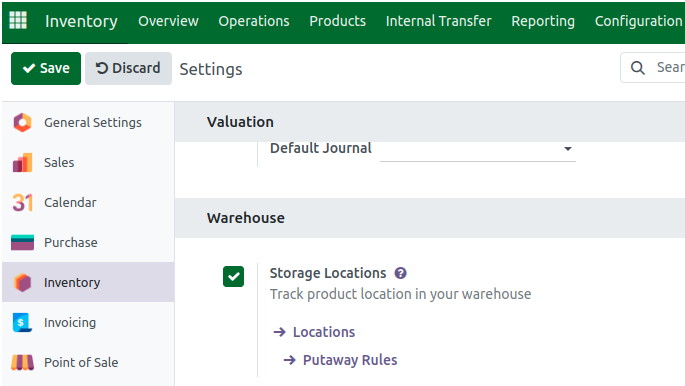
There, you’ll find an option called Storage Locations. Enable this checkbox to allow the creation of detailed and specific locations within your warehouse. Once enabled, you can manage your inventory more effectively by dividing your warehouse into different sections or areas.
Navigating to Locations
After enabling the feature, you can easily navigate to the location setup area. From the Inventory dashboard, go to Configuration, and under Warehouse Management, select Locations. This will open a list of all existing locations. To add a new one, simply click the New button.
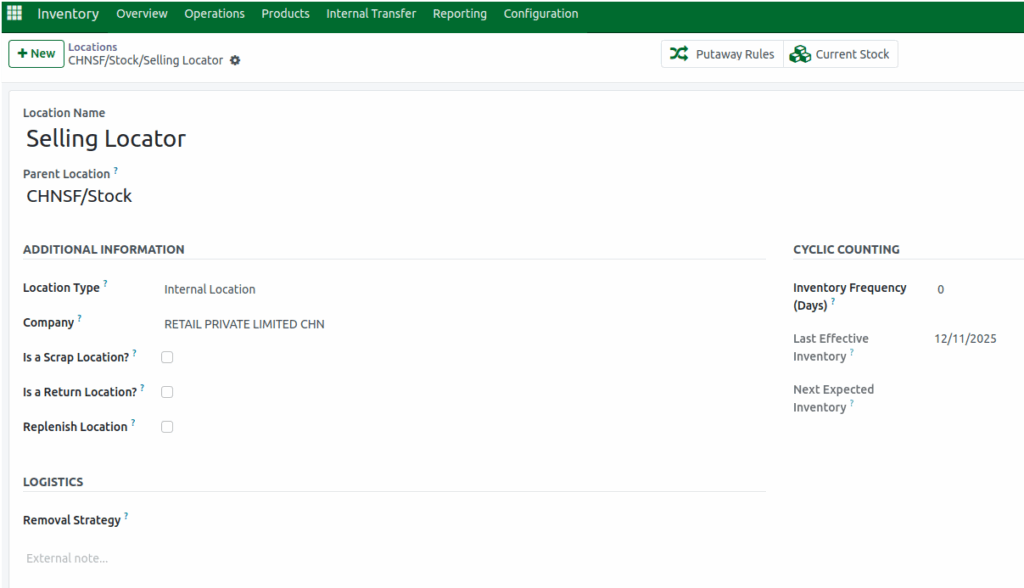
When creating a new location, start by entering a clear and descriptive name that helps identify it easily. Next, select the Parent Location this is the location within which your new location exists. For example, if you’re creating a Selling locator, its parent might be WH/Stock. Once you have entered these details, click Save to store the new location.

Odoo provides several additional settings that make your location management more precise. The Location Type is set to Internal Location by default, which means the location is inside your warehouse. You can also assign a Storage Category if you have enabled storage categories in your settings.
The Company field will be automatically filled in but can be changed if needed. If the location is used for storing damaged or scrapped products, you can mark it as a Scrap Location. Similarly, if it’s meant for returned products, enable the Return Location option. You can also choose to make it a Replenish Location for receiving goods through procurement routes.

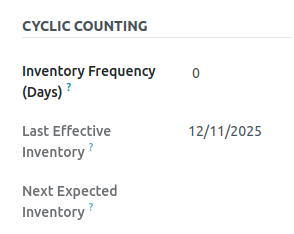
To maintain accurate inventory levels, Odoo allows you to schedule regular inventory counts through the Cyclic Counting feature. In this section, you can set the Inventory Frequency (Days) the number of days between each count. Odoo will automatically calculate and display the Last Effective Inventory date (the most recent count) and the Next Expected Inventory date based on the frequency you set.
Every warehouse follows a certain strategy to decide which products should be picked first during order fulfillment. In the Logistics section of the location form, you can choose a Removal Strategy such as FIFO (First In, First Out), LIFO (Last In, First Out), Closest Location, or FEFO (First Expired, First Out). This helps you control how products are moved out of storage efficiently.
To get a real-time view of what’s stored in that specific location, you can click the Current Stock smart button at the top of the screen. This gives you an instant overview of the quantity and type of products available at that location.