How to add products based on the GRN Selection in Odoo Internal Stock Transfer
Managing stock movement within a company becomes much easier when you use Odoo’s Internal Stock Transfer feature. One useful option is the ability to pull products directly from a GRN (Goods Received Note). This helps ensure that only the correct products received from suppliers are moved between locations.
Accessing Internal Transfers
Start by opening the Inventory module from your main dashboard. Inside the module, go to the Internal Transfer menu then Internal Stock Transfer section. It opens the Transfer Stock Page, here you can create a new Internal Stock Transfer.
Basic Transfer Details
When you begin a transfer, you must choose a Transfer Type, such as a warehouse-to-warehouse movement. Based on the type you select, the Source and Destination Locations are filled in automatically, making the setup process faster and error-free.
Next, fill in the basic information needed for the transfer. The Contact field lets you add the person responsible for the movement. The Scheduled Date is automatically set to today, but you can change it if the stock will be moved later.

Selecting the GRN
One important point is that when a GRN is selected, choosing a product category becomes optional, because the system will pull all product details directly from the selected GRN. When you choose one or more GRNs, Odoo automatically loads all the products included in those GRNs.
These items appear under the Operations tab. Each product comes with its linked lot number and shows the available on-hand quantity. You can adjust the transfer quantity if necessary, but you cannot add any new products that are not part of the selected GRN. If you want to remove an item, simply use the delete option at the end of its row.

Completing the Internal Stock Transfer
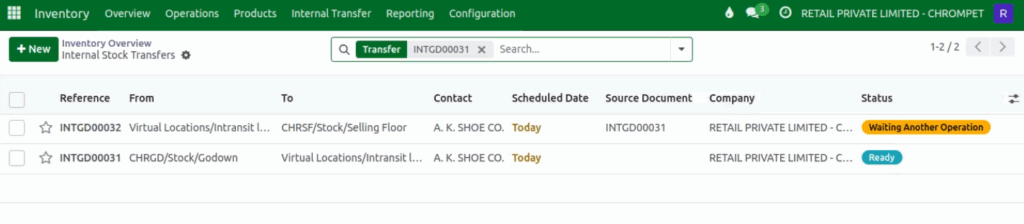
Once all products and quantities are confirmed, click the Transfer button. After completing Transfer ,it creates two documents, one is for source location to the in-transit location and another one is in-transit location destination location.
Odoo will then move the selected stock from the source location to the in-transit location. After this confirmation, the system immediately updates the inventory levels in both locations, ensuring that your stock records remain accurate.