How to Configure Sales and Accounting in Odoo POS
Setting up Sales and Accounting properly in Odoo POS helps your store run smoothly and ensures accurate billing, reporting, and tracking. Odoo provides simple options inside the POS Settings where you can configure everything based on your business needs. Here’s a clear guide to help you understand how to set up these options in an easy way.
Accessing POS Configuration
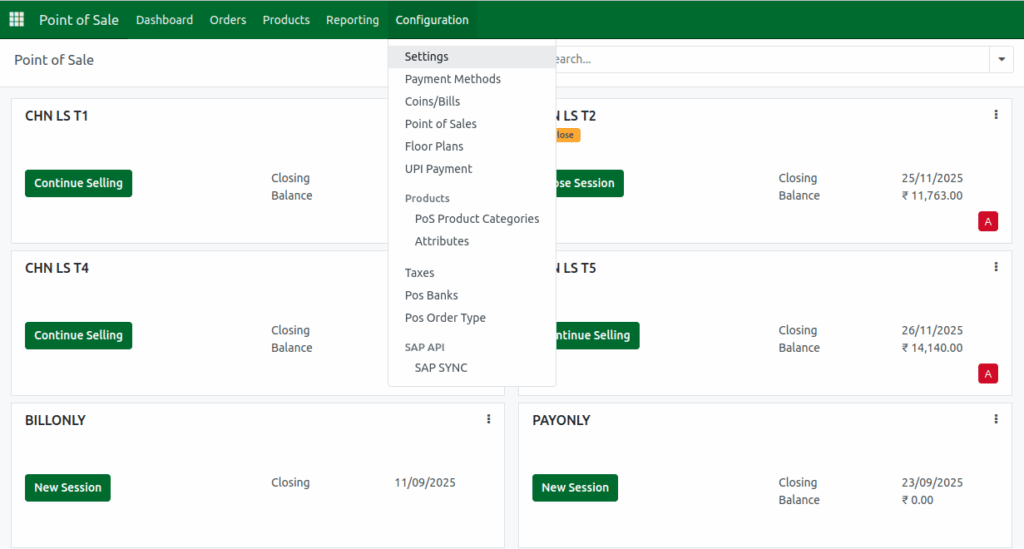
To start the setup, first go to the main Settings area and open the Point of Sale module. Inside the module, click on the Configurations menu and then select Settings. Here, you will find a field where you can choose the POS terminal you want to configure. Once you select the specific terminal, all the options related to Sales and Accounting will become available for editing.
Configuring Sales Settings
In the Sales section, you can turn on useful features such as Sales Team and Down Payment. When you enable the Sales Team option, you will see a dropdown menu where you can select the correct sales team for that terminal. This helps you track performance by team. You can also set up advance payments by selecting a product in the Down Payment Product field. Choose “Advance Payment” from the dropdown list, and the POS will automatically use it whenever customers make a partial or advance payment.

Configuring Accounting Settings
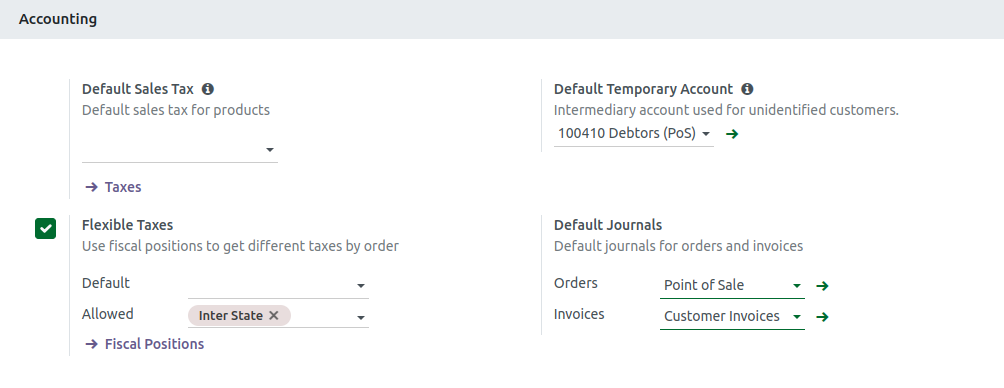
The Accounting section provides options to set your default taxes and journals. You can enable Default Sales Tax, Default Journals, and Flexible Taxes. When you turn on Default Sales Tax, a dropdown will appear where you can choose the tax that should be applied to all products by default in that POS terminal. This helps maintain consistent tax calculations across all sales.
Setting Up Journals and Flexible Taxes
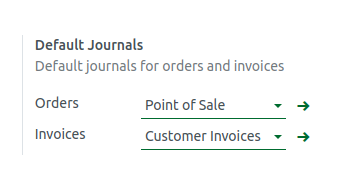
Under Default Journals, there are two important fields: Orders and Invoices. In the Orders field, select “Point of Sale,” and in the Invoices field, choose “Customer Invoices.” These settings ensure that all POS orders and invoices are recorded in the correct accounting journals. If you enable Flexible Taxes, you will see two fields labeled Default and Allowed. Each field will have a dropdown where you can pick the right fiscal position for your store. This allows you to apply different tax rules depending on the customer or transaction type.