How to Process a Full Product Refund from a Bill Receipt in Odoo POS
Refund management is an essential part of any retail operation, and Odoo POS provides a reliable way to handle full product returns directly from the original bill receipt. With built-in features that support accurate tracking, proper authorization, and clear billing, the system ensures that refunds are processed transparently for both the business and the customer.
Creating a New Sale and Generating a Bill Receipt
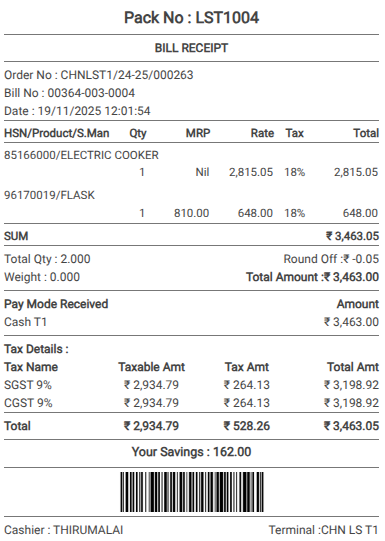
To begin a new sale, open the POS system and enter or scan the product code or lot barcode in the search bar. After selecting the correct item, adjust the product quantity as needed. When the order is ready, move to the payment screen by clicking the payment mode button or using the shortcut key F4.
On the payment screen, choose your preferred payment method, such as Cash or UPI. Once the payment method is selected, complete the transaction by clicking Validate or pressing Alt + V. Odoo will then generate the bill receipt for the completed sale.
Processing a Full Refund in Odoo POS
After completing the sale, you can begin the refund process by clicking the Return button in the POS Cart. Refunds can only be handled by the HeadCashier, so make sure to switch to the HeadCashier role before proceeding.
To locate the order that needs to be refunded, simply scan the original bill or search for the bill number in the Search Orders field. When the order appears, the products from that bill will show on the right side of the screen.
To issue the refund, enter the same quantity that was originally purchased as the refund quantity. A full refund means the entire quantity of every billed product must be returned.
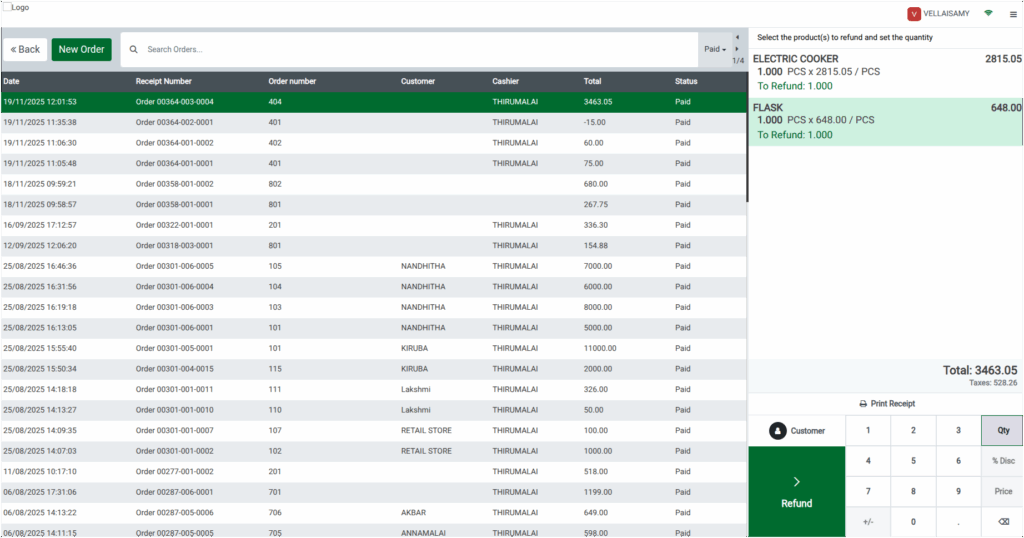
For example, if two products were included in the original bill, both items must be refunded completely. After entering the refund quantities, click the Return button to add these items to the POS cart.
Once the items are added, the POS cart will display the quantities as negative values. You will also see the net amount and tax amounts appear as negative, indicating that the system is now processing a refund. Switch back to the Cashier role and move to the payment screen again using the payment mode button or the shortcut key F4.
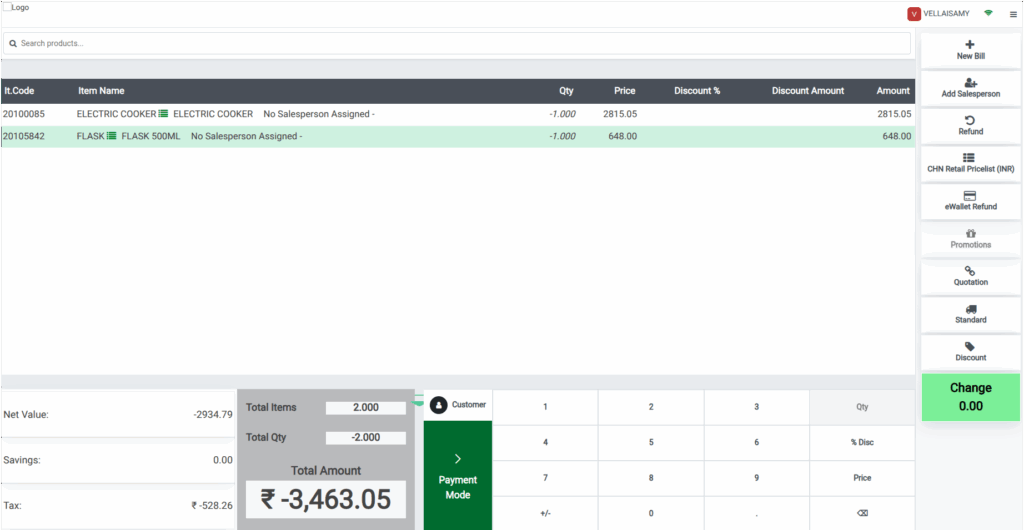
In the refund process, the only available payment method is Cash, and the refund amount will appear as a negative value. Complete the refund by clicking Validate or pressing ‘Ctrl + V’. A new bill receipt will then be generated, confirming the successful refund.
Refund Details on the POS Bill Receipt
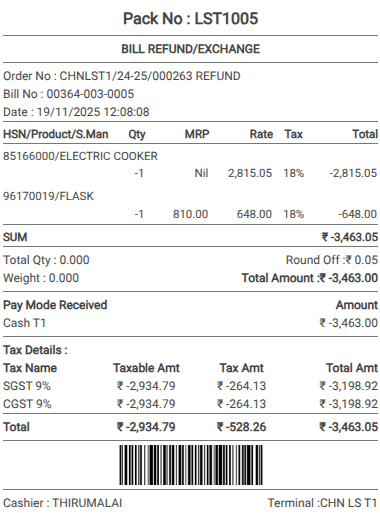
On the refund bill, the heading clearly appears as BILL REFUND/EXCHANGE, making it easy to identify the transaction type. In the Order No field, Odoo automatically appends the word REFUND to the original order number, so a receipt might look like CHNLST1/24-25/000263 REFUND, helping users track refund orders effortlessly.
The Total Qty field displays the quantity as zero, since the products are being returned rather than purchased. All monetary values on the receipt including the Total amount, taxable amount, and tax amount are shown as negative, indicating that money is being refunded back to the customer instead of collected.