How Odoo Updates Lot Details After Completing a Goods Receipt
In Odoo, the lot plays a key role in maintaining accurate inventory records. The main purpose of lot updation after completing a Goods Receipt is to keep inventory data synchronized with the actual goods received.
As soon as a GR is validated, Odoo updates the lot with the received quantities and recalculates cost values accordingly. This automatic process helps businesses maintain accurate stock valuations and ensures that both the total and average costs of items are correctly reflected in the system.
Creation of Goods Receipt (GR)
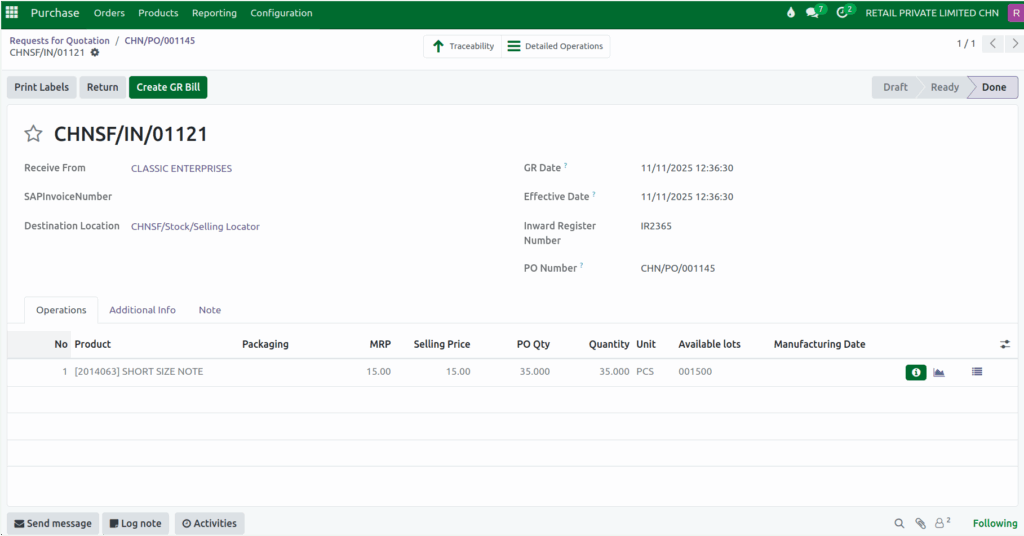
Before creating a Goods Receipt in Odoo, make sure that the related Purchase Order (PO) is confirmed. Once confirmed, you can click the “Receive Products” button on the PO screen. Odoo will then open the GR screen automatically and generate a unique GR document number.
The IRN (Invoice Reference Number) is mandatory and should be entered as required. After entering the necessary details and creating the corresponding lot, simply click Validate to complete the GR process.
Lot Creation and Updation After GR
When the Goods Receipt is validated, Odoo either creates a new lot or updates an existing one, depending on the selection made during the GR process. If a new lot or serial number is entered, Odoo creates a new lot record for that product.
If an existing lot or serial number is selected, the system updates that lot with the new quantities and cost values. This ensures that every time a GR is completed, the lot data remains current and accurate.
Updating On-Hand Quantity After GR
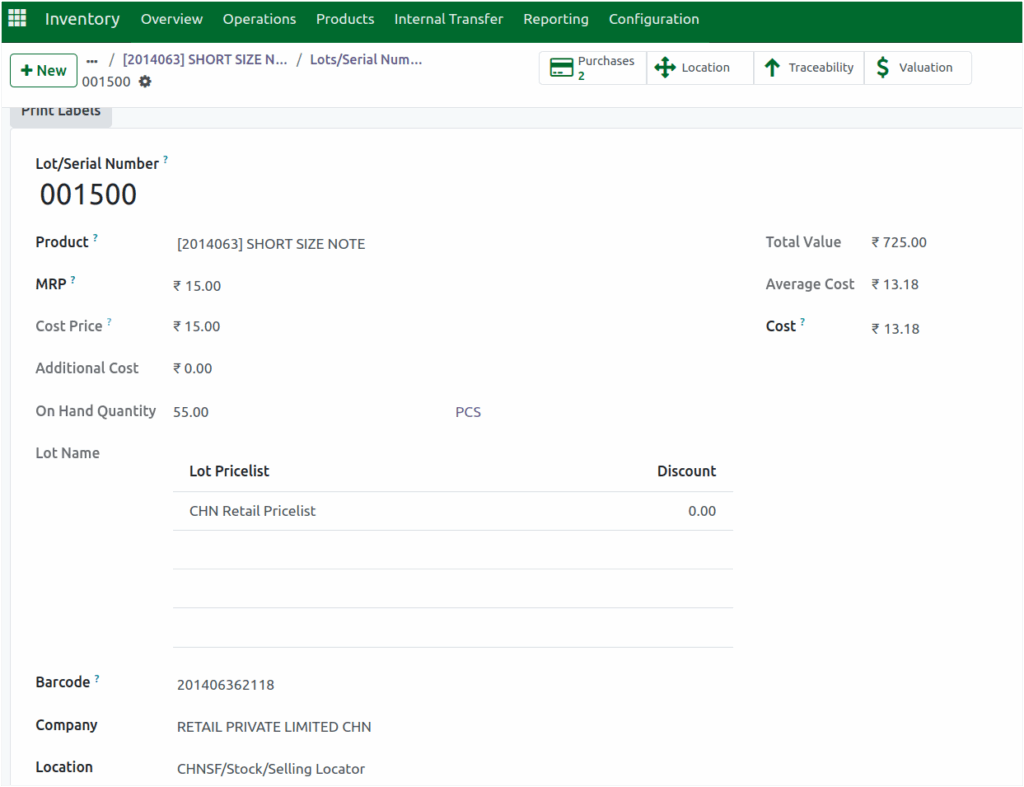
Odoo automatically updates the on-hand quantity for each lot after a GR is completed. The
on-hand quantity represents the actual quantity available in stock for that particular lot. For
example, if a product already has 20 units on hand and a new GR adds 35 more units, the updated on-hand quantity becomes 55 units. This automatic update helps users keep track of the real-time quantity available for each lot.
Displaying Sales Price After GR Validation
Once the GR is validated, the sales price of the corresponding product is displayed in the system. You can find this value inside the lot, under the Price Info tab, within the Selling Price field. This helps users quickly view the latest selling price linked to the product and lot after the receipt process is completed.
Calculation of Total Lot Value
The total value of a lot in Odoo is calculated by adding the values from each purchase order related to that lot. The formula used is:
Total Value = (Final Gross Cost₁ × Quantity₁) + (Final Gross Cost₂ × Quantity₂) + …For instance, if the first GR has a final gross cost of ₹10 for 20 units, the total value will be ₹200. When a second GR is validated with a cost of ₹15 for 35 units, the total value becomes ₹525. Adding these together gives a new total value of ₹725, which is displayed in the
Total Value field of the lot.
Average Cost Calculation in Lot
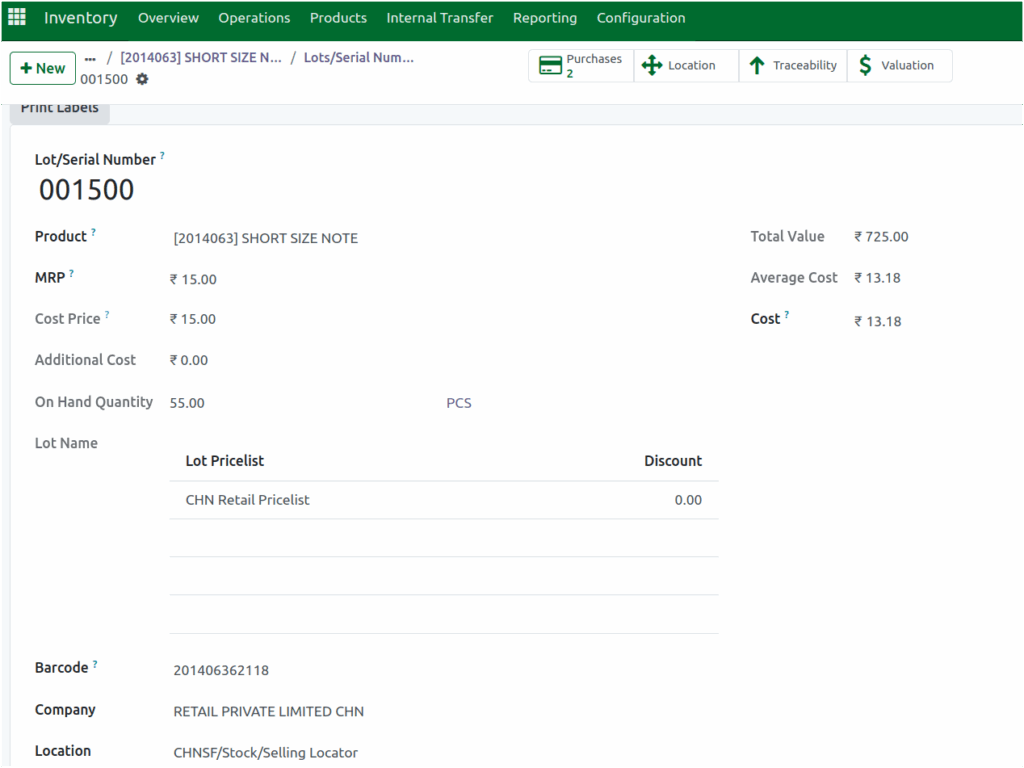
Odoo automatically calculates the average cost of each lot after every GR is validated. The formula used is:
Average Cost = Total Value / On-Hand QuantityEach time a GR is completed, Odoo recalculates the average cost based on the updated total value and on-hand quantity. This ensures that the average cost always reflects the most recent purchase prices and quantities.
Lot Barcode Generation After GR
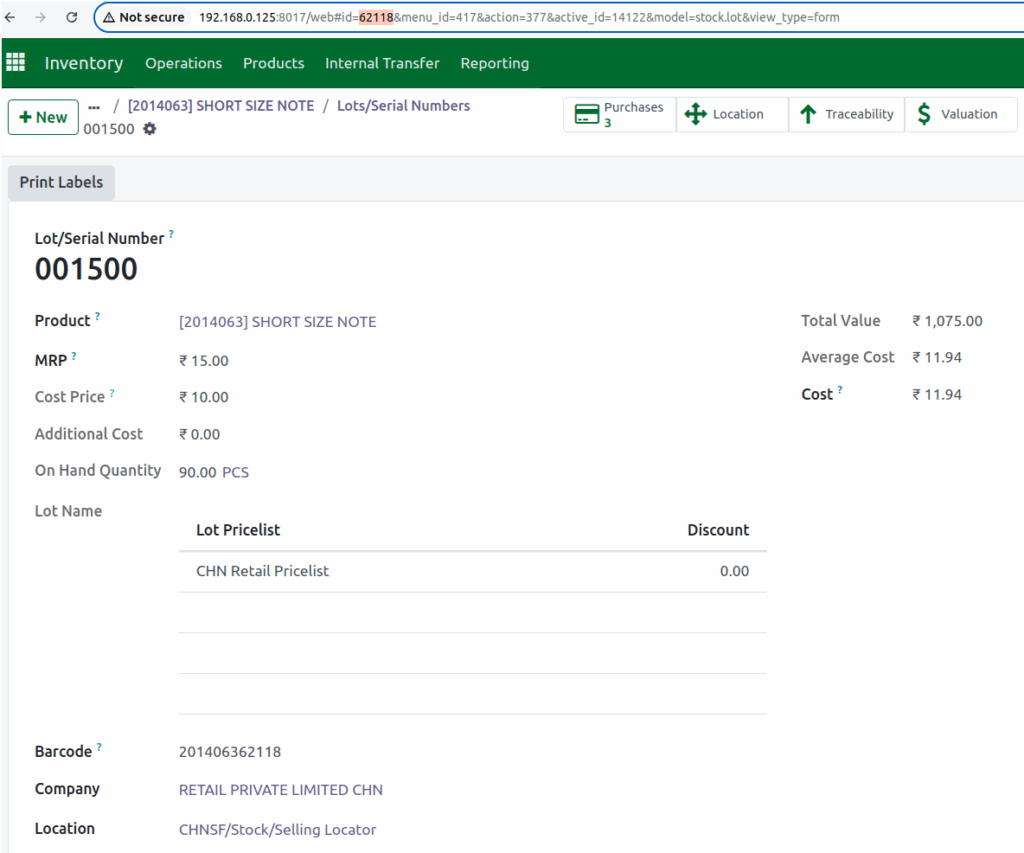
For products that are tracked by lot, Odoo automatically generates a Lot Barcode once the Goods Receipt is completed. This barcode is created using a specific format that combines the product code with the lot ID.
For example, if the product code is 2014063 and the lot ID is 62118, the generated lot barcode will be 201406362118. The barcode is displayed in the Lot Barcode field, making it easy to identify and trace the lot in future transactions.
For products tracked by serial numbers, the barcode is manually entered during the lot creation process in the GR. After the GR is validated, this barcode is displayed in the lot record for reference.
