How To Scan / Search Products in Odoo Point Of Sale (POS)?
You can scan and search products in Odoo Point Of Sale by configuring product barcodes in your backend and scanning them directly or using text/code searches in the active POS session
Step 1 : Open Odoo Point Of Sale(POS) Session
- Go to Point of Sale Module
- Click Point of Sale → Dashboard to view all configured POS terminals.
- Click New Session or Open Session.
Step 2 : Scan a Product (Barcode Method)
- Ensure the barcode scanner is connected and working.
- If Scan the product will automatically be added to the order lines.
- To search for products using external codes (like Product code), prefix the code with a forward slash (/) and type it into the search field.
Step 3: Search for Product (Manual Method)
- On the POS screen, locate the search bar (usually at the top).
- Type the Product name, Product Code, or barcode into the search bar.
- A list of matching products will appear.
- Click on the correct product to add it to the order.
Scan a Product
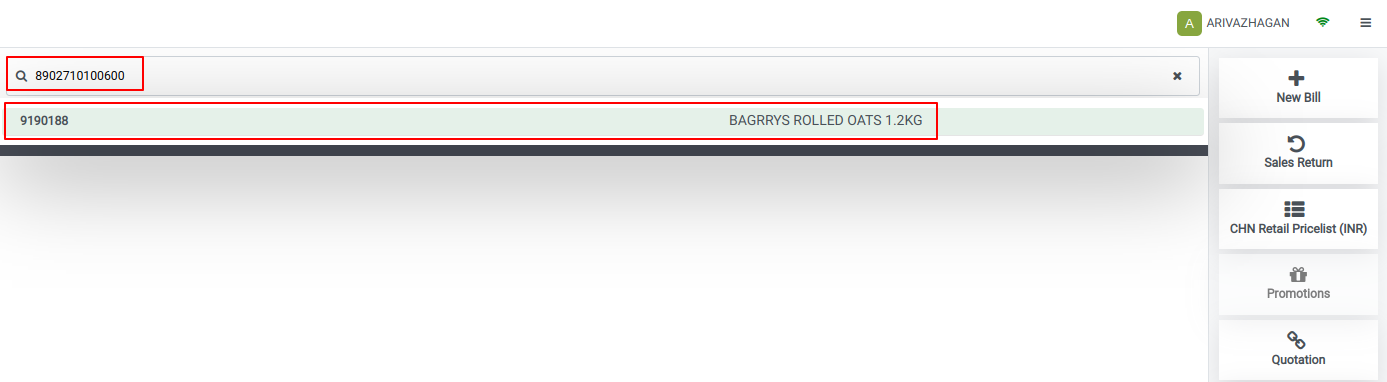
Search Product(Product Code)

Search Product Using forward Slash(‘/’)

