How the Details are Displayed on the Sales Order Print in Odoo
Once the sales order is completed, the store or company can view the details through the printout. This helps them clearly see and understand the information, as only the required details are included in the Sales Order print. The printout is mainly used when higher officials need to approve the Sales Order.
How to Print the Sales Order
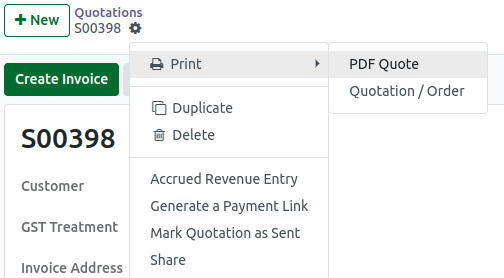
Once the Sales and Delivery Order are completed, click the actions button, then select the Print option and choose either PDF Quote or Quotation/Order. Both print options display the same details, and a PDF will then be generated.
Sales Order Details in Print
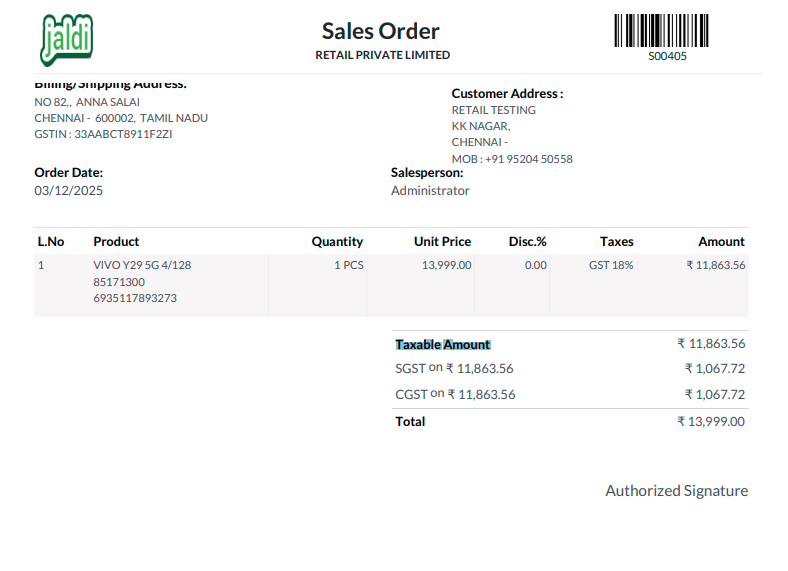
We can split the information into topics such as Header Details, Address Details, Order Details, Product Details, and Amount Details to provide a clear understanding of the Sales Order print.
Header Details
In Sales Order, the company logic is printed in the left side corner, and the Sales Order title along with the company name appears in bold at the center of the header. On the right side, the Sales Order document number (S00300) is displayed, and a barcode is generated to make identifying the Sales Order easier.
Address Details
In the address section both the Shipping address and the Customer address are printed. This can be understood as the ‘From’ address and the ‘To’ address, with each one displayed on opposite sides.
Order Details
In the Order Details section, the Sales Order creation date is shown in the order date field, and the salesperson responsible for the Sales Order is displayed in the Salesperson field.
Product Details
In the Product Details section, the product name and its HSN code of the product is displayed. The ordered quantity is shown in the Quantity field, and the unit price of the product is also printed. If a discount is applied, the discount percentage is displayed as well. The tax details for each product are also shown. The product amount is calculated and displayed using
The formula: Quantity × Unit Price = Amount.Amount Details
In the Amount Details section, Taxable Amount and Tax Amount are displayed, and the total amount is calculated using
The formula: Taxable Amount + Tax Amount = Total