How to create an RFQ (Request for Quotation) in Odoo Purchase
Creating a Request for Quotation (RFQ) in Odoo Purchase is an essential step in managing your procurement process efficiently. An RFQ allows your organization to request price quotes from multiple suppliers for goods or services. This feature helps you compare offers, negotiate better deals and make informed purchasing decisions.
Getting Started with RFQs in Odoo
To begin, navigate to the Purchase module from Odoo’s main dashboard to access the
Requests for Quotation (RFQ) screen.
In RFQ screen you can see important details at a glance such as vendor names, prices, deadlines and RFQ status which helps you track each request effectively. Odoo also allows you to sort, filter, and mark important RFQ so you can prioritize your work and quickly access the requests that need your attention.
At the top of the screen, summary boxes give you an instant overview of
pending, sent, and overdue RFQ.

Creating an RFQ in Odoo Purchase
Once you click the +New button, Odoo opens a fresh RFQ form allowing you to start entering all the necessary details.
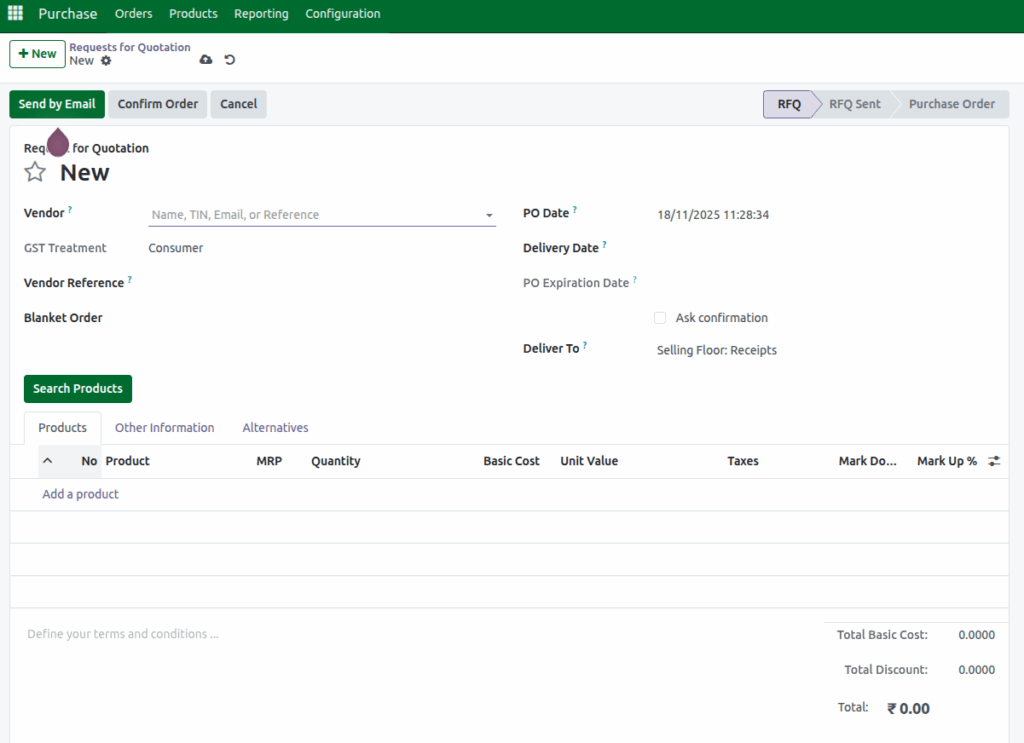
First, you will need to select a Vendor from the drop down list, as an RFQ cannot be created without specifying the vendor. Additionally, the GST Treatment field will display whether the vendor is registered or unregistered for GST, and this information is read-only.

This setup ensures that you have all the necessary details in place before proceeding with your RFQ.
Adding Products in the RFQ Screen
After selecting your vendor, the next step is to Add Products by choosing the items you want to request quotes for. Only the products that are mapped to the selected vendor will appear.
When creating a purchase order, make sure the PO Date is set to today or a future date, as past dates are not allowed. The Delivery Date is automatically calculated by Odoo based on the product’s delivery lead time, but you can adjust if it needed.
As you modify the delivery date, the PO Expiration Date will also update automatically, ensuring accurate timing for the order.
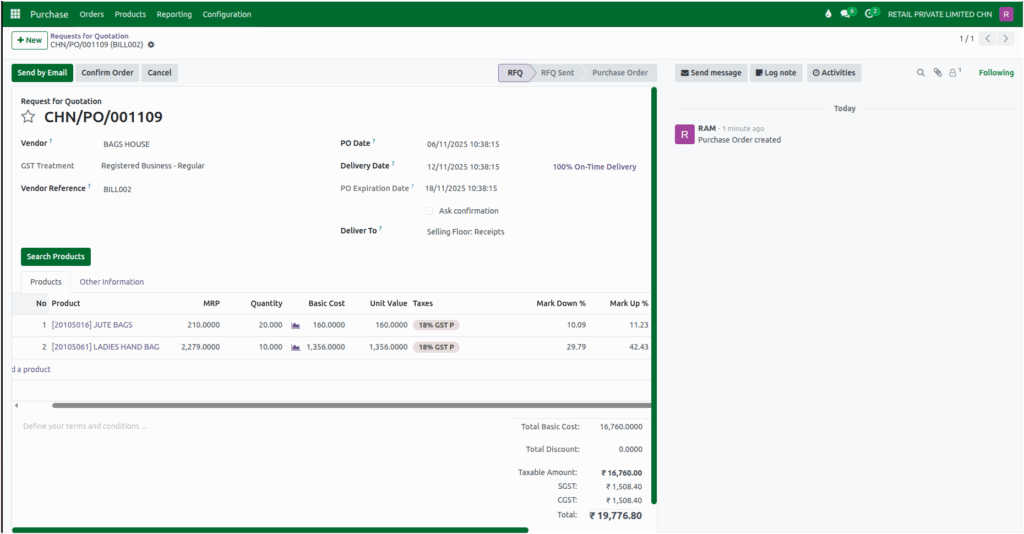
Additionally, you have the option to add a Vendor Reference. This reference number helps with better tracking and record-keeping, and if provided, it will automatically be set as the Bill Number in the GR Bill.
Specifying the Delivery Location
Then you will find the Deliver To field, which specifies the warehouse where the products will be delivered.
Saving the RFQ and Generating a Document Number
Once you’ve added the products and set the quantities for your RFQ. At the bottom of the RFQ screen, Odoo displays the total amount,total taxable amount, tax amount and total discount amount for all the products included in the request.
Upon saving the system will automatically generate a unique Document Number (purchase order document number), making it easier to track and manage your request throughout the procurement process.
Key Details in the Other Information Tab
The Other Information tab in the Purchase screen shows the Buyer responsible for the purchase, the Company making the order and any Source Document linking the RFQ to another record. You will
also find the Payment Terms and Fiscal Position set for the vendor.

Finalizing the RFQ
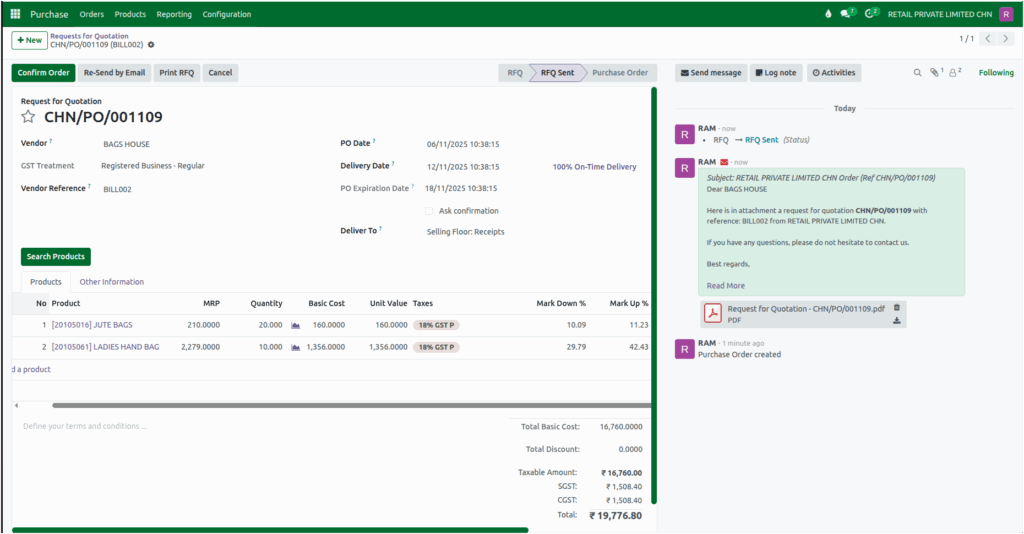
To send the RFQ to the vendor, click “Send by Email”. Once sent, the status will update from ‘RFQ’ to ‘RFQ Sent’.
If the vendor agrees to the pricing and accepts the quotation, the process moves forward. Once everything is confirmed, you can finalize the RFQ by converting it into a Purchase Order, completing the procurement process.