How to manage Line-Level and Bill-Level Discounts in POS refunds in Odoo
In the POS, how does the refund process work when line-level and bill-level discounts are applied How is the refund amount calculated based on the discounted price versus the original selling price.
Select Product and Apply the line-level Discount
Open the POS system and enter or scan the product code or lot barcode in the search bar. Set the desired quantity of the product, then switch to Head Cashier to apply the line-level discount.
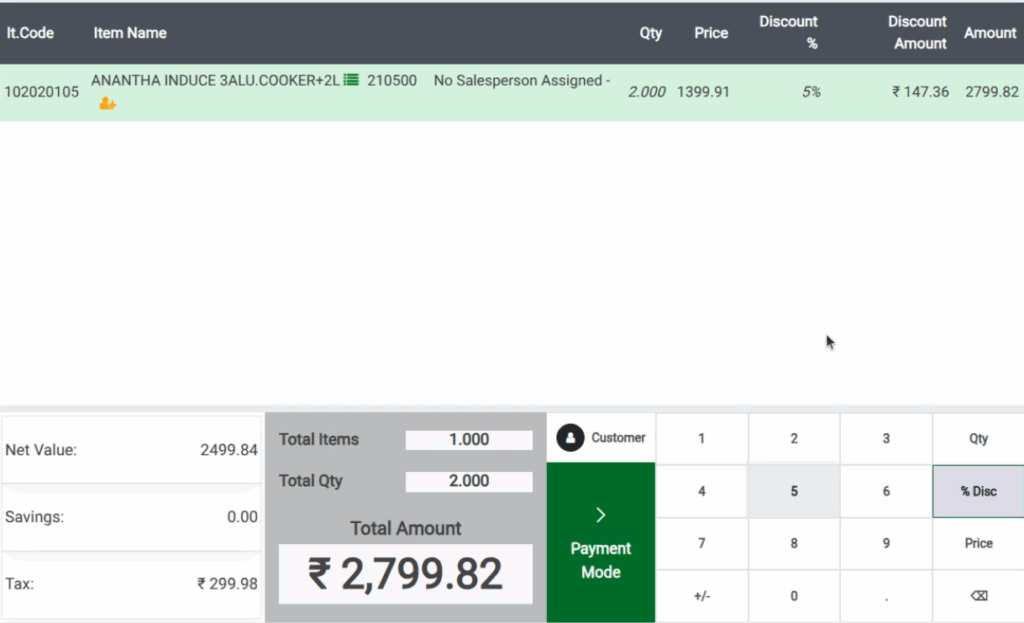
Complete the Payment
Switch to Cashier, then click the Payment Mode button or press the shortcut key F4 to proceed to the payment screen. Select a payment method, such as Cash or UPI, and click Validate or use the shortcut Ctrl + V to complete the payment. The bill receipt will then be generated.
How to Process a Refund
Once the order is complete, click Sales Return. Only the Head Cashier can process refunds, so switch to the Head Cashier role. Scan the bill or search for the bill number in the Search Orders field. The ordered products and discount percentages will be displayed on the right side. To refund a product, enter the total quantity from the bill as the refund quantity, then click Sales Return.
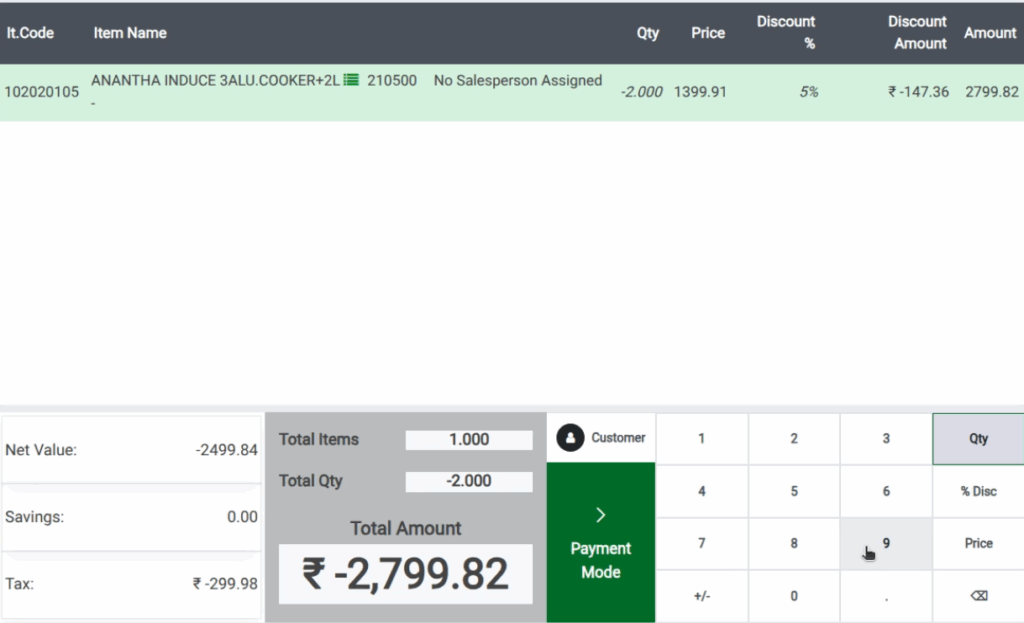
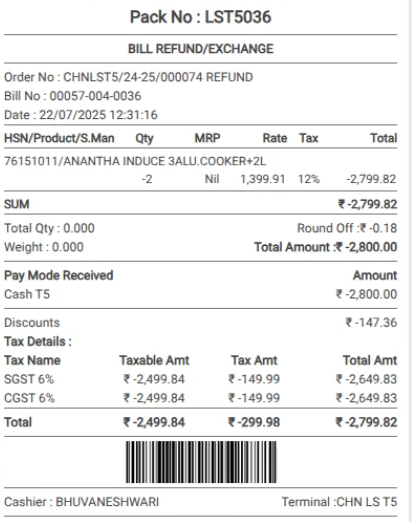
In the POS cart, the quantity and discount amount will appear as negative values, and the net value and tax amounts will also be negative. Switch back to the Cashier role, then click Payment Mode or use the shortcut key F4. On the payment screen, refunds can only be completed using the Cash method. The amount will appear as a negative value, indicating a refund. Click Validate or use the shortcut
Ctrl + V to complete the payment, and the bill receipt will then be generated.
Select Product and Apply the Bill-level Discount
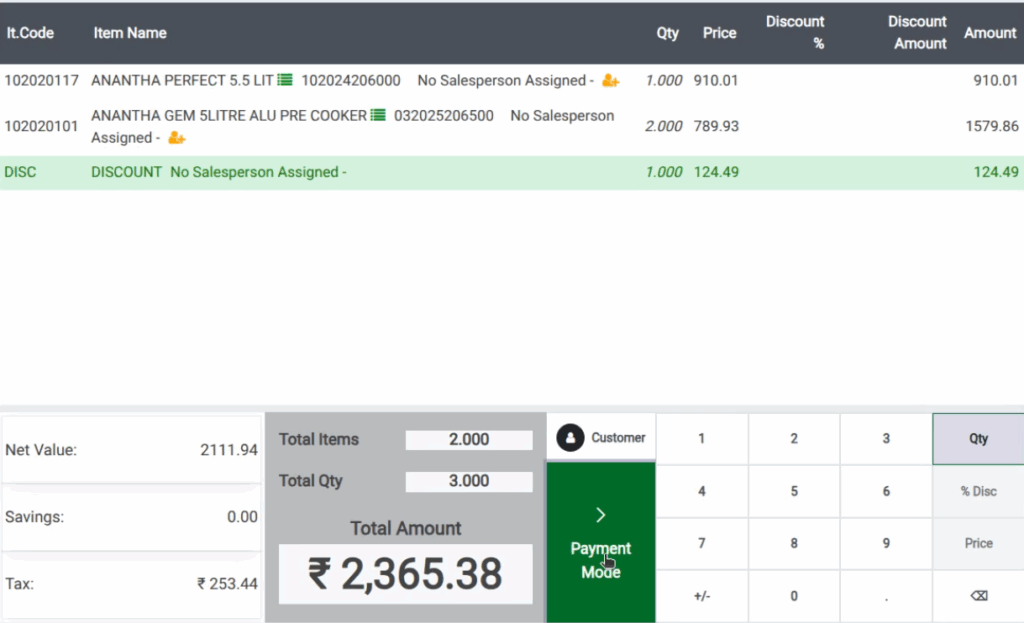
Open the POS system and enter or scan the product code or lot barcode in the search bar. Set the quantity of the product, then switch to Head Cashier to apply the bill-level discount. The bill-level discount will be added on a separate line.
Complete the Payment
Switch to Cashier, then click the Payment Mode button or press the shortcut key F4 to proceed to the payment screen. Select a payment method, such as Cash or UPI and click Validate or use the shortcut Ctrl + V to complete the payment. The bill receipt will then be generated.
How to Process a Refund
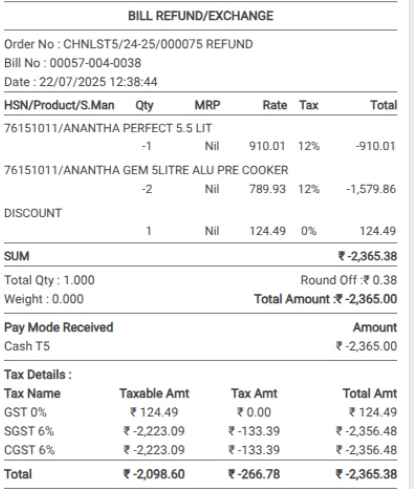
Once the order is complete, click Sales Return. Only the Head Cashier can process refunds, so switch to the Head Cashier role. Scan the bill or search for the bill number in the Search Orders field. The right side will display the ordered products along with the bill-level discount line. To refund a product, enter the total quantity from the bill as the refund quantity, but do not select the bill-level discount line, then click the Sales Return button.

In the POS cart, quantities, net value, and tax will appear as negative, while the bill-level discount will show as a positive value. Switch to the Cashier role, then click Payment Mode or press F4. On the payment screen, refunds can only be completed using the Cash method, with the amount shown as negative. Click Validate or press Ctrl + V to finalize, and a refund receipt will be generated.