How to Select Products based on Reorder Days for a Purchase Order in Odoo
The Reorder by Number of Days feature helps businesses maintain optimal stock levels by analysing product usage over a selected period and suggesting reorder qty. It calculates reorder quantities based on past sales or consumption data, ensuring your inventory always aligns with actual demand.
By using this feature, you can avoid stock shortages and reorder products at the right time to keep your operations running smoothly.
Start by Creating a New Purchase Order
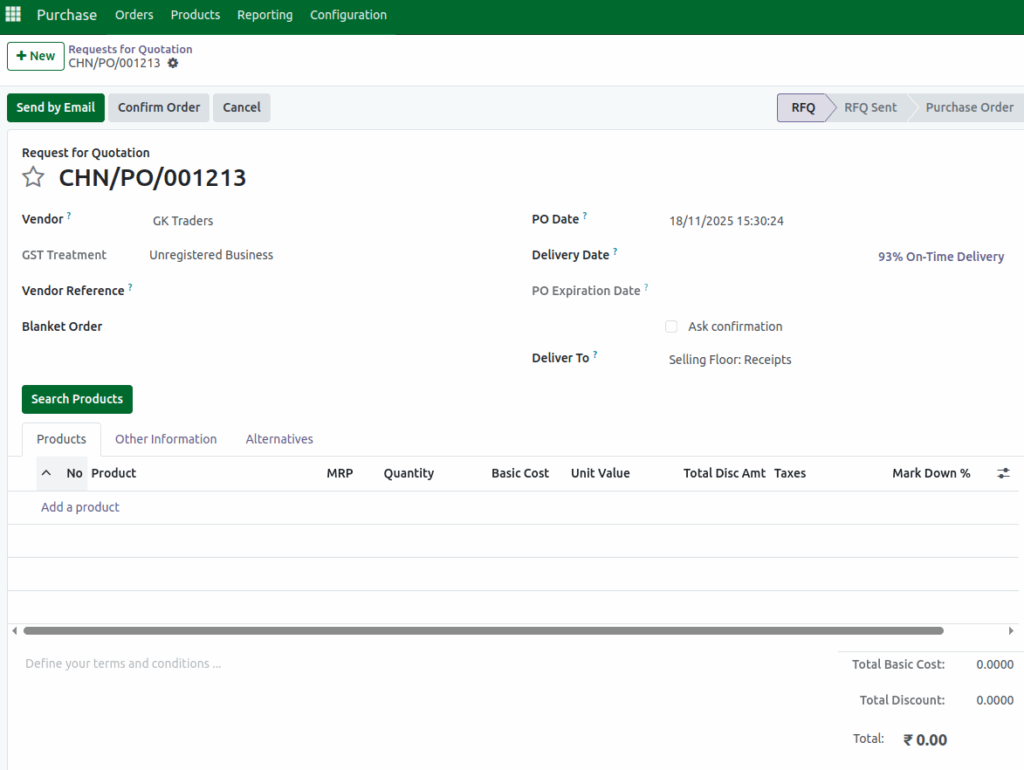
Click +New to create a new purchase order document. Select the vendor from the dropdown list. When you click Save, the PO document number is generated.
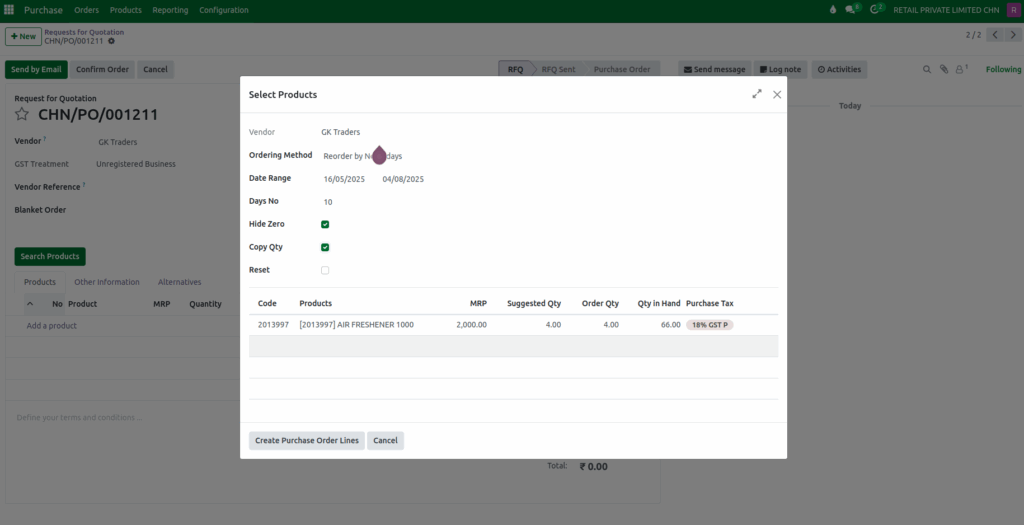
Click Search Products,the Select Products pop-up will appear. In the Ordering Method field, select Reorder by Number of Days using dropdown option. Now Date Range and Days No. fields will be displayed.
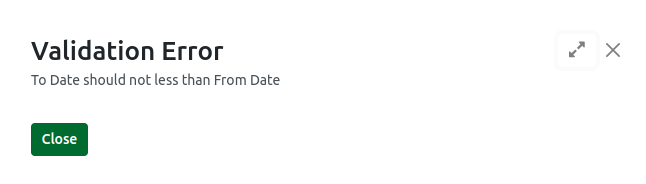
In the Date Range field, select the From Date and To Date. To Date must not be earlier than From Date. If not, system will display a validation “To Date should not be less than From Date.”
Specify the number of days the stock required in the Days No. field.

Suggested Quantity Calculation
Suggested Qty is calculated automatically. Formula:
Suggested Qty = Days No. × Avg Qty
Avg Qty = Sold Qty ÷ Difference in Days
Difference in Days = Current Date − First Movement Date
First Movement Date is the date when stock was first received. Sold Qty is the total quantity sold within the selected date range.
Example: Input Data for Reorder Calculation
From Date: 16/05/2025 , To Date: 04/08/2025
Days No. = 10
Sold Qty in Date Range: 26
First Movement Date: 29/05/2025
Difference in Days: 67 days (04/08/2025 − 29/05/2025)
Avg Qty = Sold Qty ÷ Difference in Days
Avg Qty = 26 ÷ 67 = 0.3880
Suggested Qty = Days No. × Avg Qty
Suggested Qty = 10 × 0.3880 = 3.880597015 The Suggested Qty is automatically calculated and displayed as 4 (rounded off).
Finalize the Purchase Order
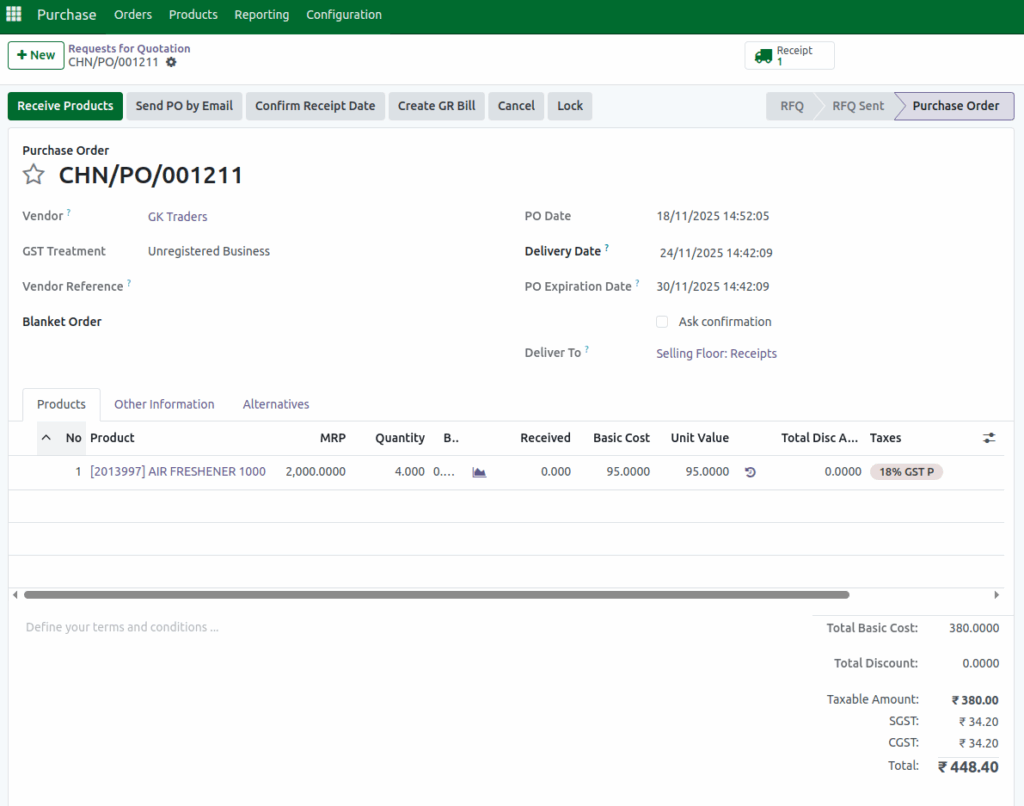
Click Copy Qty, the order qty will be filled automatically. Click Create Purchase Order Lines. Review product details carefully to ensure accuracy. Check quantity, total amount, and tax amount. Click Save to finalize and confirm the Purchase Order.