How POS Validations Work in Odoo
Odoo POS includes several validation rules to help maintain accurate billing and prevent mistakes during checkout. These checks ensure correct product details, payment accuracy, and proper restrictions based on user roles. Once the right settings are enabled, the POS automatically validates every transaction and guides the cashier with clear messages.
Enabling POS Validations in Settings
To activate POS validations, go to Point of Sale module and click Configuration and select Settings. In the Point of Sale field, select the correct terminal from the drop down. Validations will work only if the checkboxes under the Custom Features section are enabled.
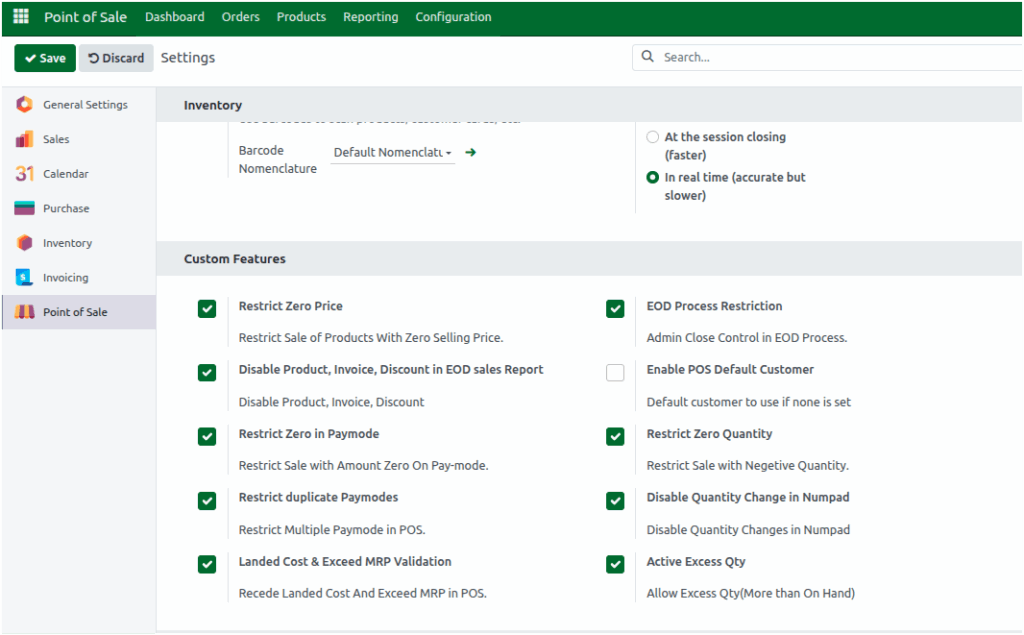
These include Restrict Zero Price, Restrict Zero in Paymode, Restrict Zero Quantity, and Restrict Duplicate Pay modes. Once enabled, all restrictions will be applied during POS operations.
Validations in the POS Cart Screen
When you open the POS screen, the cart will be empty. If you click New Bill without adding any products, the system will display an alert message: “There must be at least one product in your order before adding a new order.”
You can add Products to the cart by typing the product code, scanning the barcode, or scanning any related multi-barcode. The default quantity is 1. If the quantity is changed to 0 or a negative number and the cashier clicks the Payment Mode button, the system will display an alert message: “Product Price Cannot Be Zero” because the Total Amount becomes zero.
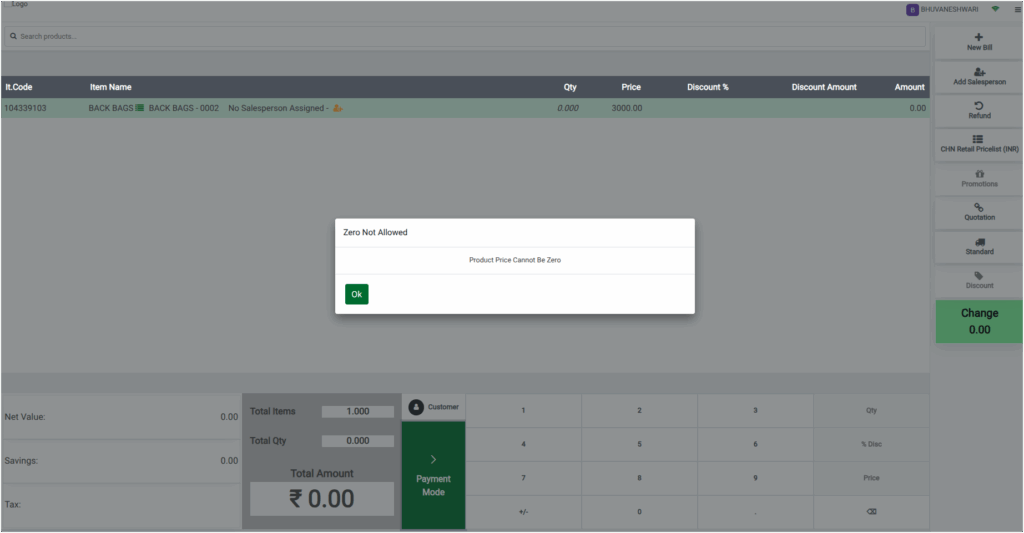
If the entered quantity is more than the available lot stock and the cashier tries to proceed to payment, the system will display an alert message: “Product having excess quantity” and highlights the product in red.
If the user is a Head Cashier, they are restricted from making payments. When they attempt to proceed to payment from the cart or payment screen, the system will display an alert message: “You are head cashier. You cannot proceed with payment.”

Validations in the Payment Screen
Once the cart details are correct and the cashier clicks the Payment Mode button, they can select any payment mode. If the entered payment amount is zero or negative, the system will display an alert message: “Amount cannot be zero or negative.”
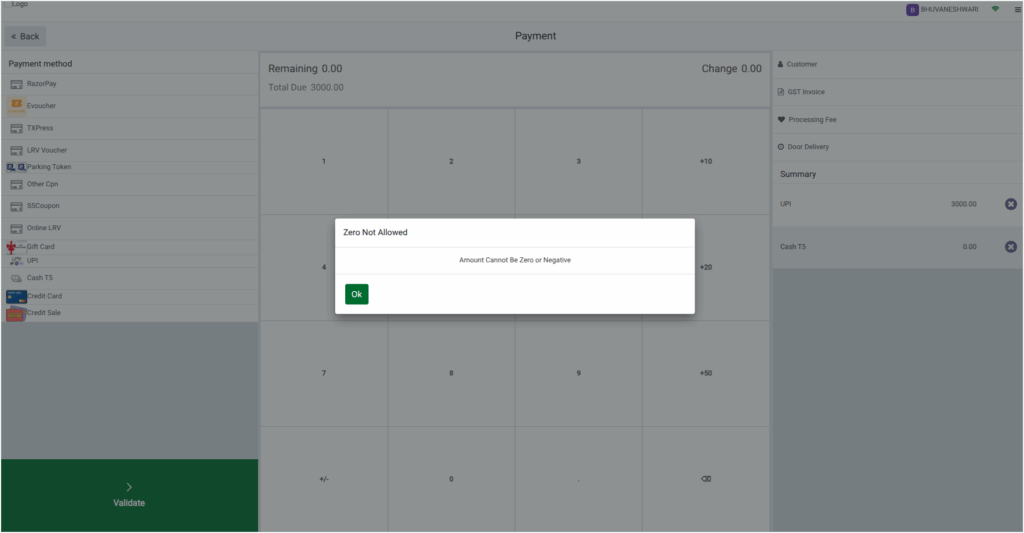
Over payments are allowed only for Cash, while UPI, Credit Card or other pay modes must not exceed the bill amount.
The System also prevents adding the same payment mode more than once. For example, if a customer pays using Cash and UPI, and the cashier selects Cash again, the system keeps Cash only in the first line instead of adding it again.
Completing the Order and generating the Bill Receipt in POS
Once everything in the cart and payment details is entered correctly and all validations are satisfied, the cashier can complete the payment.
By clicking the Validate button the System will then process the order and generate the bill receipt smoothly. A bill receipt includes the products, quantities, prices, taxes and the final total. It acts as proof of purchase and helps the business keep accurate records.
