How to Apply Buy 1 Get 1 Promotion in Odoo POS
The Buy 1 Get 1 (BOGO) promotion in Odoo POS is designed to boost sales by offering customers an additional item for free when they purchase a product at full price.
This type of promotion encourages higher sales volume and attracts customers looking for extra value in their purchases. Essentially, the customer buys one product, and Odoo automatically adds another identical product to the order at no cost.
Applying the Buy 1 Get 1 Promotion in the POS Cart
To start using the BOGO promotion, add the eligible product to the POS cart. You can locate the product using its product code, barcode, or lot barcode. It is important to select the specific lot that has the Buy 1 Get 1 promotion configured, as the promotion applies only to that lot.
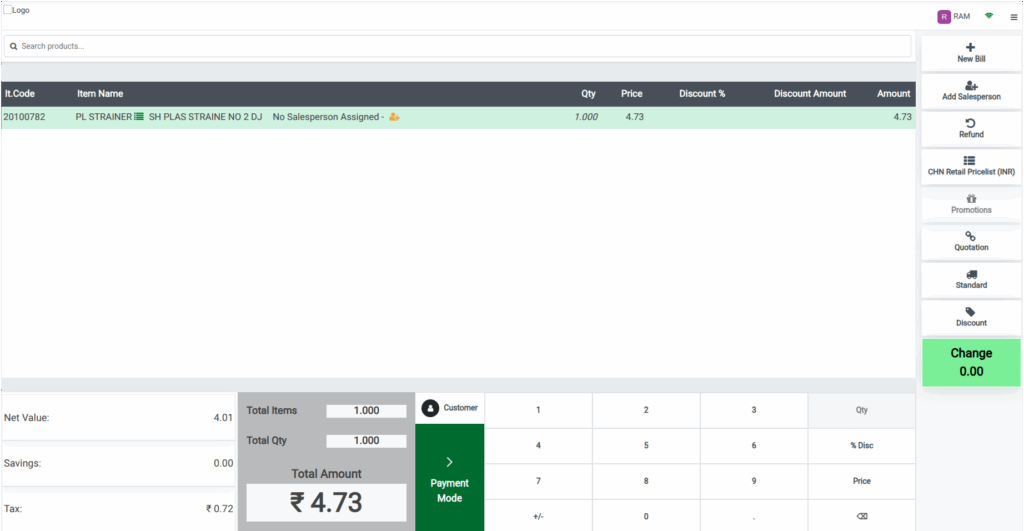
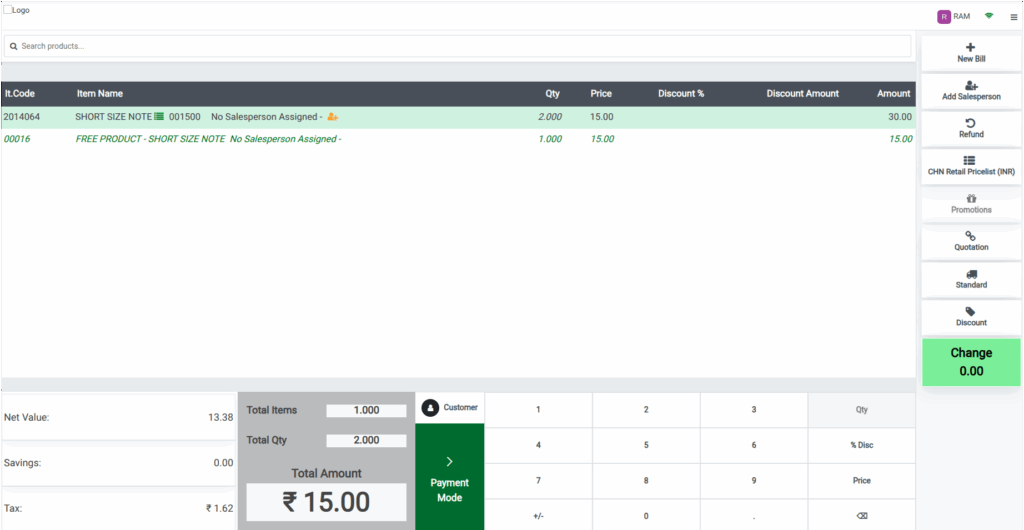
Once the main product is added in the cart, enter or scan the product to increase the quantity as two. The system will automatically add the free product with a quantity of one. The POS cart will clearly display a promotion line, showing the free product along with its quantity and price.
The free product quantity adjusts automatically based on the quantity of the main product in multiples of two. For example, if you add two units of the main product, one free product is included.
Odoo POS ensures consistency in the promotion by restricting manual changes. If anyone tries to modify the quantity or price of the free product, the system displays a validation error: “Promotion lines do not change price, quantity, and line discount.” This prevents errors and guarantees that the promotion is applied correctly.

The calculation of the promotion is simple and transparent. The total items count the unique product types, while the total quantity includes both the paid and free products. The net value indicates the amount payable for the purchased products only, excluding the free items. Tax is applied on the net value, and the total amount reflects the final payable amount after including taxes.
For example, if the main product is SHORT SIZE NOTE, two units at ₹15 each will total ₹30. One free unit is added, but after applying the promotion, the net value becomes ₹13.38, tax at 12% is ₹1.62, and the final total to be paid is ₹15.
Completing the BOGO Sale and Viewing Receipt Details
Completing the transaction is straightforward. First, select the customer associated with the POS order and review all items in the cart. Then, choose the payment method and click Validate to finalize the sale.
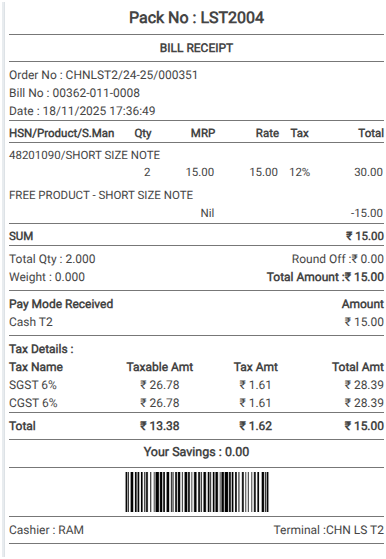
After the transaction is completed, the bill receipt will show the Buy 1 Get 1 promotion details. The main product is listed with its quantity, rate, tax, and total, while the free product appears with a negative amount, indicating it has been deducted from the total.
This BOGO feature in Odoo POS simplifies promotional offers, ensures accurate billing, and provides a seamless experience for both the cashier and the customer, while effectively driving sales.
