How to Apply a Discount to a Product in a GR Bill in Odoo
Applying discounts on a GR Bill helps ensure that your vendor charges accurately reflect the agreed pricing. Odoo makes it easy to capture these price adjustments directly in the bill. Recording the discount at the correct point keeps your product costs and inventory valuation consistent and reliable.
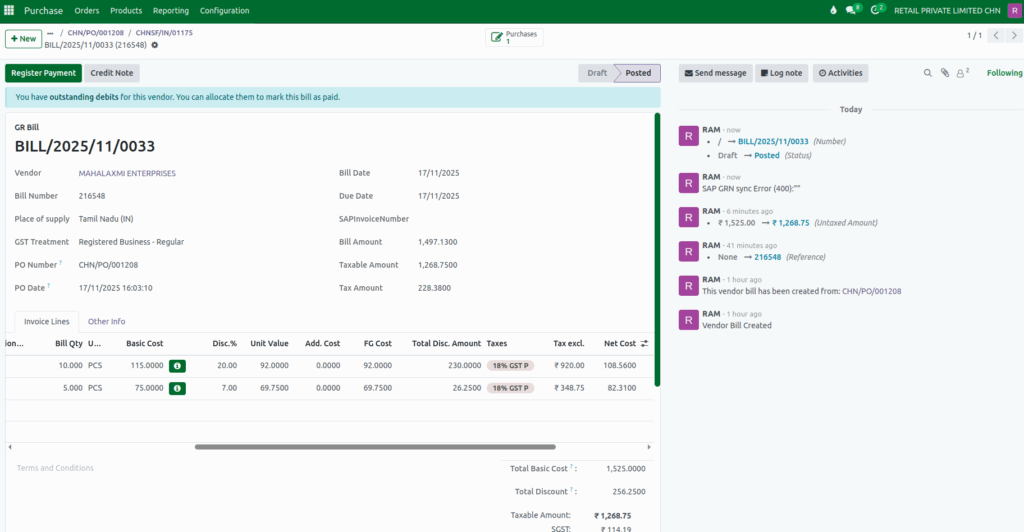
Create a GR Bill in Odoo
To get started, open the Purchase module in Odoo. This will bring you to the Requests for Quotation (RFQ) page. Here, you can either select an existing draft RFQ or click + New to create a new one.
- Select the vendor you want to purchase the items from.
- Add the required products to the order.
- Enter the quantity for each product.
- Click Confirm Order to complete the Purchase Order.
- Open the GR using Receive Products button and Validate.
- Click Create GR Bill button to open the GR Bill.
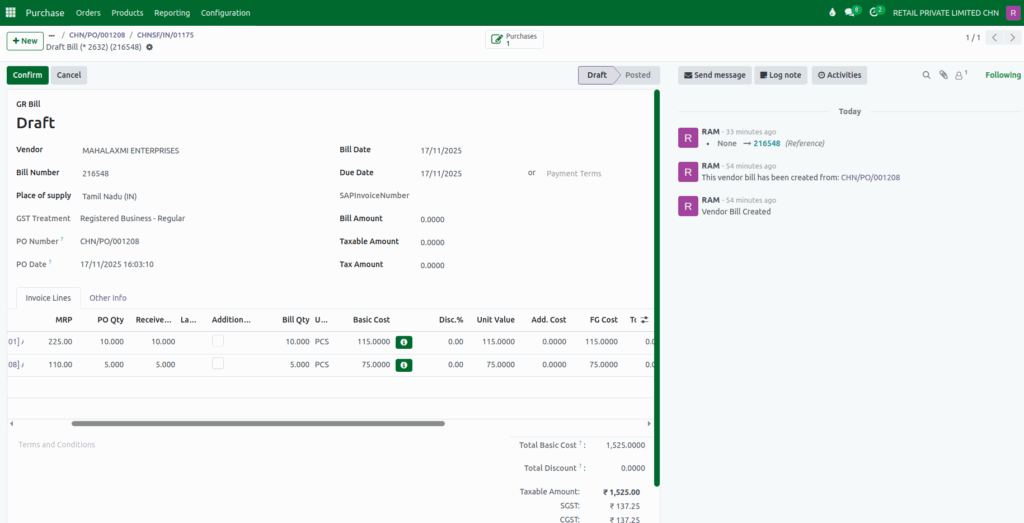
Apply a Discount to a Product in the GR Bill
You can apply a discount to each product by entering the discount percentage in the Disc.% field on the product line.
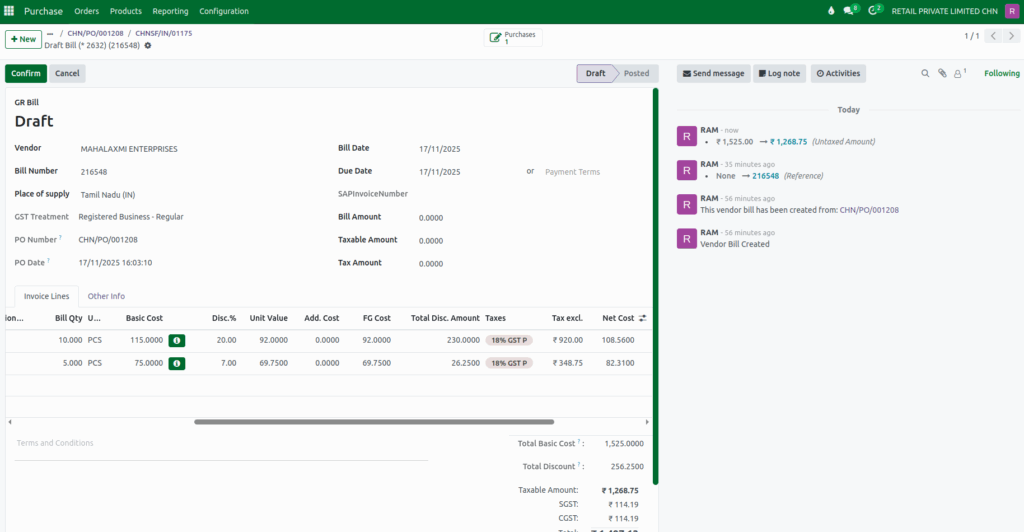
Unit Value Calculation in a Product
When you enter a discount, Odoo automatically updates the Unit Value. The calculation uses the Basic Cost and the Discount Percentage.
Unit Value = Basic Cost – Discount %
Example:
- Basic Cost: 115
- Discount: 20%
Calculation:
Unit Value = 115 – 20% = 92
Total Discount Amount Calculation in a Product
Odoo also calculates the Total Discount Amount based on the Basic Cost, Discount %, and Total Quantity.
Total Disc Amt = (Basic Cost × Discount %) × Total QuantityExample:
- Basic Cost: 115
- Discount: 20%
- Quantity: 10
Calculation:
Total Disc Amt = (115 × 20%) × 10 = 23 × 10 = 230
Total Discount Calculation in a GR Bill
You’ll also see the Total Discount displayed at the bottom right of the GR Bill screen. Odoo also calculates the Total Discount based on the Total Discount Amount for all the products.
Total Discount = Total Disc Amt of product 1 + Total Disc Amt of product 2Calculation:
Total Discount Amount = =230 + 26.25 = 256.2500
Final Calculation and Confirmation
After applying the discount, the unit price is updated, and Odoo will automatically recalculate other fields such as Final Gross Cost, Net Value, Tax Excl., and Tax Incl. based on the new unit value.
Once all details are verified, Enter the vendor bill amounts and click Confirm to confirm the GR Bill.