How to Print and view the Purchase Order in Odoo Purchase
Odoo makes it easy to share a formal Purchase Order (PO) with vendors and keep accurate internal records. Printing a PO helps businesses maintain transparency, track product details, and ensure accountability in the purchasing process.
Creating a Purchase Order in Odoo
To start, open the Purchase module and click +New to create a new Purchase Order. Select the vendor you want to buy from and add the products to the order line. You can review the pricing, adjust quantities, or make changes if needed.
Once the PO is saved, Odoo automatically generates a unique PO document number. This number appears on the order form and will also be included when you print the document.
Printing the Purchase Order in Odoo
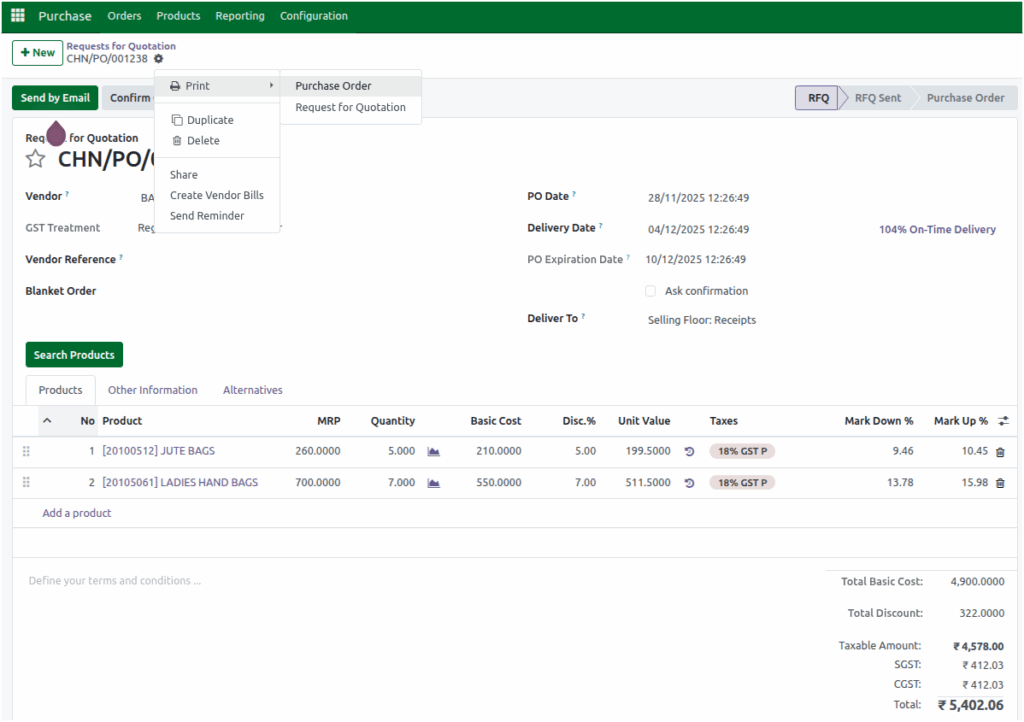
From the Purchase Order form view, click the Action icon. In the drop down menu, select Print, and you will see two options: Purchase Order and Request for Quotation (RFQ).
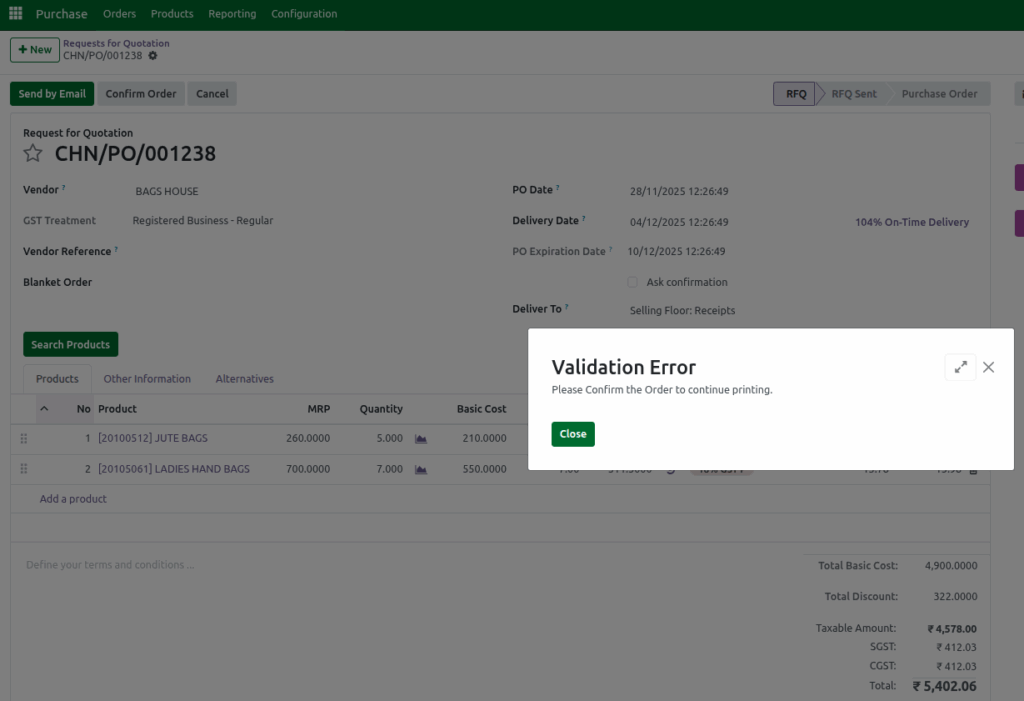
A Purchase Order can be printed only when the order is approved and locked. If you try to print it while still in draft (RFQ) , the system will show a message saying: Please Confirm the Order to continue printing.
Once the PO is approved and locked, click Purchase Order, and the system will download the PDF instantly.
Details shown in the Purchase Order Print
The printed PO is neatly formatted to show all essential information. The center of the document displays the title Purchase Order and the company name. The left corner shows the company logo, while the right corner includes the PO document number and a barcode.
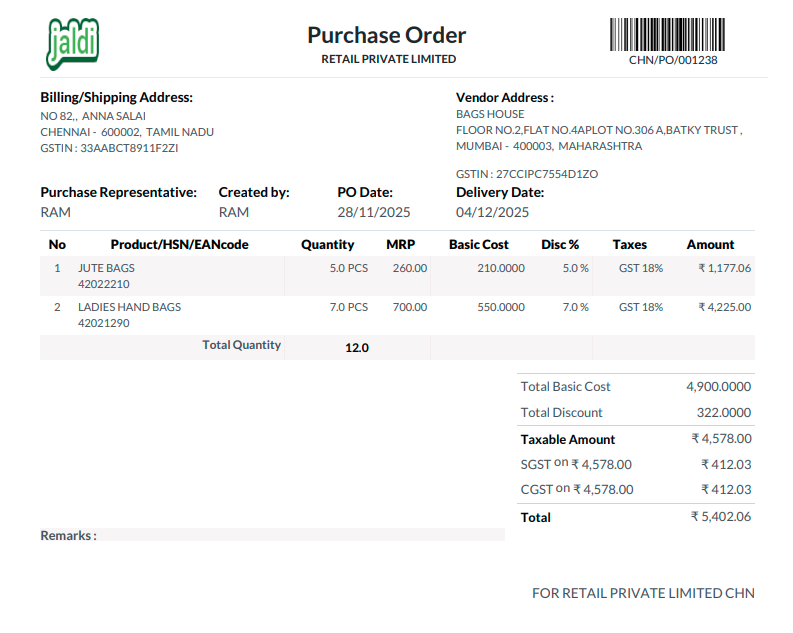
The billing/shipping address section shows your company’s details, which are fixed on the print for reference. The vendor address also appears based on the selected vendor. Additional PO information includes the Purchase Representative, the user who created the PO, the PO Date, and the expected Delivery Date.
Product details appear in a clear table for easy review. Each line includes the line number, product name/HSN code/EAN code, Quantity ordered, MRP, Tax rate, Basic Cost, Discount percentage and the final Amount. The print also shows the total quantity of all products combined.
Below the table, the summary section displays the Total Basic Cost of all items, the Total Discount Amount of all items, the Taxable Amount, and the complete tax breakdown including CGST, SGST, IGST and CESS. The final Total amount clearly shows the total payable value with taxes included.
Printing an RFQ (Request for Quotation) in Odoo
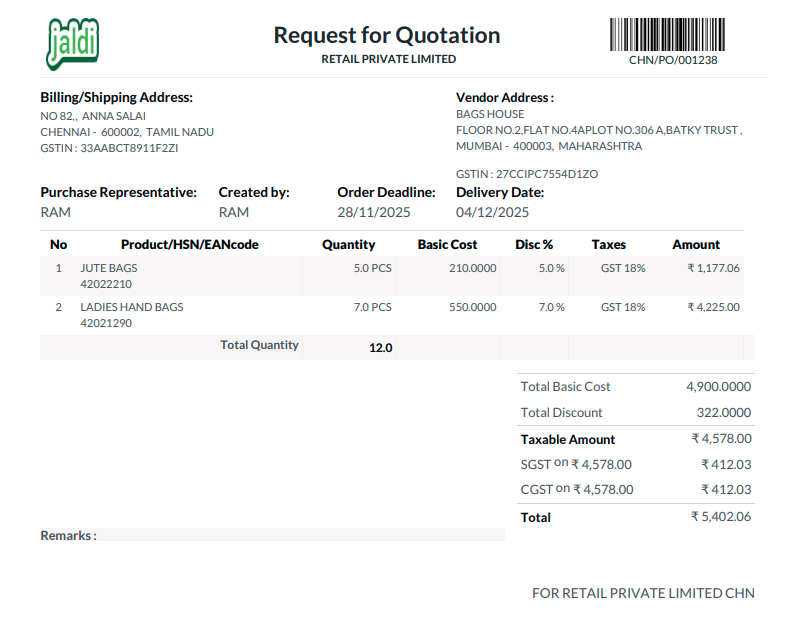
If the PO is still in draft and you choose RFQ in the Actions icon, the printed document will have small changes. The title becomes Request for Quotation instead of Purchase Order. The PO Date field is replaced with Order Deadline and the MRP value does not appear on an RFQ print. All other information remains the same as the Purchase Order print.