How to Configure POS Extended Receipt Settings in Odoo POS
The POS Extended Receipt section in Odoo allows businesses to decide exactly what information should appear on their customer receipts. This feature helps personalize receipts, meet regulatory requirements, and improve the customer experience. Whether it’s showing barcodes, invoice numbers, MRP, or important details like FSSAI or GST numbers, this section makes it easy to adjust receipt content based on your business needs.
Accessing the POS Extended Receipt Settings
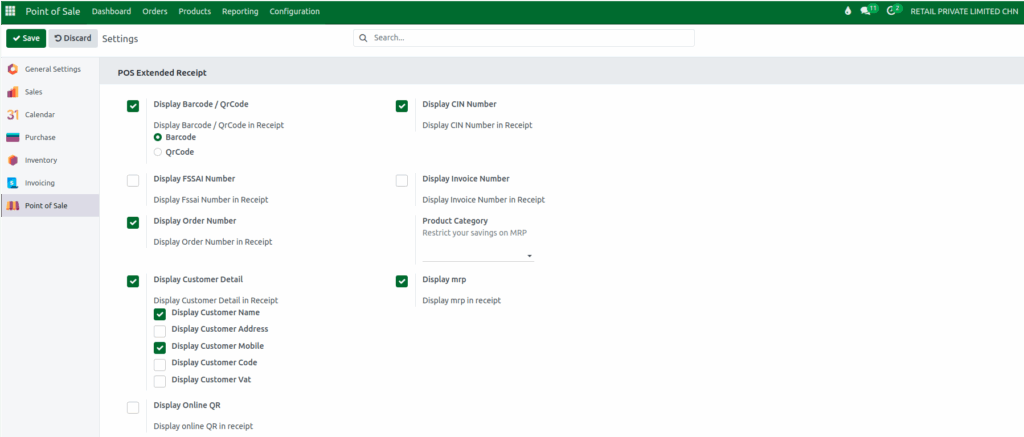
To configure the POS Extended Receipt settings, start by opening the Point of Sale module and navigating to the Configurations menu. From there, go to the Settings page and choose the specific POS terminal you want to configure. Once selected, scroll to the POS Extended Receipt section where all the customization options are available.
Adding Barcode or QR Code to Receipts
Odoo provides the option to display either a Barcode or a QR Code on receipts. After enabling the Display Barcode / QR Code setting, you can choose which format to use based on your preference. Barcodes are helpful for quick scanning and reference, while QR codes can connect customers to additional information or online services with a simple scan.
Displaying the FSSAI Number
For food-related businesses, enabling the Display FSSAI Number option ensures that the official food safety registration number appears on the receipt. This not only helps meet regulatory requirements but also builds customer trust by showing that the business follows proper food safety standards.
Showing the Order Number on Receipts
When the Display Order Number option is enabled, Odoo includes the unique order number on the receipt. This number is extremely helpful for tracking transactions, handling returns, and resolving customer inquiries quickly, as it acts as a clear reference for each sale.
Adding Customer Details to Receipts
If customer information needs to appear on receipts, enabling the Display Customer Detail option will reveal additional fields such as customer name, address, mobile number, customer code, and GST number. These details support loyalty tracking, delivery needs and compliance with GST regulations. Businesses can choose exactly which information is appropriate for their operations.
Using Online QR Codes for Better Engagement
The POS Extended Receipt section also includes an option to Display Online QR code. Once enabled, this QR code appears on receipts and can direct customers to websites, promotions, or online services. It creates a quick and convenient way for customers to engage with your digital platforms.
Displaying the CIN Number
For businesses that require the Corporate Identification Number on receipts, enabling the Display CIN Number option ensures compliance with legal standards, especially for companies operating in India. The CIN is important for official documentation and corporate identification.
Showing the Invoice Number
Enabling the Display Invoice Number option allows Odoo to print the invoice number on receipts. This detail is essential for GST compliance, accounting purposes, customer inquiries, and transaction tracking. It ensures that every sale can be referenced accurately.
Restricting Savings on MRP
The receipt settings also offer a way to restrict discounts based on product categories by selecting the desired category in the Product Category field. This is particularly helpful for businesses that want to maintain strict control over pricing and prevent unwanted price reductions on MRP-based items.
Displaying the MRP on Receipts
To enhance price transparency, enabling the Display MRP option shows the Maximum Retail Price on the receipt. This helps customers understand the original product price and supports businesses in complying with pricing regulations, especially in regions where MRP display is mandatory.
Saving POS Receipt Configuration
After reviewing and adjusting all the required settings in the POS Extended Receipt section, the final step is to save the changes. Once saved, the POS system will apply all the new settings automatically, ensuring that receipts reflect the updated information during checkout.
