How to Use Different Order Types in POS in odoo
Retail store use different type of order types in the POS to help the customers complete their purchase anytime and anywhere. These order types support both in-store and online shopping experiences, ensuring flexibility and convenience for customers.
Purpose of Different Order Types
- Standard Order: For regular in-store purchases.
- Online Order: To process orders made through the Online Applications.
- WhatsApp Order: For orders received via WhatsApp
Each Order type helps organize sales and track ordered efficiently.
Adding Products to the POS Cart
Products can be added to the POS Cart in three ways:
- Type the product code(e.g., /2010058)
- Scan the lot barcode
- scan any of the multi barcode
Once added, the product appears in the POS Cart automatically. Enter the appropriate qty for the selected products.

Selecting Order Type in POS Cart
By default, Standard Order is selected in the POS Cart. To Change, select the Billing Type Tab. These options will displayed : Online, Whatsapp, Standard. Choose the appropriate order type as needed. Verify all the details in POS Cart.


Standard Order
Selection of customer is not mandatory. The order can be completed even without selection of customer. Ideal for quick transactions or walk-in sales.
Online and Whatsapp Order
Customer section is mandatory for online and whatsapp order. If a customer is not selected, the system will alert: Customer is required for order type when validate is clicked in payment screen. A valid address must be provided for the customer. Delivery date must be entered before completing the order.

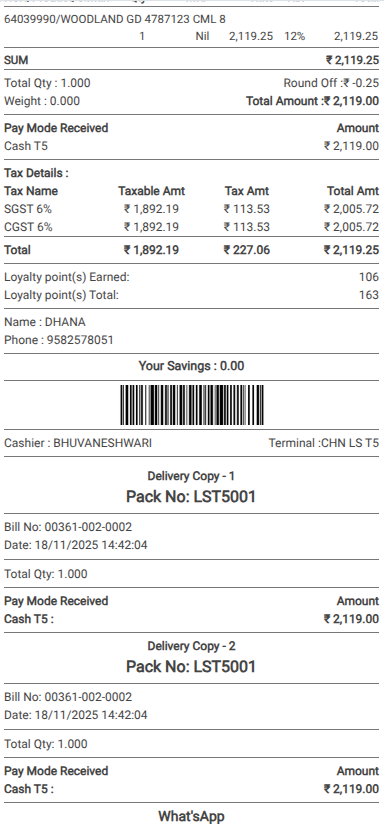
Order Labels on Customer & Delivery Copy
- Now the bill receipt will be generated.
- For Online Orders, the label Online appears at the bottom of the bill receipt.
- For WhatsApp Orders, the label WhatsApp appears at the bottom of the bill receipts.