How to create Sales Order in Adempiere Retail
A Sales Order is a document created by a business to confirm that a customer has requested to buy products or services. It details what the customer wants to purchase, the quantity, price, and terms of sale.
User Access
Who Can Access
- Back Office
- Cashier
- Manager
- Admin
What User Can Do
- Create Sales Order — Enter customer details and order items.
- Edit Sales Order — Update quantities, prices, or customer info before confirmation.
- View Sales Order — Check order details and status.
- Approve Sales Order — Confirm and approve the order for processing (if required).
- Cancel Sales Order — Cancel the order before it is processed or shipped.
- Print or Share Sales Order — Generate a copy to send to the customer or keep for records.
- Track Order Status — Monitor if the order is pending, processed, shipped, or completed.
Pre-Requisite Activities
- Customer Setup
- Product Setup
- User Access
- Inventory Check
- Pricing and Discounts
Business Rules
- Order Validation
- Approval Process
- Pricing and Discounts
- Order Modification
- Order Cancellation
- Delivery and Shipment
User Interface
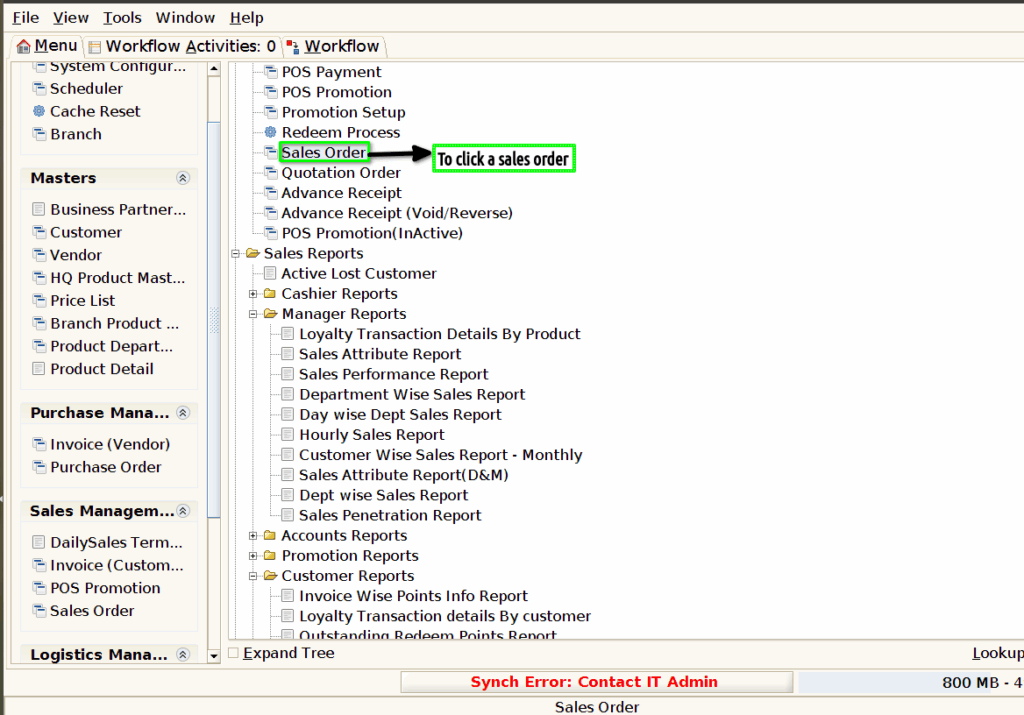
Step 1 : To Select a Branch in Menu.Then to click a Sales Order.
Step 2 :To click a create new record and to enter the values for update document no.To enter a Target Document Type,date ordered,customer,Invoice customer.Then to update a location,Invoice location,Invoice contact,warehouse,price list,Total lines,grand total,and to enter a complete process to to update document status.Finally to save the record.

Step 3 :To click a Order line tab and to click a create new record option,then to enter a product and to update product attribute,HSN Code.Then to enter a Quantity and to update line no,Attribute set instance.To update a price ,unit price,Tax value,List price,Line amount.Finally to save the order line.

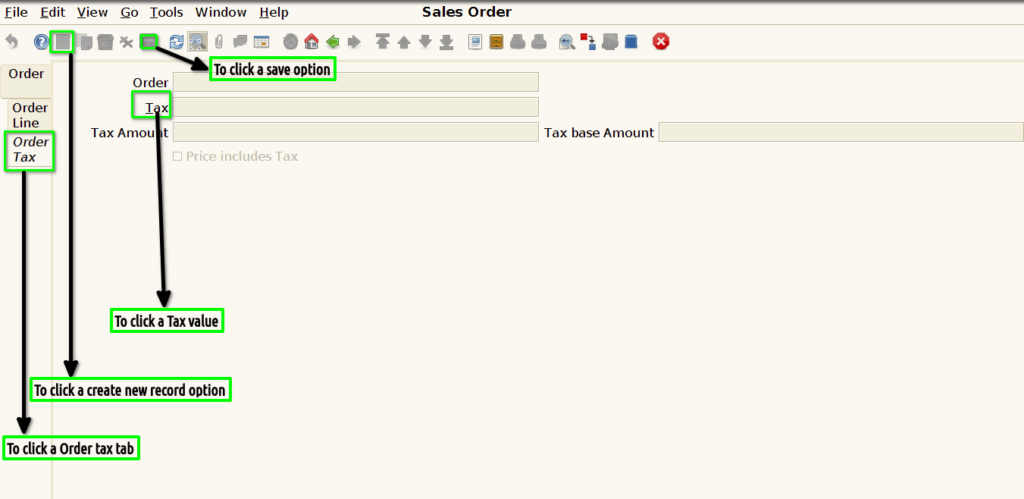
Step 4 :To click a Order tax tab and to click a create new record option,then to enter a value for tax and to save the record.