Operating System (OS) Installation Guide for Adempiere Retail
Introduction :
An Operating system is system software ,
- It manages computer hardware and software resources
- It also provides common services for computer programs
Here , we will displayed about ” Ubuntu – 16.04 LTS ” Installation guide given bellow
Ubuntu -16.04 LTS code name – ” Xenial Xerus “
Ubuntu – 16.04 is a ” LONG TERM SUPPORT VERSION “
User Access :
Bellow users can have an option to access the Installation setup
- IT – admin
- system administrator
- TPT system administrator
Pre -Requisite :
System requirements (recommended) :
- 2 GHz dual-core processor
- 4GB memory
- 25GB available disk space for storage
- DVD drive or USB port ( At least a 4GB USB drive)
Business Rule :
Step – 1 : Cautious about USB DRIVE formatting process
Step – 2 : Cautious about BOOT MENU
Step – 3 : Need to provide Required Information While Rebooting the system
Installation Steps
Steps to be followed :
- Step – 1 : Download Ubuntu image ( Installation Media ) from Official Website
- Step – 2 : Create a Boot-able USB Stick
- Step – 3 : Download Bespoke software
- Step – 4 : Boot up Ubuntu from USB Flash Drive
- Step – 5 : Installation Setup
- Step – 6 : Required information to configure Ubuntu
- Step – 7 : Restart and Update the Software
Step – 1 : Download Ubuntu image ( Installation Media ) from Official Website
visit the Ubuntu download page
Link : https://ubuntu.com/download/desktop
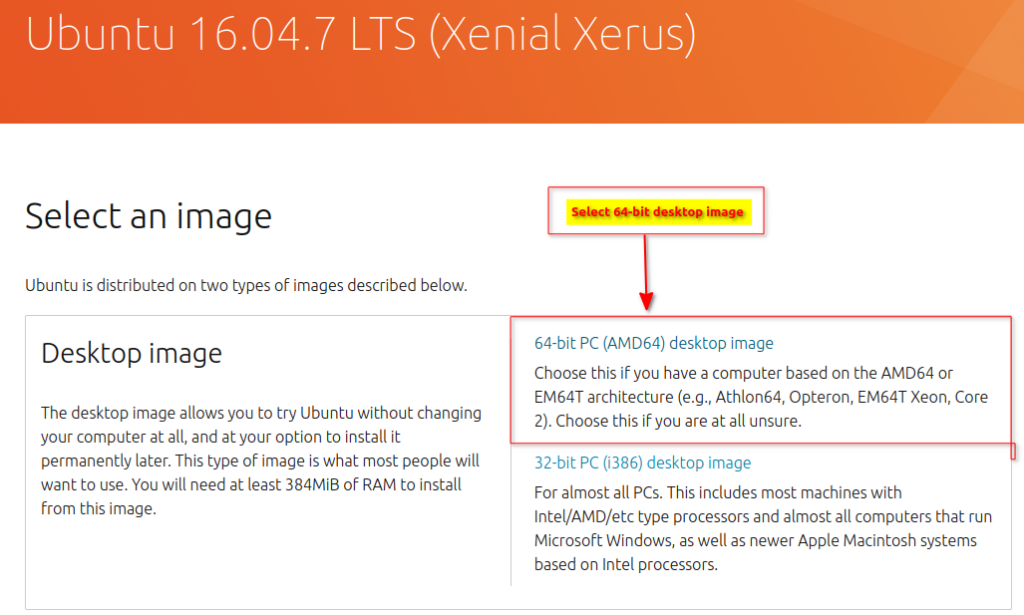
It will take a couple of minutes to download the .ISO file.
Once it is done, move on to create a boot-able USB
Step – 2 : Create a Bootable USB Stick
Note :
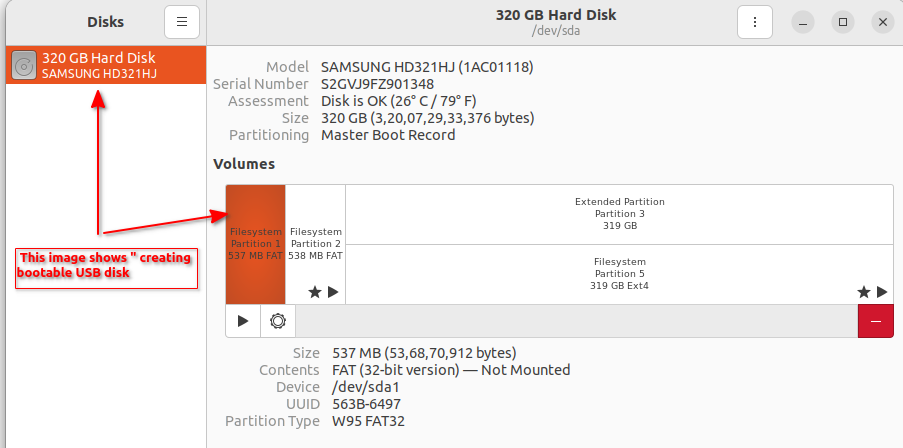
Before copy the downloaded ISO file into USB stick , It needs to be clean and getting formatted.
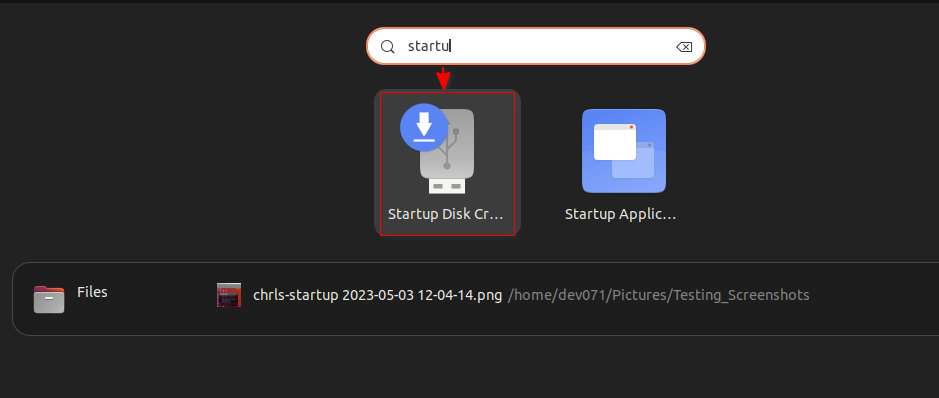
Goto – Ubuntu/startup-disk/
picture for ” selecting boot-able Disk “
picture for ” Creating a Bootable USB disk “
Step – 3 : Download Bespoke software
Download UNetbootin https://unetbootin.github.io/
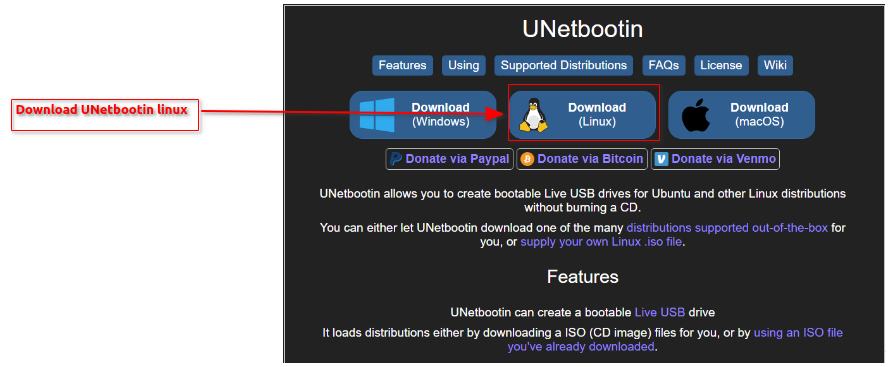
Once it gets Downloaded follow the bellow procedure ,
picture for “select Distribution” in UNetbootin
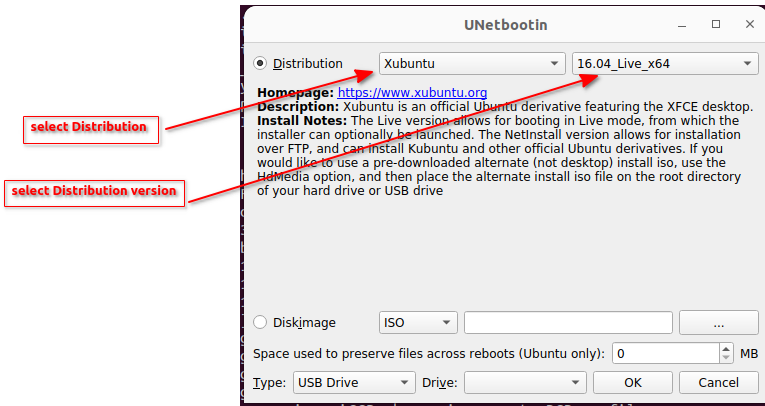
Now , Need to select Disk image which was already Downloaded from the website.
Need to point the Ubuntu download location in UNetbootin
picture for ” selected Ubuntu ISO file in UNetbootin “
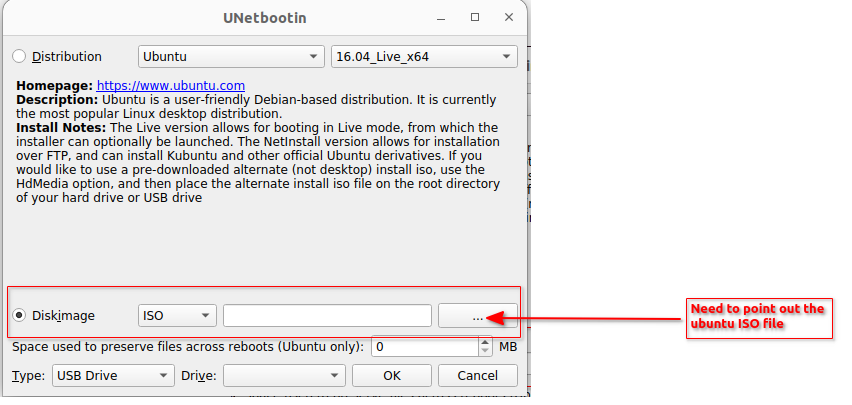
Note: Make sure you have conform Drive USB Detected Then Click OK

Step – 4 : Boot up Ubuntu from USB Flash Drive
Once enable bespoke software
It will ask you to select the ISO downloaded location and asked you to copy from Download location To USB flash drive .
Note :
- Turn off your system (Make sure you remove all other USB device)
- Insert the Ubuntu USB drive into the system and turn on your machine
- Need to manually configure USB Boot Menu by click F9 & ESC .
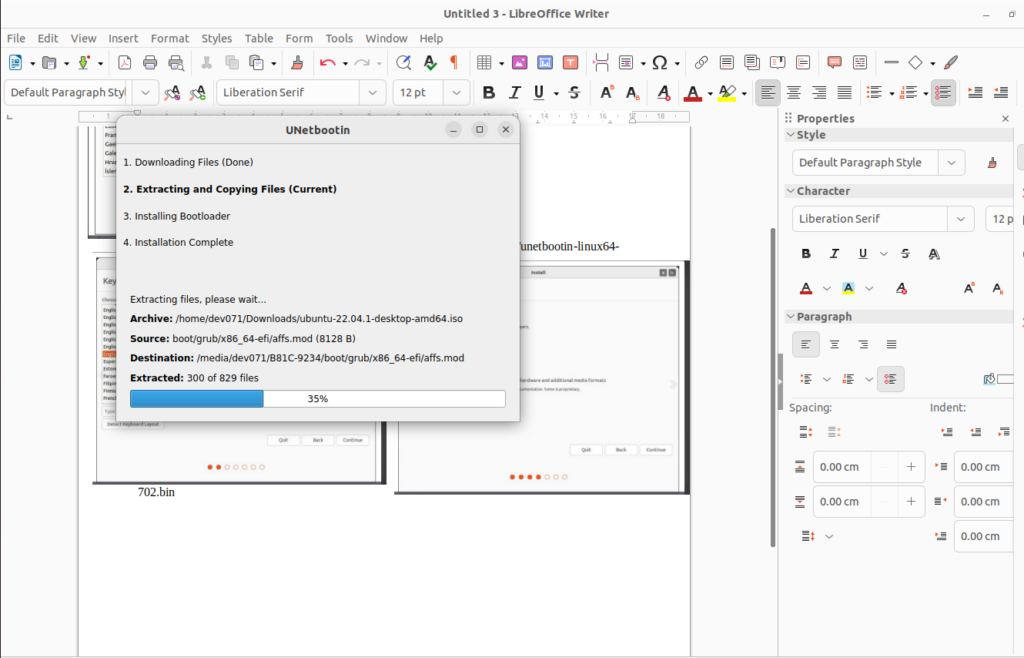
picture for ” selecting USB while booting system “
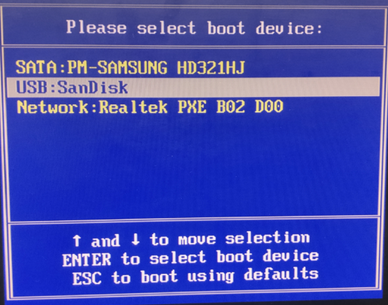
picture for ” selecting USB while booting system “

Step – 5 : Installation Setup
To begin the installation, click Install Ubuntu , By default the system will select English
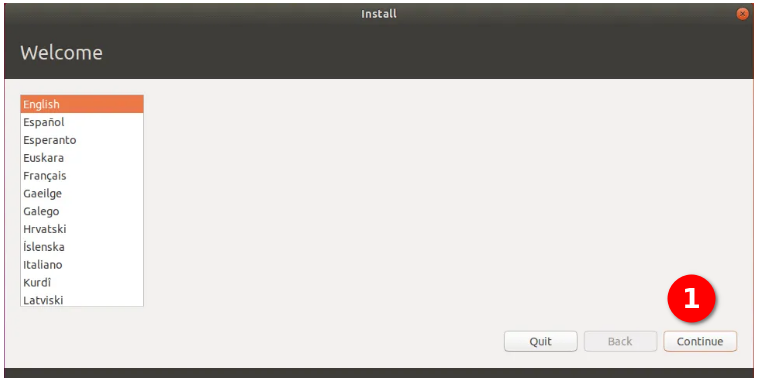
picture for ” selecting default language “
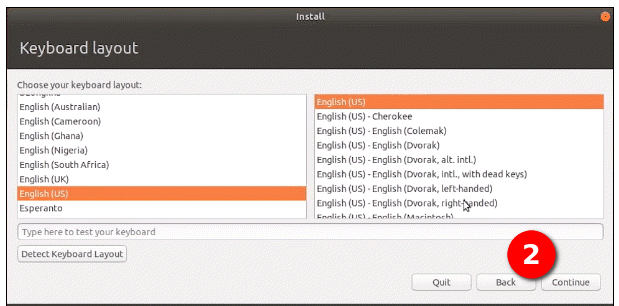
picture for “selecting normal initialization “
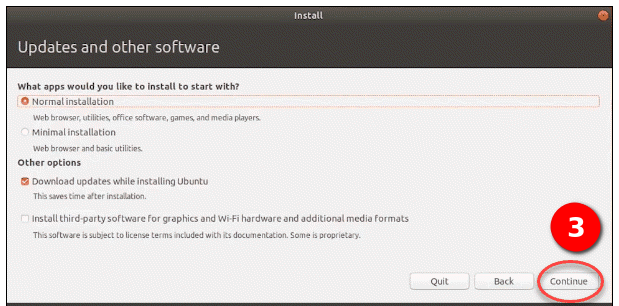
Step – 6 : Required information to configure Ubuntu
- Normal Installation
- Minimal Installation
- Download updates while installing Ubuntu
- Install third-party software for graphics and Wi-Fi hardware and additional media formats
picture for ” selecting install now “
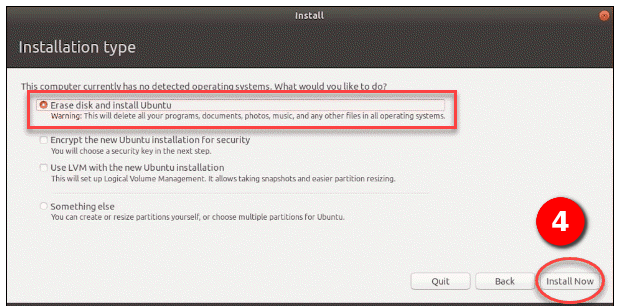
picture for ” continue installation”
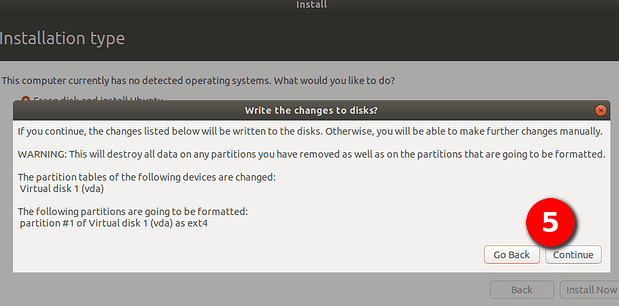
picture for ” selecting time zone “

picture for “providing credentials “
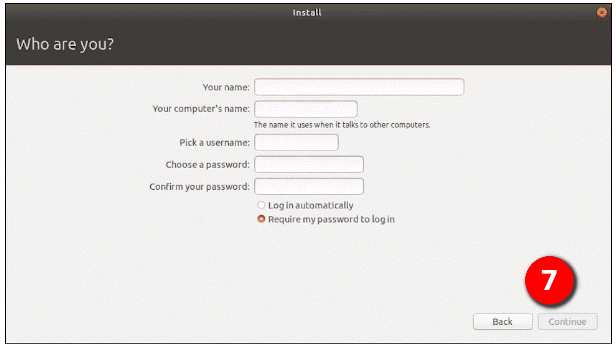
Step – 7 : Restart and Update the Software
picture for ” selecting necessary info “

picture for ” restarted after provide necessary info “
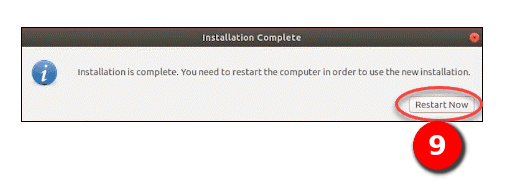
picture for ” installation Ubuntu 16.04 “
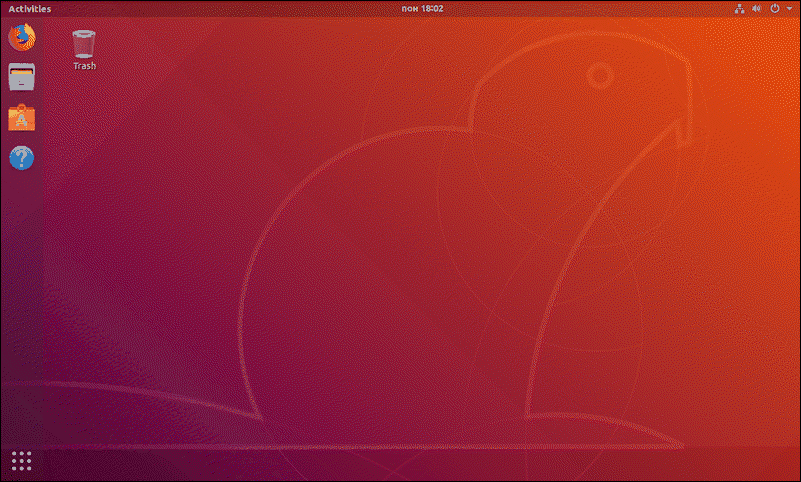
Standard Operating Procedure (sop) :
- Need to follow the installation guide if anything has to do
- Follow the structure format to install OS
- Have a Communication with TPT system administrator for clarification
- should prohibit others to modify OS INSTALLATION
- Keep confidential of system credentials
FAQ
We can identify some Do’s and Don’t from bellow questions !
- Can I use Ubuntu without installing it?
All you need is either a USB stick or DVD with Ubuntu per-installed.
2. How do I know if Ubuntu is installed correctly?
Open the terminal / Type the command “lsb_release -a” / Ubuntu version you’re running under “Description” and “Release”