PostgreSQL Installation Guide for Adempiere Retail
VERSION 9.4.4
Introduction :
Here we will discuss about PostgreSQL and methodology to setup the server and post-server configuration
along with PostgreSQL configuration will understand the connection between Database and the terminologies
User Access :
Bellow users can have an option to access the installation steps
- IT – Admin
- system administrator
- Tenth Planet Technologies system administrator
Pre – Requisite :
System Requirements (recommended) :
Pre installed Ubuntu version
8 GB of RAM
500 GB of HDD
1 GHz processor
Business Rule :
Step – 1 : Cautious about PostgreSQL version
Step – 2 : Cautious about PostgreSQL environment
Step – 3 : Need to provide Required information while setting PostgreSQL environment
Step – 4 : Ensure PostgreSQL client and server working fine
Installation steps :
Steps to be followed
Step – 1 : Download PostgreSQL server
Step – 2 : Extract PostgreSQL as Executable format
Step – 3 : Configure Required information
Step – 4 : pg_hba.conf configuration
Step – 5 : Modify PostgreSQL.conf file
Step – 6 : Verify PostgreSQL configuration
Step – 7 : PG-Admin installation
Step – 1 : Download PostgreSQL server
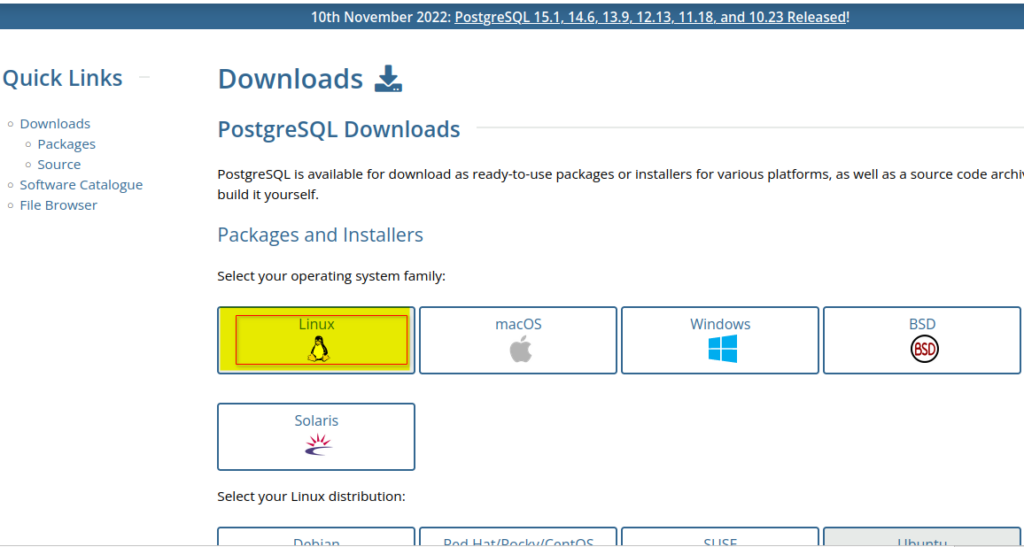
Picture for “selecting packages for configuration “

Need to copy the package Repository and configuration
- Create the file repository configuration:
( sudo sh -c ‘echo “deb http://apt.postgresql.org/pub/repos/apt $(lsb_release -cs)
-pgdg main” >/etc/apt/sources.list.d/pgdg.list’ ) — single line command
- Import the repository signing key:
( wget –quiet -O – https://www.postgresql.org/media/keys/ACCC4CF8.asc | sudo apt-key add – )
- Update the Packages list :
( sudo apt-get update )
picture for ” execute PostgreSQL – 9.4.4-1 “
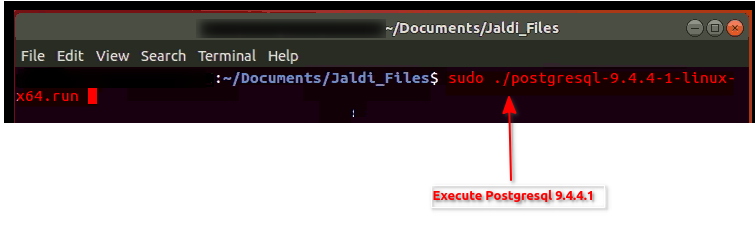
Step – 2 : Extract PostgreSQL as Executable format
picture for ” execute PostgreSQL – 9.4.4-1 “

Step – 3 : Configure Required information
picture for ” configure PostgreSQL – 9.4.4-1 “

picture for ” configure PostgreSQL – 9.4.4-1 “

picture for ” configure PostgreSQL -9.4.4-1 “

picture for ” configure PostgreSQL -9.4.4-1 “

picture for ” configure PostgreSQL -9.4.4-1 “
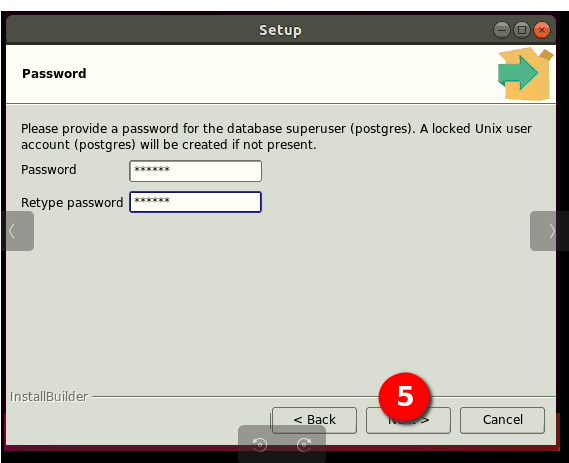
picture for ” configure PostgreSQL -9.4.4-1 “

picture for ” configure PostgreSQL -9.4.4-1 “
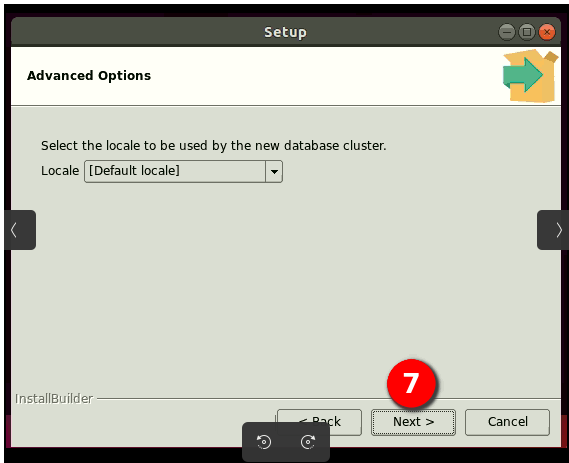
picture for ” configure PostgreSQL -9.4.4-1 “
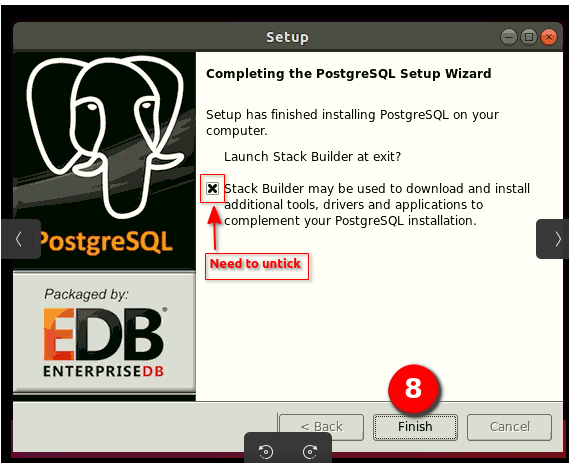
picture for ” configure PostgreSQL -9.4.4-1 “

Step – 4 : pg_hba.conf configuration
picture for ” configure PostgreSQL – 9.4.4-1 “
Need to set the PostgreSQL environment with ROOT ACCESS USING NAUTILUS
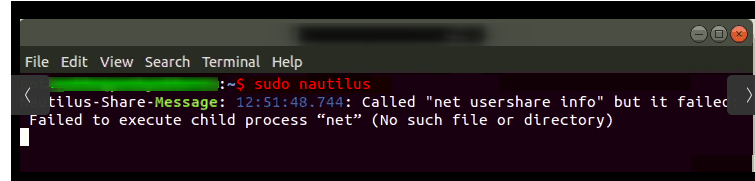
Need to OPEN /opt/PostgreSQL/9.4/data then double click open on pg_hba.conf
picture for ” moved PostgreSQL into OPT Directory “
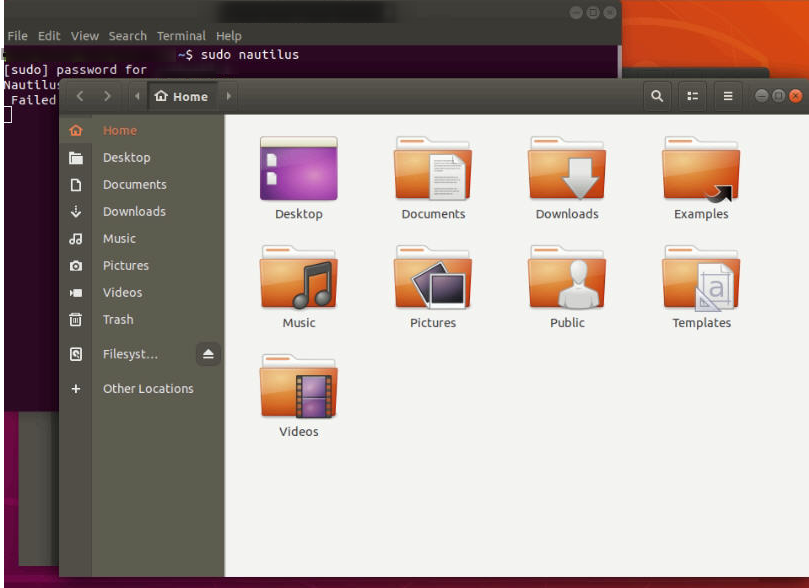
picture for ” pg_hba.conf configuration “
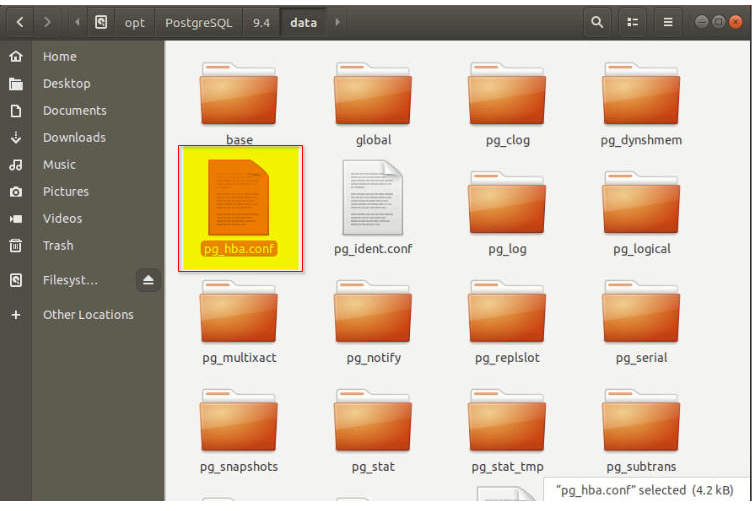
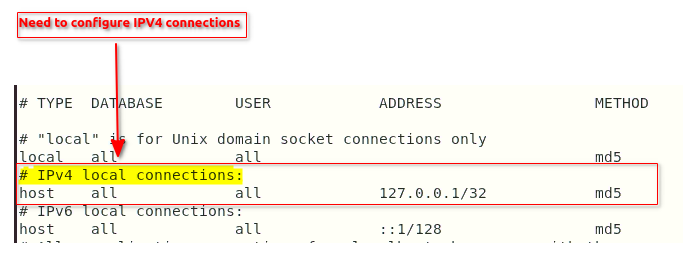
picture for ” modify the IPV4 connection”
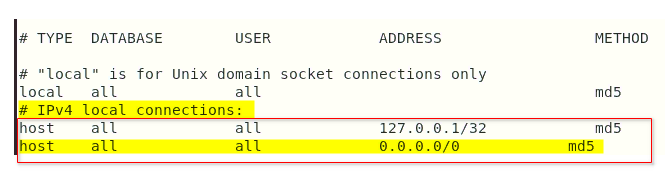
picture for ” modified ipv4 connection for local host “
Step – 5 : Modify PostgreSQL.conf file
picture for ” Modify PostgreSQL.conf file “

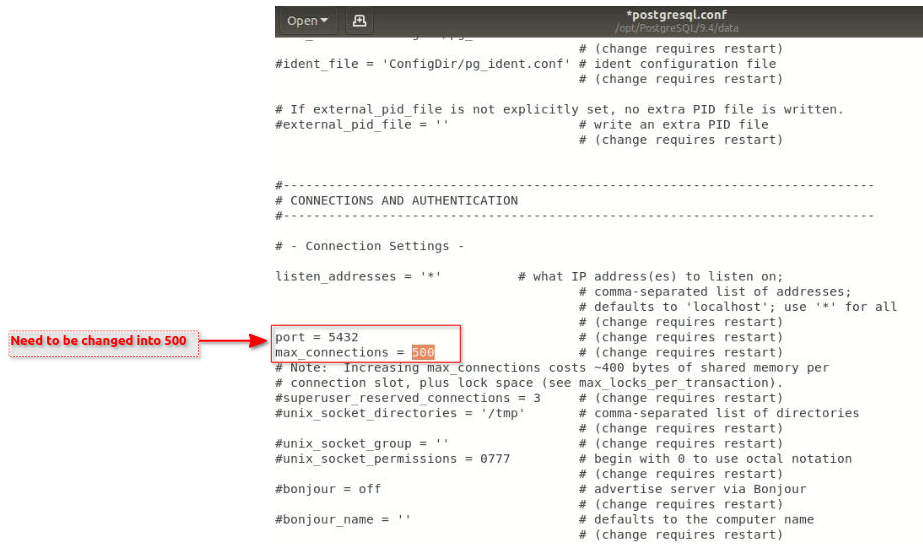
picture for ” verified max connection in PostgreSQL.conf file “

picture for ” configured max connection in PostgreSQL.conf file ”
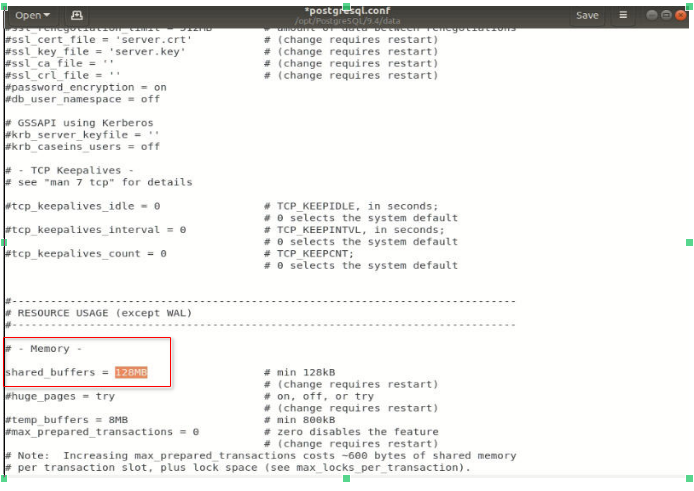
picture for ” verified shared buffer memory ( it should be above 100) “

picture for ” Restarted PostgreSQL after made a configuration “
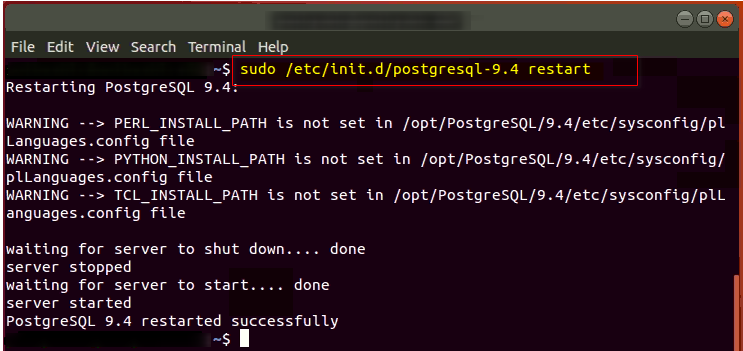
In Ubuntu 16.04 , when system gets booted PostgreSQL Doesn’t start automatically .
Need to set PostgreSQL , to Do start automatically when system gets booted !
Hence we added rc.local file for PostgreSQL automation
Picture for ” selected rc.local file “
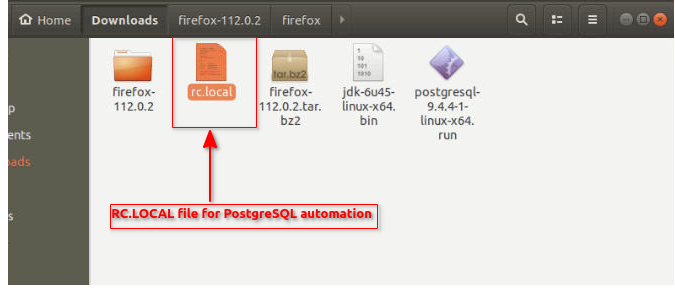
picture for ” provided privileges to rc.local file “

picture for ” rc.local file moved into etc directory “

step – 6 : Verify PostgreSQL configuration
picture for ” verified PostgreSQL version “
Need to open rc.local file go to – ” /etc/init.d/PostgreSQL – version “
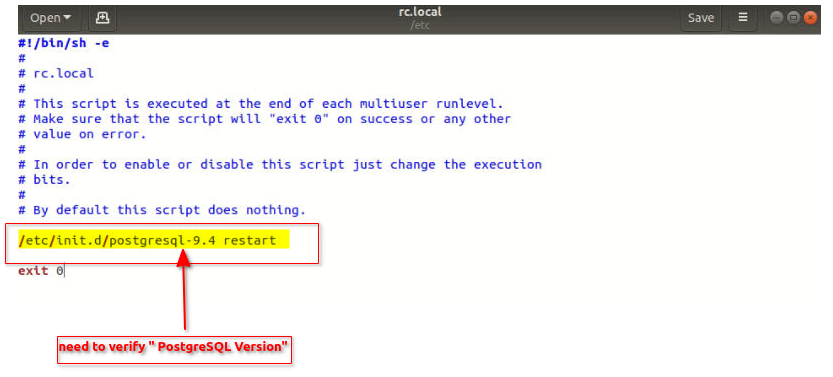
NOTE : Need to Restart the system
Step – 7 : PG-Admin installation
picture for ” install pg-admin 3″

Picture for verified ” Pg-admin installation “
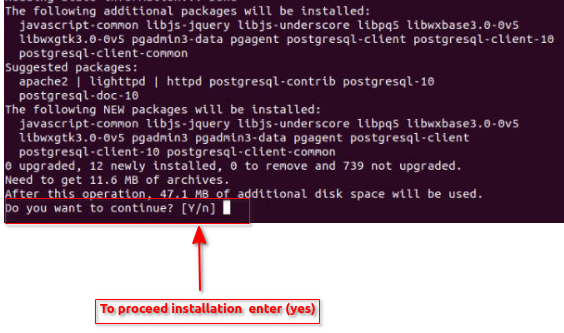
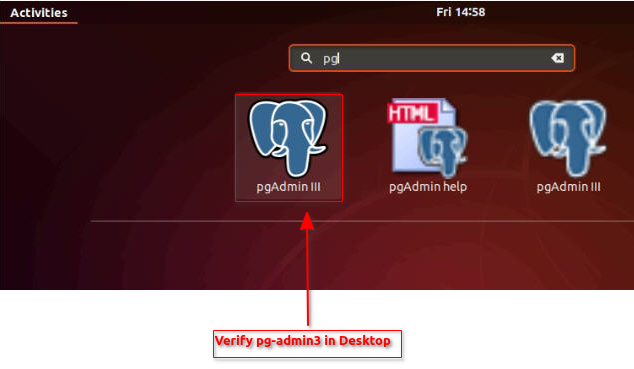
picture for verified ” pg-admin 3 in desktop “
Standard operating Procedure (SOP) :
- Need to Follow the installation Guide if anything has to do
- Follow the structure format of PostgreSQL Installation
- Have a Communication with TPT Administrator for clarification
- Should Prohibit others to modify ” PostgreSQL Installation “
- Keep confidential of system configurations
FAQ :
- what if pg-admin not installed properly ?
verify the ” path location of pg-admin ” – /usr/lib/pg-admin.