How to create Stock Transfer Send document in ADempiere Retail
Stock Transfer Send means officially sending items from one location or warehouse to another within the same company. It records the movement of stock out from the sending location.
User Access
Who Can Access
- IT Admin
- Cashier
- Manager
- Back office
What User Can Do
- Create a transfer request
- Select items and quantities
- Choose the destination location or warehouse
- Generate transfer documents
- Update the system
- Pack and prepare items
- Track the status
Pre-Requisite Activities
- Check Stock Availability
- Create or Verify Transfer Request
- Confirm Destination Details
- Assign Transfer Reference Number
- Update Inventory System
Business Rules
- Authorized Users Only
- Stock Availability Must Be Verified
- Valid Transfer Request Required
- Unique Transfer Reference Number
- Accurate Item and Quantity Details
User Interface
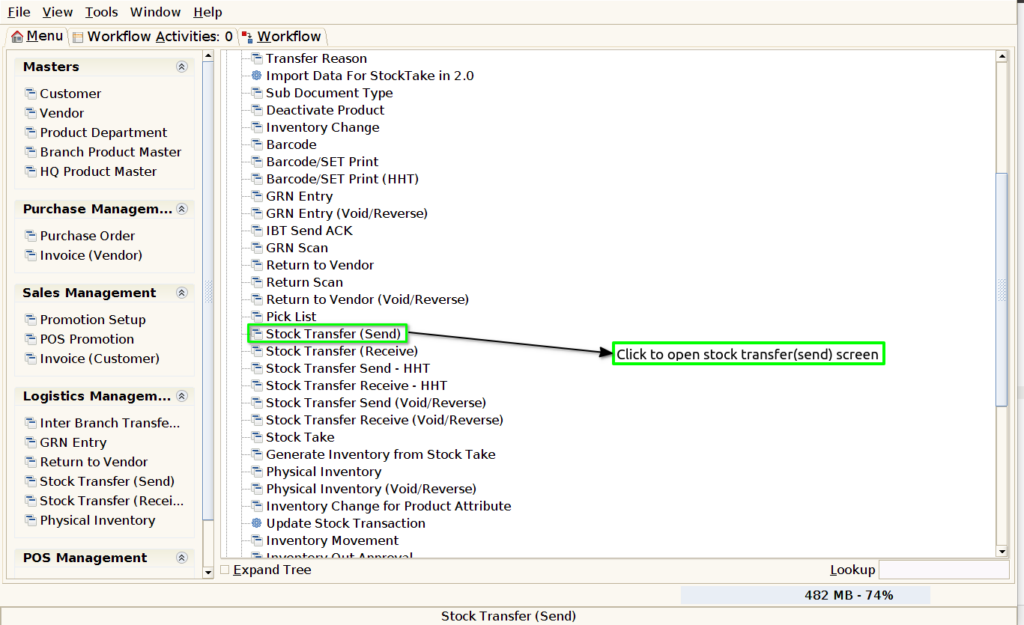
Step 1 : Select ‘Stock transfer send’ in Menu -> Logistics management > Stock transfer send or Search Stock transfer send in Lookup.
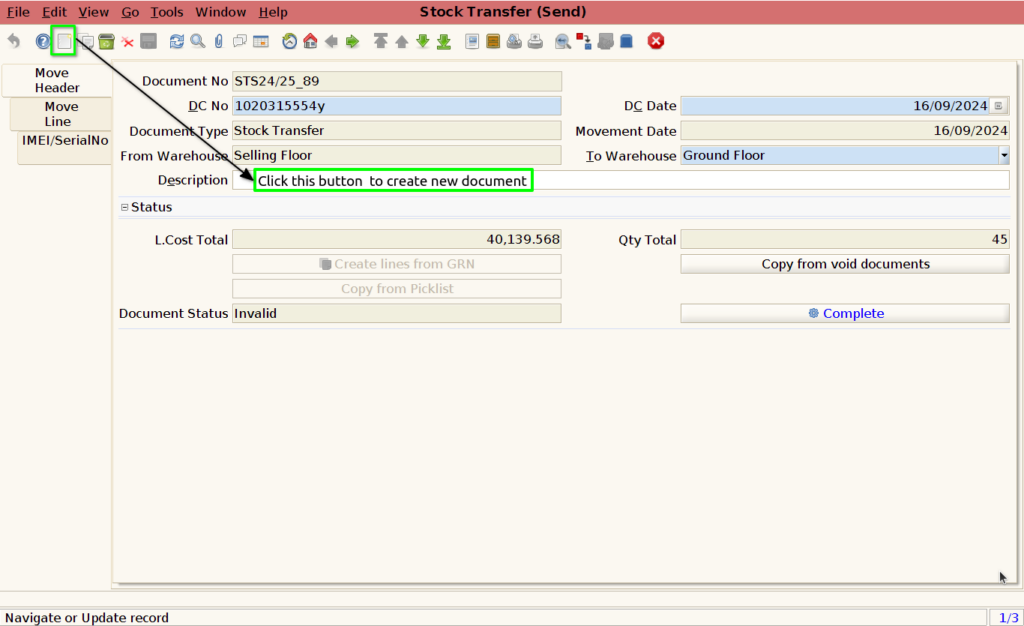
Step 2 : To create new stock transfer send document
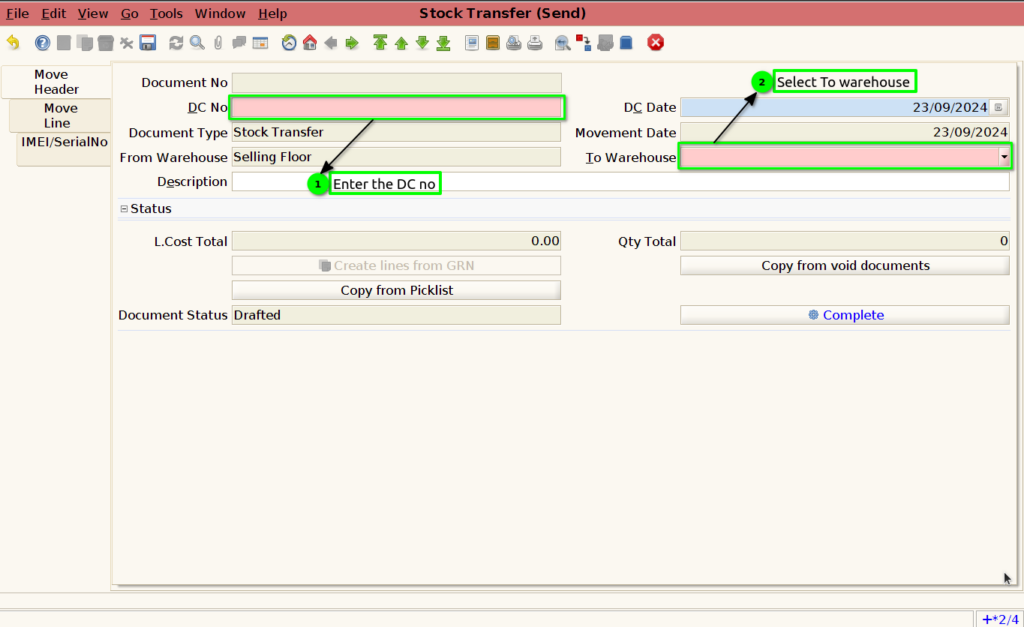
Step 3 : Enter the Dc no and To warehouse ,save the document generate to create document no ,

Using Pick list
Step 4 : Stock Transfer send using Pick list Documents
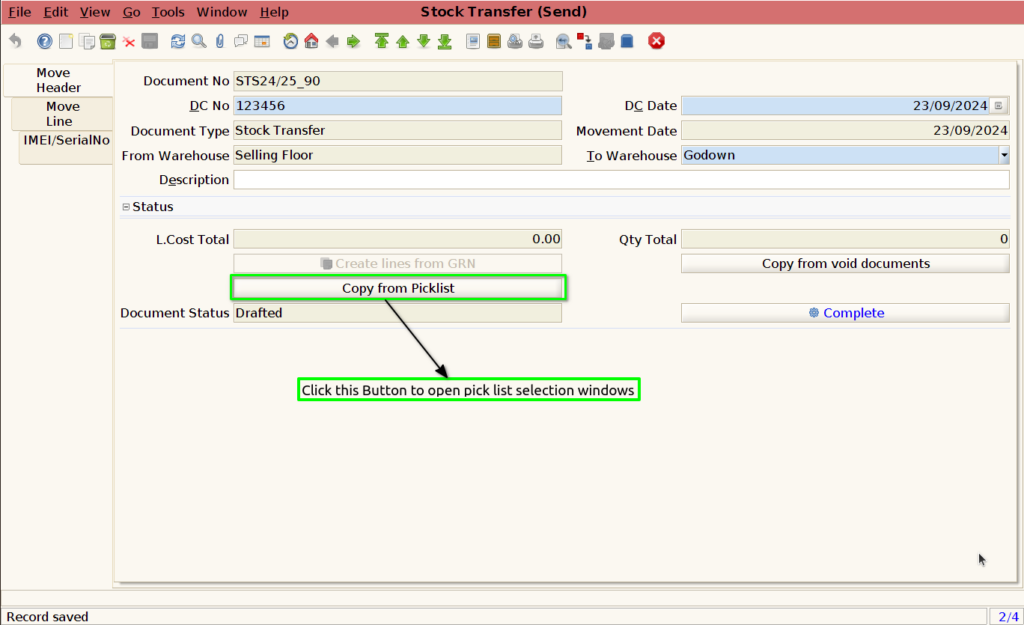
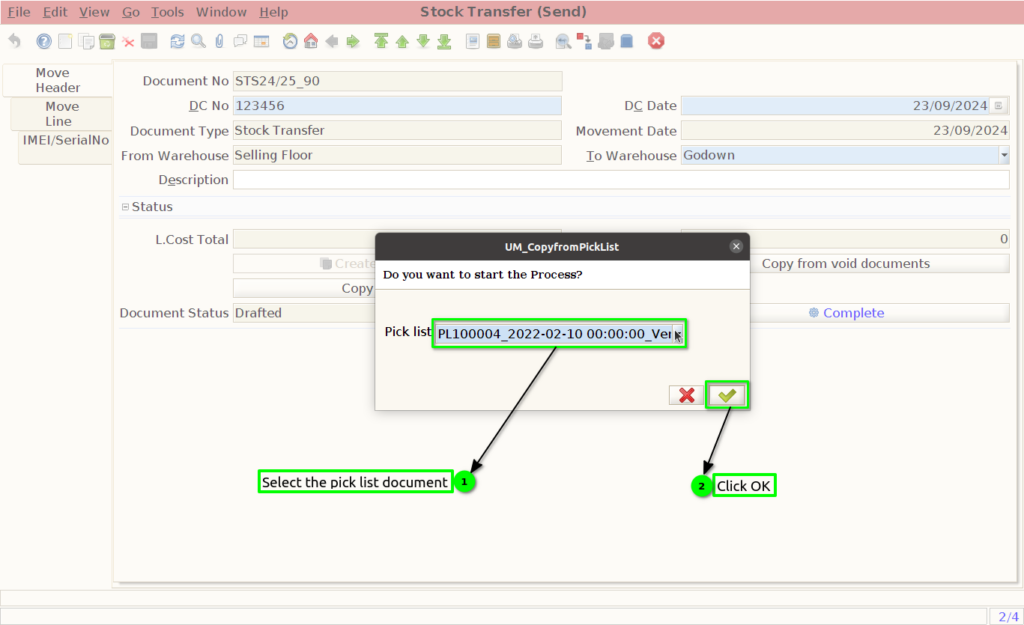
Using copy from void Documents
Step 5 : Stock Transfer send used copy from void Documents

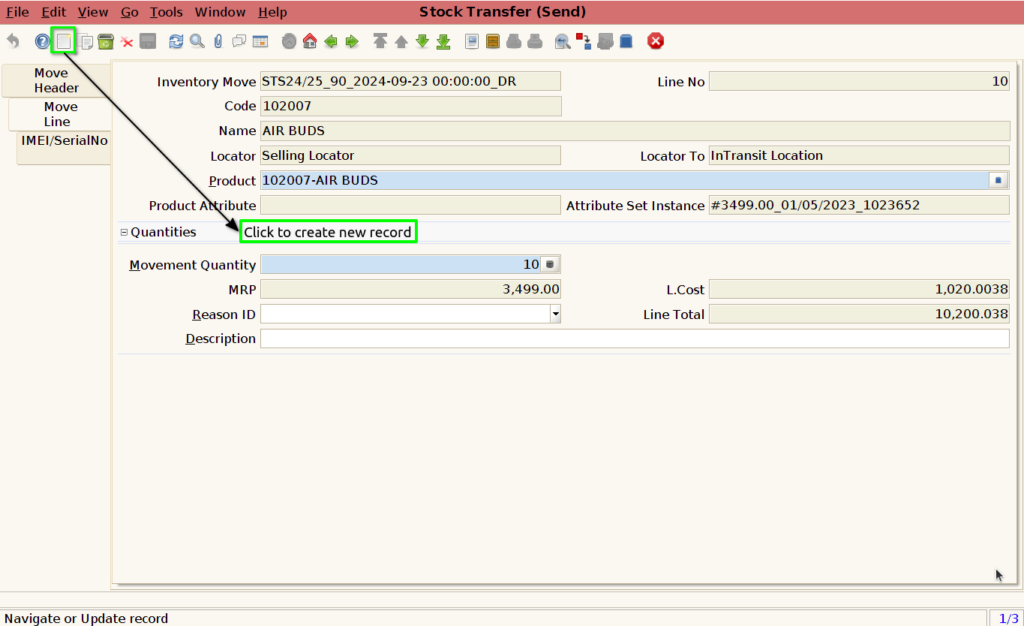
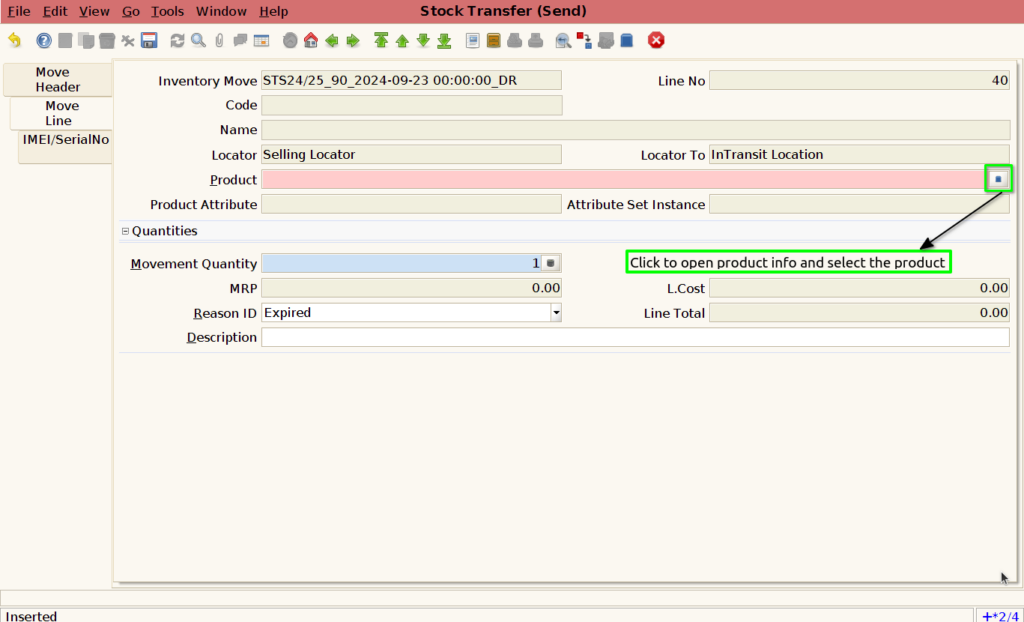
Step 6 : Stock Transfer send product added in move line tab
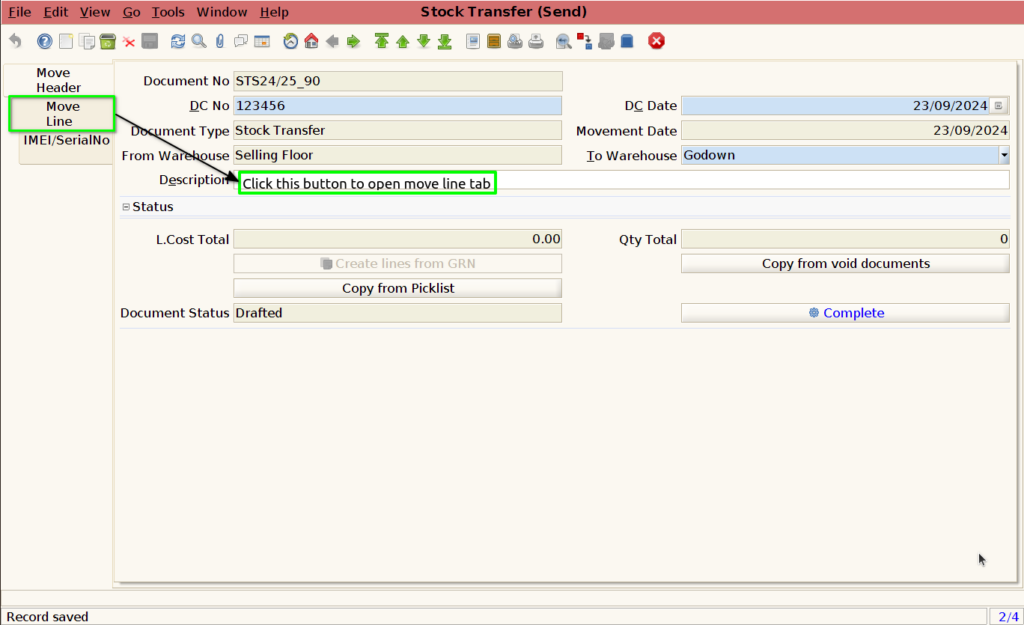
Step 7 : Added product in move line of stock transfer send by following steps


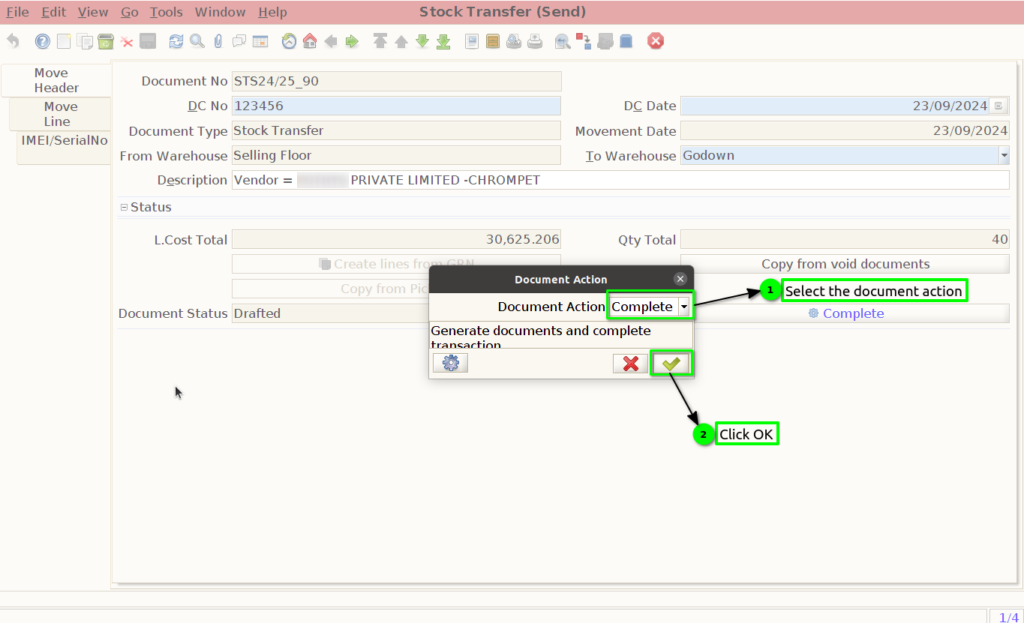
Step 8 : Go to header tab and completed the stock transfer send document

Step 9 : Check the product totals ,date etc and complete the document