How to Search an Item in a POS Terminal of Adempiere Retail
Pressing the F12 key on the keyboard opens the Item Search function or screen.
User Access
Who Can Use
- Cashier
- Manager
- Admin
- Back Office
What User Can Do
- Search for Items
- View Item Details
- Scan Barcode (if supported)
- Check Stock Availability
Pre-Requisite Activities
- Inventory Data Available
- Search Module Enabled
- User Permissions Verified
Business Rules
- Access Control
- Valid Search Inputs
- Search Performance
- No Partial Access
- Barcode Scanning Compatibility
User Interface
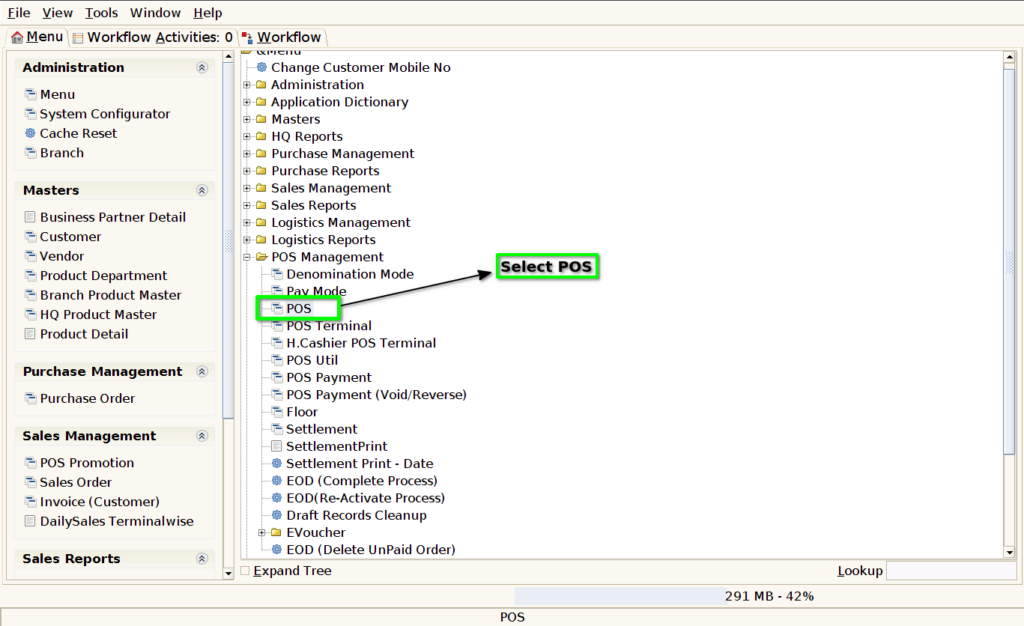
Step 1 : Select ‘POS’ in Menu -> POS Management -> POS or Search POS in Lookup.
Step 2 : Click ‘F12’ for item search

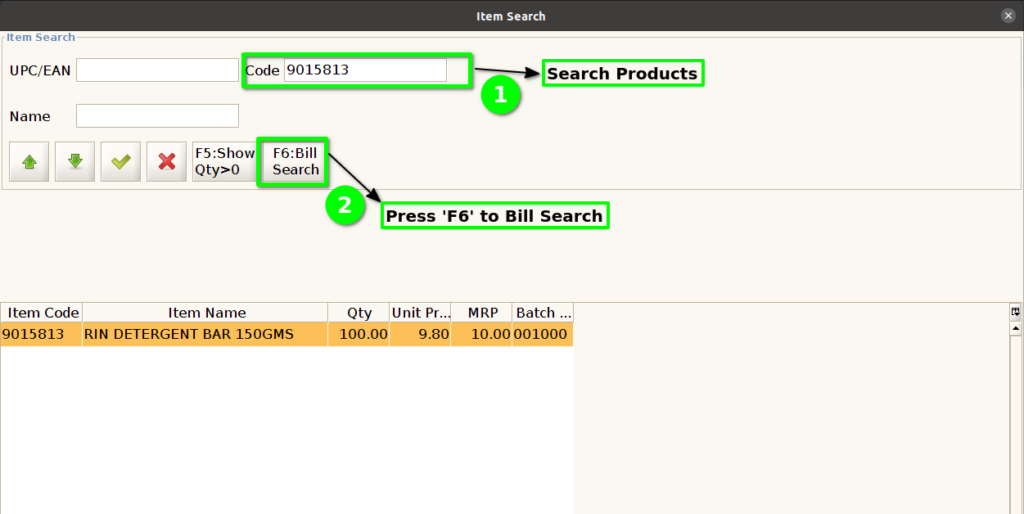
Step 3 : Search products based on Product code, Name, UPC/EAN code

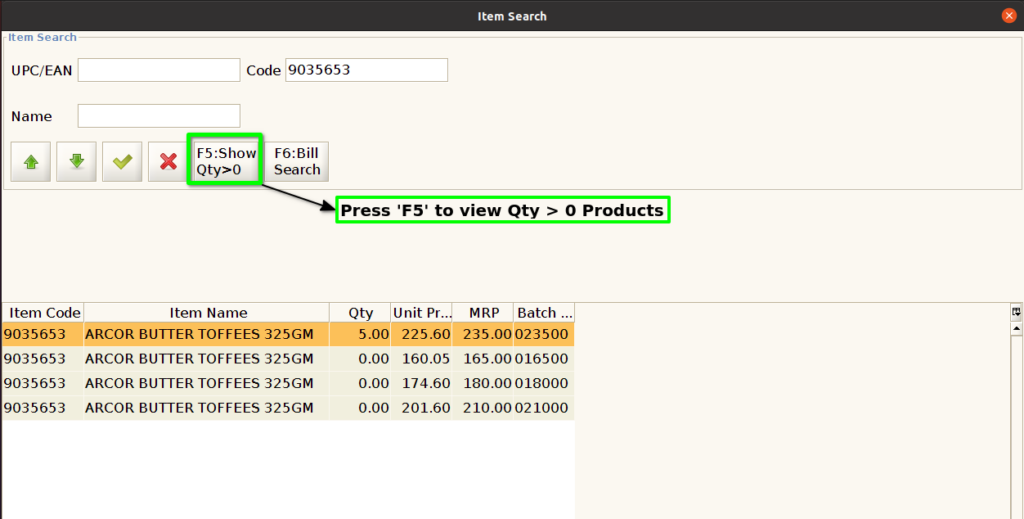
Step 4 : Click ‘F5’ to view products list without Zero qty only

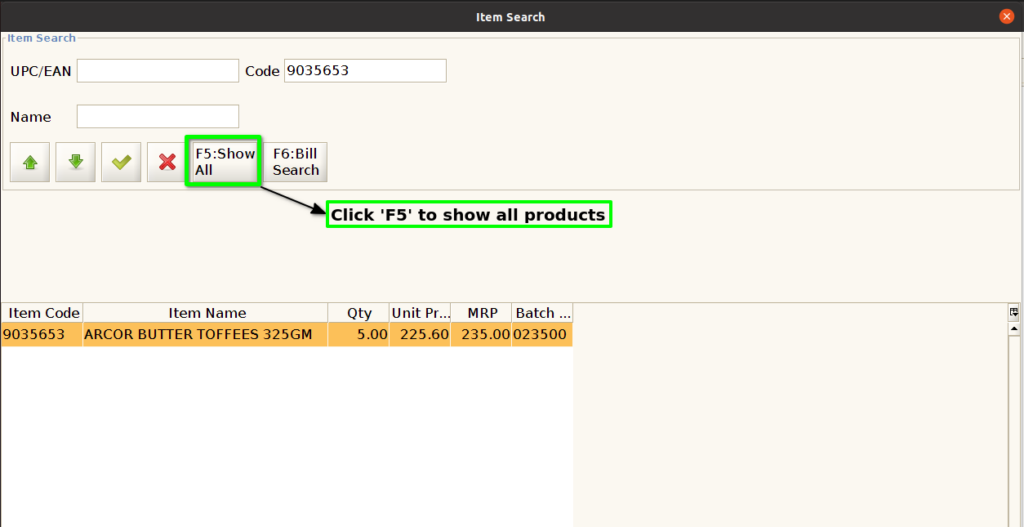
Step 5 : Press ‘F5’ again to view all Products

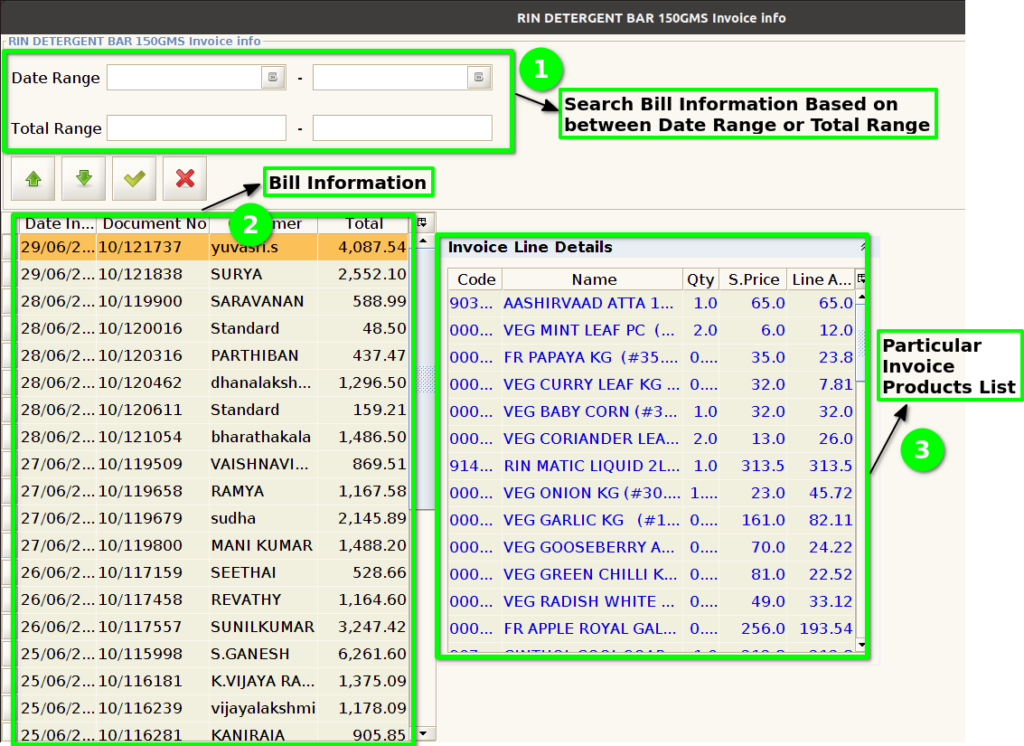
Step 6 : Click ‘F6’ to view bill information for the particular search products
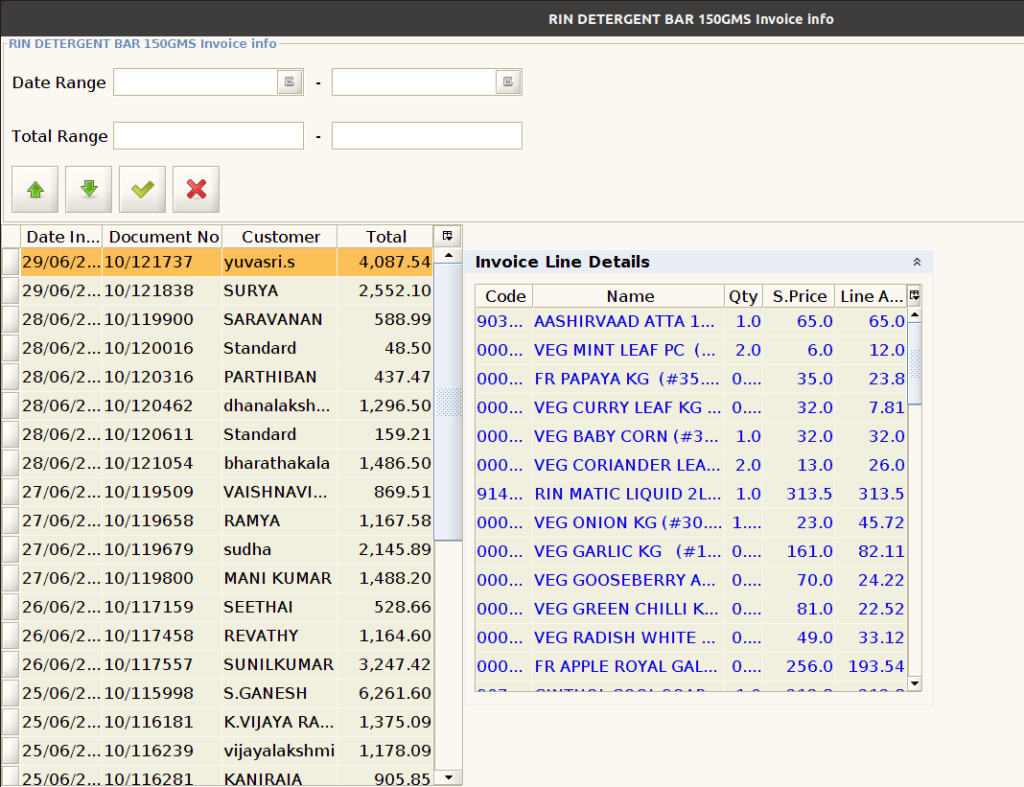
Step 7 : Search bill information based on date range or total range of the particular search products