How to view Consolidated PO Report in Adempiere Retail
A Consolidated PO Report summaries multiple Purchase Orders (PO) in a single report, helping to view total purchases, item-wise or vendor-wise data, and overall procurement trends in one place.
User Access
Who Can Access
- Back Office
- Purchase Manager
- Manager
- Admin
What User Can Do
- To enter a From date
- To enter a To date
Pre-Requisite Activities
- Ensure POs are properly entered and approved
- Vendor and item master must be maintained
- PO status should be updated regular
BUSINESS RULES
- Report pulls only from approved or valid POs
- Cancelled or deleted POs are excluded
- Totals must match the PO records without manual edits
- Filters must be applied accurately to avoid mismatches
- Data must be refreshed before generating the latest report
User Interface
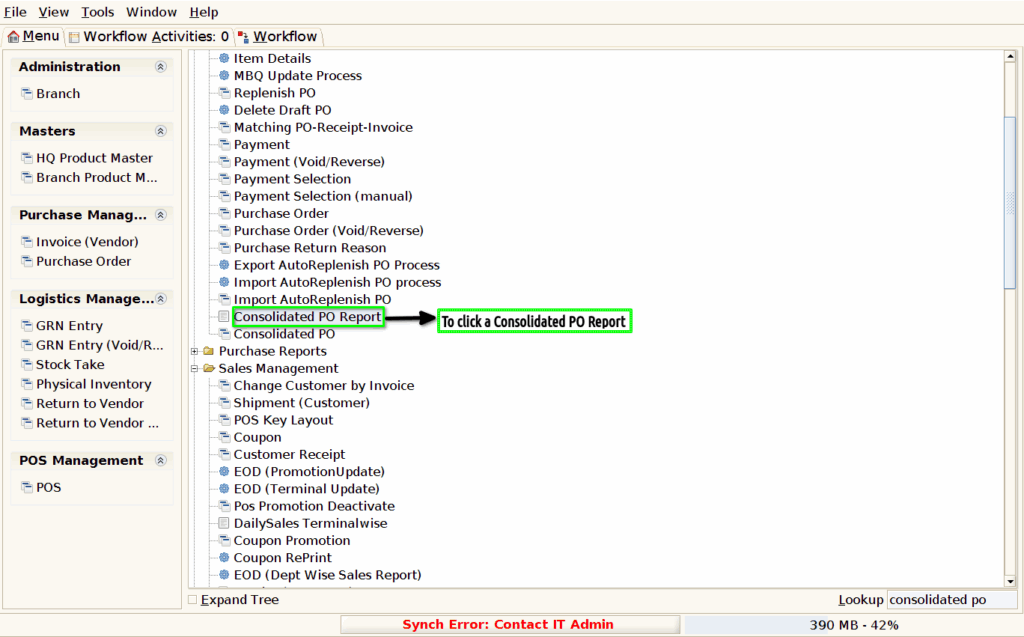
Step 1 : To Select a Branch in Menu.Then to click a consolidated Po.
Step 2 : To enter the date value for From date and To date.Then to click a start check box.

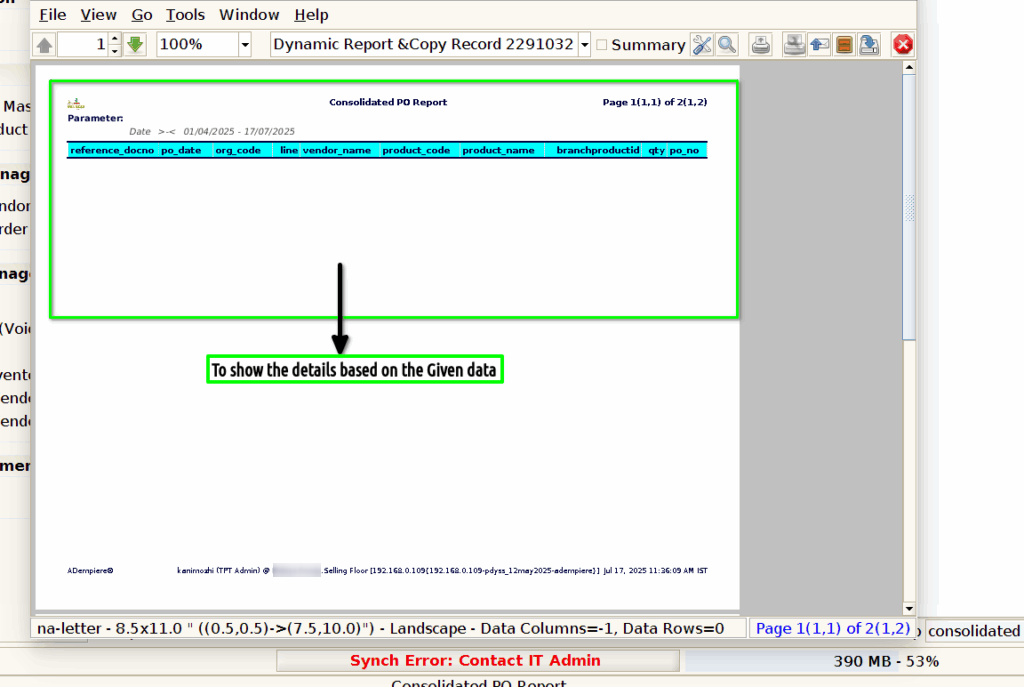
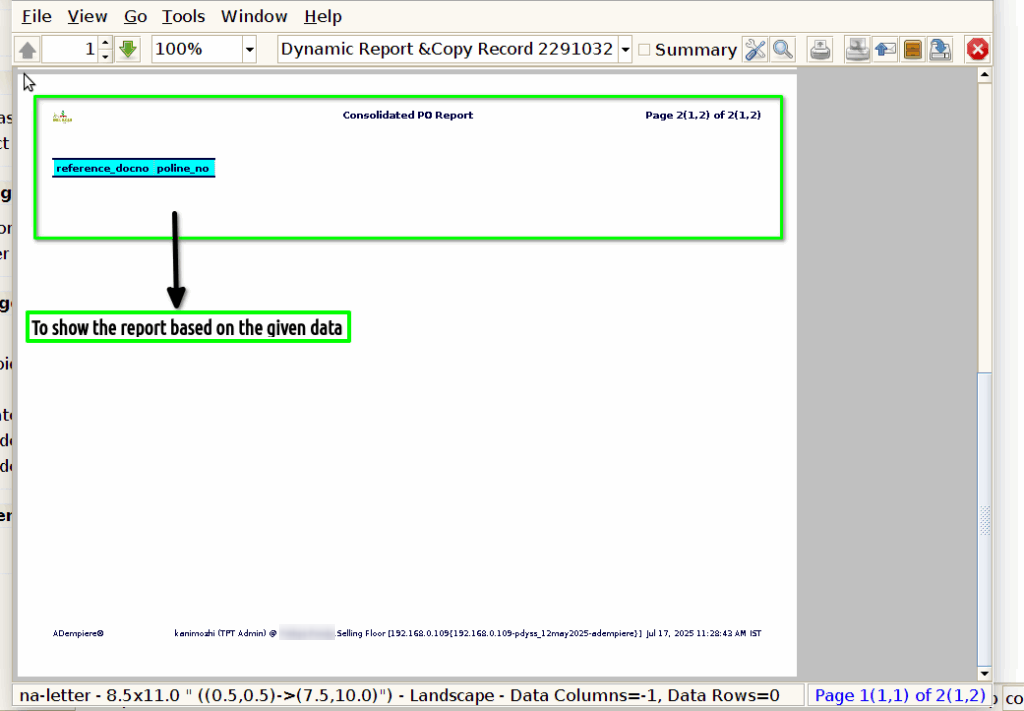
Step 3 : Once to complete the process and to show the report based on the given data.
1.Reference_doc no
2.po_date
3.Org_Code
4.Line
5.Vendor Name
6.Product_Code
7.Product_Name
8.Branch product_id
9.Qty
10.Po no
11.Po_Line_no.