How to create a New Order for Registered Customers in Adempiere Retail
“New order with registered customer” refers to a situation where a customer who is already registered in the system places a new order.
- New Order: A fresh request for products or services.
- Registered Customer: A customer who has already created an account or profile in the system, with their details saved for future transactions.
User Access
Who Can Access
- Cashier
- Manager
- Admin
- Back Office
What User Can Do
- View Previous Order
- Enter/Update Shipping Details
- Complete Payment
- Track Order Status
- Save Payment Information
Pre-Requisite Activities
- Customer Registration
- Product/Service Catalogue
- Payment Gateway Integration
Business Rules
- Registered Customer Requirement
- Login Verification
- Product Availability
- Minimum Order Quantity
- Maximum Order Limit
- Valid Payment Method
User Interface
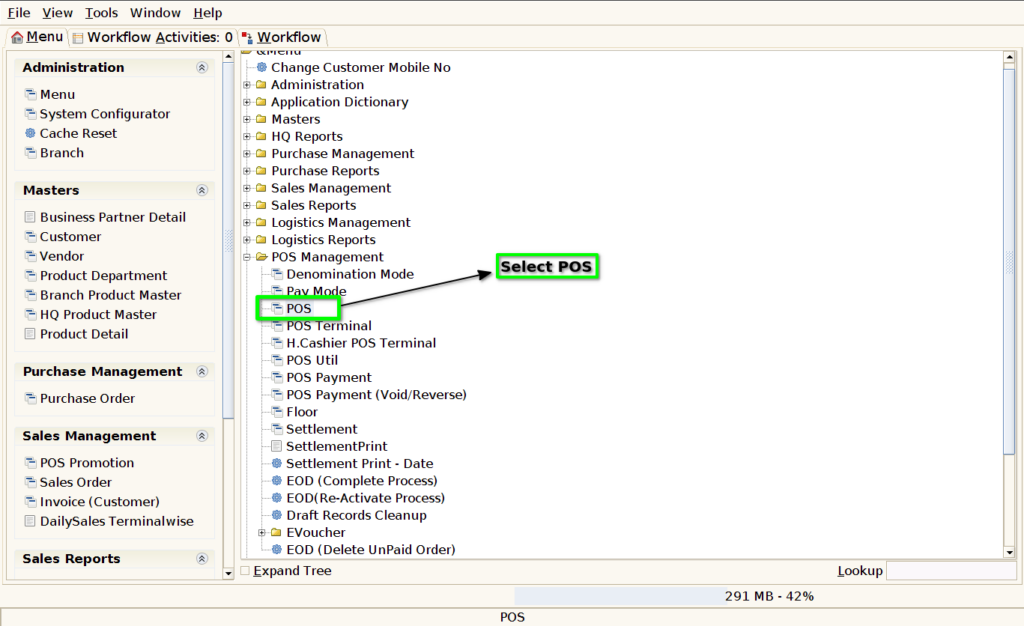
Step 1 : Select ‘POS’ in Menu -> POS Management -> POS or Search POS in Lookup.
Step 2 : Search Product using Product Code, Product Name, Barcode, IMEI, Serial Number

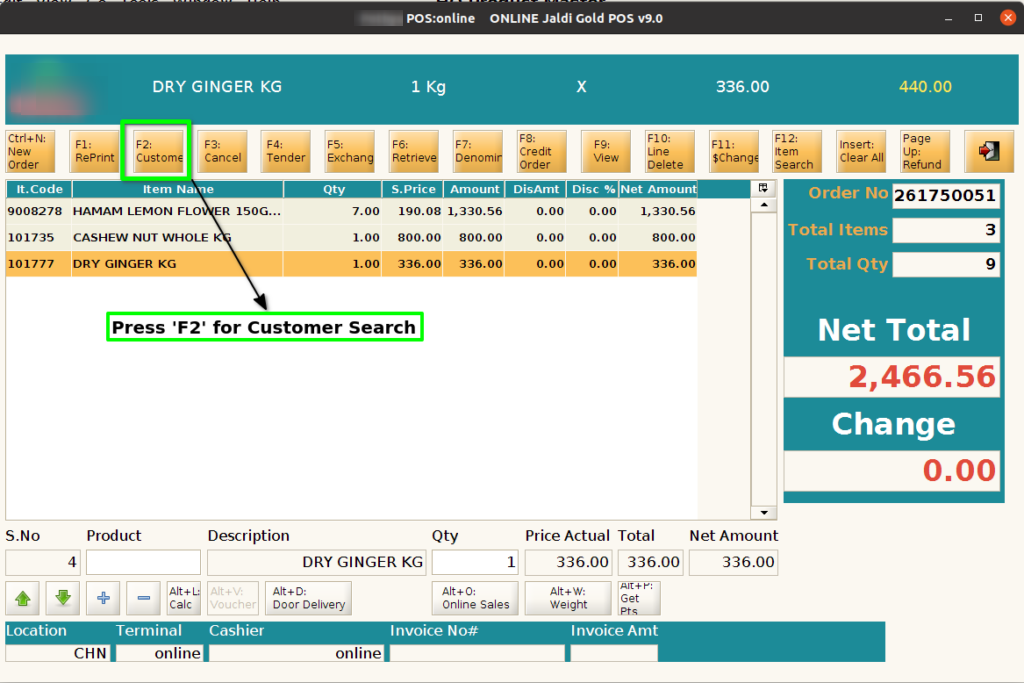
Step 3 : Press ‘F2’ for customer search
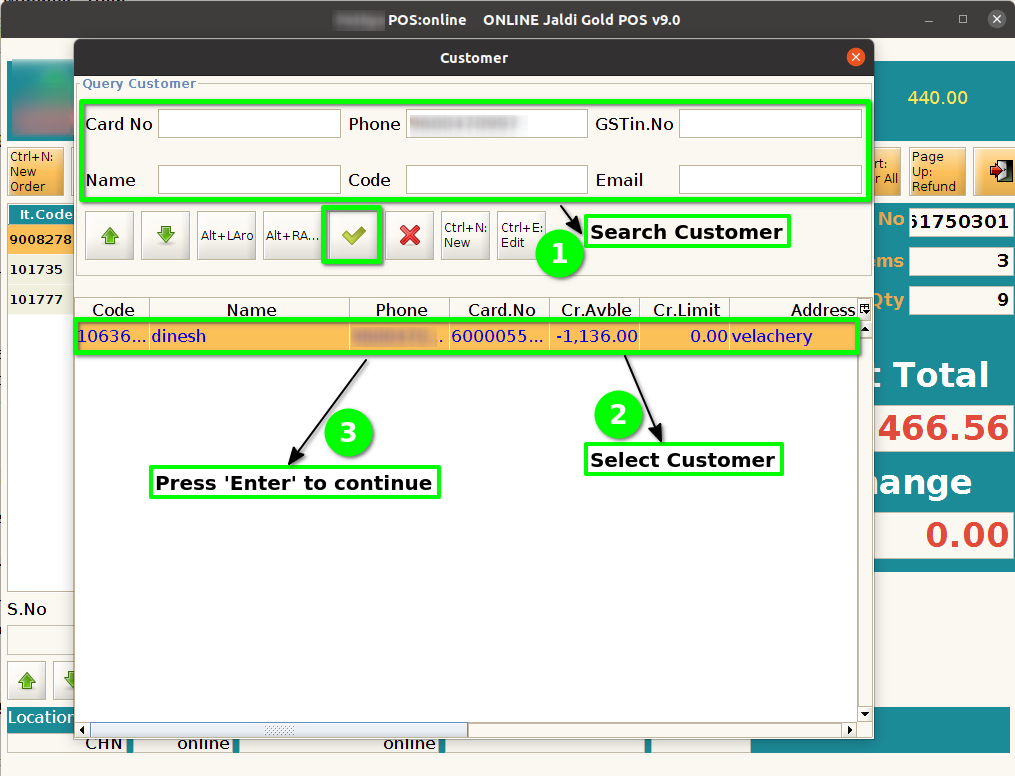
Step 4 : Select Customer using search parameters
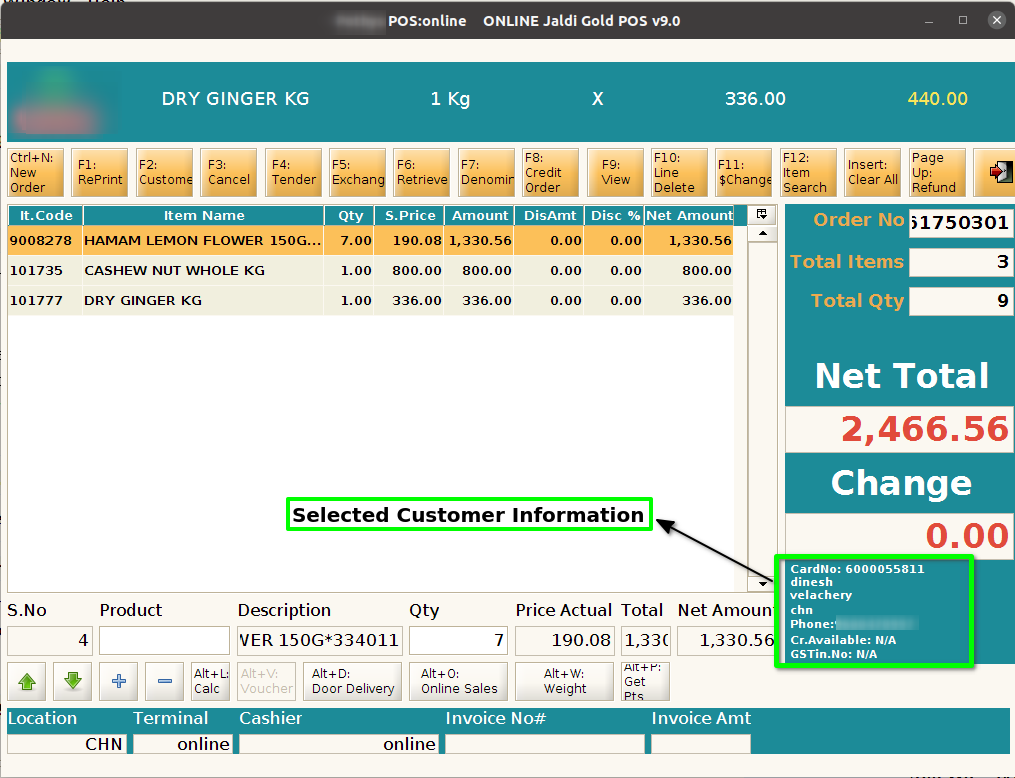
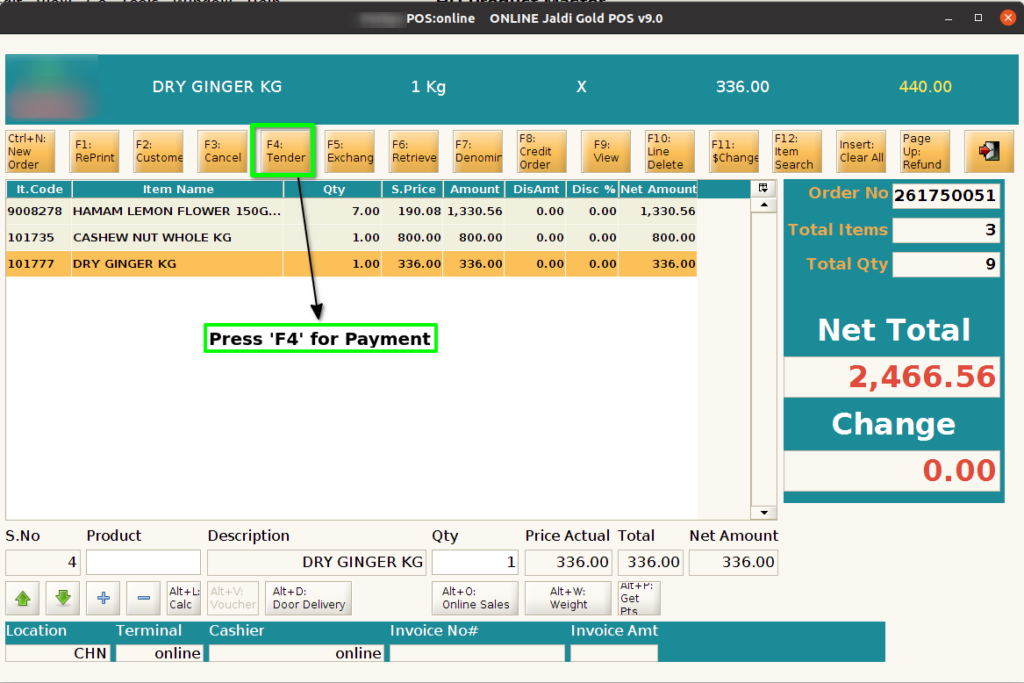
Step 5 : Click ‘F4’ for payment
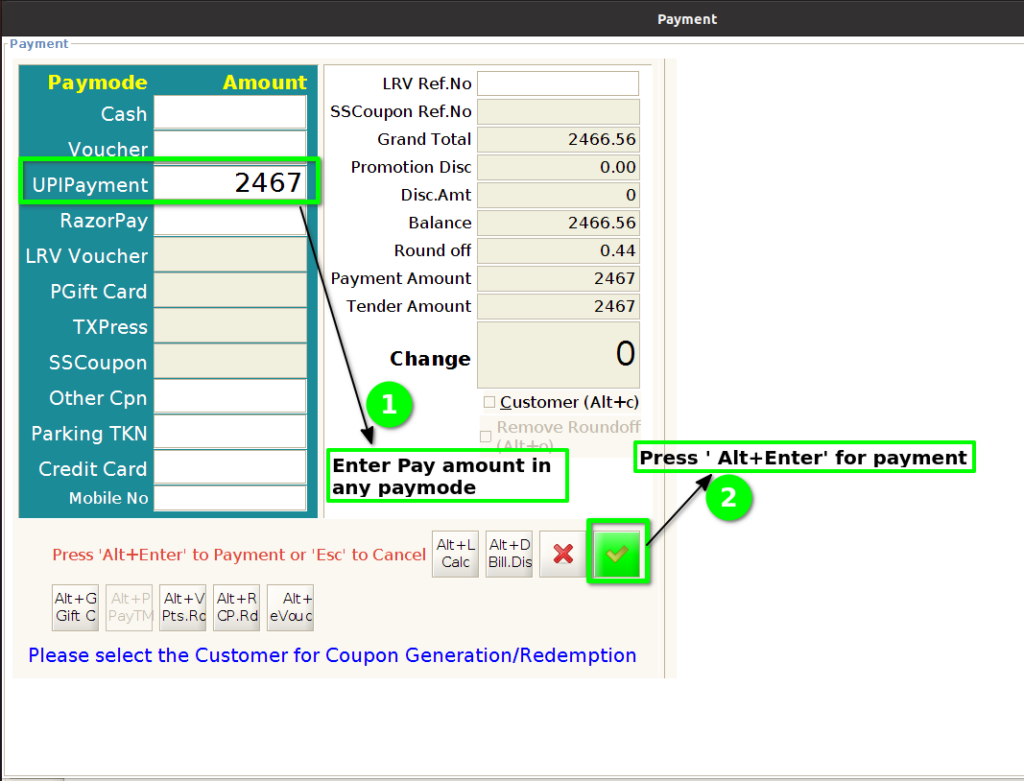
Step 6 : After payment invoice will generate. Register/Standard customer invoice number start with 10/
