How to redeem using multiple Gift Cards in ADempiere Retail
Using more than one gift card to pay for a single purchase.
User Access
Who Can Access
- Cashier
- Manager
- Admin
- Back office
What User Can Do
- Enter Multiple Gift Card Numbers
- Check Balances
- Apply Multiple Cards to One Bill
- Split Payment Automatically
- Pay Remaining Balance (if needed)
Pre-Requisite Activities
- Gift Cards Must Be Active and Valid
- Gift Card System Integration
- Balance Availability
- Purchase or Invoice Ready for Payment
- Internet Connection (if required)
Business Rules
- Maximum Number of Gift Cards
- Valid and Active Cards Only
- Sufficient Balance Required
- Partial Payments Allowed
- Real-Time Balance Check
- No Refunds in Cash
- Gift Card Cannot Be Used to Buy Another Gift Card
User Interface
Step 1 : Select ‘POS’ in Menu -> SS Integeration > POS MANAGEMENT or Search POS in Lookup.

after clicking the POS menu it will show like below image

Step 2:choose or scan the product using Product Text bar in the screen below.refer below screen shot.
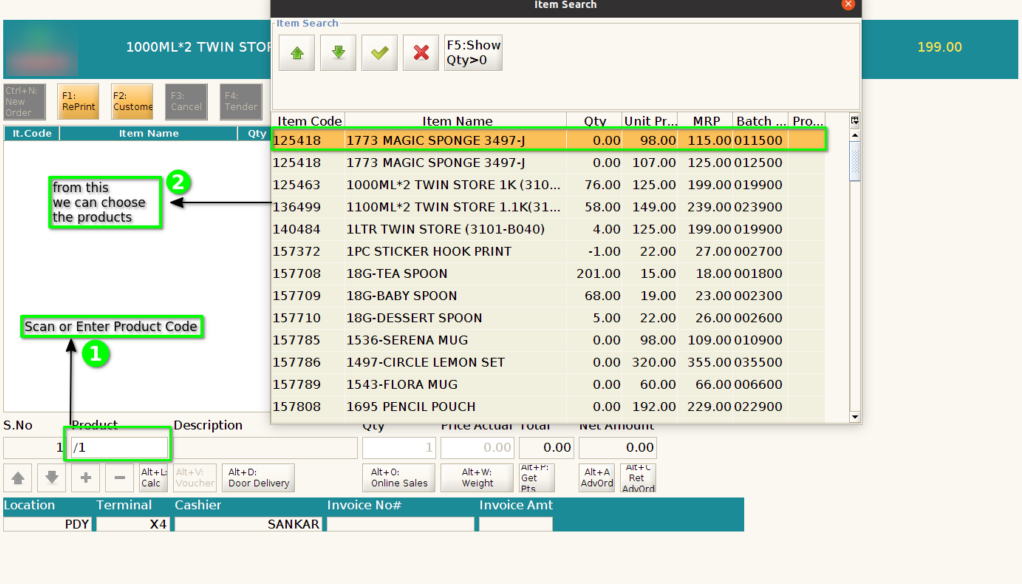

Step 3: After choosing the product, proceed by selecting the customer.

Step 4: choose the existing customer using available options or we can create new one by simply click the Ctrl+New Button

after click the ctrl+new button for add new customer refer images below
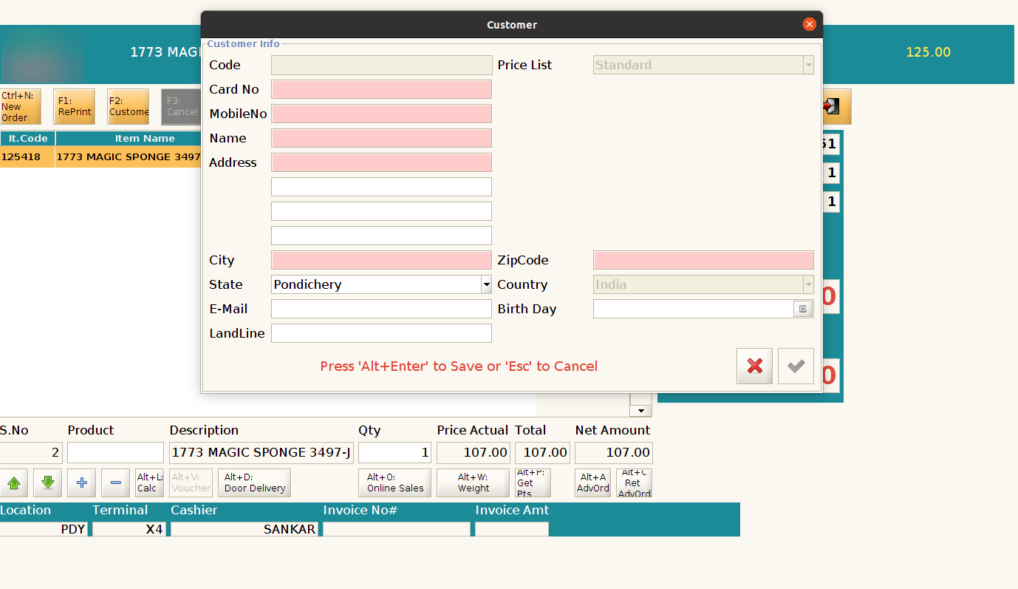
Step 5:Fill in the customer’s basic details as shown in the image below, then click ‘OK’ to proceed.

Customer successfully added. Please refer to the image below.

Step 6: After adding a new customer, click again and press F2/Customer to select a customer from the list, as shown in the image below.

Step 7: Press F4 or click the Tender button to process the payment, as shown in the image below.

After pressing the Tender button, the payment screen will open, as shown in the image below.
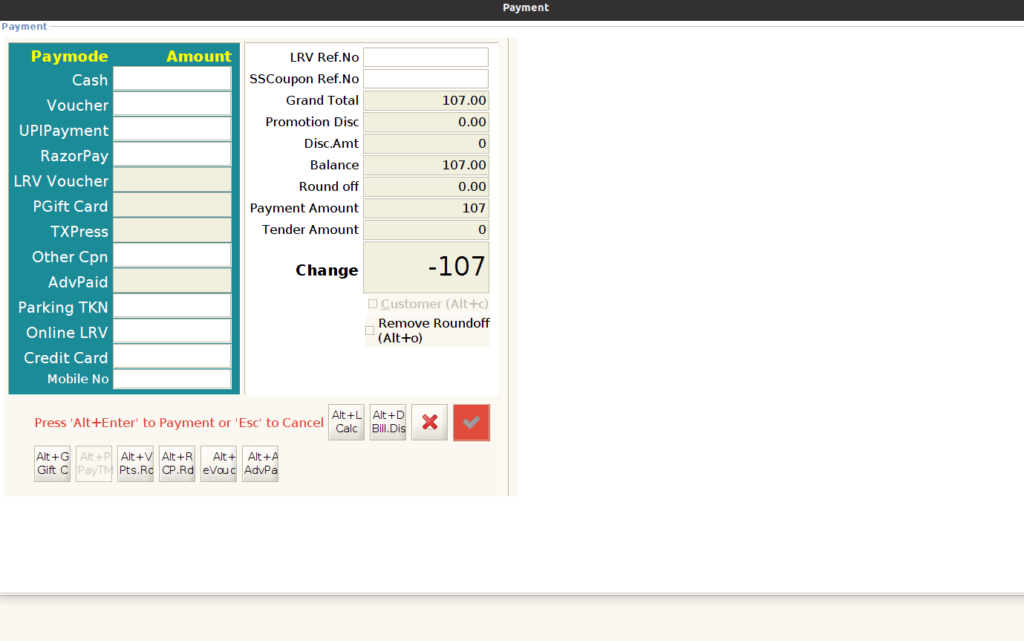
Step 8: Click the ALT+G or GiftCard button to redeem the GiftCard, as shown in the image below.

After clicking Alt+G or the GiftCard Button, the screen will open, as shown in the image below.

Step 9: After applying multiple or single gift cards, the payment screen will be updated, as shown in the image below.

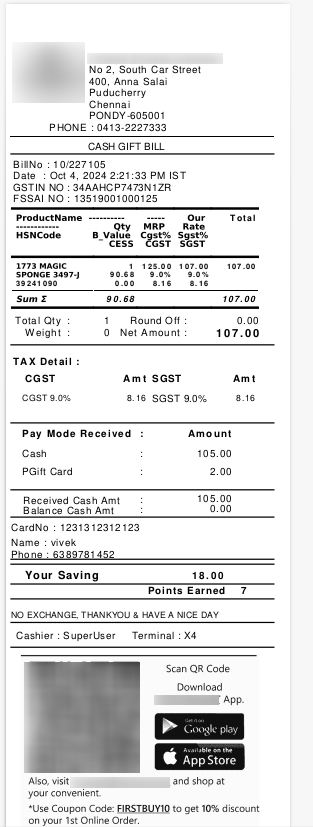
Sample Giftcard Invoice