How to redeem using eVouchers in ADempiere Retail
Using more than one electronic voucher (e-voucher) to pay for a single purchase.
User Access
Who Can Access
- Cashier
- Manager
- Admin
- Back office
What User Can Do
- Enter Multiple E Voucher Numbers
- Check E Voucher Balances or Values
- Apply Multiple E Vouchers to One Purchase
- Pay Remaining Balance (if any)
- Receive Confirmation or Receipt
Pre-Requisite Activities
- E Vouchers Must Be Valid and Active
- System Support for Multiple E Vouchers
- Purchase Ready for Payment
- Internet Connection (if required)
Business Rules
- Maximum Number of E Vouchers
- Valid and Active Vouchers Only
- Full or Partial Redemption Allowed
- Real-Time Validation
- No Cash Refunds for Excess Value
- Discount and Offer Restrictions
User Interface
Step 1 : Select ‘POS’ in Menu -> SS Integeration > POS MANAGEMENT or Search POS in Lookup.
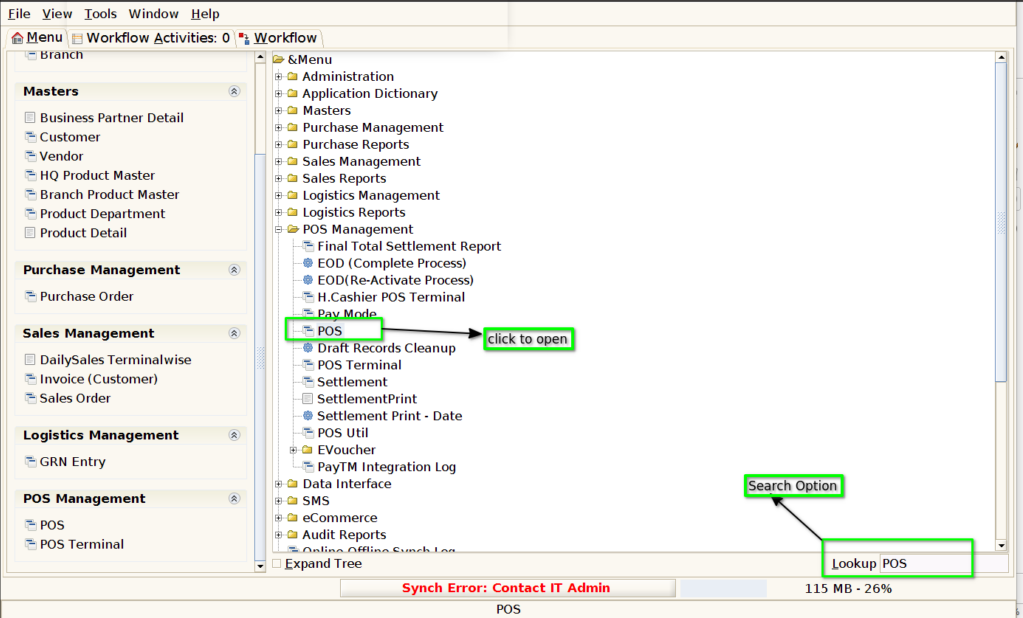
after clicking the POS menu it will show like below image
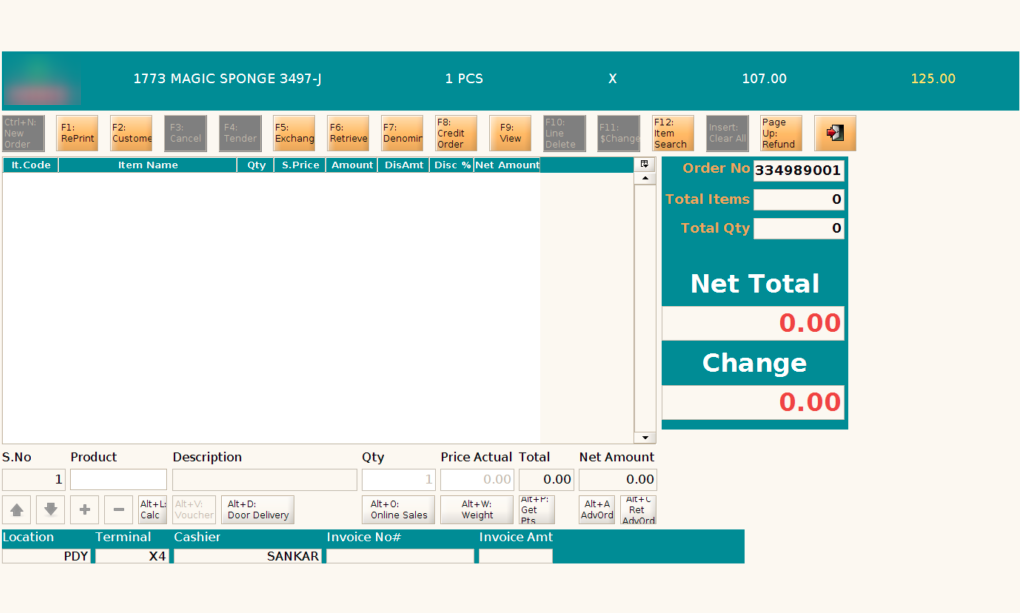
Step 2:choose or scan the product using Product Text bar in the screen below.refer below screen shot.


Step 3: After choosing the product, proceed by selecting the customer.
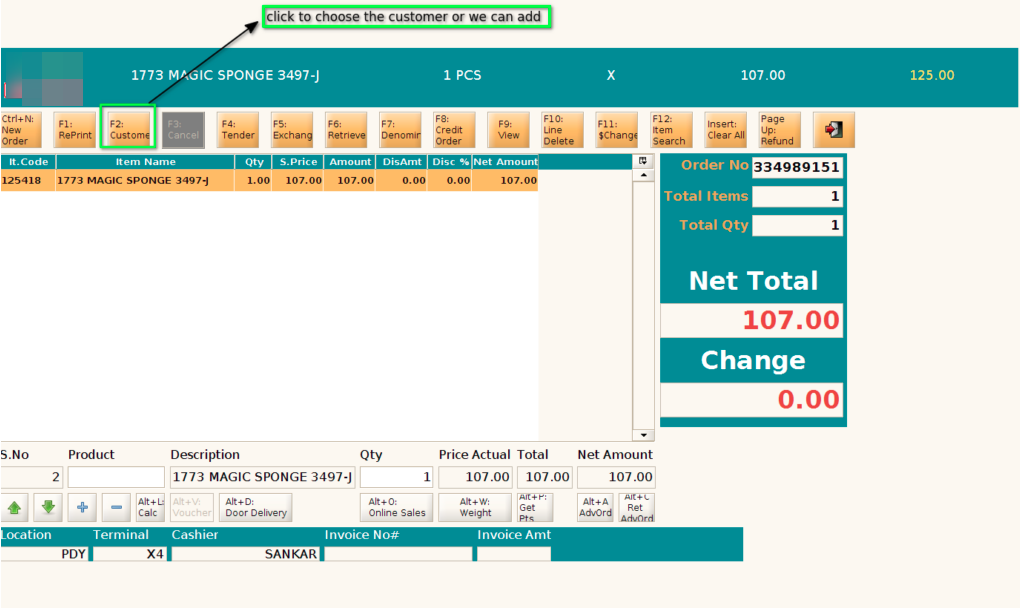
Step 4: choose the existing customer using available options or we can create new one by simply click the Ctrl+New Button
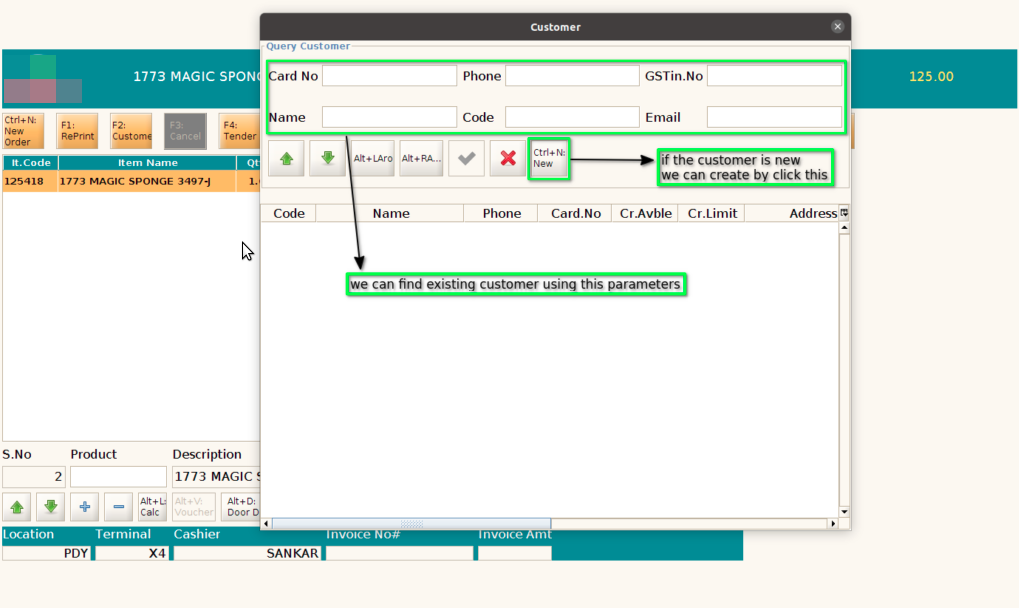
after click the ctrl+new button for add new customer refer images below
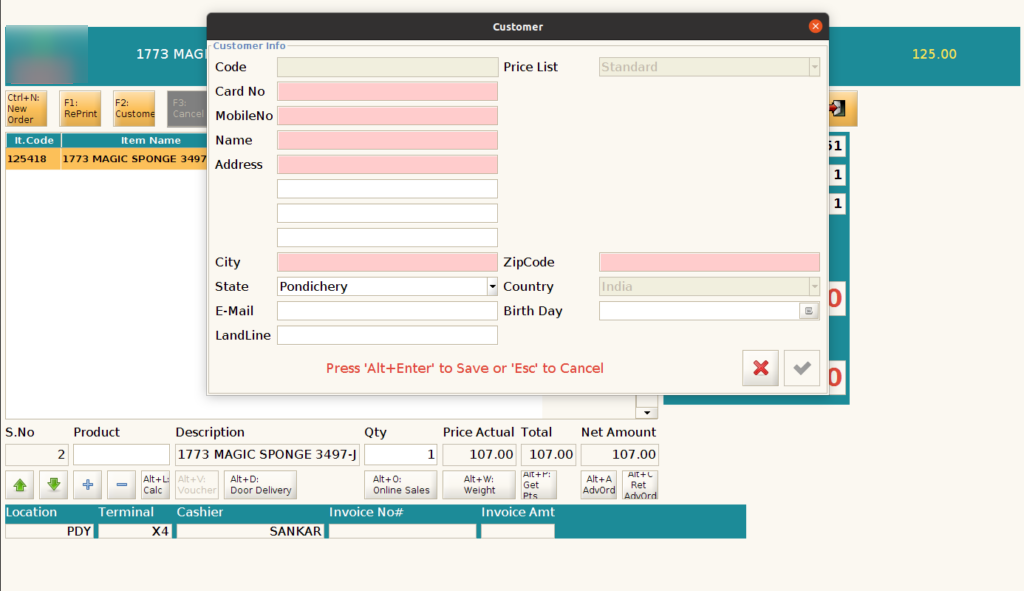
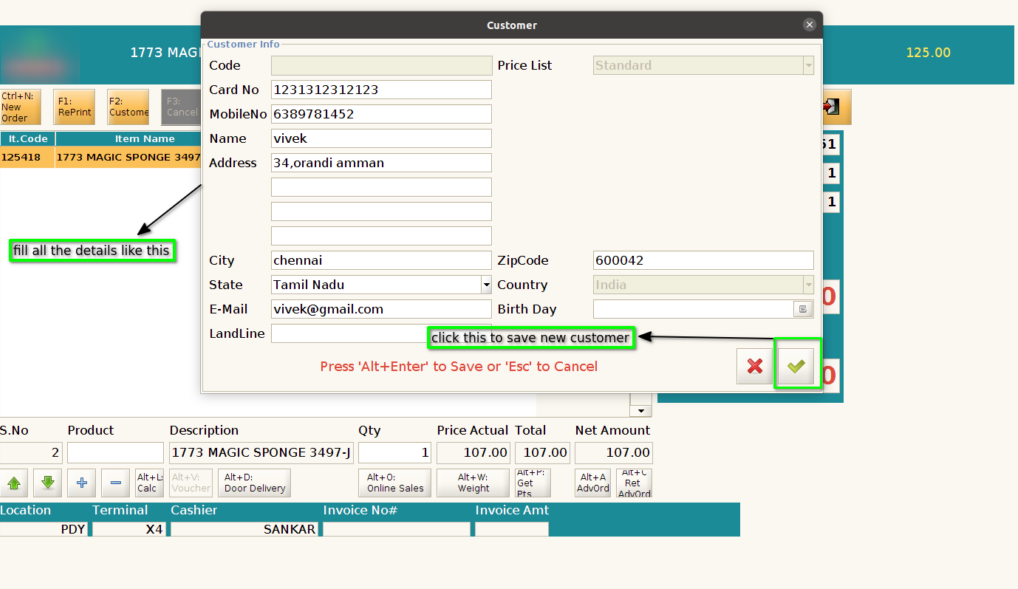
Step 5:Fill in the customer’s basic details as shown in the image below, then click ‘OK’ to proceed.
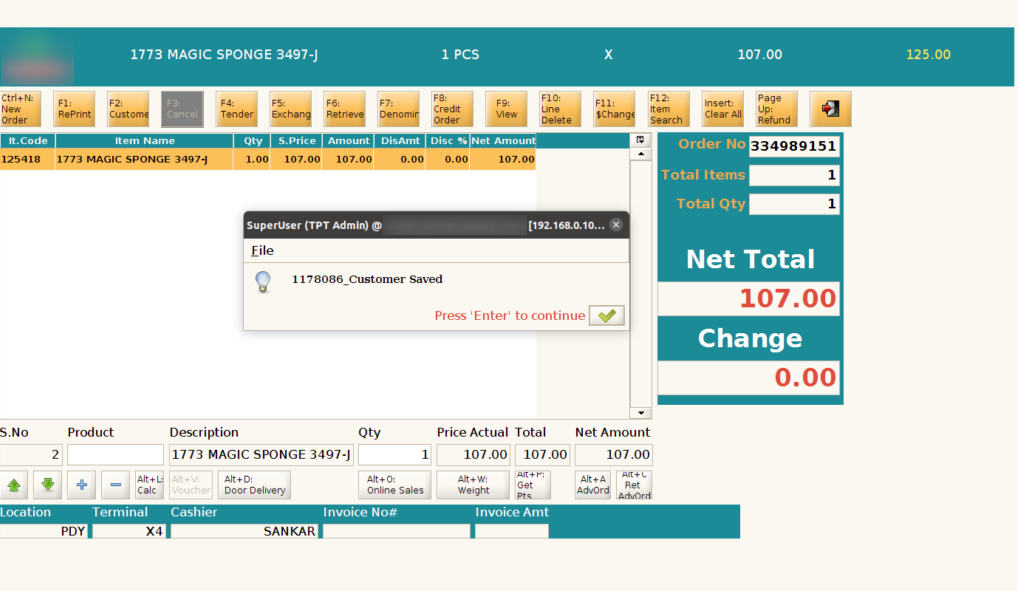
Customer successfully added. Please refer to the image below.
Step 6: After adding a new customer, click again and press F2/Customer to select a customer from the list, as shown in the image below.

Step 7: Press F4 or click the Tender button to process the payment, as shown in the image below.

After pressing the Tender/F4 button, the payment screen will open, as shown in the image below.
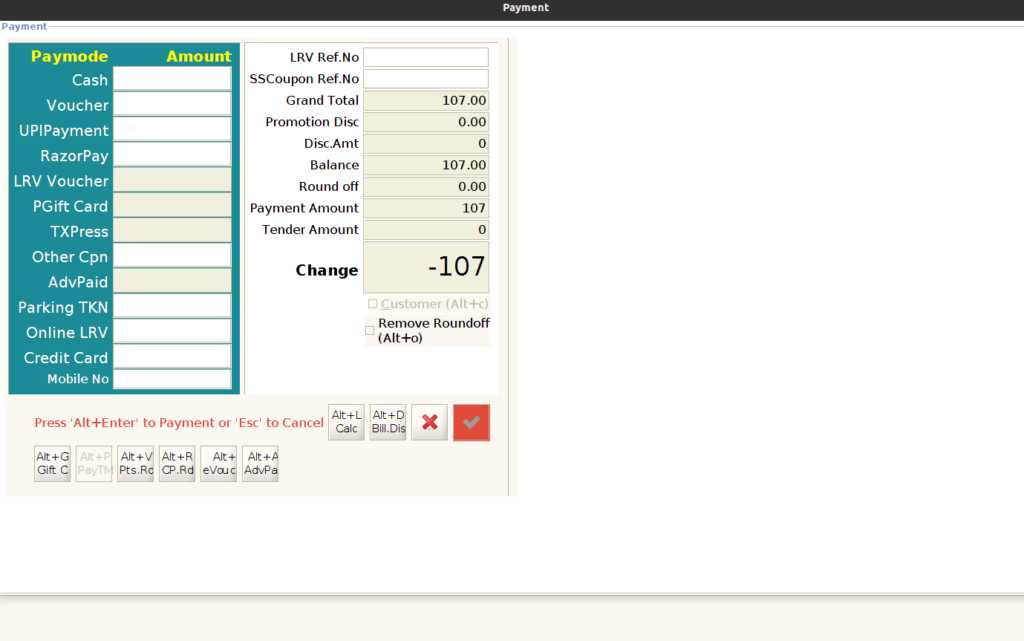
Step 8: Click the ALT+E or E-Voucher button to redeem the E-Voucher, as shown in the image below.

After clicking Alt+E or the E-Voucher button, the screen will open, as shown in the image below.

Step 9: As shown in the image below, you can enter multiple E-Vouchers.
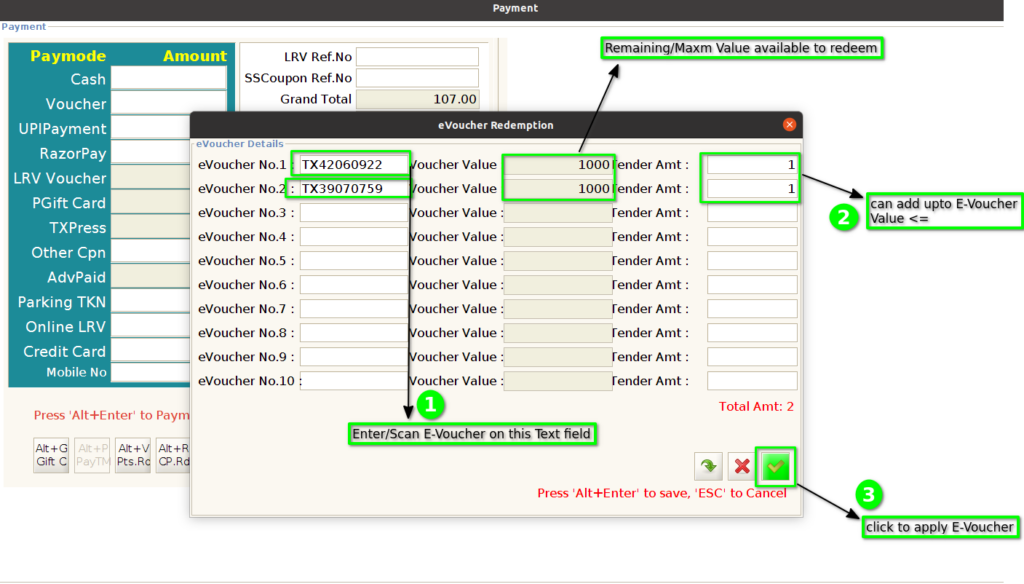
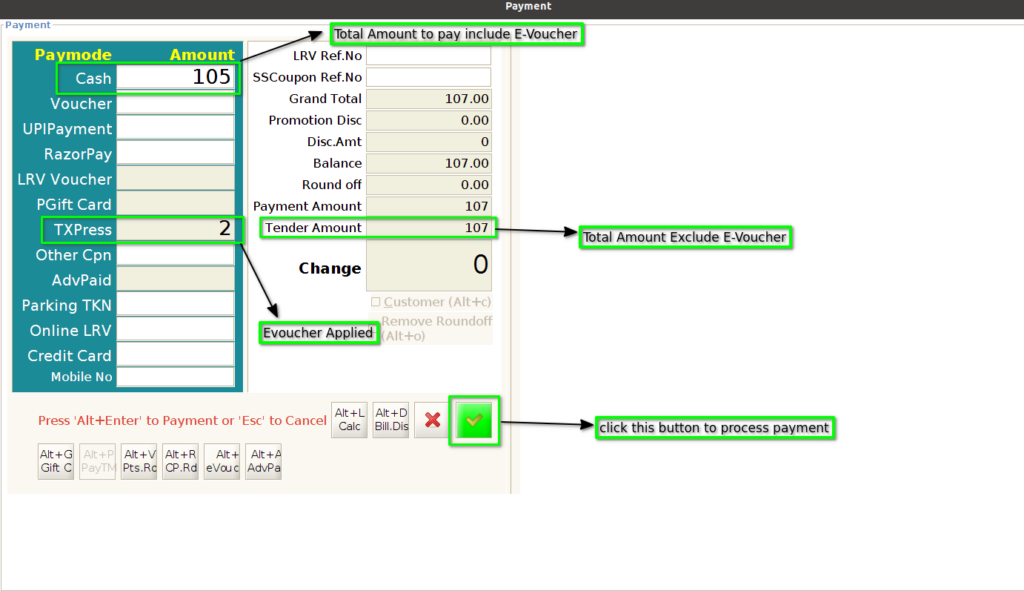
Step 10: After applying multiple or single E-Voucher, the payment screen will be updated, as shown in the image below.
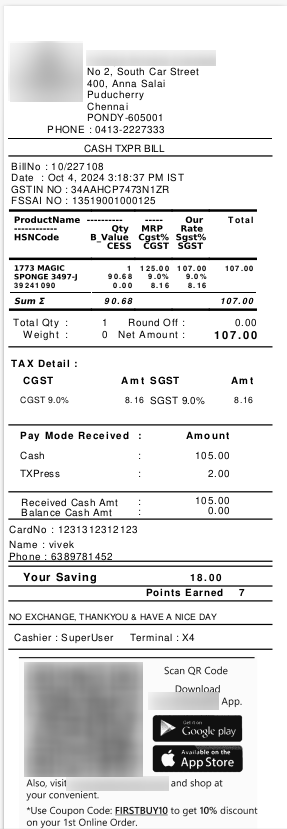
Sample E-Voucher Invoice