How to create POS Payment in Adempiere Retail
POS (Point of Sale) Payment is the payment made by a customer at the place where they buy goods or services, usually through a cash register, payment terminal, or checkout counter. It includes payments made by cash, card, mobile wallet, or any other payment method accepted at the store or business location.
User Access
Who Can Access
- Back Office
- Cashier
- Manager
- Admin
What User Can Do
- Select Products or Services — Choose items to purchase.
- View Total Amount — See the total cost including taxes and discounts.
- Choose Payment Method — Pay using cash, credit/debit card, mobile wallet, or other accepted options.
- Make Payment — Complete the transaction by paying.
- Receive Receipt — Get a printed or digital receipt as proof of payment.
- Cancel or Void Transaction — Stop or cancel a transaction before finalizing (if allowed).
- Apply Discounts or Coupons — Use promotional offers or discounts during payment.
- Split Payment — Pay using more than one payment method (if supported).
- Refund or Return Items — Request a refund or return for previously purchased items.
- View Transaction History — Check past purchases or payments (if user access permits).
Pre-Requisite Activities
- User Access
- Payment Methods Enabled
- Product/Service Data Loaded
- Testing and Validation
Business Rules
- Transaction Completion
- Payment Methods
- Discounts and Promotions
- Transaction Cancellation
- User Authorization
User Interface
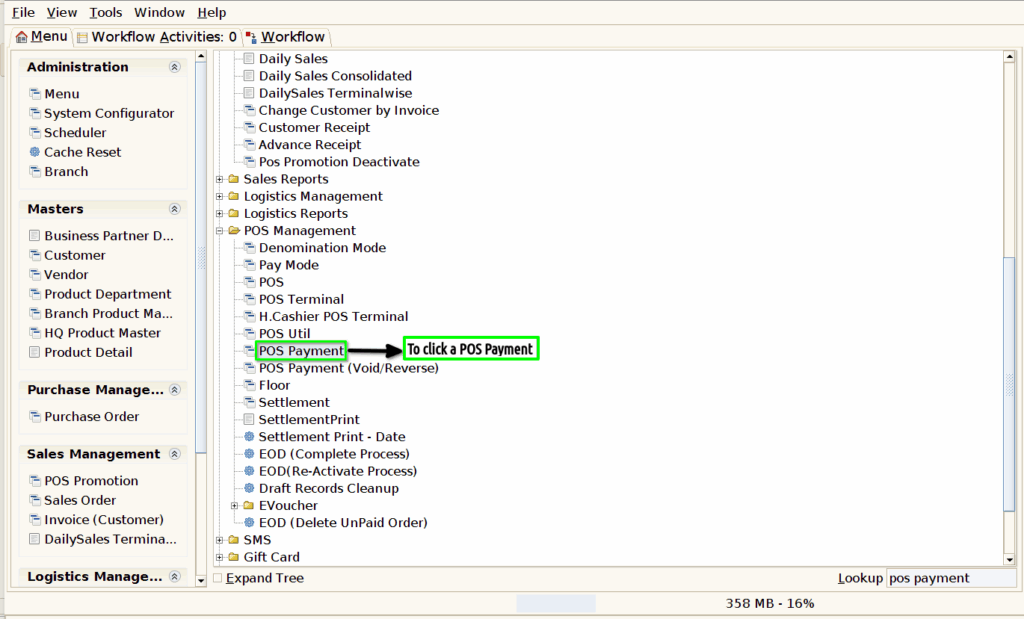
Step 1 : To Select a Branch in Menu.Then to click a POS Payment.
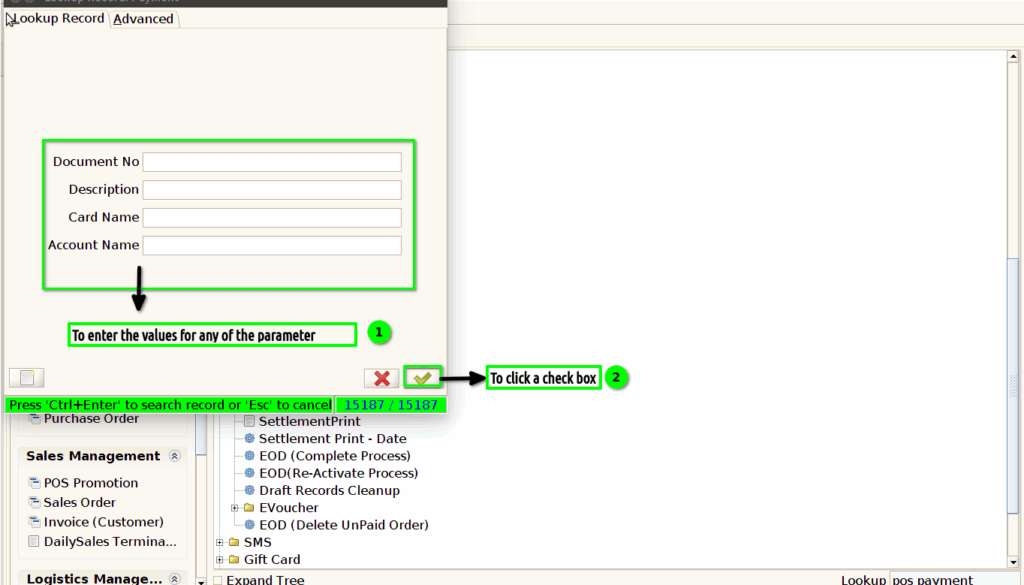
Step 2 : To show the parameters in the form and to enter a value for any of the parameter and to click a check box.
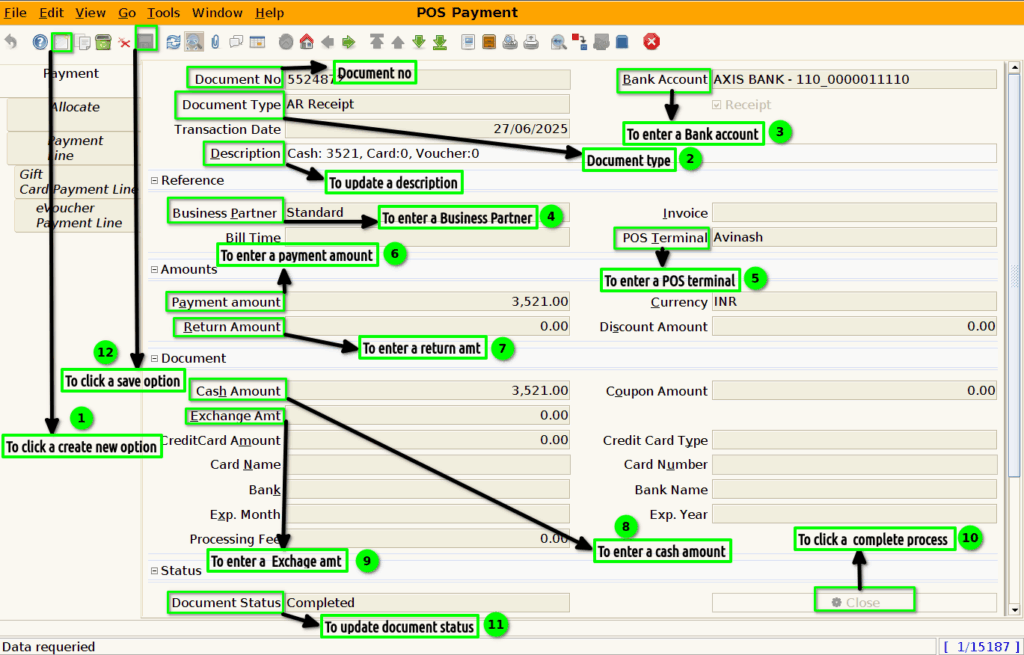
Step 3 : To click a create new option and to enter the values for Document type ,Description,Business partner,Return amount,Pos Terminal,payment amt,Bank account,Cash amount,Exchange amt.Once to complete the process and to update Document status.Finally to save document.
Step 4 : To click a allocate tab and to enter the value for Payment,Invoice,amount,Invoice amt,Remaining amount and to save the record.
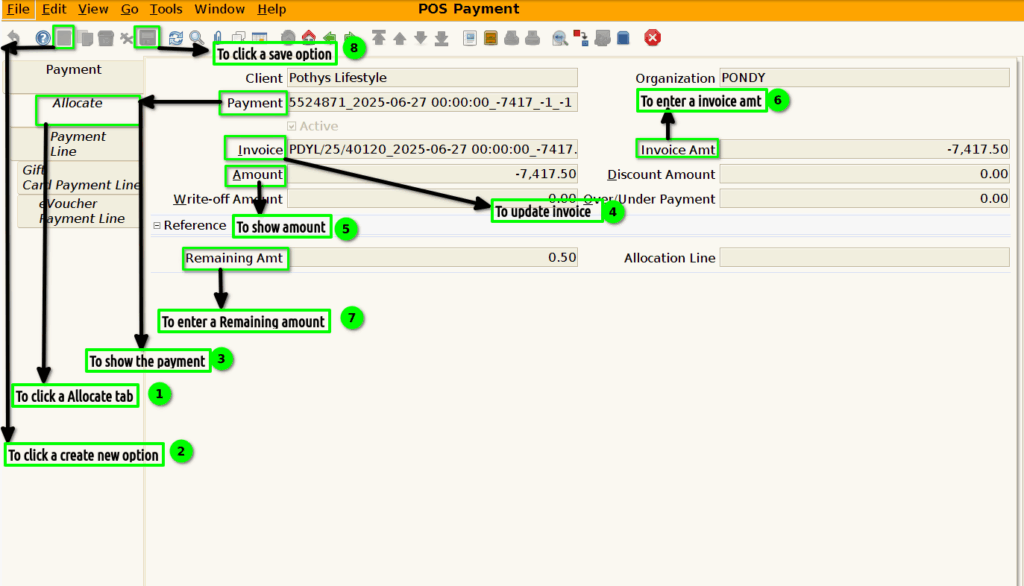
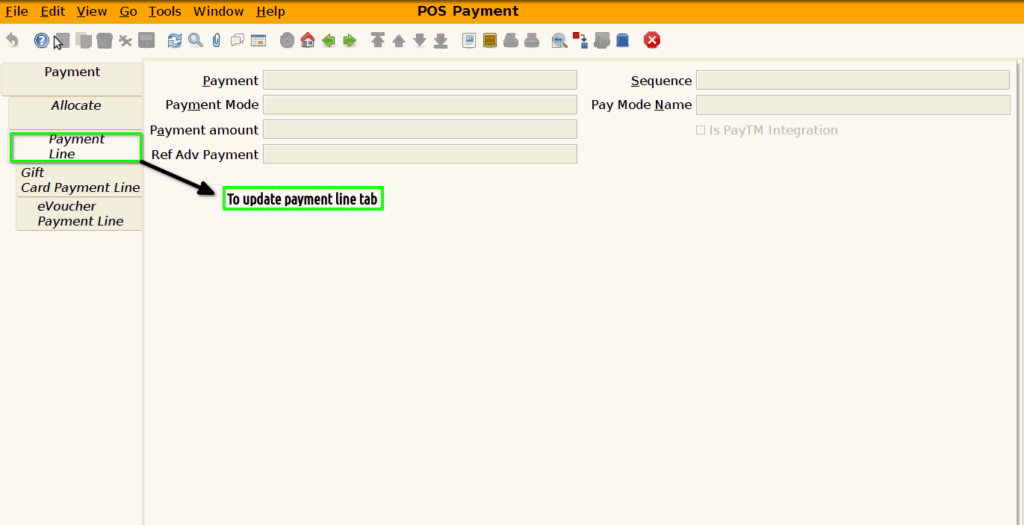
Step 5 : To update and to enter the values for Payment Line and then to save the record.
Step 6 : To update and to enter the values for Gift Card Payment line and then to save the record.

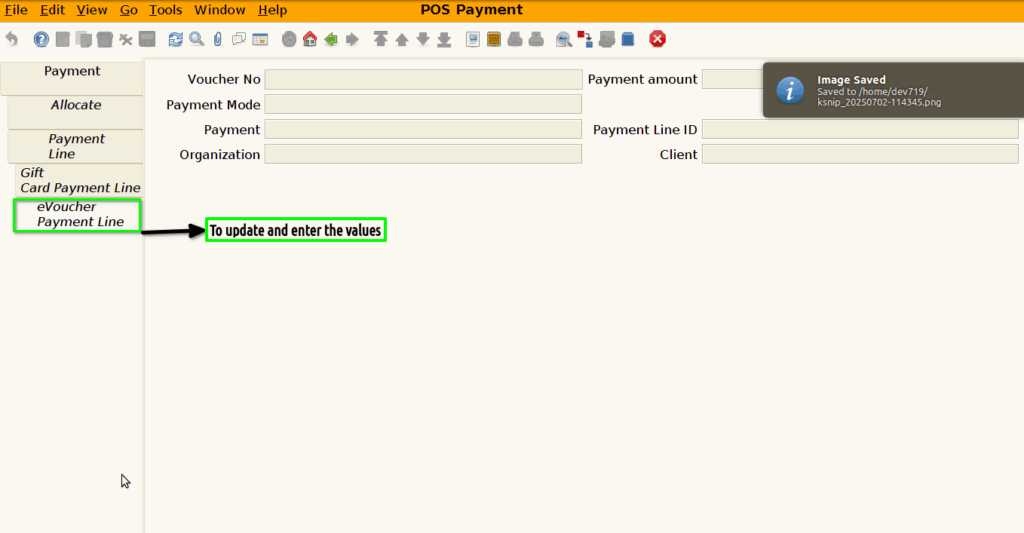
Step 7 : To Update and to enter the values for eVoucher Payment Line and then to save the record.