How to capture CRM API log details after synch in Adempiere Retail
Capture CRM API Log After Sync means recording the detailed information of all communications and transactions that occur between the system and the CRM (Customer Relationship Management) software after data synchronization is completed.
User Access
Who Can Access
- Cashier
- Admin
- Manager
- Back office
What User Can Do
- Monitor Synchronization Status
- Identify Errors
- Report Problems
Pre-Requisite Activities
- Enable API Logging
- User Access Permissions
- Synchronize Data
Business Rules
- Logging Must Be Enabled
- Complete Data Capture
- Access Control
- Data Security
- Regular Review
User Interface
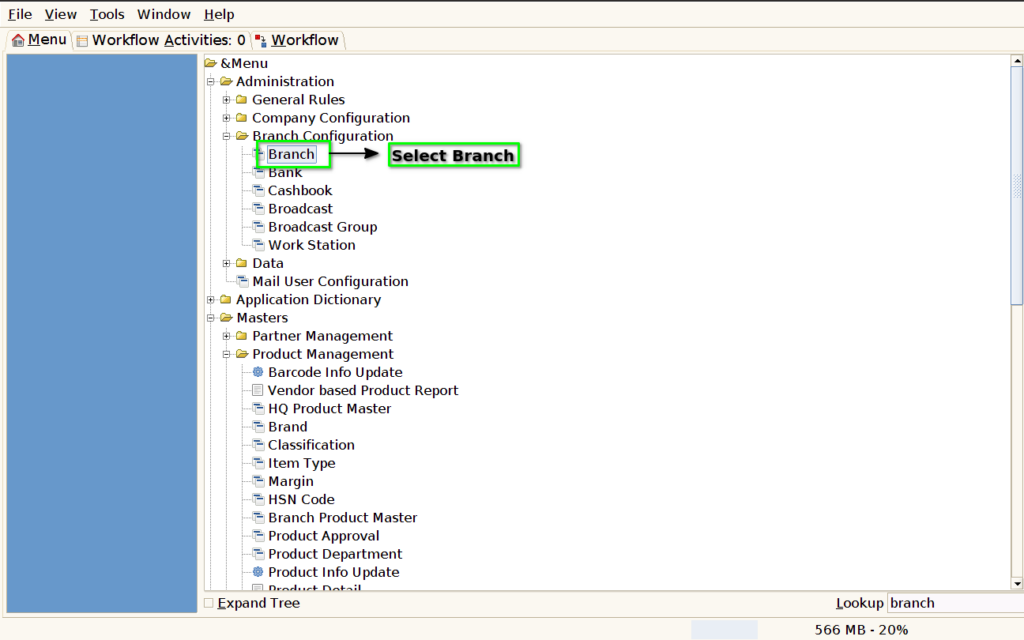
Step 1 : Select ‘branch’ in Menu -> Branch Configuration-> Branch. or Search Branch on Lookup search box.
Step 2: In CRM API Config Tab :- Configure the CRM API URL , user name and password in the branch screen

Step 3 : Select ‘CRM API Log’ in Menu ->CRM Integration -> CRM API Log or Search CRM API Log in Lookup.

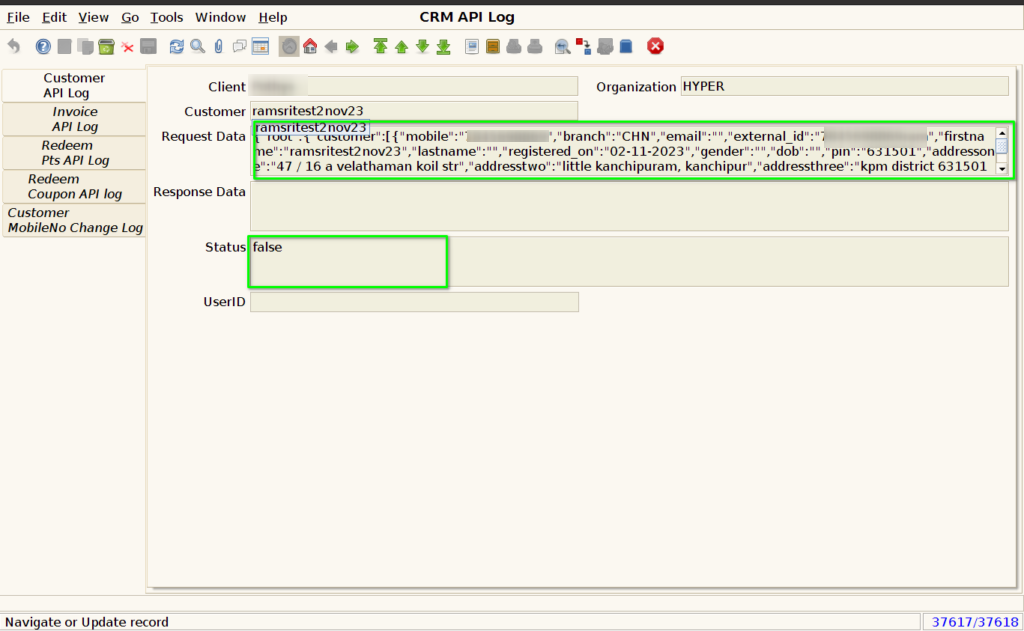
Step 4: View customer sync details in the request data and check the status whether customer sync with CRM or not in customer API Log tab

Step 5: If Customer not synch with crm it will display False status. Then check the log file and synch the customer again
INVOICE API LOG TAB
Step 6: View customer Invoice details in the request data and check the status whether customer invoices details sync with CRM or not in the Invoice API Log tab
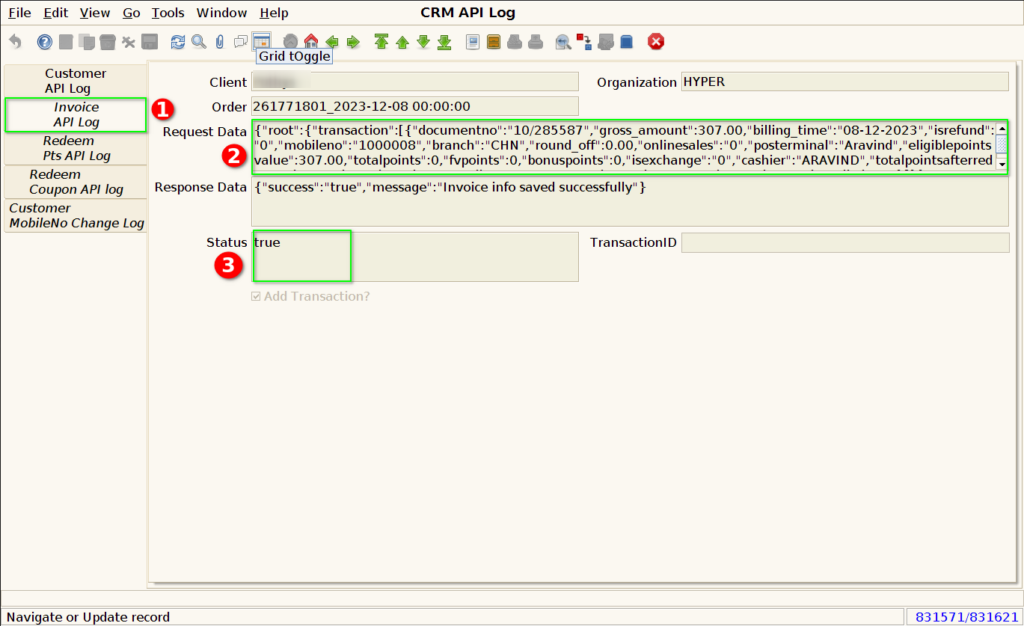
Step 7: If Customer invoice details not synch with crm it will display False status. Then check the log file and synch the customer again
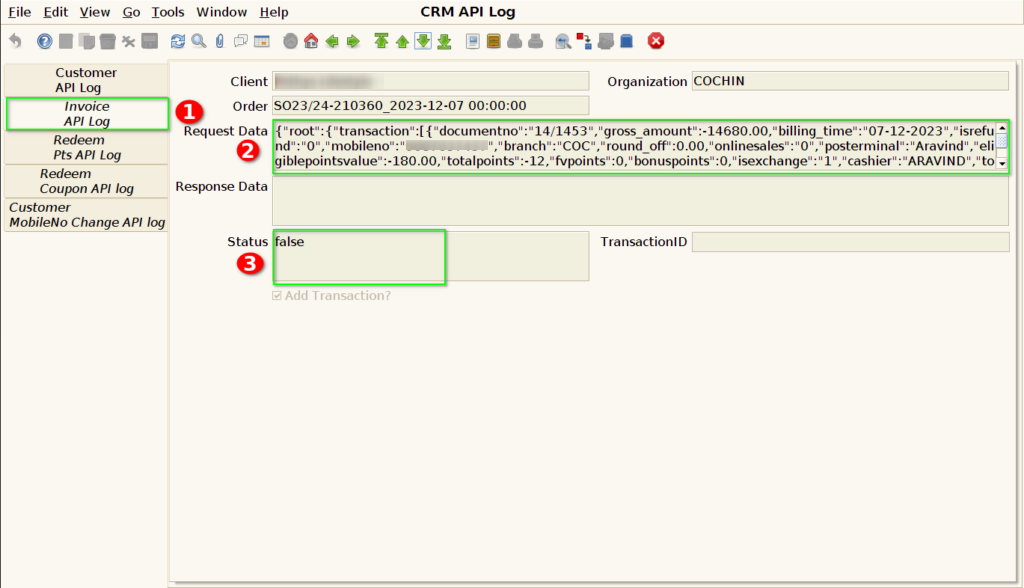
Step 8: View customer redeem points details in the redeem points api log
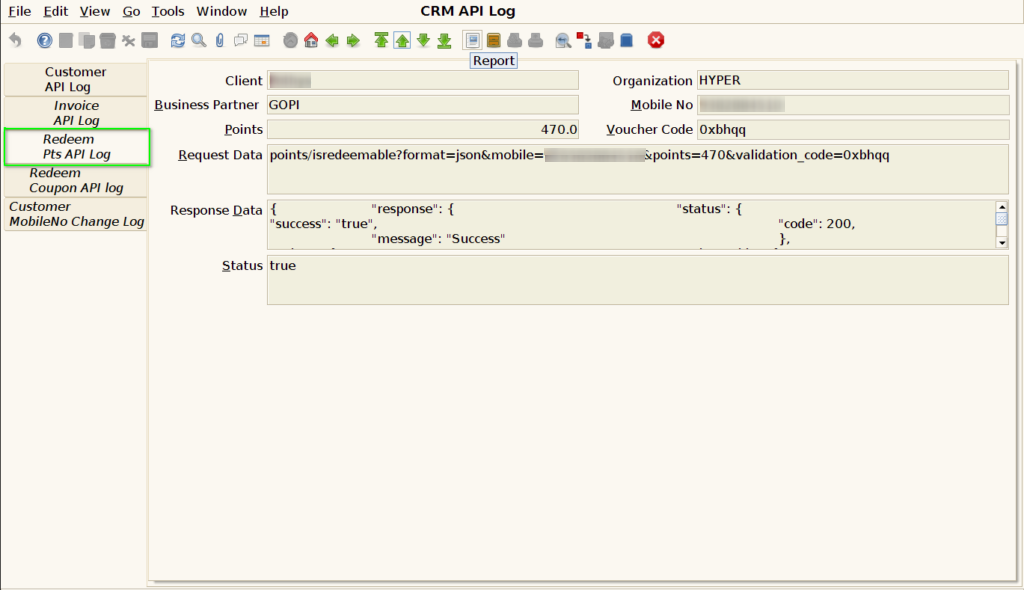
Step 9: check the Redeem points
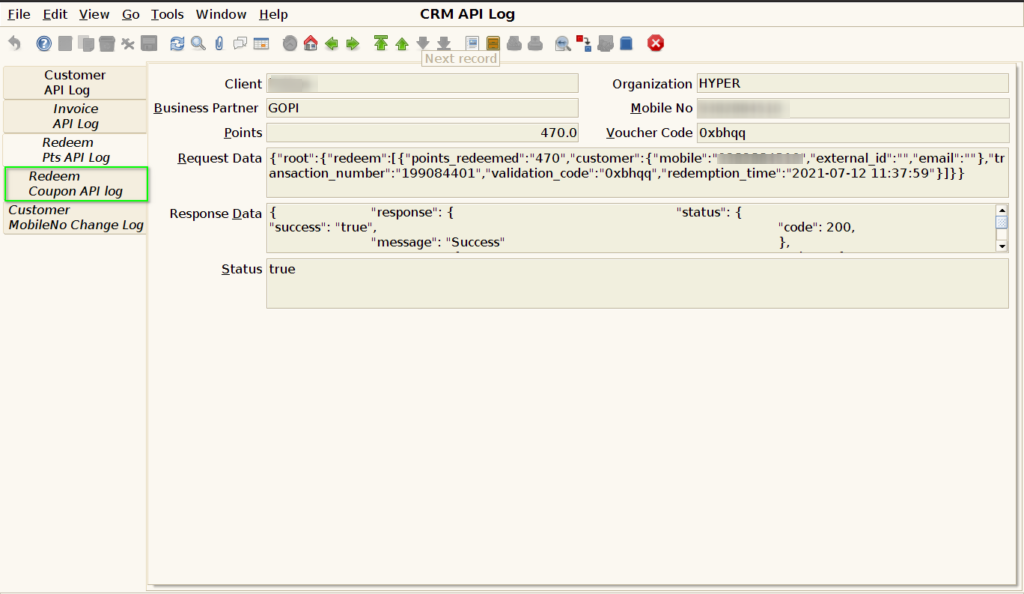
Step 10: View Redeem Coupon details with CRM in coupon API Log tab
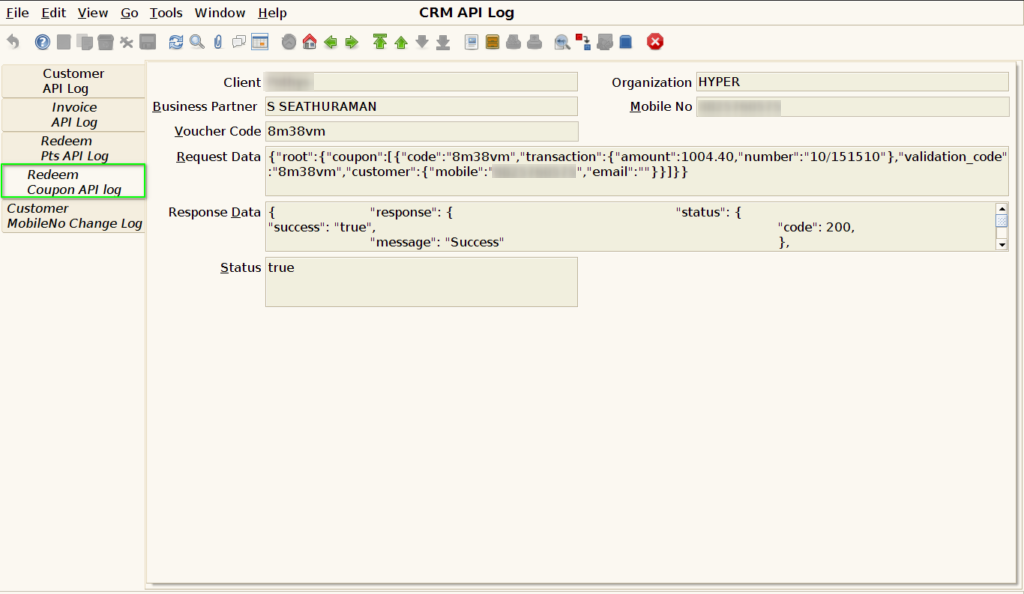
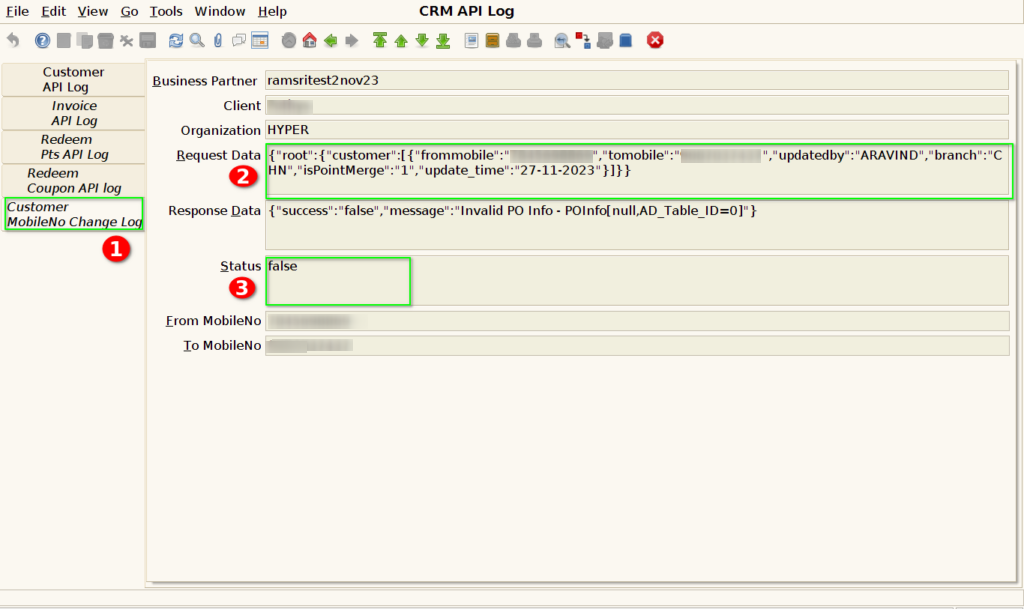
Step 11: View customer mobile no change details in the with CRM in customer Mobileno change Log tab
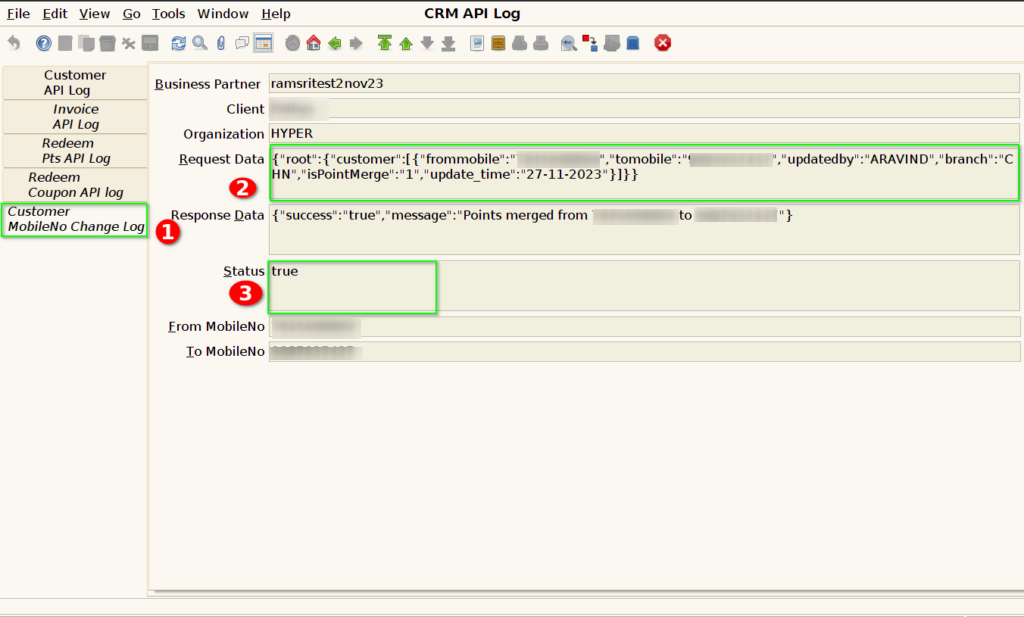
Step 12: If customer mobile no not sync with CRM it will display false status. Then check the log file and sync the customer mobile no again