How to run EOD (Generate Invoices) process in Adempiere Retail
EOD (End of Day) Generate Invoices refers to the automated or manual process of creating customer invoices based on the day’s sales transactions. This ensures all sales are properly recorded and billed before closing the business day.
User Access
Who Can Access
- Back Office
- Cashier
- Purchase Manager
- Admin
What User Can Do
- Automatically generate invoices for all completed sales
- Review and validate invoices before finalization
- Apply applicable taxes, discounts, and payment terms
Pre-Requisite Activities
- Ensure sales transactions are completed and validated
- Sales tax, price lists, and customer master must be configured
- POS or billing systems synced with the central database
- Define invoice number series and templates
- Ensure all returns and voided bills are updated
Business Rules
- Invoices must be generated only for completed and paid sales
- Invoice numbers should follow a unique sequence
- No invoice should be generated twice for the same transaction
- Taxes and charges must align with government rules
- Any failed invoice generation must be logged for review
User Interface
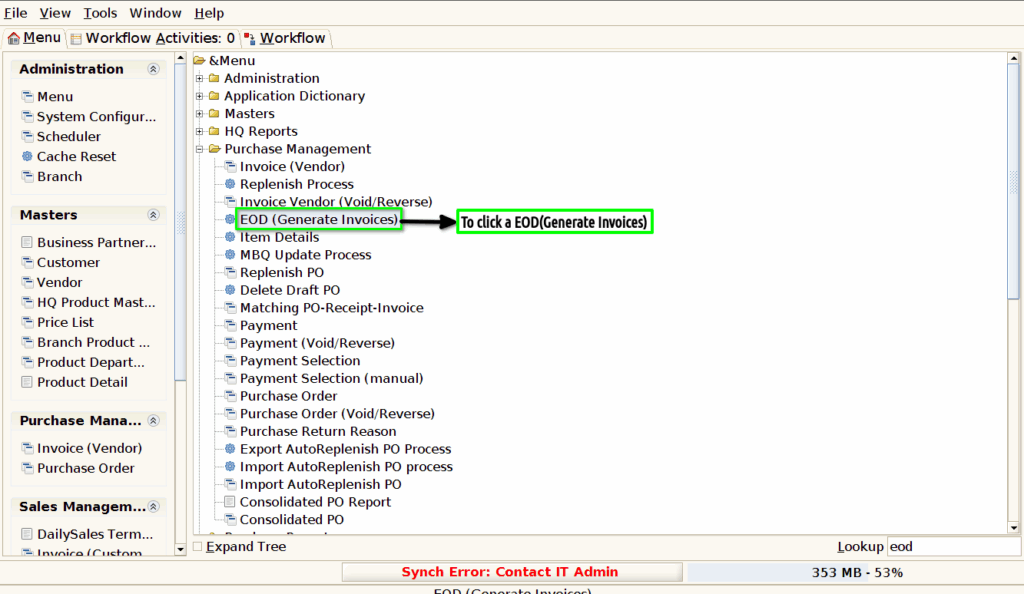
Step 1 : To Select a Branch in Menu.Then to click a EOD (Generate Invoices).
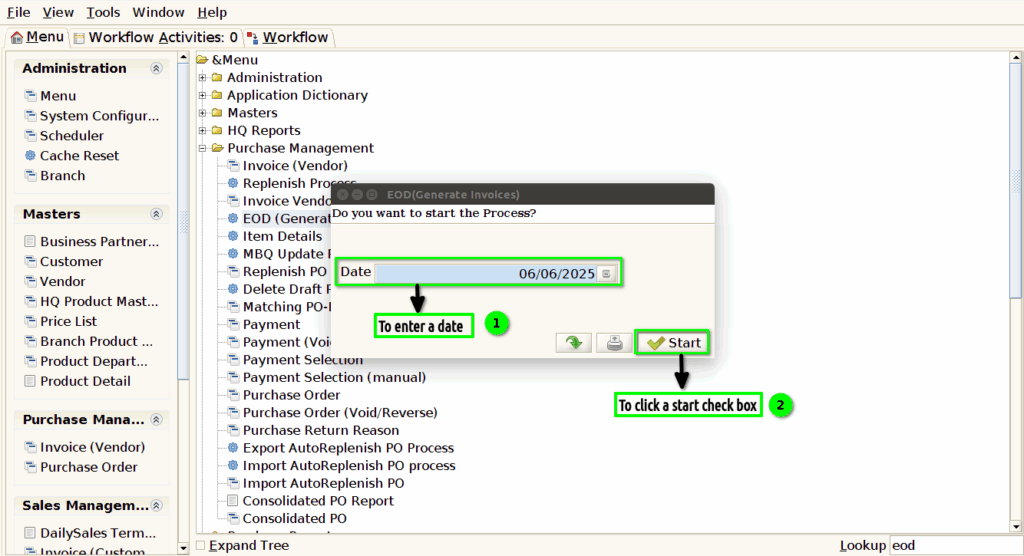
Step 2 :To enter a date parameter and to click the start check box.
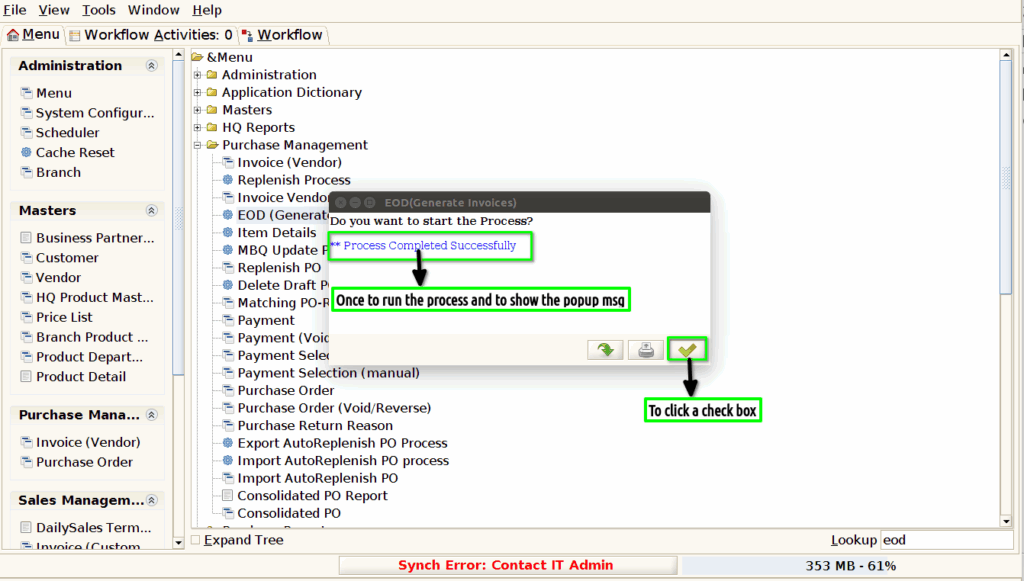
Step 3 :Once to run the process and to show the popup message for successfully completed otherwise showing not completed message.