How to enable CRM Integration in ADempiere Retail
CRM Integration means connecting your system with a Customer Relationship Management (CRM) platform so customer data, interactions, and updates can flow between both systems in real-time.
User Access
Who Can Access
- Admin
- Cashier
- Manager
- Back office
What User Can Do
- Sync customer master data (name, phone, email, etc.)
- Automatically update customer info from CRM
- Pull customer details like loyalty points, last visit, or tier
- Send customer activities (purchase, feedback) to CRM
Pre-Requisite Activities
- Get API access or credentials from the CRM provider
- Ensure internet access to CRM server or cloud API
- Map fields between your system and CRM (e.g., phone → mobile)
- Set up sync intervals (e.g., real-time, hourly, daily)
- Test the connection in UAT or staging environment
- Confirm data privacy and user permission policies
Business Rules
- Only active and valid customers should be synced
- Mobile/email from CRM should replace local data only if newer
- All syncs must be logged with timestamp and status
- System must handle CRM downtime or API failure gracefully
User Interface
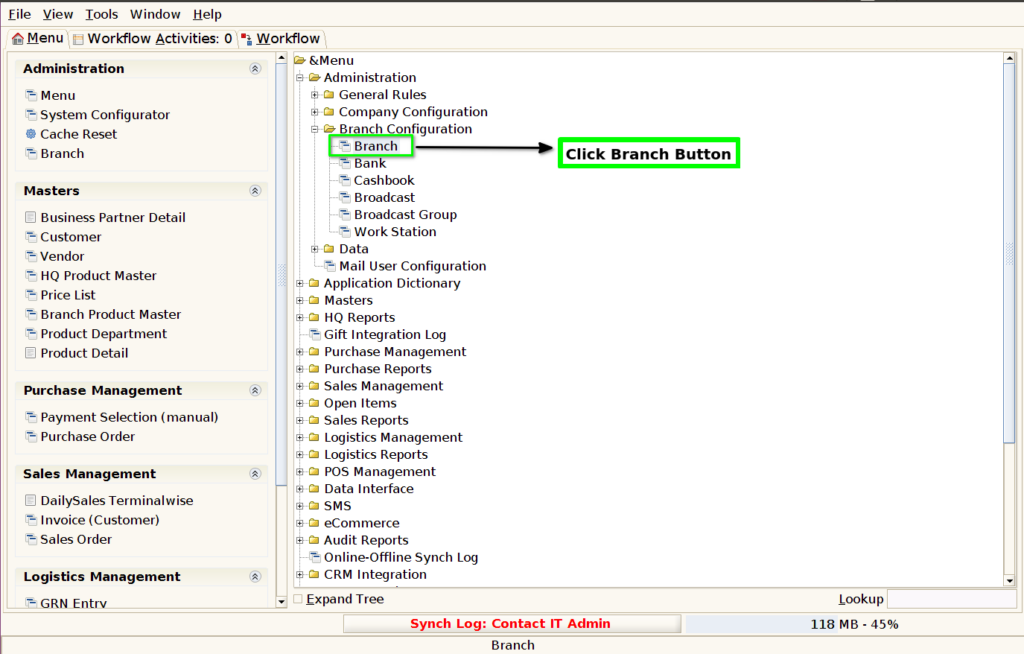
STEP 1: Click Branch Screen Button.
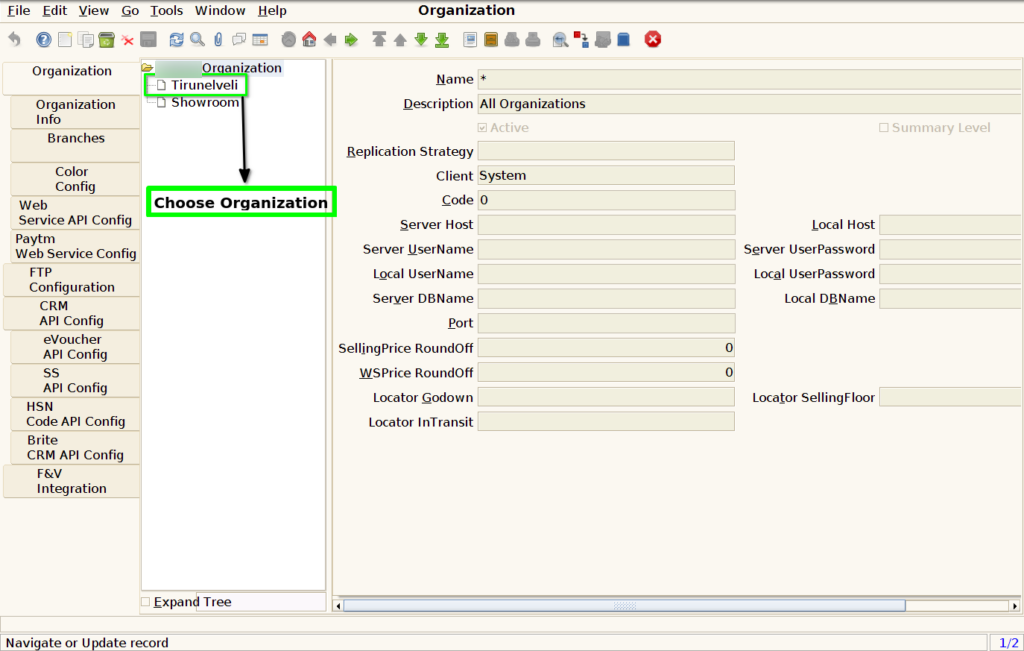
STEP 2: Choose Organization Customer Location.
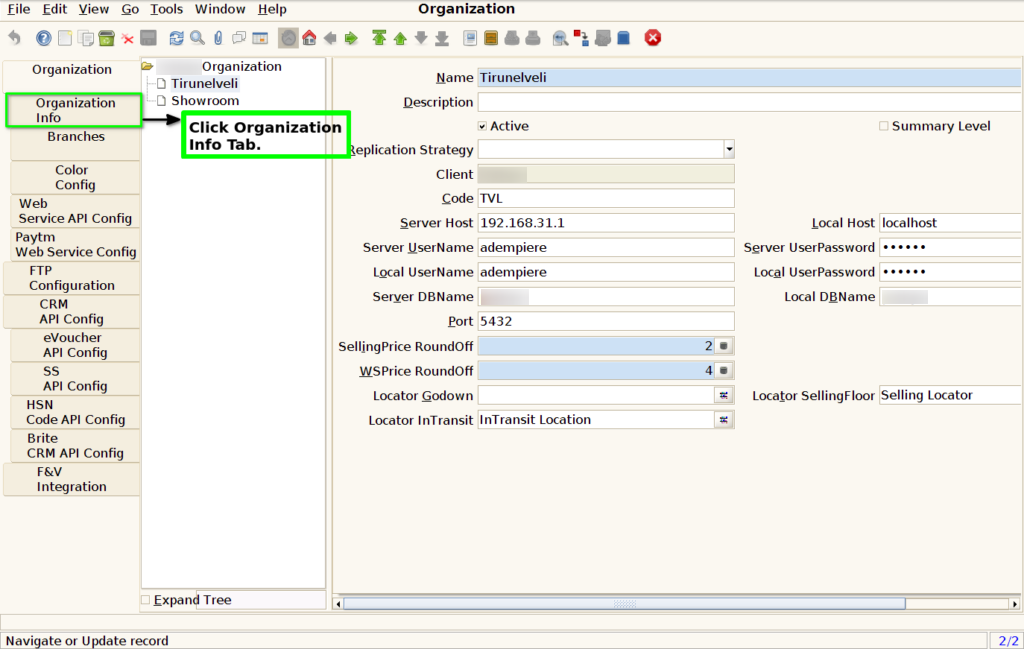
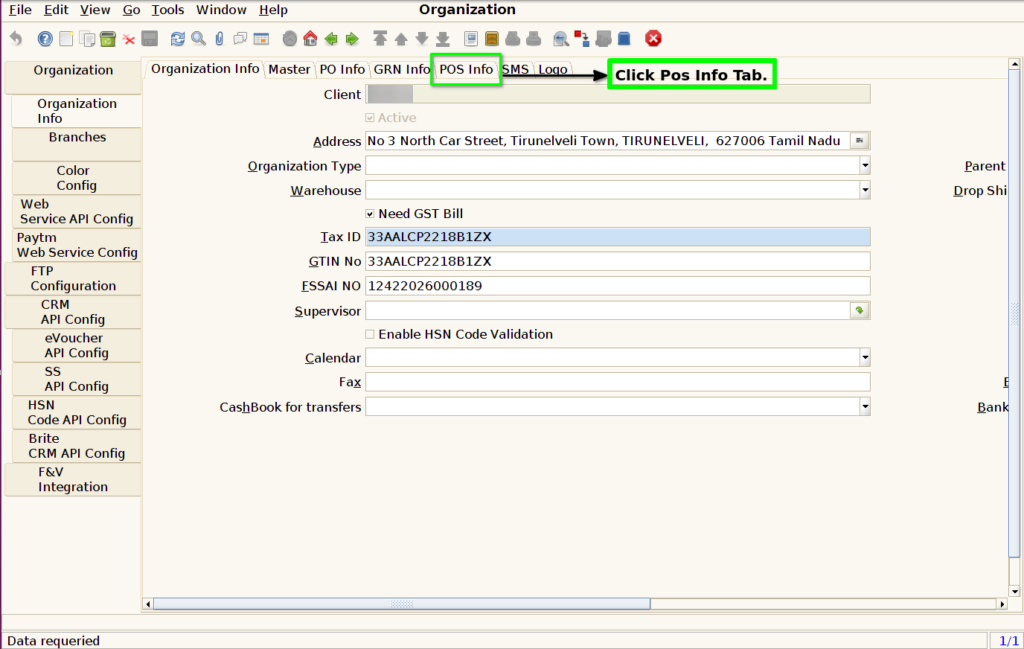
STEP 3: Click Organization Info Tab.
STEP 4: Click POS Info Tab.
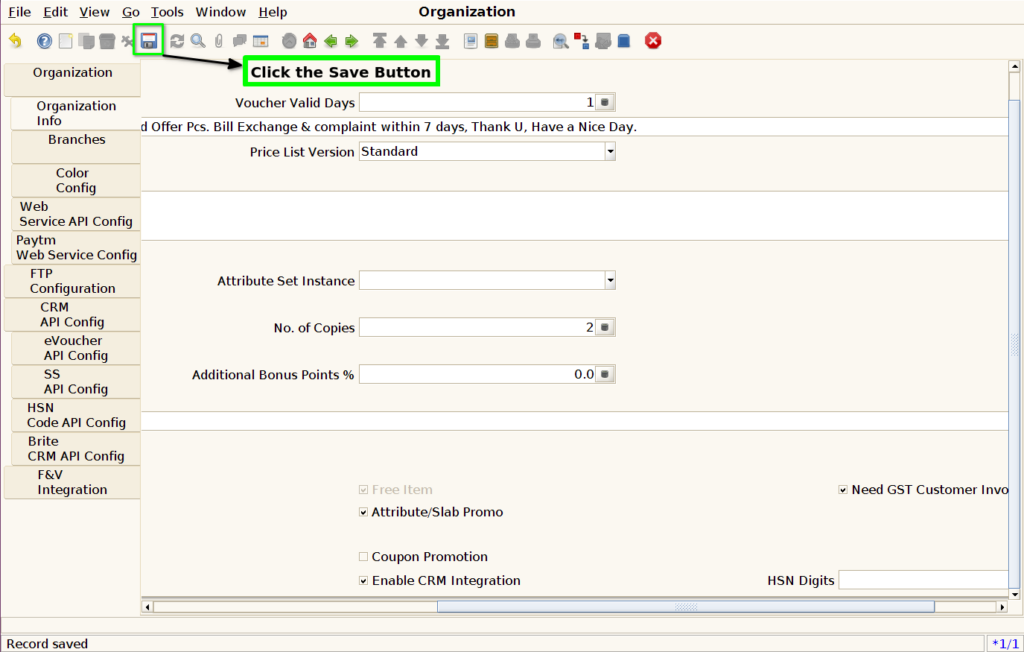
STEP 5: Click Check the Box Enable CRM Integration.

STEP 6: Click Save Button.