How to settle the Remaining Balance after an Odoo Advance Payment in POS
In many sales situations, customers make an advance payment and pay the remaining balance later. Odoo POS makes this process simple by allowing you to settle the final amount directly from the POS screen. Final settlement ensures that the sale is completed correctly, all products and payments are recorded properly, and the payment is linked to the right customer.
Accessing the Sales Orders in Odoo POS
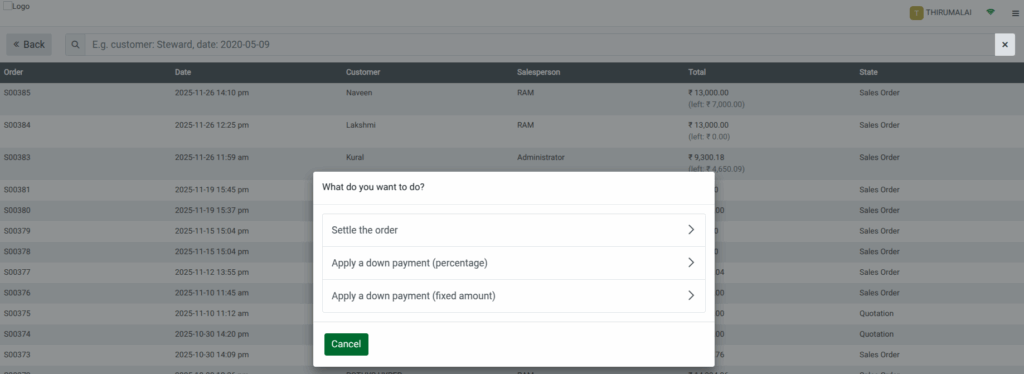
From the POS home screen, you can begin the final settlement by opening the Quotations menu. This section displays all completed Sales Orders. You can search for the specific Sales Order for which the customer needs to pay the remaining balance. Once you find the order, select it to move forward with the settlement.

Options Available When Selecting a Sales Order
When you select a Sales Order, a pop-up window appears with a few action options. These options include settling the order, applying a down payment as a percentage, or applying a down payment as a fixed amount. For completing the final payment, you will choose the Settle the Order option, which begins the full settlement process.
Loading the Order and Viewing the Remaining Amount
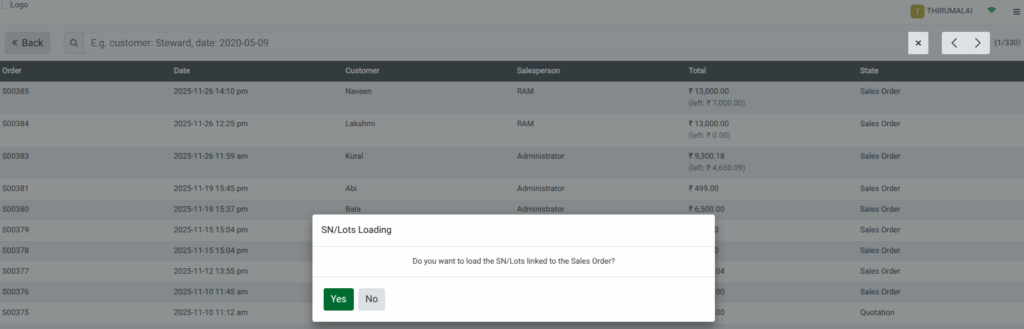
After choosing to settle the order, a confirmation message will ask if you want to load the serial numbers or lots linked to the order. By clicking YES, the POS cart automatically loads all the products linked to the selected Sales Order.
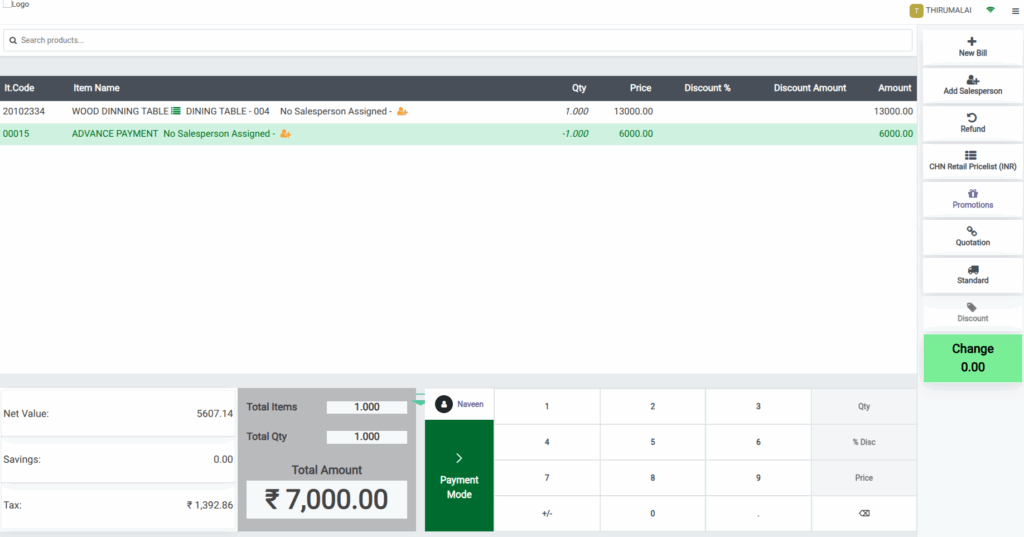
It also displays any advance payments already made by the customer. The system then shows the Net Value, which is the remaining balance the customer must pay. This amount is calculated by subtracting the advance payment from the total amount (excluding tax). Tax is always calculated on the full taxable amount, and advance payments do not reduce tax.
The customer linked to the Sales Order also appears automatically in the POS cart, ensuring the final payment is properly attached to the correct customer.
Completing the Final Payment
Before finishing, review the items and amounts displayed in the POS cart. Once everything looks correct, click on Payment Mode to choose how the customer wants to pay like cash, card, or any available payment option. After selecting the payment method, pay the remaining amount and click Validate.
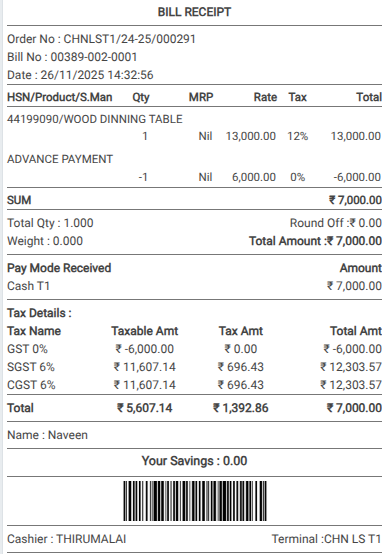
A bill receipt is generated automatically. The advance amount appears as a separate line with 0% tax and is shown as a negative taxable value, indicating it is being deducted from the total.
Applicable taxes such as CGST and SGST or IGST are calculated on the full taxable amount of the order and displayed with their respective tax rates and amounts. The total amount payable includes the remaining taxable value along with the full tax amount, after adjusting the advance.