How to Filter, Search, and Group Orders in Odoo POS
Managing orders efficiently is an important part of working with the Odoo Point of Sale system. Odoo makes this easy by offering powerful options to filter, search, and group your POS orders so you can quickly find the information you need. Whether you want to review sales for a specific period, check which orders were posted or invoiced, or analyze performance by cashier or session, Odoo provides a smooth and user-friendly experience.
Accessing the Orders in Odoo POS
To get started, open the Point of Sale module from your Odoo dashboard and navigate to the Orders menu and select the Orders. This is where all POS orders are stored and displayed. Once you enter this section, you can begin using the available tools to narrow down or organize the order data.
Using the Search Bar in the Orders
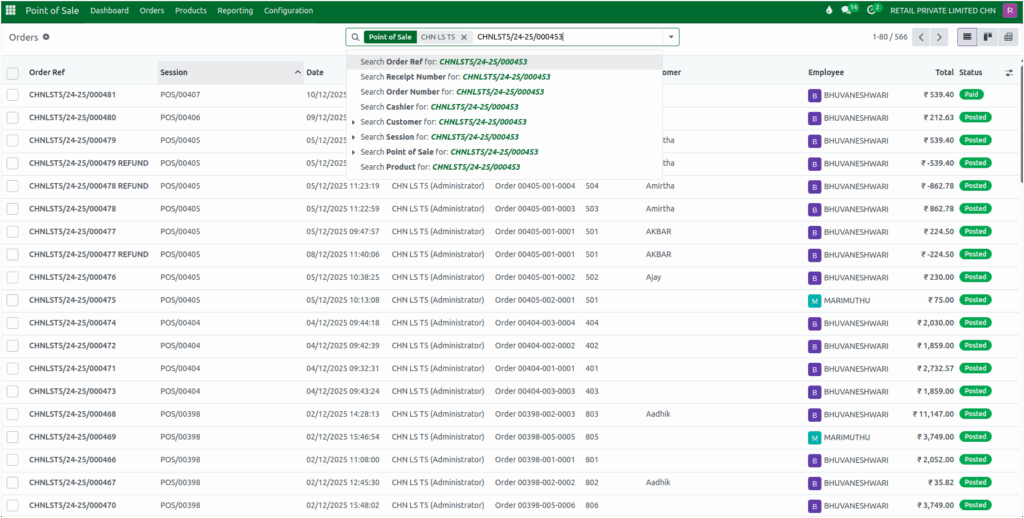
Odoo POS also allows you to search orders using different fields, making it easy to locate the exact information you need. You can search using the Order Reference, which is the unique code assigned to every POS order, or the Receipt Number, which helps you quickly find the order printed on a customer’s receipt. Searching by Date lets you view all transactions made on a specific day, while the Order Number serves as another identifier to pinpoint individual sales.
Searching by Cashier to review all orders handled by a particular staff member, or by Session to see the transactions made during a specific shift. If your business uses multiple terminals, searching by Point of Sale helps you filter orders from a particular counter or location. Additionally, you can search by Product to find all orders that include a specific item, which is useful when reviewing product performance or handling customer inquiries.
Using Filters in the Orders
Odoo offers several built-in filters that help you view only the orders that match a certain status or date range. For example, you can use the Invoiced filter to see all POS orders that have already been invoiced, or the Posted filter to view orders that have been posted. There is also an Order Date filter that allows you to display orders from a specific month, year, or quarter, making it easier to analyze sales during a particular timeframe.

Applying Custom Filters in the Orders
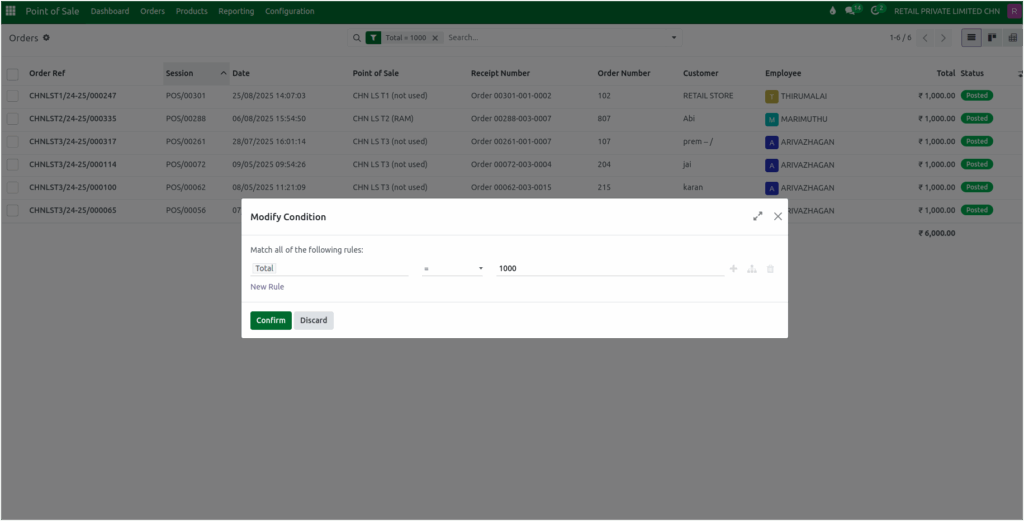
For more precise reporting, Odoo allows creating custom filters. By clicking on Add Custom Filter, a list of available fields appears. Once a field is selected, a logical operator such as equals, greater than, or less than can be applied, and the value to filter by is entered.
For example, to view sales with a total value of 1000, a custom filter can be applied using Total Value = 1000. This feature provides complete flexibility to shape the report according to specific requirements.
Grouping Orders
Another helpful feature in Odoo POS is the ability to group your orders for easier analysis. You can group orders by session to see how sales performed during each POS session, or group them by cashier to understand which staff members handled certain orders. You can also organize the data by the Point of Sale terminal used, by customer, by order status, or by order date. This makes it simple to compare different categories and gain better insight into your POS activities.
Adding Custom Groups in the Orders
If the default grouping options are not enough, you can also create custom groups using the Add Custom Group option. This helps you organize data in a way that matches your business needs. For example, grouping by Fiscal Position gives you a clear view of how orders are categorized based on tax or regional rules, which can be useful for analyzing compliance and understanding how different fiscal settings impact sales.

Saving Favorites for Quick Reuse
Odoo lets filters be saved for quick use later. To save a filter, open the dropdown menu, choose “Save current search,” and give it a name. It can also be set as default or shared with others. Saved filters can be reused anytime, and unwanted filters can be deleted using the trash icon. This makes it easy to use the same filters again without setting them every time.

