How to search for a Product in Adempiere Retail
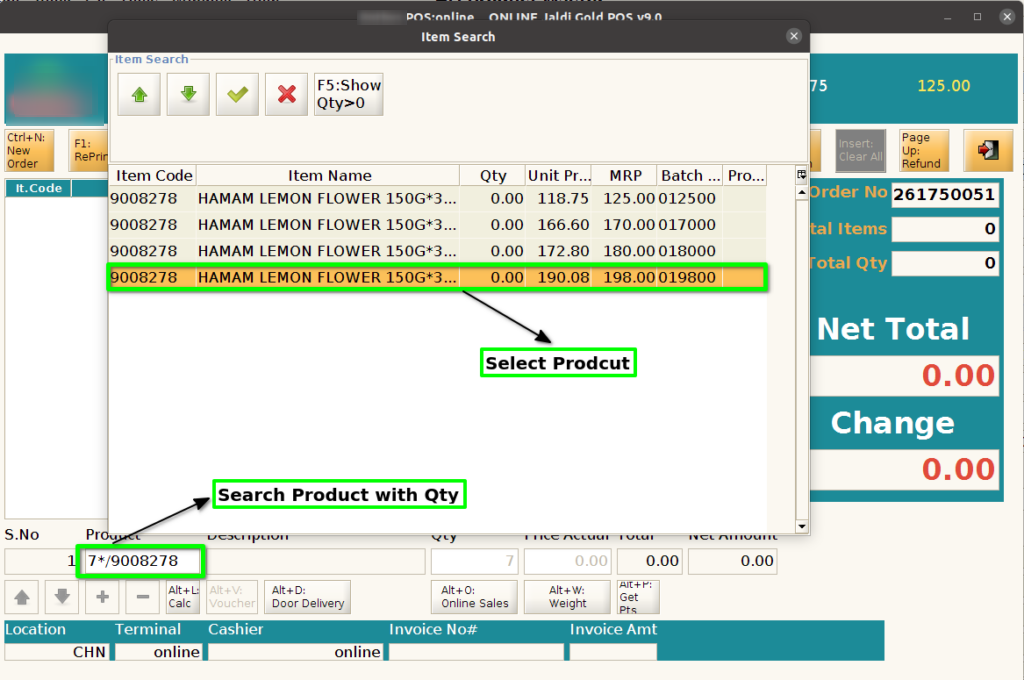
User can able to search the products with multiple methods. Product Code.,Barcode, Short Code, Batch, IMEI, Serial, Name, Weighing Code .
User Access
Who Can Access
- Cashier
- Admin
- Manager
- Back Office
What User Can Do
- Enter Search Terms
- View Product Details
- Select Product
Pre-Requisite Activities
- Product Data Setup
- Categorization and Tagging
- User Access Right
Business Rules
- Accurate and Up-to-Date Product Data
- Search by Multiple Criteria
- Logging and Monitoring
- Access Control
- No Display of Inactive or Discontinued Products
User Interface
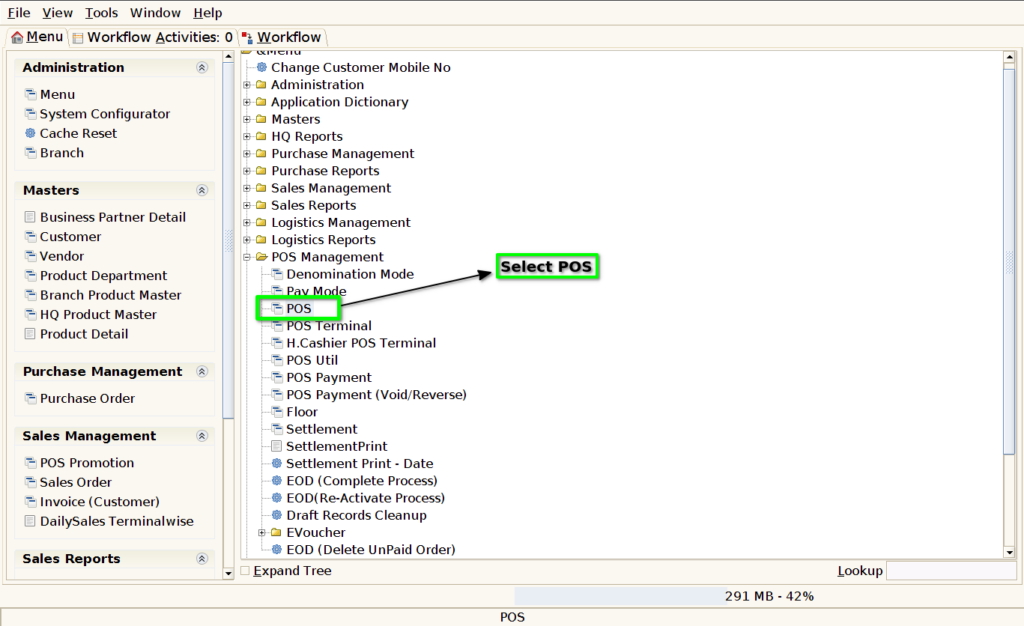
Step 1 : Select ‘POS’ in Menu -> POS Management -> POS or Search POS in Lookup.
Step 2 : Search Product using product code

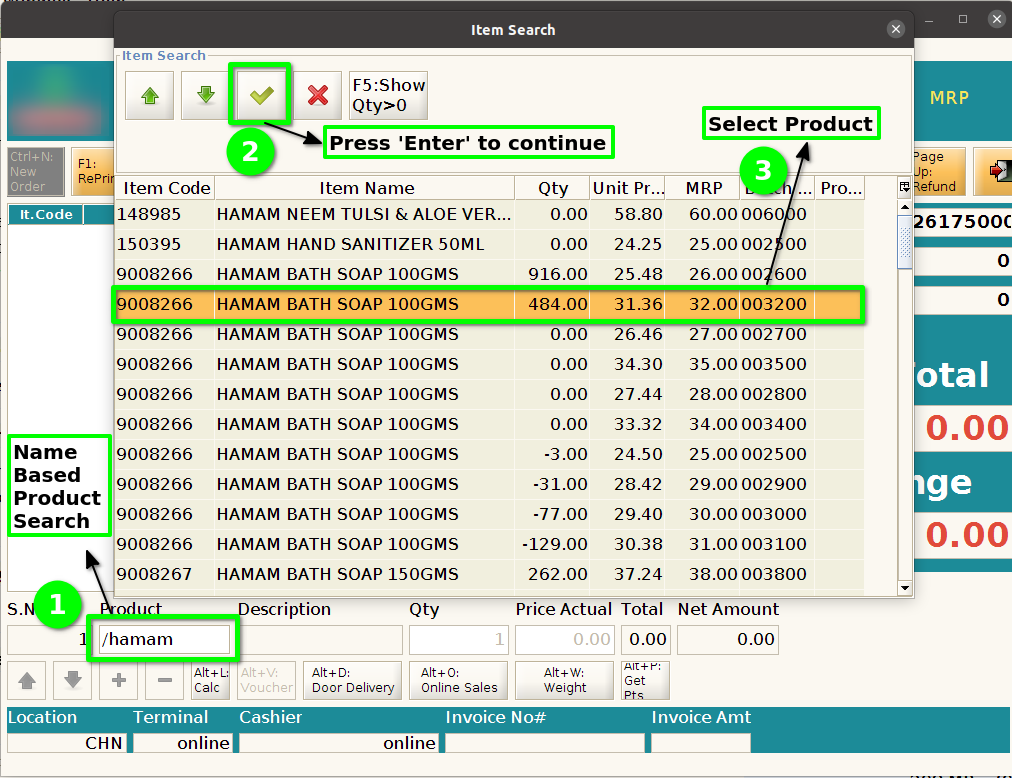
Step 3 : Search Product using product Name
Step 4 : Search Product using product Barcode

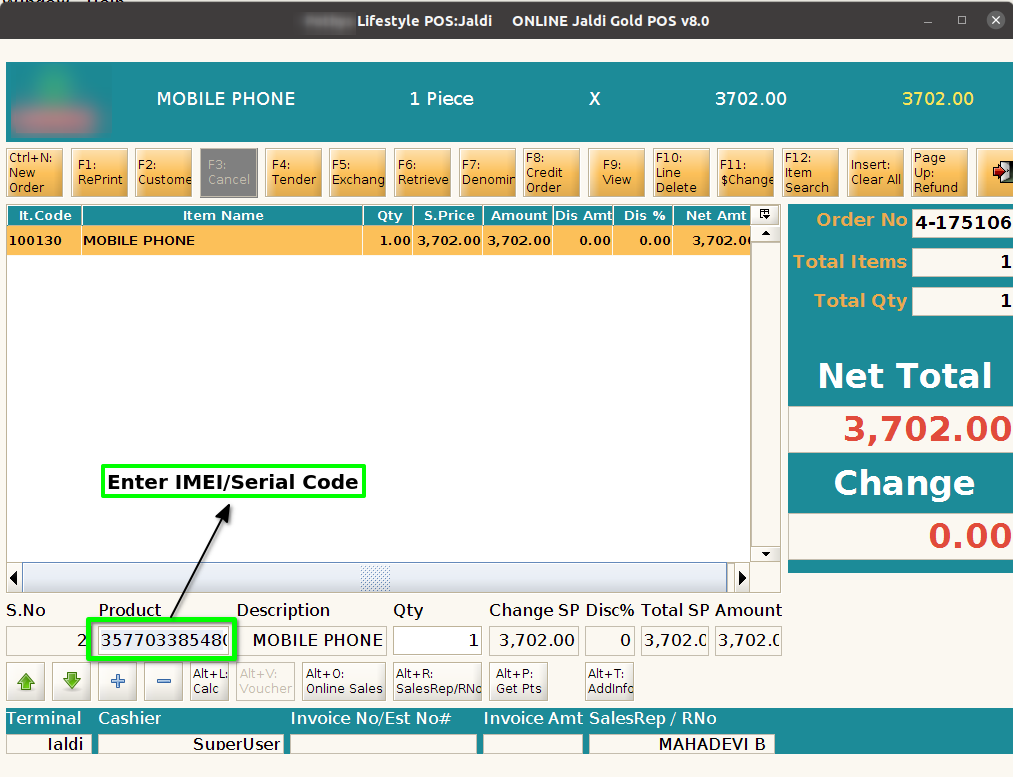
Step 5 : Search Product using product IMEI/Serial Number
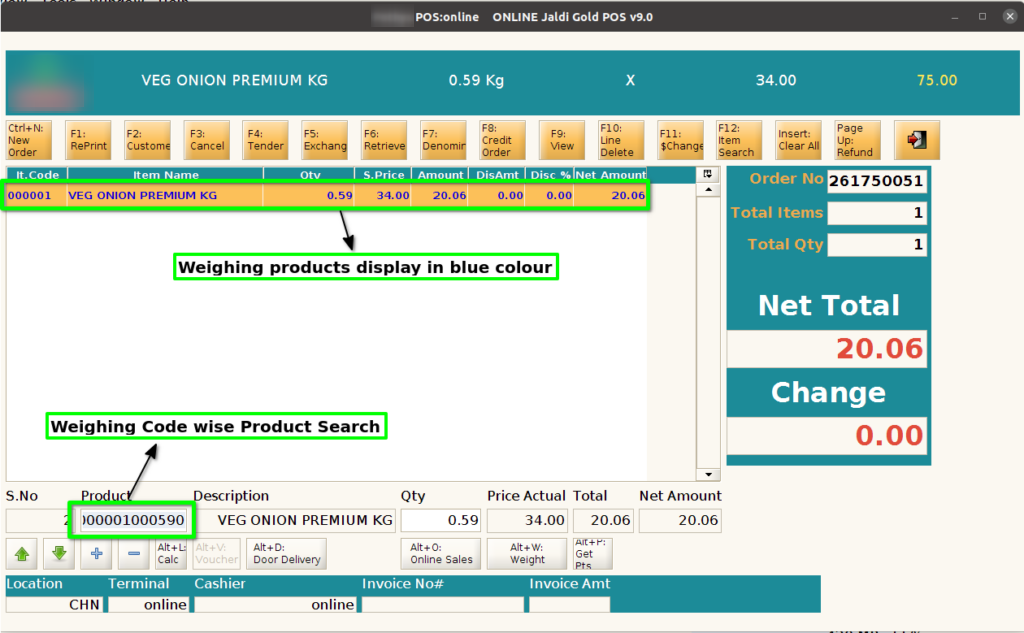
Step 6 : Search product using Weighing code. The weighing product search start with ‘W’. Weighing products display in Blue colour.
Step 7 : Promotion products(Price promotion and Free item Products) display in red colour
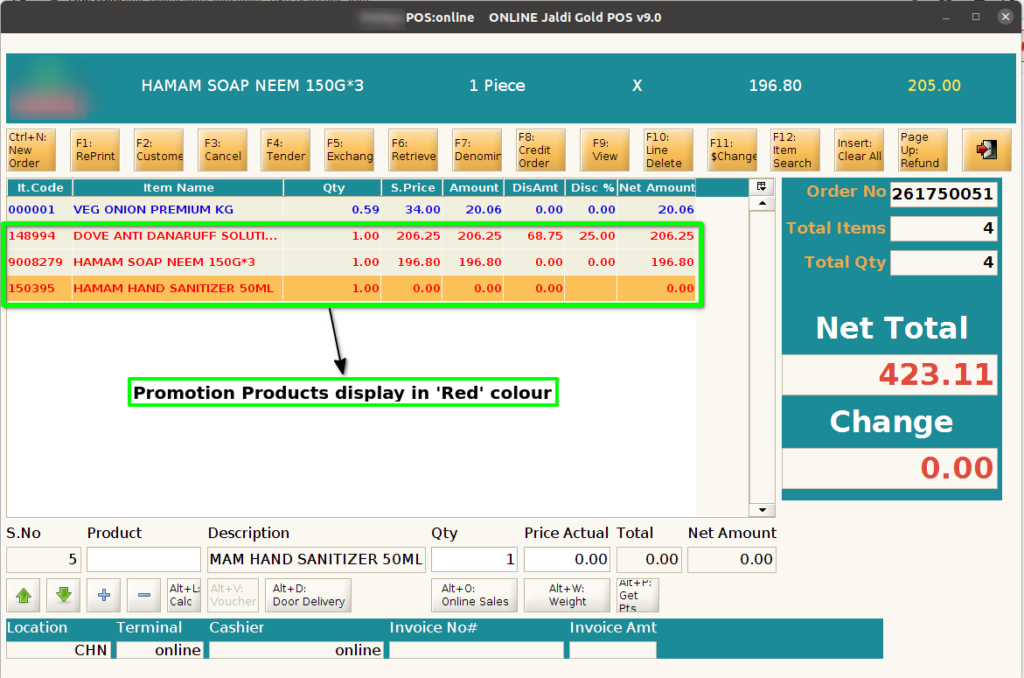
Step 8 : while Free item product search, free item product should not allow to delete

Step 9 : Without batch product should not allow to scan

Step 10 : Product search code/name with qty multiply on the fly