How to open Customer Selection screen for customer search in Adempiere Retail
Pressing the F4 key on the keyboard opens a customer selection window or list in the POS system, allowing the user to choose a customer for the current transaction.Customer should be selected before the payment.
User Access
Who Can Access
- Cashier
- Manager
- Admin
- Back Office
What User Can Do
- Open Customer List
- Search & Select Customer
- Add New Customer (if allowed)
Pre-Requisite Activities
- Customer Database Setup
- F4 Function Enabled
- User Access Permissions
- Add New Customer Option Enabled
Business Rules
- Authorised User Access
- Accurate Customer Search
- Single Customer Selection per Transaction
- Add New Customer Option
- Data Integrity
User Interface
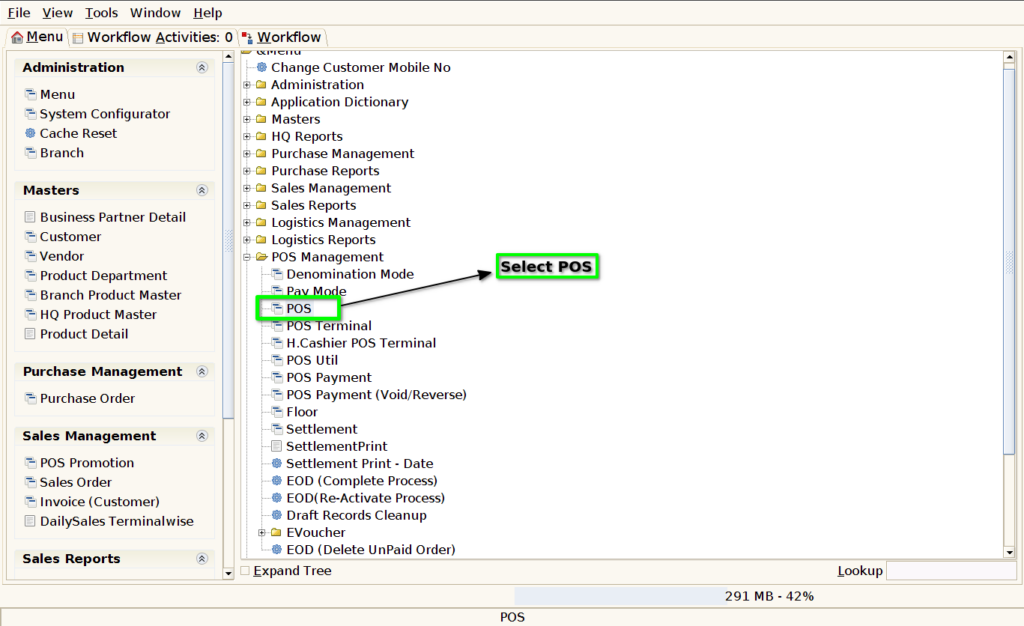
Step 1: Select ‘Pos‘ in Menu-> POS Management -> POS or Search POS in Lookup
Step 2: Select F2 Button for choosing the customer

Step 3: Choose the Customer and then Click the OK Button

Step 4 : Search Product using Product Code, Product Name, Barcode

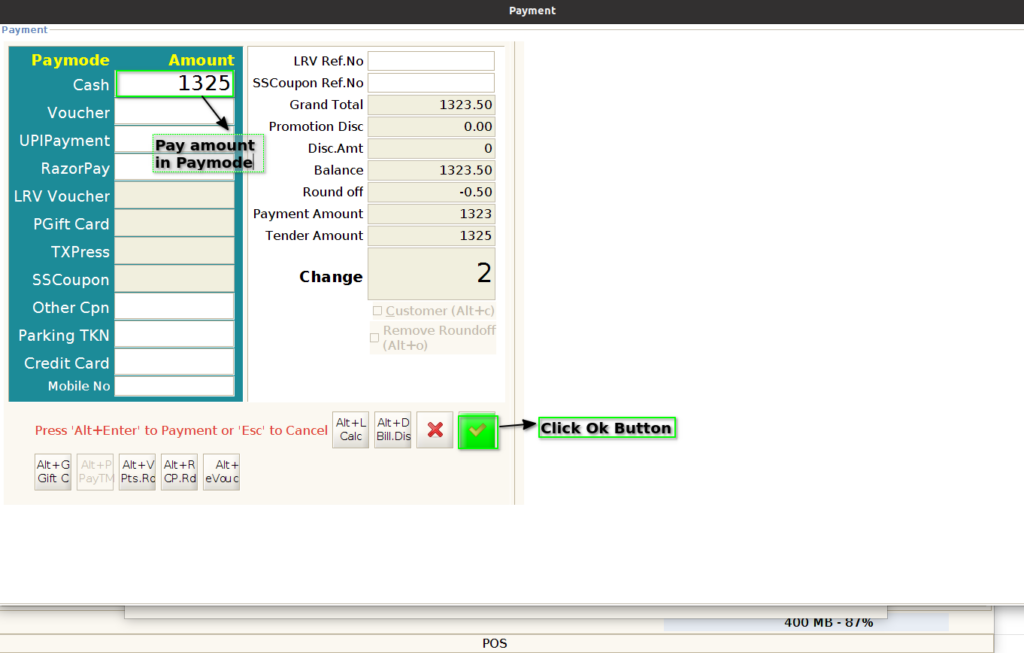
Step 5 : Click F4 Button For Payment and choose the paymode
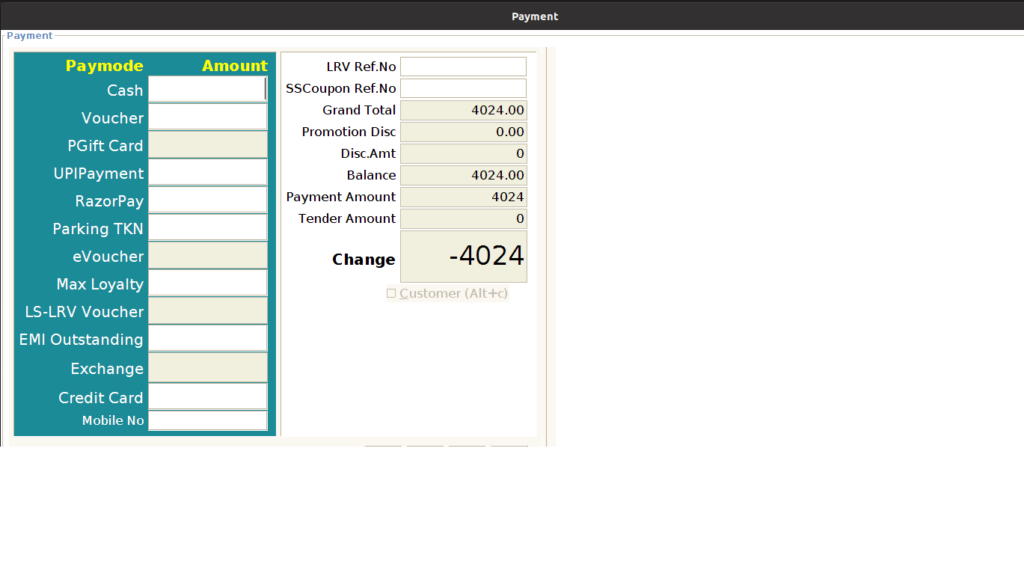
CLICK F4 BEFORE CUSTOMER SELECTION
Step 6: Search Product using Product Code, Product Name
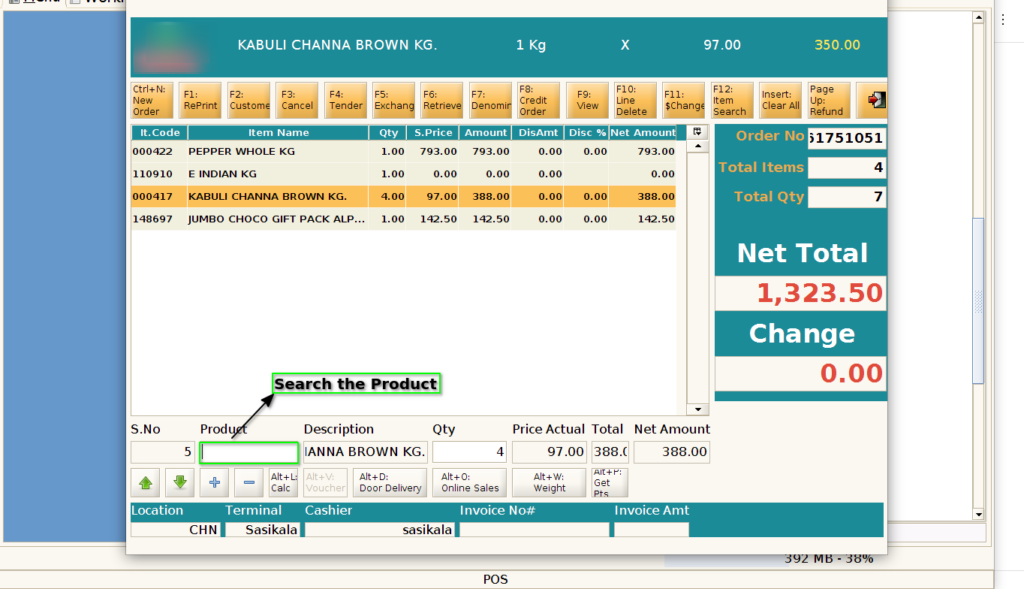
Step 7: Press F4 Button For payment. It allow user to choose the customer and then go for the payment. Note: Without selecting the customer it doesn’t allow for the payment

Step 8: After Choosing the customer it directly entire into the payment screen. Select any one paymode and continue the process