How to redeem points for Customers in Adempiere Retail
Points Redemption for Customer means allowing a customer to use their accumulated loyalty points to get discounts or rewards when making a purchase.
User Access
Who Can Access
- Cashier
- Back Office
- Manager
- Admin
What User Can Do
- Check Customer’s Points Balance
- Apply Points to Transaction
- Partial or Full Redemption
- Update Points Balance
Pre-Requisite Activities
- Loyalty Program Setup
- Customer Points Accumulated
- User Permissions
- Redemption Rules Defined
Business Rules
- Points Validity
- Minimum Points for Redemption
- Redemption Value Limits
- Partial Redemption Allowed
- No Cash Redemption
- Update Points Balance Immediately
- User Authorisation Required
- Points cannot be redeemed for cash; they only apply toward purchases.
User Interface
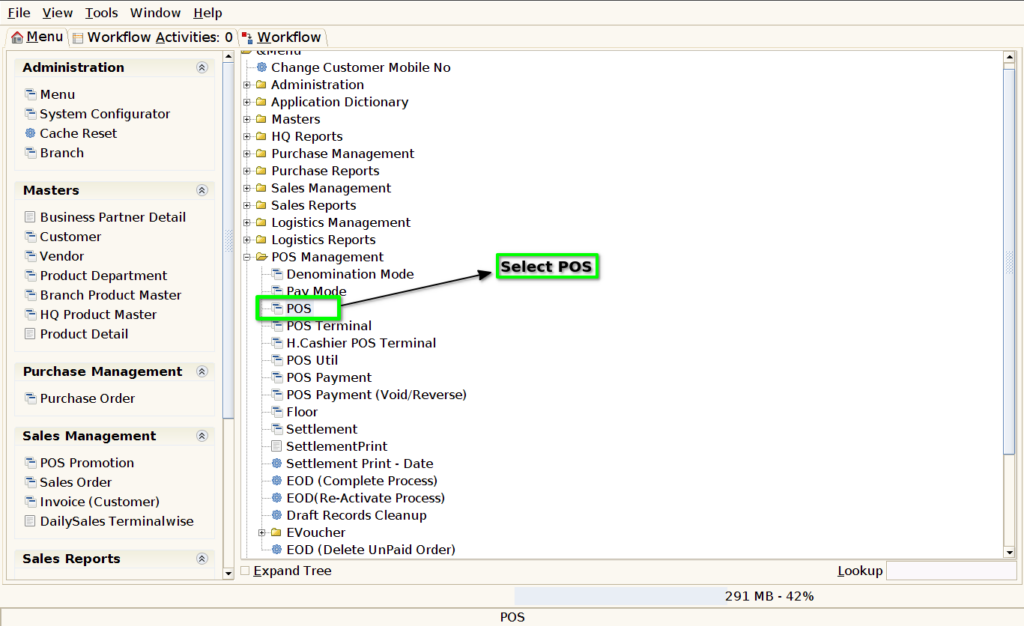
Step 1: Select ‘Pos‘ in Menu-> POS Management -> POS or Search POS in Lookup
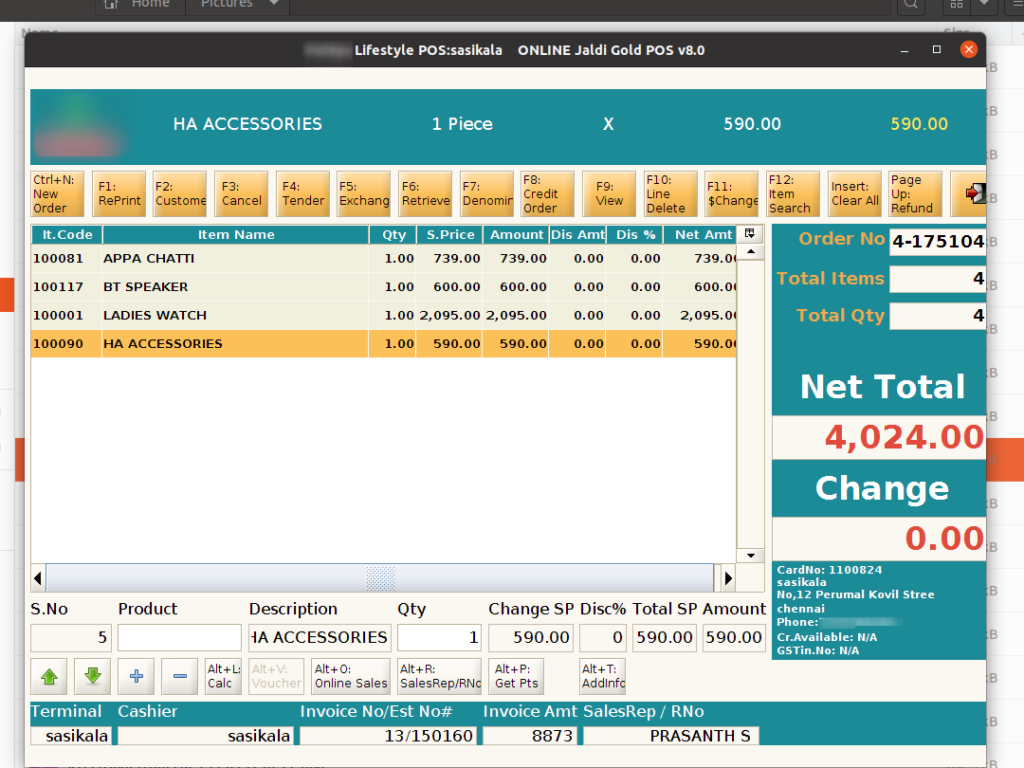
Step 2 : Search Product using Product Code, Product Name, Barcode
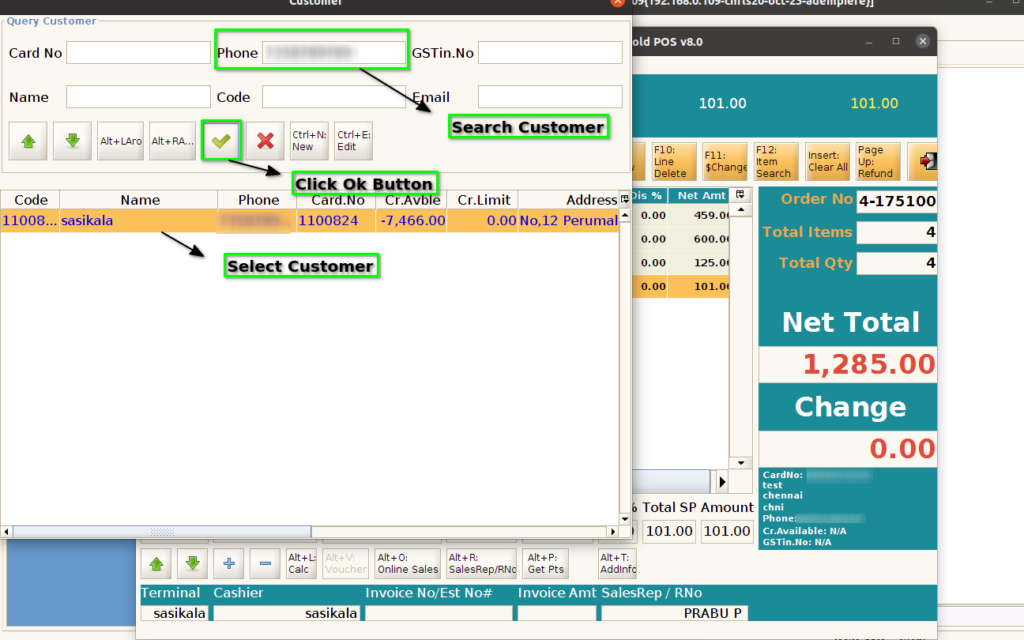
Step 3: Choose the Customer and then Click the OK Button
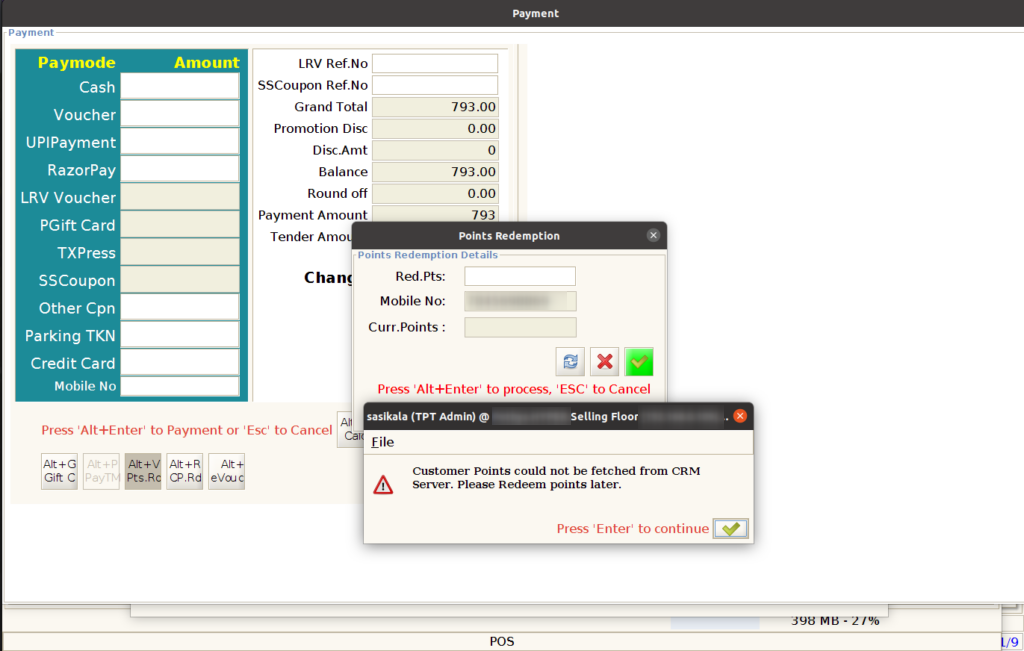
Step 4: Click Alt+V Button for use point redemption

Step 5: Click F5 Button to check the current customer points
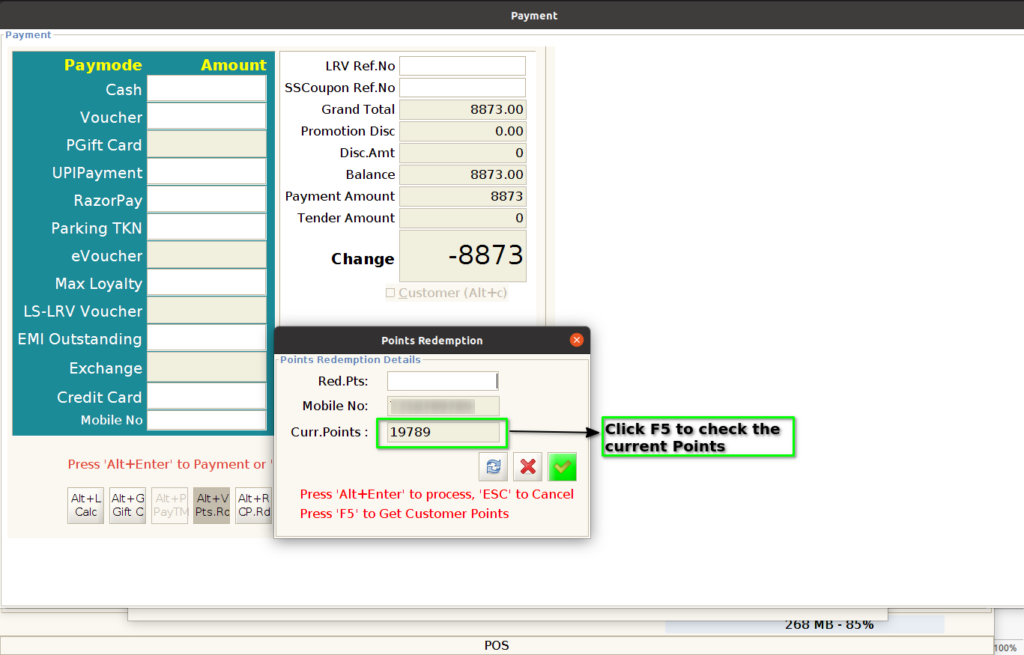
Step 6: Enter the redemption points amount within the current amount for the bill and press ALT+Enter to continue the process
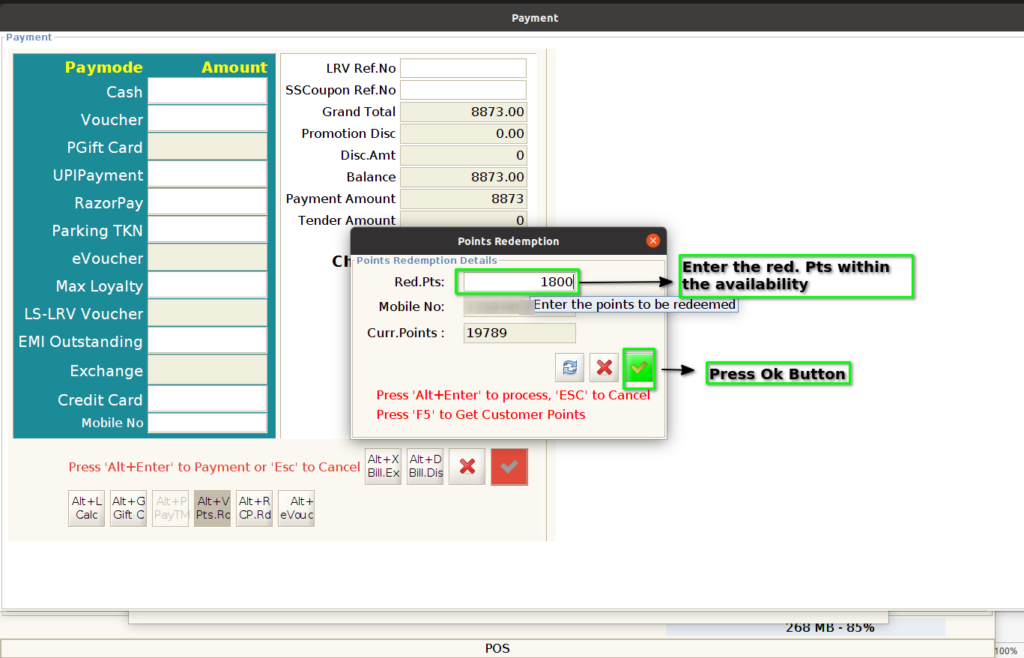
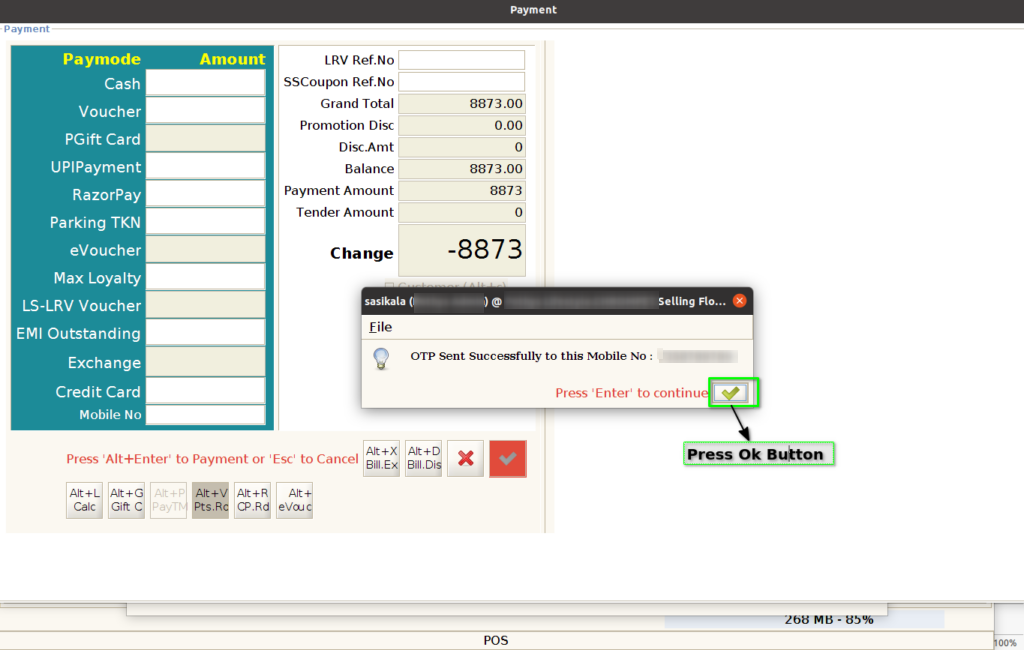
Step 7: Click OK button to get the OTP for your registered mobile number.
Step 8: Enter the OTP that you received for your mobile No.
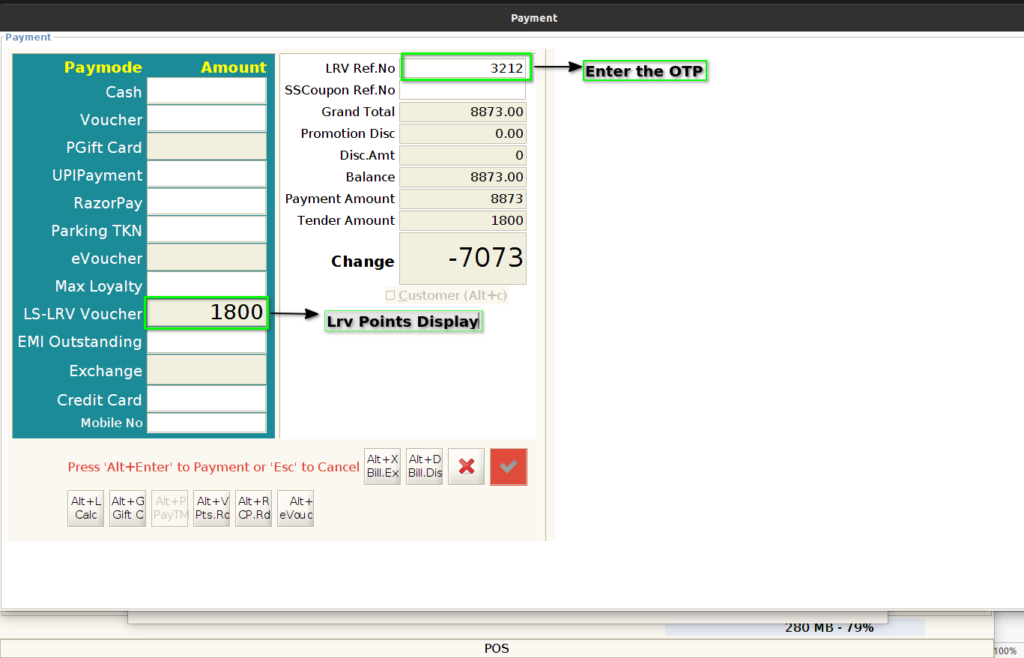
Step 9: Enter the remaining amount in the paymode and click Ok Button to continue the process

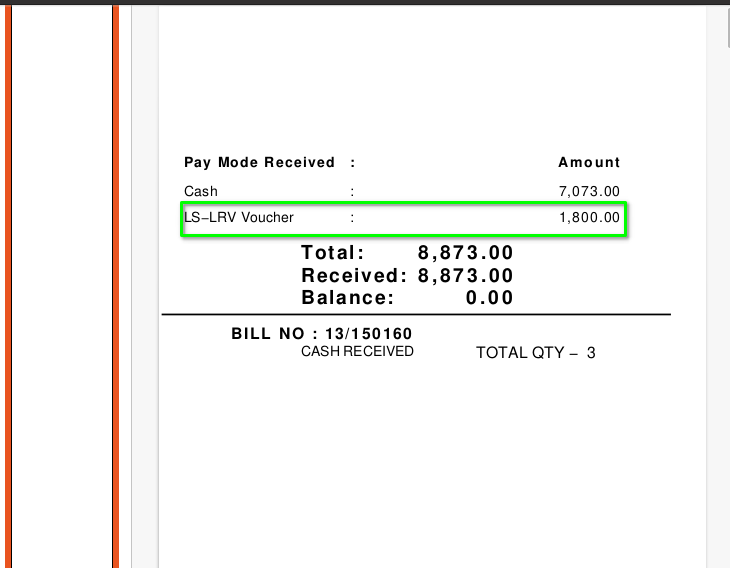
POINTS REDEMPTION TOKEN PRINT
Step 10: Redemption will display in the token print
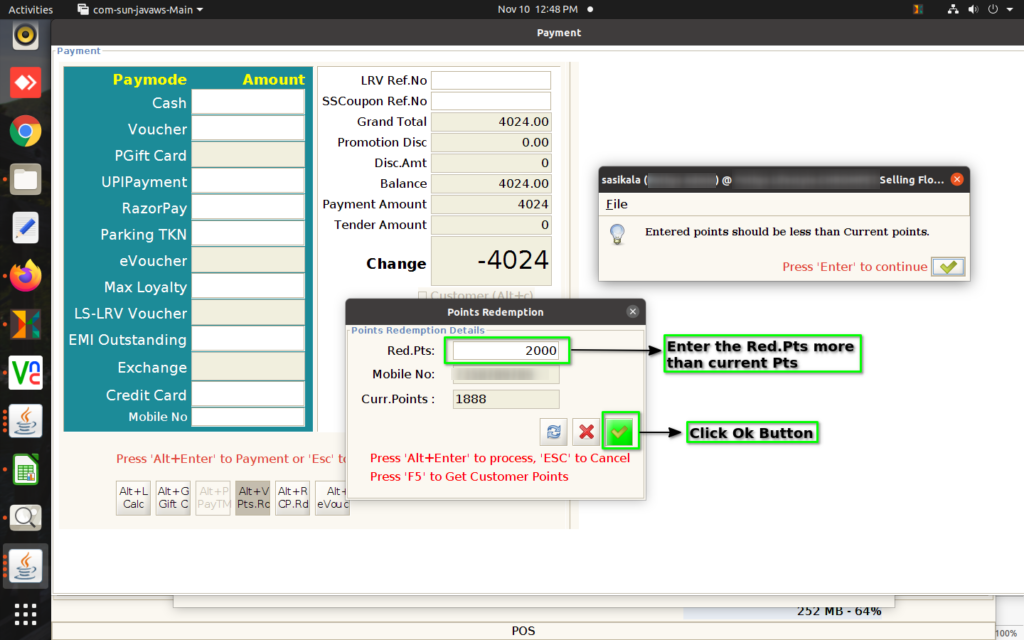
REDEEM POINTS ABOVE THE AVAILABLE POINTS FOR CUSTOMER
Step 11: Enter the redemption points more than the current points and press ALT+Enter to continue the process. It doesn’t allow to continue the process, it display a pop- up Message.
POINTS CALCULATION – SELECT CATEGORY FOR LOYALTY POINTS CALCULATION
Step 12: For LS, Based on the category validation the loyalty points will be calculated

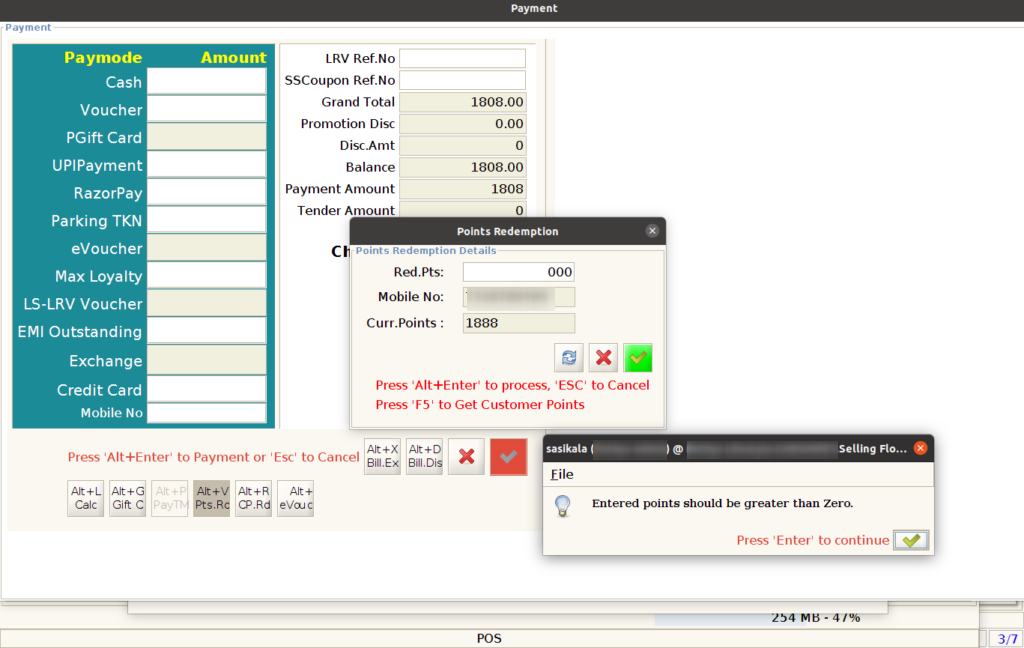
POINTS REDEMPTION NEGATIVE NOT ALLOWED
Step 13: Redemption points not allowed user to enter the negative points and less than zero points
Step 14: Due to network issues or stability it display a Pop-up message