How to Create a Product Size in Adempiere Retail
Product Size refers to the physical or numerical dimension assigned to a product (e.g., Small, Medium, Large, 32, 40, etc.). It helps in managing inventory, pricing, and classification – especially for garments, footwear, and packaged goods.
User Access
Who Can Access
- Back Office
- Manager
- Admin
What User Can Do
- Create size master entries (e.g., S, M, L, XL or numeric sizes like 28, 30, 32)
- Assign size to products during product creation or update
- View size-wise stock, sales, and reorder data
Pre-Requisite Activities
- Finalize a standard list of sizes for each category (avoid duplicates like “XL” and “Extra Large”)
- Ensure each product family has its applicable size list
- Size master should be created centrally to ensure consistency
- Map sizes to product categories like Shirts, Jeans, Shoes, etc.
- Train users to choose correct size from dropdowns during data entry
Business Rules
- Product size is mandatory for size-based products
- Same product style may have multiple size variants
- Size cannot be changed once transactions (sales/GRN) are made for the product
- Inactive sizes should not be selectable in new entries
- Size-wise inventory, sales, and pricing should be separately maintained
- Avoid duplicate size codes across categories (e.g., don’t mix “S” for both clothing and electronics)
User Interface
STEP 1: To select the Product Size.

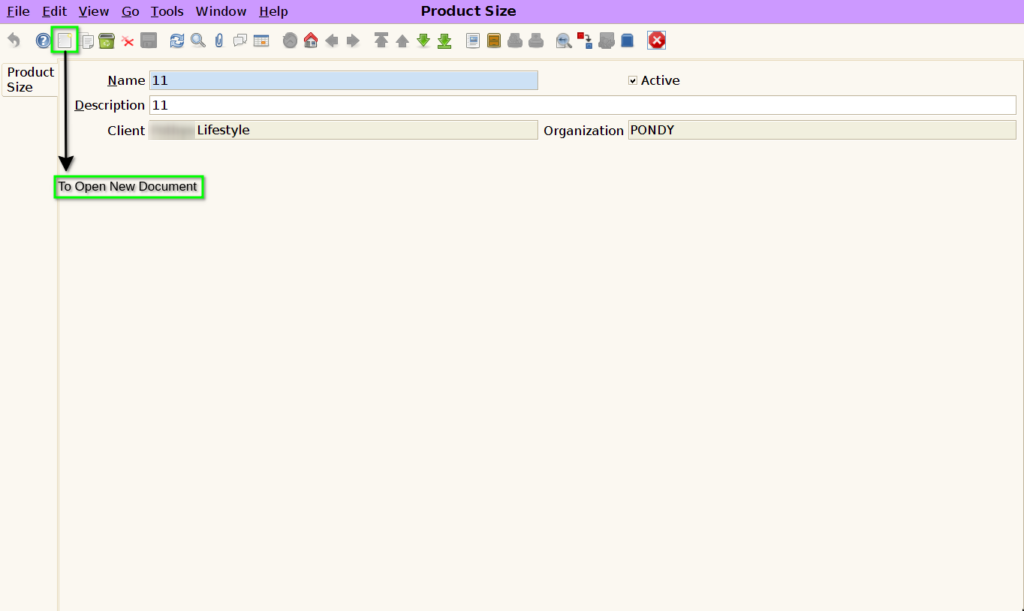
STEP 2: To Open the Document.
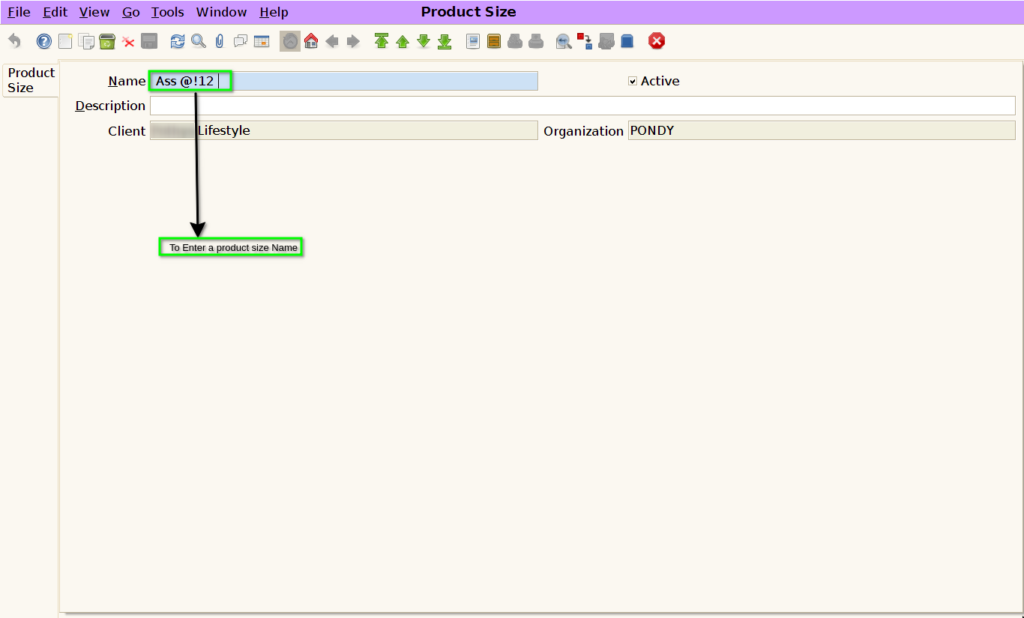
STEP 3: To enter the Product Size Name.
STEP 4: Finally to save the document.
